
How to Transfer WhatsApp from TECNO to TECNO in 4 Fabulous Ways?
A new TECNO phone often brings the challenge of how to transfer WhatsApp from TECNO to TECNO while keeping all chats, photos, and media intact. Many users are curious about official tools, third-party apps, or TECNO-specific methods that make the process quick and reliable without complicated steps.
Selecting the right approach can prevent frustration and ensure a smooth migration of conversation histories. This article offers four smart tactics to help TECNO users move WhatsApp data safely and efficiently.
- Option 1: Transfer WhatsApp from TECNO to TECNO via Social App Transfer [Error-free]
- Option 2: Transfer WhatsApp Chats to New TECNO via WhatsApp's Official Transfer Tool
- Option 3: Move WhatsApp Files to Another TECNO Phone with Android Switch
- Option 4: Transfer WhatsApp to a New Phone via Smart Transfer: File Sharing
Option 1: Transfer WhatsApp from TECNO to TECNO via Social App Transfer [Error-free]
Effortlessly move WhatsApp conversations between TECNO devices with Social App Transfer, which offers a direct transfer feature that preserves both messages and media. Its intuitive interface guides users step by step, reducing the risk of errors during migration.
Even large chat histories are handled smoothly, minimizing waiting time. Backups are also supported, providing a safety net in case something goes wrong.
|
Social App Transfer - Features
|
Key Details
|
|
WhatsApp Transfer |
Move WhatsApp, WhatsApp Business, and GB WhatsApp between Android and iOS devices. |
|
Backup WhatsApp |
Back up WhatsApp chats and media to a computer. |
|
Restore WhatsApp |
Restore backups to Android or iOS devices. |
|
Google Drive Import |
Import and restore backups from Google Drive. |
|
Preview Data |
View chats and attachments before exporting or restoring. |
|
Export Formats |
Export chats and media as HTML, PDF, or Excel. |
|
Easy & No Reset |
No tech skills or factory reset needed. |
|
Device Compatibility |
Supports almost all Android (8,000+) and iOS devices, covering TECNO Spark, POP, POVA, Pouvoir, Phantom, Camon, and more. |
|
Manage Backups |
Rename or filter backups for easy management. |
|
Data Safety |
Transfers WhatsApp without affecting other phone data. |
|
High Success Rate |
Reliable transfers with minimal errors. |
Best WhatsApp Data Transfer Tool Free Download:


Simplified Operation Steps:
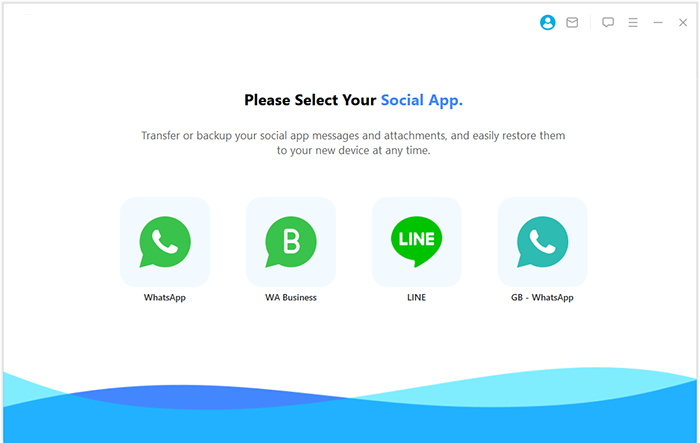
- Begin the procedure by downloading and installing Social App Transfer on your computer, and then launch the application.
- In the left-hand menu, select the "WhatsApp" icon.
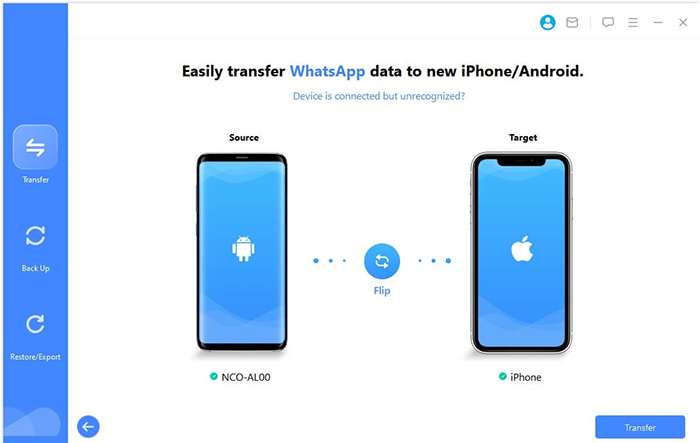
- Next, connect both your old and new TECNO phones to the computer using USB cables.
- Adhere to the provided instructions to ensure that the devices are recognized accurately.
- The product will quickly identify and display the devices, labeling one as the source and the other as the destination.
- If the devices are incorrectly assigned, you can easily correct this by clicking "Flip" on the program interface.
- To initiate the migration, click on "Transfer" located in the lower-right corner.
Cons:
- Requires a computer for most full chat transfers, which may be inconvenient for mobile-only users.
- The free version has limited transfer capabilities; full access requires a paid license.
- Large backups may take a long time to process, especially with many media files.
You Might Also Need: 4 Easy Options to Transfer/Copy Contacts from TECNO to TECNO
Option 2: Transfer WhatsApp Chats to New TECNO via WhatsApp's Official Transfer Tool
WhatsApp provides an Official Transfer Tool that simplifies chat migration for TECNO users without requiring third-party software. Chats, photos, and videos can be restored seamlessly when switching to a new device. Using Google Drive or local backups, the process ensures that conversation history remains intact. The tool's integration with the WhatsApp ecosystem makes the experience familiar and reliable.
Simplified Operation Steps:
- Prepare Both TECNO Phones - Ensure both devices are charged and have WhatsApp updated to the latest version.
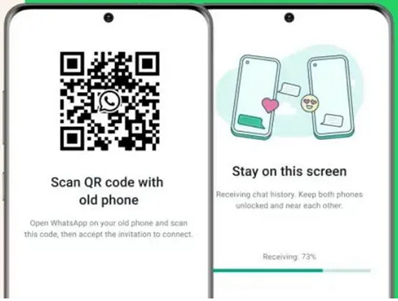
- Open WhatsApp on Old TECNO - Go to Settings > Chats > Move Chats to Another Device (or Transfer Chats) and choose Android to Android.
- Scan QR Code on New TECNO - On the new phone, open WhatsApp and follow prompts to scan the QR code displayed on the old TECNO.
- Select Chats to Transfer - On the old TECNO, choose WhatsApp chats and media you want to move to the new device.
- Start the Transfer - Tap Start and wait until all messages and media are copied to the new TECNO.
- Verify on New TECNO - Open WhatsApp on the new phone to ensure all chats, photos, videos, and attachments have been transferred.
Cons:
- Only works if both devices support the latest WhatsApp version and Android OS requirements.
- Transfers may fail if Google Drive or local backup is incomplete or corrupted.
- Limited flexibility: users cannot choose specific chats or media to move.
- Requires a stable internet connection or a proper cable connection, which can be a hurdle in some areas.
Why can't my WhatsApp data be transferred between TECNO devices? Some TECNO models restrict direct Android-to-Android WhatsApp transfers or use incompatible Android versions. To fix this, you can use a third-party tool like Social App Transfer, as said above to safely transfer chats, media, and attachments without data loss. Alternatively, backing up WhatsApp to Google Drive and restoring it on the new TECNO can also resolve the issue.
You Might Also Enjoy: 5 Most Desirable Ways to Recover Deleted WhatsApp Data from TECNO
Option 3: Move WhatsApp Files to Another TECNO Phone with Android Switch
TECNO phones can benefit from Android Switch (Previously called Switch to Android), which transfers WhatsApp files directly between devices via USB or Wi-Fi. The application allows multiple types of data to move simultaneously, including media and attachments.
Users can monitor progress in real time, ensuring no information is lost during the process. It is particularly useful for those upgrading to a new TECNO while retaining complete chat histories.
Simplified Operation Steps:
- Install Android Switch - Download and open Android Switch on both TECNO phones.
- Connect Devices - Use a USB cable or Wi-Fi connection to link the old and new TECNO phones.
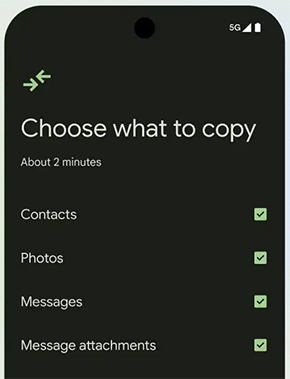
- Select Data to Transfer - On the old phone, choose WhatsApp (and any other files you want).
- Start Transfer - Tap Send/Start Transfer and wait for the process to complete.
- Confirm on New Phone - Check that all WhatsApp files, media, and chats are fully transferred.
Cons:
- Some TECNO models may not support direct USB transfers, forcing reliance on Wi-Fi, which can be slower.
- The interface may be overwhelming for users transferring multiple data types at once.
- Occasional transfer errors occur with very large WhatsApp chat histories or media-heavy accounts.
- Only works between TECNO or Android devices; cross-platform transfer is not supported.
Option 4: Transfer WhatsApp to a New Phone via Smart Transfer: File Sharing
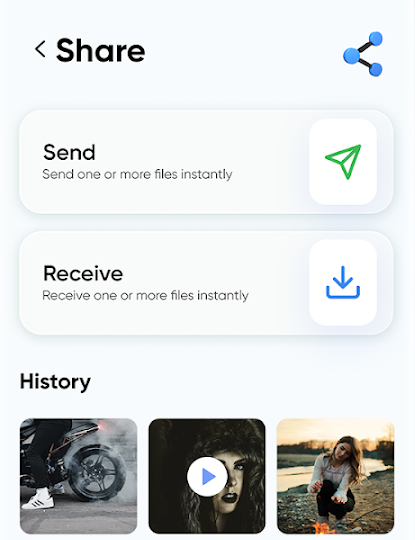
WhatsApp data can also be migrated using Smart Transfer: File Sharing, which leverages local network connections for quick file movement. Chat backups and media from TECNO devices can be selected individually or in bulk. The app maintains folder structures, so restoring WhatsApp on the new phone is straightforward. Its lightweight design ensures that even older TECNO models can complete transfers efficiently.
Simplified Operation Steps:
- Install Smart Transfer - Download and open Smart Transfer: File Sharing on both the old and new phones.
- Connect Devices - Link the phones via Wi-Fi hotspot or QR code scan as prompted by the app.
- Select WhatsApp Files - On the old phone, choose WhatsApp backup folder or media files for transfer.
- Start Transfer - Tap Send/Transfer and wait until all selected WhatsApp files are copied to the new phone.
- Restore on New Phone - Move the WhatsApp backup files into the WhatsApp folder on the new phone and open WhatsApp to restore chats and media.
Cons:
- Does not directly integrate with WhatsApp; users must manually move backup folders.
- File organization issues can arise, causing incomplete restoration of chats or media.
- Transfer speed depends heavily on network stability, which can slow down the process
- Limited guidance for new users, making the process less intuitive than official tools.
Calling It a Wrap
In conclusion, Social App Transfer emerges as the most dependable choice for transferring WhatsApp chats. It moves messages, media, and attachments directly and securely, even for large chat histories, without complicated steps. Tip: Always back up your old TECNO before starting the transfer. With Social App Transfer, the process is both safe and worry-free, making it ideal for anyone switching TECNO devices.
Related Articles:
5 Marvelous Ways for Smooth TECNO Screen Mirroring [Must-read]
How to Restore WhatsApp Backup from iCloud to Android? 4 Simple Ways
4 Smart Solutions to TECNO to Mac Transfers [USB/WiFi Connections]
How to Recover Deleted Data from TECNO Phones with/without Backup? [6 Ways]
