
How to Transfer WhatsApp from iPhone to OnePlus? 4 Established Ways
I've tried Clone Phone, but there's no option for WhatsApp; Tapping on iPhone WhatsApp 'Transfer to Android' and connecting a cable, but nothing happens. How to transfer WhatsApp from iPhone to OnePlus 15? -- from Reddit
A move from iPhone to OnePlus often raises concerns about keeping WhatsApp data intact across two different systems. Users usually want a clear way to preserve important conversations, media files, and business records that would otherwise be lost during a platform change.
This guide on how to migrate WhatsApp chats from iPhone to OnePlus explains practical methods to keep chat history secure during the switch.
- #1: How to Transfer WhatsApp from iPhone to OnePlus with One Tap
- #2: How to Transfer WhatsApp Data from iPhone to OnePlus with WazzapMigrator
- #3: How to Migrate WhatsApp Chats from iPhone to OnePlus Using Cloud Backup
- #4: How to Transfer WhatsApp Messages from iPhone to OnePlus via Email
- FAQs about Transferring WhatsApp from iPhone to OnePlus
#1: How to Transfer WhatsApp from iPhone to OnePlus with One Tap
A dedicated desktop solution like Social App Transfer is often used when users want a structured way to move WhatsApp data from iPhone to OnePlus. It works by scanning an iPhone backup, then rebuilding the chat database into an Android-compatible format before pushing it to the new device. This approach keeps both messages and attachments intact during the migration process. It is designed for full chat transfer rather than partial export.
Social App Transfer - Core Features:
- Transfers WhatsApp data between iPhone and OnePlus (Android) without OS limitation.
- Supports full migration of chats, photos, videos, voice notes, and attachments.
- Works with WhatsApp, WhatsApp Business, and GB WhatsApp data.
- Backs up WhatsApp data to computer for safe storage and recovery.
- Restores WhatsApp backups from iCloud, Google Drive, or local files to any device.
- Allows preview of chats and media before transferring or exporting.
- Exports WhatsApp conversations to formats like HTML, PDF, CSV, and Excel.
- Enables selective transfer or full device-to-device migration.
- Does not require a reset during the transfer process.


How to transfer WhatsApp conversations from iPhone to OnePlus with Social App Transfer?
Step 1: Download and install the Social App Transfer software on your computer, then launch the application. On the left sidebar, select the WhatsApp icon. Utilize USB cables to connect both iPhone and OnePlus to the computer.
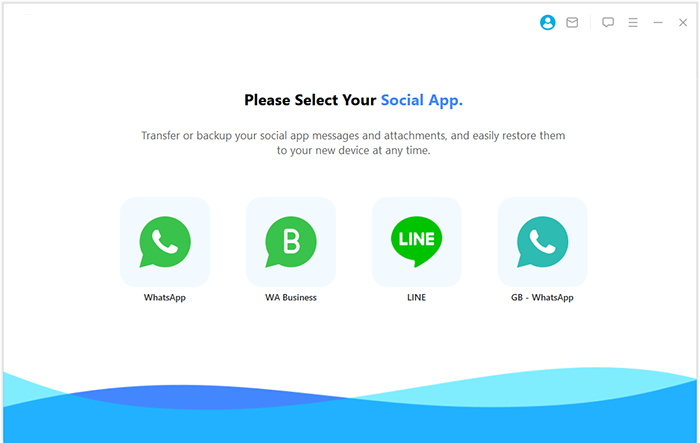
Step 2: Ensure that USB debugging is enabled on both devices, or follow the on-screen instructions to allow your computer to recognize them. The tool will automatically detect and display the connected devices, designating one as the source and the other as the target. If the devices are assigned incorrectly, simply click the "Flip" button to correct the assignment.
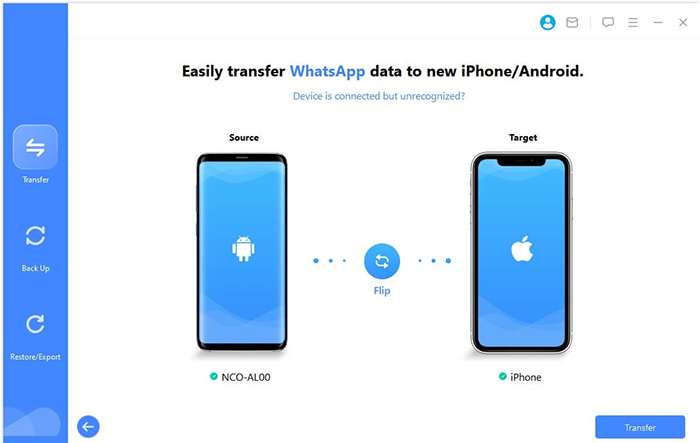
Step 3: Click "Transfer" in the lower-right corner to begin the transfer from the source phone (iPhone) to the destination one (OnePlus).
#2: How to Transfer WhatsApp Data from iPhone to OnePlus with WazzapMigrator
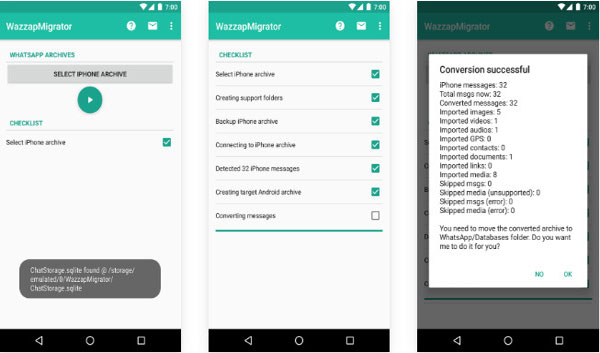
A more technical option such as WazzapMigrator relies on extracting WhatsApp database files from an iTunes backup before converting them for Android use. The process usually involves pulling the ChatStorage.sqlite file and media folders, then letting the app rebuild them on the OnePlus device. It can preserve detailed chat history, but it depends heavily on correct file handling. Any missing or misplaced file may interrupt the restoration.
Learn how to copy WhatsApp conversations from iPhone to OnePlus via WazzapMigrator:
- Create an iPhone WhatsApp backup on your computer using iTunes (or Apple Devices app).
- Install WazzapMigrator Extractor on your computer and open the backup.
- Extract the ChatStorage.sqlite file and the Media folder from the backup.
- Transfer these extracted files to your OnePlus phone (usually into the Download folder).
- Install the WazzapMigrator app on your OnePlus device.
- Open the app and select the extracted WhatsApp database file to convert it.
- Reinstall WhatsApp on OnePlus, verify your number, and tap Restore when prompted.
What should I do if the transfer fails? Check whether the backup files were extracted correctly and placed in the right folder. Restart the process with a fresh backup if needed. If issues persist, a dedicated migration tool may be a better option.
#3: How to Migrate WhatsApp Chats from iPhone to OnePlus Using Cloud Backup
A cloud-based route through WhatsApp backup systems sounds convenient, but it has a built-in limitation between platforms. iCloud backups on iPhone cannot be directly restored on OnePlus because Android uses Google Drive instead. Even though chats can be backed up on iPhone, they cannot simply appear on Android after login. This makes cloud transfer alone insufficient for full migration without an extra bridge tool.
Learn how to move WhatsApp data from iPhone to OnePlus via cloud backup:
- First, understand that iPhone WhatsApp uses iCloud, while OnePlus (Android) uses Google Drive, and they are not directly compatible for restore.
- On your iPhone, open WhatsApp > Settings > Chats > Chat Backup, then tap Back Up Now to create a full backup to iCloud.
- Install WhatsApp on your OnePlus phone and verify the same phone number you used on iPhone.
- During setup, WhatsApp will normally try to detect a backup—but it will NOT find the iCloud backup on Android, because iCloud cannot be restored on OnePlus.
- To complete the transfer using a cloud-based approach, you must use an official or third-party migration tool to convert or move the backup (since direct cloud restore is not supported between iOS and Android).
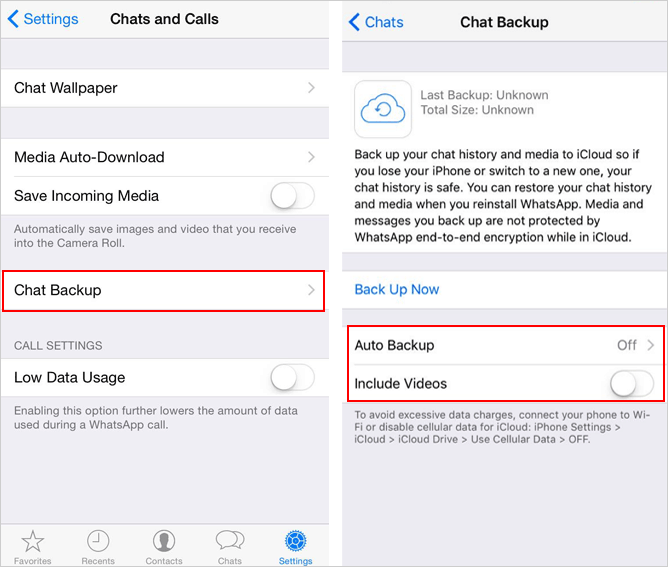
* Alternatively, if you want a real cloud-based Android restore, you would need to first move the chats to Android-compatible storage (like Google Drive backup), which requires an intermediate transfer step rather than direct iCloud restoration.
#4: How to Transfer WhatsApp Messages from iPhone to OnePlus via Email
A simpler approach like Email export focuses more on saving conversations than truly migrating them into WhatsApp on OnePlus. Chats are sent as text files to an email address after using the "Export Chat" feature inside WhatsApp. Once opened on the new device, the messages can be read but not restored into the app interface. It works better as a record-keeping method rather than a real transfer solution.
Learn how to send WhatsApp chats from iPhone to OnePlus over Email:
- Open WhatsApp on your iPhone and go to the chat you want to transfer.
- Tap the contact name or group name at the top to open chat info.
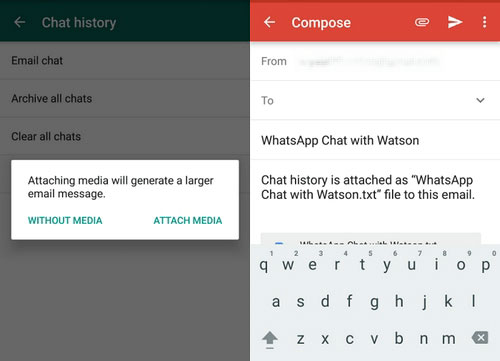
- Scroll down and select "Export Chat".
- Choose whether to include media (photos/videos) or export without media.
- Select Mail (Email) as the sharing option.
- Enter your email address and send the chat file to yourself.
- On your OnePlus phone, open your email and download the exported chat file to view it.
FAQs about Transferring WhatsApp from iPhone to OnePlus
Q1. Why is transferring WhatsApp between iPhone and OnePlus not simple?
The difficulty comes from different backup systems used by Apple and Android. iCloud and Google Drive are not compatible with each other. This prevents direct restoration.
Q2. How long does WhatsApp transfer from iPhone to OnePlus take?
It depends on chat size and media volume. Small backups may take a few minutes, while large ones can take over an hour. Using a computer tool is usually faster than manual methods.
Q3. Do I need the same phone number for transfer?
Yes, the same phone number is required on both devices. WhatsApp uses the number to identify and restore your account. Without it, the chat restore will not work.
Q4. Can I transfer WhatsApp Business chats the same way?
Yes, WhatsApp Business can be transferred using similar methods. Tools that support standard WhatsApp usually support Business as well. The process is almost identical.
Q5. What should I do if the transfer fails?
First, check the backup files and connection stability. Restart the process if needed and ensure the latest app versions are installed. If problems persist, switching to a more reliable transfer tool often helps.
Q6. Will my chats disappear during the transfer process?
Chats are usually safe if the process is followed correctly. However, interruption or incorrect setup may lead to missing data. It is safer to back up everything first.
Q7. What is the safest and efficient way to transfer WhatsApp to OnePlus?
The safest and most efficient way to transfer WhatsApp from iPhone to OnePlus is using a dedicated tool that can fully migrate chats and media without relying on incompatible backups. Social App Transfer is exactly the right target tool because it directly transfers and rebuilds WhatsApp data from iPhone to Android in one process. It bypasses iCloud and Google Drive limitations, making the migration more complete and reliable.
Related Articles:
How to Recover Deleted WhatsApp Messages from iPhone with/without Backup?
How to Transfer Data from OnePlus to Laptop/PC? 5 Smart Strategies
How to Recover Deleted WhatsApp Messages in OnePlus? 4 Approaches
iCloud Backup for Android: 4 Smart Tactics to Restore iCloud Backup
