
How to Transfer WhatsApp from iPhone to Pixel? 3 Options & 7 FAQs
TL;DR:
A successful WhatsApp transfer allows you to bring important chats, photos, videos, and attachments from iPhone to Pixel without leaving valuable memories behind. Among the available methods, Social App Transfer is a practical choice to make the transfer seamless, as it supports direct WhatsApp migration across devices while keeping your data intact.
"My new phone arrived yesterday, and no matter what I do, I cannot get WhatsApp to transfer all my messages from my iPhone to my Pixel." -- from Reddit
The switch from an iPhone to a Google Pixel often raises concerns about keeping important WhatsApp messages and attachments. Many users search for ways to transfer WhatsApp from iPhone to Pixel because they want to move their chat history safely and continue conversations on their new device.
This article explains how a complete WhatsApp transfer makes the transition to a new Pixel smoother by bringing over existing conversations and attachments quickly, and provides helpful FAQs to address common questions during the migration process.
- Way 1: Transfer WhatsApp from iPhone to Pixel via Social App Transfer [Seamless]
- Way 2: Transfer WhatsApp Chats from iPhone to Pixel via Built-in Feature
- Way 3: Transfer WhatsApp Data from iPhone to Pixel Using Email
- FAQs for Transferring WhatsApp from iPhone to Pixel
- Conclusion - Tips about WhatsApp Transfer from iPhone to Pixel
Way 1: Transfer WhatsApp from iPhone to Pixel via Social App Transfer [Seamless]
Supporting WhatsApp migration across different platforms, Social App Transfer allows users to transfer chats from iPhone to Pixel 10/9/8/7/6/5/4/3/2 and other Android devices while keeping messages, photos, videos, audio files, and documents intact.
The program also provides options to back up WhatsApp data to a computer, restore backups from Google Drive to iPhone, preview conversations, and export selected chats or media files. Compatible with recent iOS and Android versions, it offers a straightforward way to switch devices without rooting or jailbreaking.
Before Starting the Transfer, Make Sure You Have:
- An iPhone with WhatsApp installed and the required chat history.
- A Google Pixel device with WhatsApp installed or ready for activation.
- A USB cable to connect your iPhone and Pixel to the computer.
- The latest version of Social App Transfer installed on your computer.
- Enough storage space on the Pixel to save transferred WhatsApp chats and media.
Steps to Transfer WhatsApp Chats from iPhone to Pixel with Social App Transfer:
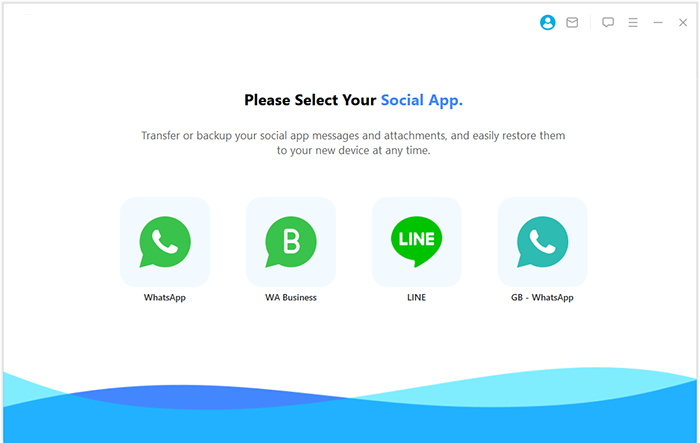
- Download and install the Social App Transfer software on your computer, then open the application.
- On the left sidebar, click on the WhatsApp icon.
- Use USB cables to connect both the iPhone and Google Pixel devices to your computer.
- Ensure that USB debugging is enabled on both devices, or follow the on-screen instructions to allow your computer to recognize them.
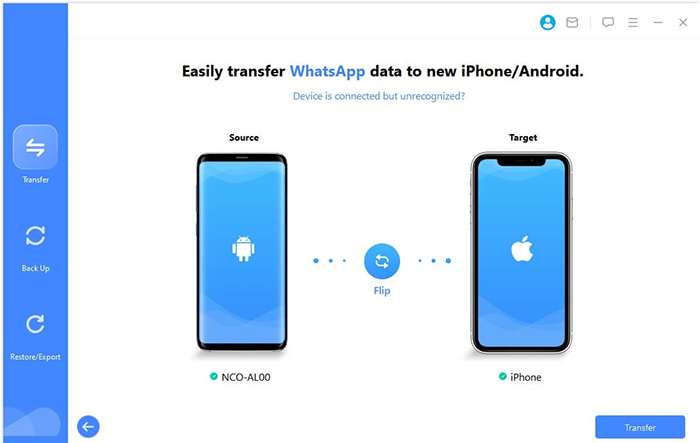
- The tool will automatically detect and display the connected devices, designating one as the source and the other as the target.
- If the devices are assigned incorrectly, simply click the "Flip" button to correct the assignment.
- Click "Transfer" in the lower right corner to begin the transfer from iPhone to Pixel.


Tips for a Successful Transfer:
- Keep both devices connected until the process is complete.
- Avoid opening WhatsApp or changing accounts during the transfer.
- Back up important WhatsApp data before starting the migration.
- Ensure your Pixel has enough free storage for all transferred files.
You Might Want to Know: Apeaksoft iPhone Eraser Review: Does It Deliver Consistent Results?
Way 2: Transfer WhatsApp Chats from iPhone to Pixel via Built-in Feature
Google Pixel provides a built-in transfer feature that allows users to move WhatsApp chats and media from an iPhone to a Pixel device without relying on third-party software. This official method uses a cable connection during the Pixel setup process and requires the same phone number on both devices.
Before starting the migration, make sure you have:
- An old iPhone with WhatsApp installed and updated.
- A new Google Pixel phone.
- A USB-C to Lightning cable (or a compatible adapter/cable).
- The same phone number used on both devices.
- A Google account signed in on the Pixel.
- The latest versions of WhatsApp installed on both phones.
Steps to Transfer WhatsApp Chats from iPhone to Pixel via Built-in Feature:
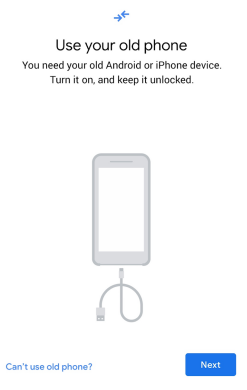
- Power on your Google Pixel phone.
- Follow the setup instructions until you reach the Copy apps & data screen.
- Choose to copy data from your iPhone.
- Connect the iPhone and Pixel using a USB-C to Lightning cable.
- Unlock your iPhone.
- Tap Trust when prompted on the iPhone.
- Continue the setup process on your Pixel.
- Select Apps and make sure WhatsApp is included in the transfer list.
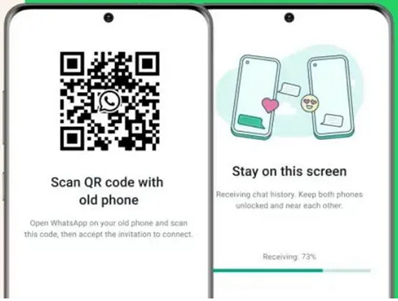
- Your Pixel will display a QR code.
- Use the iPhone camera to scan the QR code.
- Open WhatsApp on your iPhone if prompted.
- Go to Settings > Chats > Transfer Chats to Android.
- Tap Start Transfer and wait until the process finishes.
- Install/open WhatsApp on your Pixel.
- Verify the same phone number.
- Allow WhatsApp to import the transferred chat history.
Click to Learn: How to Recover Deleted Photos on Google Pixel? 4 Best Practices
Way 3: Transfer WhatsApp Data from iPhone to Pixel Using Email
Email is a simple way to export WhatsApp chats from an iPhone and access them on a Google Pixel. However, this method only creates a readable copy of your conversations and cannot restore the chats back into the WhatsApp app on your Pixel.
Before starting the migration, make sure you have:
- An iPhone with WhatsApp installed and the chats you want to transfer.
- A Google Pixel phone with WhatsApp installed or ready for setup.
- The same phone number used for WhatsApp on both devices.
- A stable internet connection for downloading and sending exported files.
- An active email account accessible on both your iPhone and Pixel.
- Enough storage space on your Pixel to save WhatsApp chat files and media attachments.
- Updated versions of WhatsApp and the email app on both devices for a smoother transfer process.
Steps to Transfer WhatsApp Chats from iPhone to Pixel via Email:
- Open WhatsApp on your iPhone and select the chat you want to transfer.
- Tap the contact name or group name at the top of the screen.
- Select Export Chat and choose Attach Media or Without Media based on your needs.
- Choose your email app and send the exported WhatsApp chat file to your email address.
- Open the email account on your Google Pixel and download the attached WhatsApp chat file.
- Open the exported file to view your WhatsApp messages and access any attached media files.
- Save important photos, videos, or documents from the email attachments to your Pixel if needed.
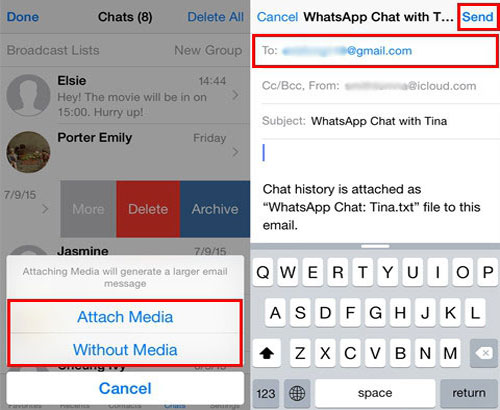
Note: Email export only allows you to save and view WhatsApp conversations. It cannot restore chats into the WhatsApp app or transfer complete WhatsApp data such as chat history, groups, and settings. For full WhatsApp migration, use the built-in WhatsApp transfer feature or a dedicated transfer tool.
FAQs for Transferring WhatsApp from iPhone to Pixel
Q1. What is the easiest way to transfer WhatsApp from iPhone to Pixel?
The built-in transfer feature provided by Google and WhatsApp is the easiest free method. It allows you to move chats and media directly from iPhone to Pixel during the initial device setup.
Q2. Will both my WhatsApp messages and media be transferred from iPhone to Pixel?
Yes. Supported methods can transfer WhatsApp messages, group chats, photos, videos, voice messages, and other attachments. Some data, such as WhatsApp call history, may not be moved.
Q3. Do I need the same phone number to transfer WhatsApp from iPhone to Pixel?
Yes. You need to use the same WhatsApp phone number on your Pixel to verify your account and restore the transferred chat history.
Q4. Can I transfer WhatsApp from iPhone to Pixel after setting up my Pixel?
The official migration method usually works during the Pixel setup process. If your Pixel has already been configured, you may need to reset it to factory settings before starting the transfer.
Q5. Can I transfer WhatsApp from an iTunes backup to Pixel?
Yes. Some third-party WhatsApp transfer tools can extract WhatsApp data from an iTunes backup and move it to a Pixel device, which is useful if the original iPhone is unavailable.
Q6. Will transferring WhatsApp from iPhone to Pixel delete my existing data?
The transfer process normally does not delete data from your iPhone. However, it is recommended to back up important WhatsApp chats before migration to avoid unexpected data loss.
Q7. What should I do if WhatsApp transfer from iPhone to Pixel fails?
Check the USB connection, update WhatsApp on both devices, use the same phone number, ensure enough storage space, and restart the transfer process. If the built-in method does not work, a dedicated WhatsApp transfer tool can be an alternative.
Conclusion - Tips about WhatsApp Transfer from iPhone to Pixel
A successful WhatsApp transfer can make your new Pixel feel like a continuation of your old iPhone experience. Whether you choose the official transfer feature or another practical solution, proper preparation is the key to moving your WhatsApp data with fewer interruptions.
When intending to transfer WhatsApp from iPhone to Pixel, create a backup of important chats, update WhatsApp on both devices, and check that your Pixel has enough storage space. Keep your old iPhone available until you confirm that all desired conversations and media have arrived on your new Pixel.
Related Articles:
How to Recover WhatsApp View Once Photos on iPhone [Full Guide]
How to Restore Deleted WhatsApp Messages on Google Pixel? 4 Means
7 Tested Ways to Fix iPhone Stuck on Restore Screen 2026
How to Back Up & Restore Google Pixel in 6 Easy & Popular Ways
