
How to Fix WhatsApp Chat Transfer Not Working? 14 Optimal Solutions
"I recently got a new phone and have been trying to transfer my WhatsApp chats from my old phone. Used Google Drive and direct transfer over WiFi. Unfortunately, both methods are failing miserably." -- from Reddit
Many people rely on WhatsApp for personal and professional communication, so failed transfers can cause frustration, data loss worries, and disruption in ongoing conversations. When WhatsApp Chat Transfer not working occurs, it can leave users unsure how to safely move their chat history to a new device.
This article walks through 13 quick methods and 1 ultimate solution to help restore your chats efficiently and prevent interruptions in daily communication.
Part 1: Why Doesn't WhatsApp Chat Transfer Work
WhatsApp chat transfers can sometimes fail, leaving users frustrated when their messages and media don't move to a new device. Understanding the common reasons behind these failures can help prevent errors and ensure a smooth migration of your chat history. Here are some of them:
- Using incompatible WhatsApp versions on either the old or new device.
- Devices not supported for official chat migration (e.g., WhatsApp Business or very old phones).
- Insufficient storage on the new device to restore chats and media.
- Unstable or disconnected Wi-Fi during the transfer process.
- Missing app permissions (storage, contacts, nearby devices, camera).
- Phone number mismatch between old and new devices.
- Wrong cloud account (Google Drive for Android, iCloud for iPhone) used for backup/restore.
- Incomplete or interrupted backups, leading to missing data during transfer.
- Device sleep or screen lock during migration interrupting the process.
- VPNs or firewalls blocking WhatsApp from accessing backups or servers.
- Old device logged out of WhatsApp before the transfer completes.
- Large backup size causing the transfer to stall or fail.
- Android > iPhone migration attempted after iPhone setup without using Move to iOS.
- Corrupted local backups on the old device preventing restoration.
Part 2: WhatsApp Chat Transfer Not Working? Try 13 Quick Fixes
Solution 1: Restart both devices
Restarting your old and new phones can resolve temporary glitches that prevent WhatsApp from recognizing backups or establishing a connection. A fresh start clears memory, network caches, and background processes that may interfere with the transfer.
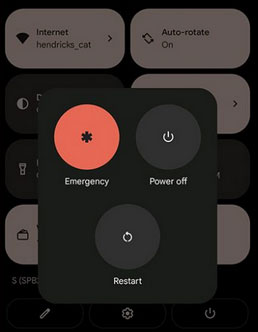
If restarting both devices doesn't work, try logging back into WhatsApp on the old device and retry the transfer, making sure both phones stay awake and connected to a stable Wi-Fi. For Android to iPhone transfers, use Move to iOS during setup or consider a factory reset of the new iPhone before attempting the migration.
Solution 2: Ensure a supported WhatsApp version
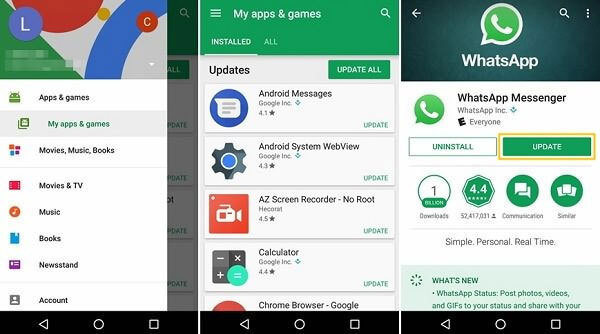
Make sure both devices have the latest stable version of WhatsApp installed. The standard WhatsApp app (not WhatsApp Business) supports chat migration features. Older versions or beta versions can cause incompatibility or failed transfers.
Solution 3: Grant all necessary permissions
WhatsApp needs permissions like storage, contacts, nearby devices, and camera to access backups, scan QR codes, and perform transfers. Without these, the app may fail to detect the backup or initiate the migration.
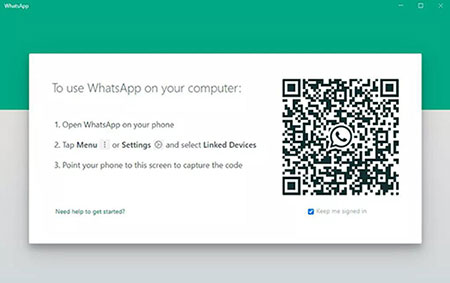
Solution 4: Ensure the QR code appears correctly
Sometimes the QR code on the new phone doesn't load, preventing device-to-device transfer. Restart the app, check permissions, and make sure the new device's screen is awake to display the QR code.
Solution 5: Verify cloud backups exist and are complete
Before restoring chats, ensure that a full backup exists on iCloud (iPhone) or Google Drive (Android). Check the backup date and size to confirm that all recent chats and media are included. Incomplete or missing backups will cause restoration failures.
Solution 6: Force a fresh backup
Changing backup settings to daily or manually creating a new backup can refresh cloud storage. This ensures WhatsApp uploads the latest chat history, avoiding incomplete restores or missing messages during migration.
Note: For Android, use the same Google account used for the backup; for iPhone, use the same iCloud account. Mismatched accounts mean WhatsApp cannot locate the backup, leading to failed restores.
Solution 7: Clear WhatsApp cache and restart
On Android, clearing the app cache can remove corrupted temporary files without deleting backups. After clearing, restart the app and attempt the transfer again, which can fix stuck or unresponsive transfer processes.
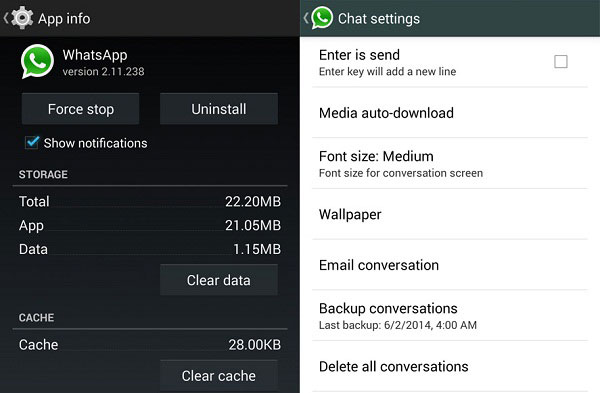
Solution 8: Clear app storage and retry
If restoring fails repeatedly, clearing WhatsApp's app storage (after confirming a backup exists) can reset local databases and allow a fresh restore. This is helpful when previous failed attempts left partial data that blocks the migration.
Solution 9: Keep devices awake and connected to strong Wi-Fi
Transfers require a stable network and active screens. Prevent devices from sleeping during migration, and connect both to the same strong Wi-Fi to reduce timeout errors or interrupted transfers.
Solution 10: Ensure sufficient storage on both devices
Verify that both devices have enough free storage to accommodate all chat history and media. Low storage can cause transfers to fail midway or result in incomplete restores.
Solution 11: Update WhatsApp on both devices
Older versions may not support migration features. Ensure the latest version is installed to fix known bugs and improve transfer compatibility between devices.
Solution 12: Disable VPNs or network blockers
VPNs or firewalls may prevent WhatsApp from detecting backups or communicating with servers. Disable these services temporarily to allow smooth migration.
Solution 13: Factory reset destination device if needed
For Android to iPhone migrations, if the new iPhone was already set up, WhatsApp may not allow chat imports. A factory reset restores the phone to initial setup mode, enabling Move to iOS migration.
Part 3: Use Professional Transfer Tool to Copy WhatsApp Smoothly
When direct WhatsApp chat transfer fails, Social App Transfer offers a reliable solution to move your chats and media between devices without data loss. With this product, you can transfer your WhatsApp history quickly and securely, avoiding the common errors that often occur with standard methods.
With its cross-platform support, this program allows users to transfer WhatsApp and LINE chats directly between Android and iPhone devices, even supporting the latest iOS 26 and Android 16. It offers selective chat restoration and multiple backup and export options, all while keeping data secure and encrypted.
Combined with Google Drive integration, data preview, and a user-friendly interface, it ensures a smooth, hassle-free experience for managing and migrating your social app data.
How to copy WhatsApp data to new phone seamlessly via Social App Transfer?
- Begin the procedure by downloading and installing Social App Transfer on your computer, and then launch the application.
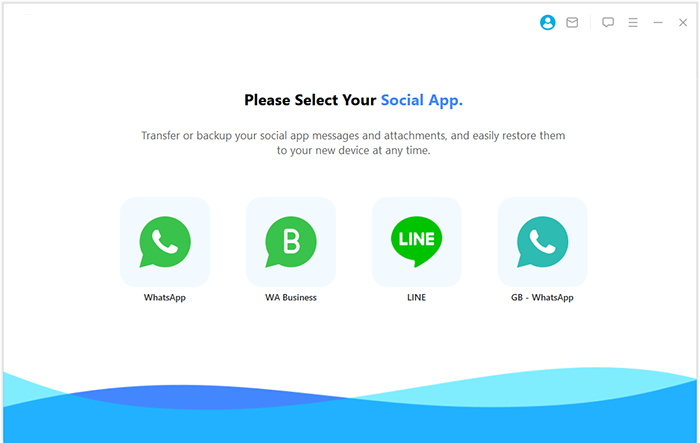
- In the left-hand menu, select the "WhatsApp" sign.
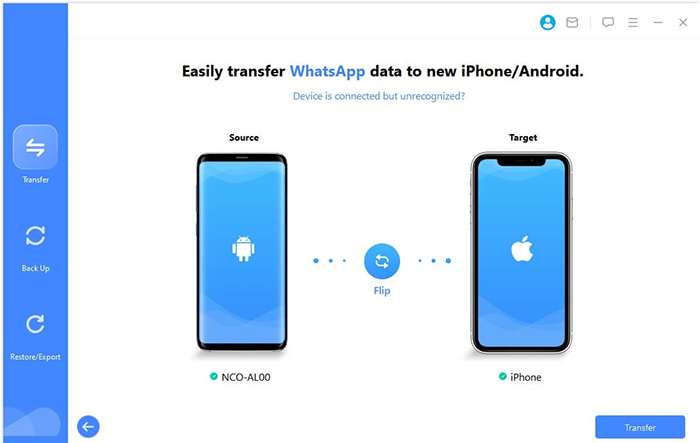
- Next, connect both mobile devices (Android/iOS) to the computer using USB cables.
- Adhere to the provided instructions to ensure that the devices are recognized accurately.
- The intelligent software will quickly identify and display the devices, labeling one as the source and the other as the destination.
- If the devices are incorrectly assigned, you can easily correct this by clicking the "Flip" button on the interface.
- Lastly, click on "Transfer" located in the lower right corner.


Concluding Thoughts
By following these methods, you can resolve most issues with WhatsApp chat migration and ensure your messages and media arrive safely on your new device. For the most reliable results, the ultimate solution - Social App Transfer offers a step-by-step process that addresses common errors and backup complications.
Additional Tips: Before attempting any transfer, make sure both devices are fully charged, connected to a stable network, and have sufficient storage to avoid unexpected failures during migration.
Related Articles:
How to Recover Deleted Files from WhatsApp with/without Backup? 6 Tactics
How to Fix WhatsApp Issues on Android Phone? 10 Smart Strategies
4 Tested Methods to Back Up WhatsApp Photos/Videos [Android/iOS]
WhatsApp Restoring Media Stuck on iPhone/Android? Here're 10 Fixes
