
WhatsApp Not Working on iPhone? 7 Solutions You Can Try
"WhatsApp has not been working for me since yesterday. The app opens for a fraction of a second and then shuts down. Cannot send or receive messages/calls. Have tried everything from rebooting to deleting and reinstalling the app to resetting network settings. Anybody else face this issue?"
- From Apple Support Community
In today's fast-moving digital world, WhatsApp has become a cornerstone of instant communication, connecting people across the globe with ease. Yet, despite its popularity and reliability, many users occasionally face problems where WhatsApp stops working properly, disrupting their daily messaging and calls.
This guide is designed to help you understand the common reasons behind WhatsApp problems and provide practical solutions to get the app running smoothly again. From network issues and delayed message delivery to app glitches or permission conflicts, we break down each problem clearly.
Part 1: Why is My WhatsApp Not Working on My iPhone?
Before trying different fixes, it's helpful to understand why WhatsApp may stop working properly on your iPhone. The problem is often caused by simple issues behind the scenes.
Here are some common reasons:
- Weak or unstable internet connection (Wi-Fi or mobile data).
- The WhatsApp app is not updated to the latest version.
- Your iPhone is running an outdated version of iOS.
- Temporary system glitches or software crashes.
- WhatsApp servers are down or under maintenance.
Extended Reading:
Part 2: Solutions to Fix WhatsApp Not Working on iPhone
1. Restart Your iPhone
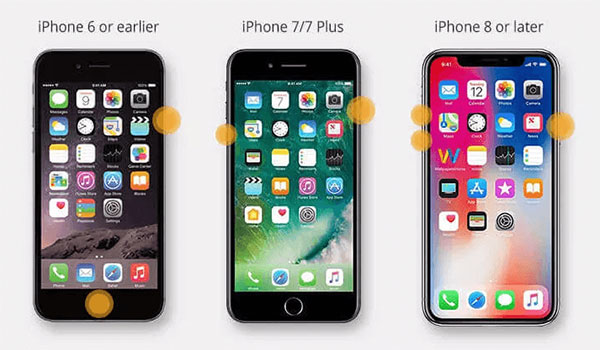
Sometimes, WhatsApp stops working because of small system glitches. A simple restart can refresh your iPhone's system, clear temporary memory, and fix minor software issues quickly. Here is how to restart your iPhone:
- Press and hold the Power button until you see "Slide to power off."
- Drag the slider to turn off your device.
- Wait a few seconds.
- Press and hold the Power button again until the Apple logo appears.
After your iPhone turns back on, open WhatsApp and check if it works normally.
2. Check Your Internet Connection
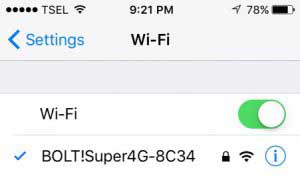
A weak or unstable internet connection is one of the most common reasons WhatsApp stops working on an iPhone or WhatsApp downloaded failed. Since WhatsApp relies on a stable connection to send and receive messages, the first thing you should do is confirm that your network is working properly.
Here are a few simple checks:
- Switch between Wi-Fi and mobile data: If you're on Wi-Fi, try turning it off and using mobile data instead. If you're using mobile data, connect to a Wi-Fi network. This quick switch can sometimes fix temporary connection issues.
- Check your data limit: Make sure you haven't reached your mobile data cap. If your data is used up, your internet access may be slowed down or blocked, causing WhatsApp to stop working.
3. Update WhatsApp to the Latest Version
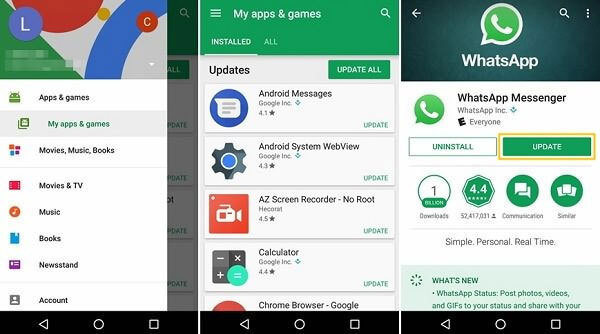
Running an outdated version of WhatsApp can lead to performance issues, including the app not opening or working properly on your iPhone. Developers regularly release updates to fix bugs, improve stability, and introduce new features, so keeping the app updated is important.
Check for updates manually:
- Open the App Store on your iPhone.
- Tap your profile icon in the top right corner.
- Scroll down to see pending updates.
- If WhatsApp appears in the list, tap "Update" next to it.
Turn on automatic updates:
- Go to Settings > App Store.
- Find "App Updates" and enable it. (How to Update WhatsApp on Android?)
4. Force Quit and Relaunch WhatsApp
If WhatsApp is not working properly on your iPhone, force quitting the app and opening it again may fix temporary glitches. Below is how to force quit WhatsApp:
- On iPhone with Face ID: Swipe up from the bottom of the screen and pause in the middle to open the App Switcher.
- On iPhone with a Home button: Double-press the Home button to open the App Switcher.
Find WhatsApp in the list of apps and swipe it up to close it. After that, go back to your Home screen and tap WhatsApp to reopen it. Then check if the problem has been resolved.
5. Check WhatsApp Server Status
If WhatsApp suddenly stops working on your iPhone, the problem might not be on your side at all. Sometimes, the issue is caused by temporary server outages on WhatsApp's end. When this happens, messages won't send, calls may fail, and the app can appear unresponsive for many users at the same time.
How to check if WhatsApp is down:
- Open your browser and visit outage-reporting websites like Downdetector.
- Search for WhatsApp and see if other users are reporting similar problems.
- You can also check social media platforms for real-time updates about service disruptions.
If there is a widespread outage, there's not much you can do except wait until WhatsApp restores its servers. Once the service is back online, the app should return to normal automatically.
6. Delete and Reinstall WhatsApp
If WhatsApp continues to malfunction, reinstalling the app can be an effective solution. Sometimes, damaged or corrupted app files can cause unexpected errors. Removing the app and installing it again allows you to start fresh with a clean version.
How to delete WhatsApp:
- Press and hold the WhatsApp icon on your Home screen.
- Tap "Remove App", then choose "Delete App".
- Confirm by tapping "Delete".
Don't worry - uninstalling WhatsApp does not delete your account. However, you will need to verify your phone number and log in again after reinstalling. It's a good idea to make sure your chats are backed up before deleting the app.
How to reinstall WhatsApp:
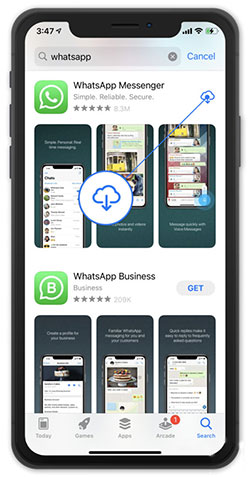
- Open the App Store.
- Tap the Search tab at the bottom.
- Type "WhatsApp" in the search bar.
- Tap the download (cloud) icon next to WhatsApp Messenger to reinstall it.
Once the installation is complete, open the app and check if it works normally. (WhatsApp Contacts Not Showing?)
7. Make Sure WhatsApp Has the Right Permissions
For WhatsApp to work properly on your iPhone, it needs access to certain system features. If these permissions are turned off, you may experience problems such as being unable to send voice messages, access contacts, or receive notifications.
Check app permissions:
- Open "Settings" on your iPhone.
- Scroll down and tap "WhatsApp".
- Make sure options like "Contacts", "Microphone", "Camera", and "Background App Refresh" are turned on.
Enable notifications: If you're not receiving alerts for new messages:
- Go to "Settings" > "Notifications".
- Tap "WhatsApp".
- Turn on Allow Notifications and customize alert styles if needed.
After adjusting these settings, reopen WhatsApp and see if it runs more smoothly.
Extended Reading:
Part 3: How to Back up WhatsApp Data on iPhone
Before you remove WhatsApp from your iPhone, it's strongly recommended to create a backup first. This helps protect your chats, photos, videos, and other important data from being lost during the reinstallation process.
A reliable way to do this is by using MobiKin WhatsApp Recovery for iOS. This professional tool allows you to back up WhatsApp data directly from your iPhone to your computer and restore it whenever needed. It's especially helpful if you prefer keeping a local copy instead of relying only on cloud backups.
What MobiKin WhatsApp Recovery for iOS can do:
- Back up WhatsApp data from iPhone or iPad to a computer.
- Restore WhatsApp backups safely to your device.
- Export chats as readable HTML or CSV files.
- Preview backup content before restoring specific items.
- Selectively recover WhatsApp data from iTunes backups.


How to back up WhatsApp data from iPhone:
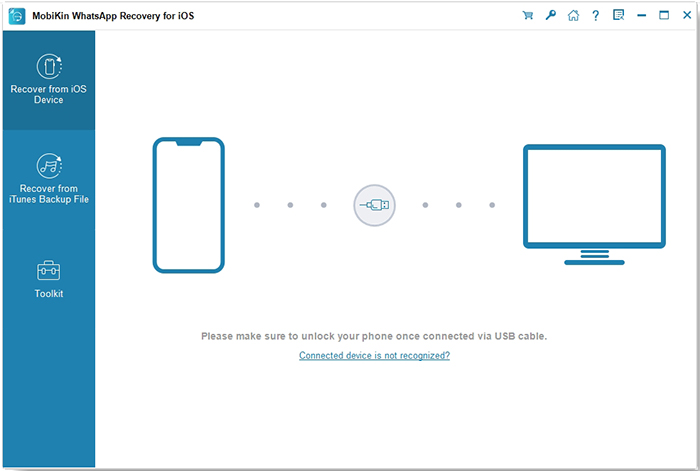
Download and install the program on your computer. Open it and select "Recover from iOS Device." Then connect your iPhone or iPad to the computer using a USB cable.
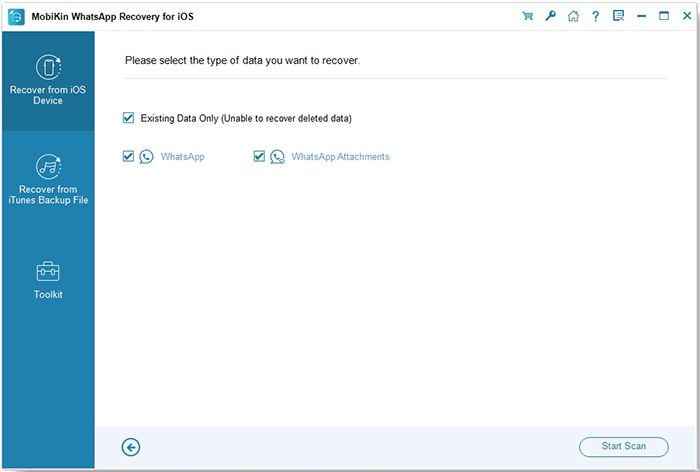
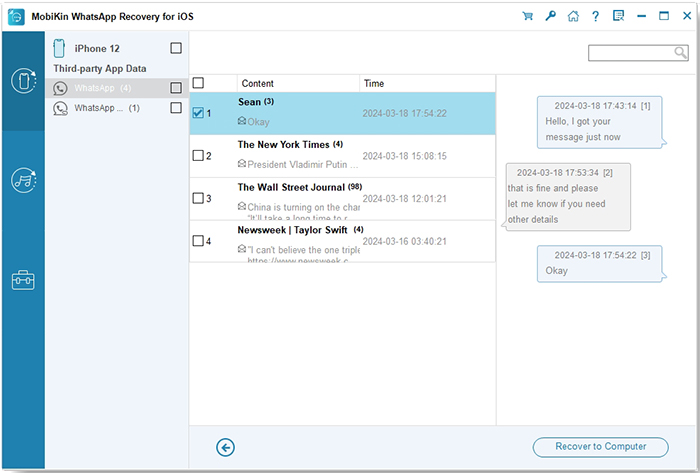
Step 2: After the device is detected, choose the data types you want to scan. Click "Start Scan" to begin. Once the scan is complete, preview the WhatsApp files and select the items you wish to back up.
Step 3: Click "Recover to Computer" to export and save the selected WhatsApp data to your computer.
With a secure backup in place, you can uninstall and reinstall WhatsApp without worrying about losing important conversations.
Video Guide:
Ending Part
In summary, if WhatsApp isn't working on your iPhone, the issue could stem from connectivity problems, outdated software, app glitches, or even server outages. Simple fixes like restarting your iPhone, checking your internet, updating or reinstalling WhatsApp, and ensuring proper permissions often resolve most issues.
Before taking major steps like reinstalling, it's wise to back up your chats using a tool like MobiKin WhatsApp Recovery for iOS. This ensures all your messages and media are safely preserved and easily restored when needed.
Related Articles:
6 Options: How to Transfer WhatsApp Messages to New Phone
WhatsApp Backup Stuck on iPhone/Android? 17 Ways to Fix It
How to Back Up WhatsApp on iPhone without iCloud? 3 Solutions are Here!
3 Simple Steps to Transfer WhatsApp Backup from Google Drive to iCloud
