
How to Fix Chat Lock Not Showing in WhatsApp? 7 Effective Ways Here
TL;DR:
WhatsApp's Chat Lock is a powerful privacy feature that protects sensitive conversations, but it may not always appear due to compatibility, settings, or rollout issues. By following the outlined 8 easy solutions, you can easily restore the missing feature and using safe recovery tools like MobiKin WhatsApp Recovery for Android lets you safeguard your locked chats effectively.
What Is Chat Lock on WhatsApp?
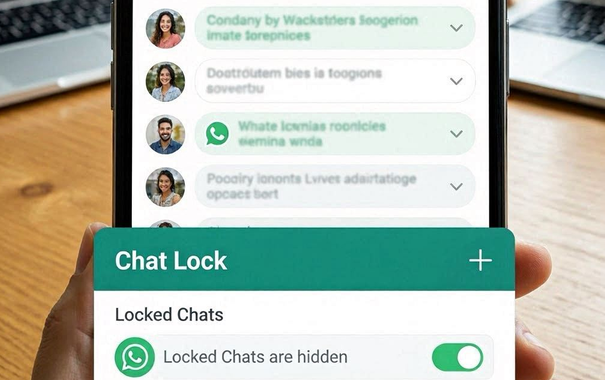
Chat Lock on WhatsApp is a privacy tool that lets you secure selected conversations in a hidden folder, accessible only with your phone's password or biometrics. It ensures sensitive chats remain protected from prying eyes, even if someone has access to your device.
If the Chat Lock option isn't appearing, this article will guide you through 8 easy fixes and share additional tricks to help restore the feature quickly. These solutions cover both Android and iOS devices, ensuring you can regain full control of your private chats.
- Part 1: Why Is My WhatsApp Not Showing the Chat Lock Option
- Part 2: Fix Chat Lock Not Showing in WhatsApp [8 Easy Solutions]
> Way 1: Check Phone Compatibility
> Way 2: Check Secure Folder
> Way 3: Clear WhatsApp Cache/Data
> Way 4: Restart WhatsApp
> Way 5: Verify WhatsApp Beta
> Way 6: Update WhatsApp
> Way 7: Update Android/iOS
> Way 8: Contact WhatsApp Support - Part 3: Restore Locked WhatsApp Chats from Backups via MobiKin Software [Safe]
- FAQs about Chat Lock in WhatsApp
Part 1: Why Is My WhatsApp Not Showing the Chat Lock Option
WhatsApp's Chat Lock feature may not appear for several practical reasons tied to app version, device setup, and rollout timing. Understanding these causes helps pinpoint the right fix without unnecessary trial and error. Here are some of them:
- Outdated WhatsApp version - the feature requires the latest app update.
- No device security enabled - Face ID, Touch ID, fingerprint, or PIN must be set up.
- Biometric permissions denied - WhatsApp needs access to biometrics on Android.
- Unsupported OS version - older iOS or Android builds may not support Chat Lock.
- Samsung Secure Folder conflict - Knox/Secure Folder can block WhatsApp's biometric API.
- Regional rollout delays - staged release means some accounts see it later.
- Cache or app glitches - temporary bugs may hide the option until the cache is cleared.
- Using modified WhatsApp apps - unofficial versions often break official features.
When you understand the reasons why WhatsApp's Chat Lock isn't showing, you may also realize that sometimes your messages themselves seem to disappear from the device. This can feel unsettling, but the good news is that it's straightforward to back them up before making changes. Even without a proper backup in place, you can still get lost WhatsApp chats back.
Part 2: Fix Chat Lock Not Showing in WhatsApp [8 Easy Solutions]
Way 1: Check Phone Compatibility
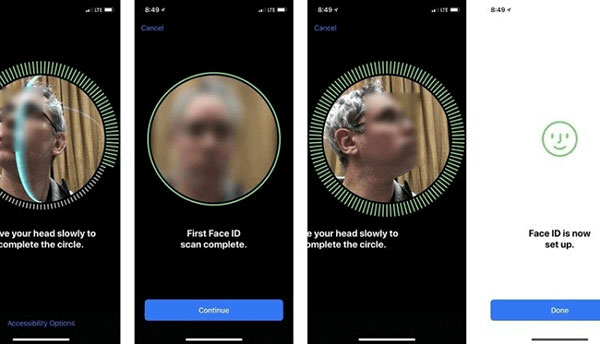
Confirm that your device and operating system meet WhatsApp's minimum requirements: (The feature won't appear on older phones or outdated OS versions)
- Check OS version - iOS 12+ or Android 8+.
- Confirm biometric support - Face ID, Touch ID, or fingerprint required.
- Consider rollout delays - feature may take time to appear.
Way 2: Check Secure Folder
If you're using a Samsung phone, the Secure Folder or Knox security system can sometimes block WhatsApp's biometric access, which prevents the Chat Lock option from appearing. To fix this, check if WhatsApp is installed inside Secure Folder and move it out to the main device storage. Once done, restart WhatsApp and the Chat Lock option should become available. (Can I back up secure folder on Galaxy?)
Way 3: Clear WhatsApp Cache/Data
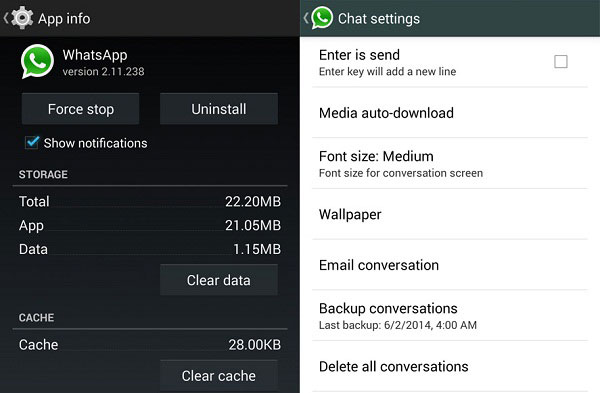
Clearing WhatsApp's cache or data can often resolve hidden feature issues like Chat Lock not appearing. On Android, head to Settings > Apps > WhatsApp > Storage and choose Clear Cache to remove temporary files. If problems persist, use Clear Data—but remember this logs you out, so back up your chats first.
Way 4: Restart WhatsApp
Simply force close the app from your recent apps menu and then reopen it to reload all configurations. After doing this, check your chat options again to see if the Chat Lock toggle is now visible.
You Might Also Enjoy: How to Fix WhatsApp Issues on Android Phone? 10 Smart Strategies
Way 5: Verify WhatsApp Beta
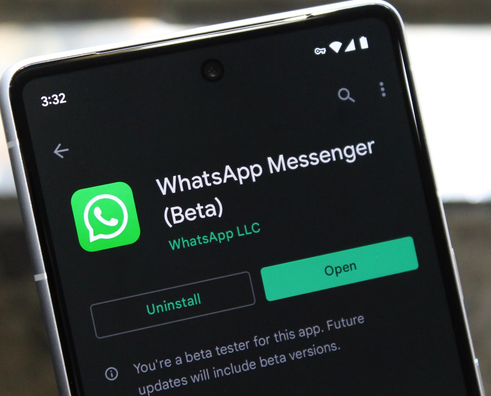
Joining or verifying WhatsApp Beta can help if the Chat Lock option hasn't rolled out to your account yet. By enrolling in the beta program, you gain early access to new features before they reach the general release. If you're already in beta, make sure you're running the latest build, as outdated beta versions may still hide Chat Lock.
- Join WhatsApp Beta - enroll via Google Play or TestFlight.
- Check the beta version - confirm you're on the newest release.
- Update beta app - install the latest build to unlock features.
Way 6: Update WhatsApp
- Head to the App Store or Google Play Store, search for WhatsApp, and tap Update WhatsApp if a newer version is available.
- Once updated, reopen the app and check your chat settings to see if the Chat Lock feature has appeared.
Way 7: Update Android/iOS
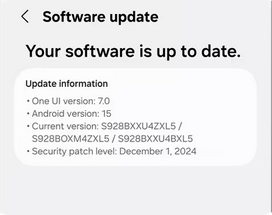
Make sure your phone is running at least iOS 12+ or Android 8.0+, since older versions may not support the feature. Here are the steps:
How to Update Android?
- Go to Settings > System > Software Update.
- Tap Check for updates.
- If an update is available, download and install it, then restart your phone.
How to Update iOS?
- Open Settings > General > Software Update.
- Tap Download and Install if a new version is available.
- Restart your iPhone after the update completes. (iPhone failed to update?)
After updating the operating system, restart your device and reopen WhatsApp to check if the Chat Lock option is now available.
Way 8: Contact WhatsApp Support
If none of the fixes work, the next step is to contact WhatsApp Support directly. Open WhatsApp, go to Settings > Help > Contact Us, and explain that the Chat Lock option isn't showing on your device. Support can confirm whether the feature is available for your account or guide you through additional troubleshooting steps.
- Use in-app support - submit your issue directly from WhatsApp.
- Email WhatsApp - send details about your phone model, OS version, and app version.
- Check WhatsApp FAQ - see if your issue is already documented.
Part 3: Restore Locked WhatsApp Chats from Backups via MobiKin Software [Safe]
Backing up WhatsApp chats and attachments on an Android phone becomes straightforward with a tool like MobiKin WhatsApp Recovery for Android, which can capture data directly to your computer. Even when locked, your desired conversations are included in the backup, ensuring nothing important is left behind. Once saved, the restore option makes it easy to bring messages and media back whenever you need them.
This smart tool provides a secure and convenient way to back up WhatsApp data to your computer, with options to preview and selectively recover messages, media, contacts, links, and stickers. Fully compatible with a wide range of Android devices, it ensures safe operation while giving you flexible restore choices whenever needed.
Free & Secure Download:


How to back up WhatsApp conversations to PC for easy restore using MobiKin WhatsApp Recovery for Android?
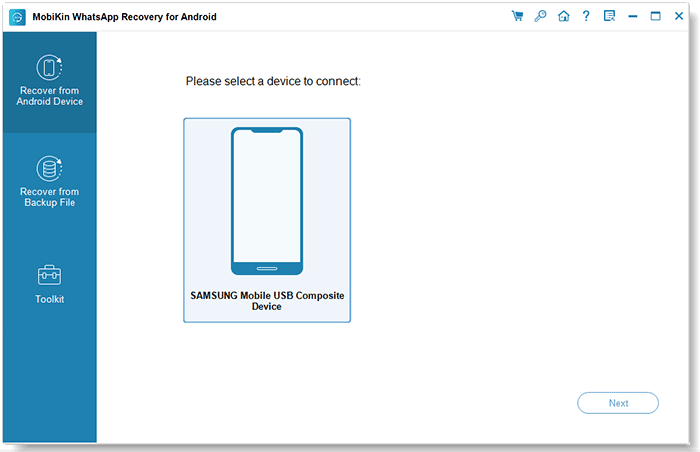
- Download and install the software on your computer, then choose Recovery from Android Device from the left panel.
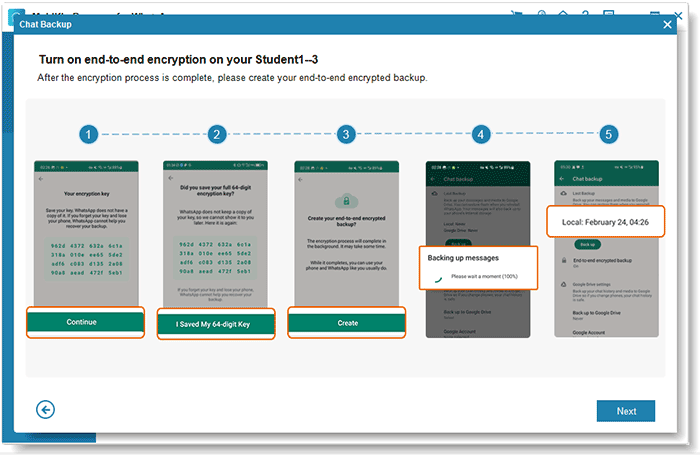
- Connect your Android phone via USB, enable USB debugging, and follow prompts to disable end-to-end encryption for backup.
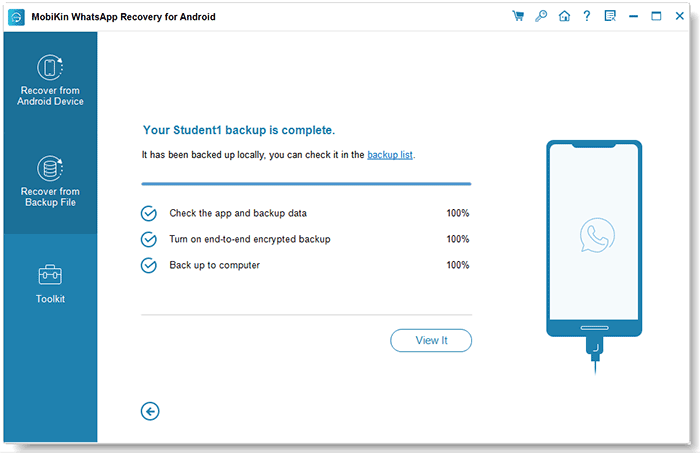
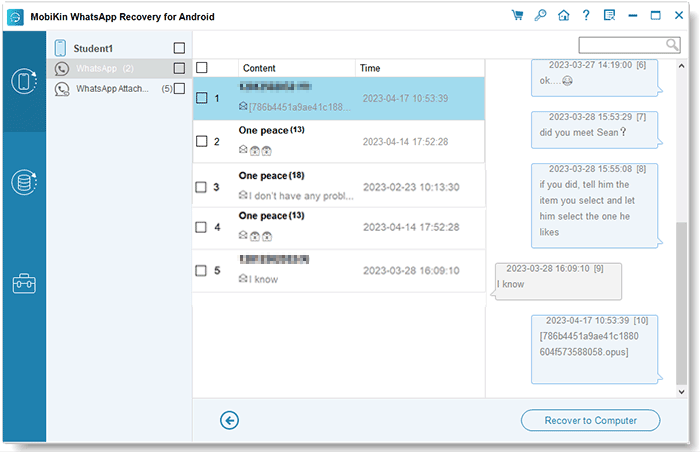
- Start the backup process, then preview your WhatsApp messages and chat attachments like photos and videos to select items for recovery.
- Recover to computer by exporting chosen conversations in your preferred format. This will let you regain access to your locked WhatsApp chats without limits.
Video Tutorial:
What if you have an iPhone and want to fetch the locked messages from the backup on your PC? Check out this guide - How to back up WhatsApp on iPhone [ultimate guide in 2026] to back up your WhatsApp on your iPhone for possible restore in the future.
FAQs about Chat Lock in WhatsApp
Q1: How do I enable Chat Lock?
Open a chat > tap the contact/group name > select Chat Lock > toggle on "Lock this chat" and confirm with biometrics or password.
Q2: Where are locked chats stored?
They appear in a hidden "Locked Chats" folder at the top of your inbox, revealed by pulling down on the chat list.
Q3: Do notifications show for locked chats?
No - message previews are hidden, and sender details don't appear in notifications.
Q4: Can I lock group chats?
Yes, both individual and group conversations can be locked.
Q5: Are media files saved automatically?
Media from locked chats won't auto-save to your gallery; you must unlock the chat first.
Q6: Can archived chats be locked?
No, you must unarchive a chat before applying Chat Lock.
Q7: Does Chat Lock work on WhatsApp Web?
Currently, locked chats are not hidden on linked devices like WhatsApp Web.
Q8: Can calls be hidden with Chat Lock?
No, calls from locked contacts or groups still appear normally.
Q9: Is Chat Lock available everywhere?
The rollout may vary by region; update WhatsApp to the latest version to check availability.
Round Off
The absence of WhatsApp Chat Lock usually stems from fixable issues like an outdated app version, missing device security settings, or temporary system glitches. After systematically working through the troubleshooting steps from updating software and clearing cache to checking device compatibility - most users can successfully restore the Chat Lock option and regain control over their private conversations.
Related Articles:
How to Extract WhatsApp Messages from iPhone Backup (iCloud/iTunes Backup)?
How to Fix WhatsApp Chat Transfer Not Working? 14 Optimal Solutions
How to Access WhatsApp Backup on Google Drive, iCloud, iTunes, or Locally?
How to See Deleted Messages on WhatsApp in 7 Ways? [Android/iOS]
