
How to Clone WhatsApp on Android/iPhone? 4 Tested Methods
The need to manage separate accounts on one phone, such as personal and work communication, without constantly logging in and out, has become common. Yet many users still struggle with switching accounts manually, risking missed messages or accidental logouts.
This guide explains how to clone WhatsApp in 4 smart ways. No technical background is needed - only a willingness to keep your two worlds apart on a single device.
- Part 1: How to Clone WhatsApp via Built-in Feature
- Part 2: How to Duplicate the WhatsApp App via WhatsApp Linked Devices
- Part 3: How to Duplicate WhatsApp with Clone App - Multiple Account
- Part 4: How to Clone WhatsApp Using WhatsApp Business
- Part 5: How to Clone WhatsApp Chats from One Mobile Phone to Another
- FAQs about Cloning WhatsApp
Part 1: How to Clone WhatsApp via Built-in Feature
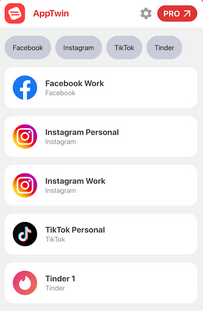
A system-level option on many Android phones allows users to run two separate WhatsApp accounts on the same device without installing extra software. Built-in Feature creates an independent app space where a second WhatsApp can be activated through the settings menu.
Once enabled, a duplicate icon appears, letting users register another number and manage chats separately. This approach keeps both accounts running in parallel while maintaining separation of data and notifications.
User Guide:
- Open Settings on your phone and go to Apps/Advanced Features/Special Features depending on the brand, then find Dual Apps, App Clone, App Twin, or Dual Messenger.
- Turn on the switch for WhatsApp, which will automatically create a second WhatsApp icon on your home screen.
- Open the cloned WhatsApp app and go through the setup process by verifying a different phone number.
- After setup, both WhatsApp accounts can run separately on the same device using the built-in cloning feature.
You Might Also Need: How to Recover WhatsApp Account in Various Scenarios? 4 Ways
Part 2: How to Duplicate the WhatsApp App via WhatsApp Linked Devices
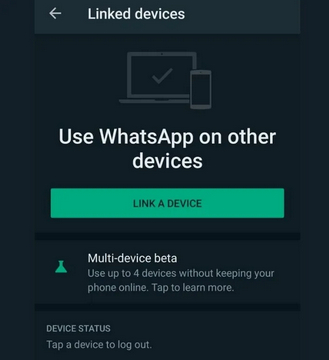
An additional device can be connected to an existing WhatsApp account through WhatsApp Linked Devices, enabling simultaneous access across phones. The second phone operates as a companion, syncing messages and calls in real time with the primary device.
No second number is required because both devices share the same account through QR-based linking. This method mirrors conversations rather than creating a separate clone, keeping chats consistent across devices.
User Guide:
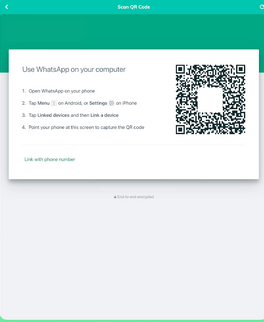
- Open WhatsApp on the second phone, tap "Link to existing account" (or the three-dot menu > Link as companion device), which will display a QR code on the screen.
- On your main phone, go to WhatsApp > Settings > Linked Devices > Link a Device, scan the QR code shown on the second phone.
- Once connected, both devices will sync messages in real time and allow you to use the same WhatsApp account on two phones without logging out.
Part 3: How to Duplicate WhatsApp with Clone App - Multiple Account
A virtual environment can be created on Android through Clone App - Multiple Account, allowing WhatsApp to run inside an isolated space. The cloned version functions independently from the original app, making it possible to log in with a different phone number.
Users can switch between accounts without interference, as each instance keeps its own data storage. This solution is often chosen when the phone lacks a built-in dual app feature.
User Guide:
- Install Clone App - Multiple Account from the Google Play Store.
- Open it and grant the required permissions so it can create a virtual space for running apps; inside the main interface. (Can I run Android applications on a PC?)
- Tap "Add App/Clone" and select WhatsApp, which will generate a cloned version.
- In some cases, you may also open the cloned WhatsApp through a QR-code scanning screen to link or activate the session, allowing the second WhatsApp instance to be created and logged in with a different number for independent use on the same phone.
Part 4: How to Clone WhatsApp Using WhatsApp Business
A separate application designed for business communication can also serve as a second WhatsApp instance on the same phone. WhatsApp Business operates independently from the standard app and requires a different phone number for registration.
It includes tools like business profiles and automated replies while still supporting regular messaging features. This setup effectively allows two WhatsApp accounts to run side by side without modifying the original app.
User Guide:
- Install WhatsApp Business from the Play Store and open it on your phone, then register it using a second phone number different from your original WhatsApp account so both apps can run separately on the same device.
- During setup, verify the new number with the SMS code, and the app will automatically create a second
- WhatsApp environment that is independent from your main WhatsApp Messenger.
- Once completed, you will have two apps on your phone - regular WhatsApp for your primary account and WhatsApp Business for the cloned account - allowing you to manage both chats simultaneously without logging in and out.
You May Like: How to Restore WhatsApp Business Backup on iPhone/Android? 5 Options
Part 5: How to Clone WhatsApp Chats from One Mobile Phone to Another
Social App Transfer helps when simply cloning a WhatsApp account is not enough for users who need a full data migration between devices. This powerful product allows users to clone WhatsApp chats from one mobile phone to another with a structured transfer process that keeps messages, media, and attachments intact.
It performs lossless and error-free WhatsApp data transfers without complicated prerequisites such as system setup or manual backups. This makes it suitable for users who want a complete chat history move instead of just running two WhatsApp accounts on one phone.
How to use this professional WhatsApp data transfer tool for seamless chat migration between Android/iOS devices?
- First, download and install the Social App Transfer software on your computer.
- Once installed, launch the program.
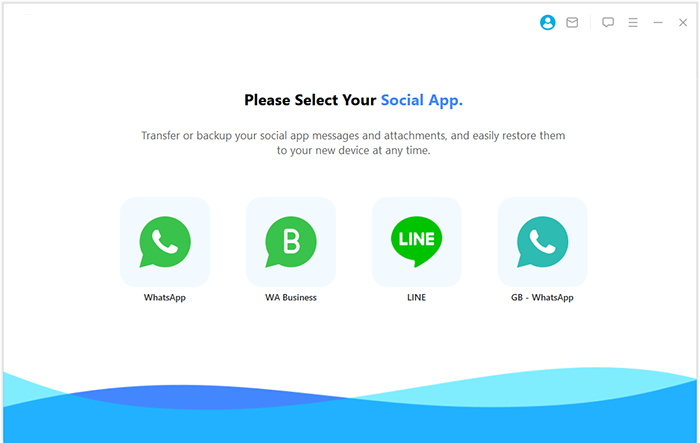
- On the left sidebar, locate and click on the WhatsApp icon to select it as the app you wish to transfer.
- Using USB cables, connect both mobile (Android/iOS) phones to the computer.
- Make sure USB debugging is enabled on the device (Android) or trust this computer (iPhone) as guided.
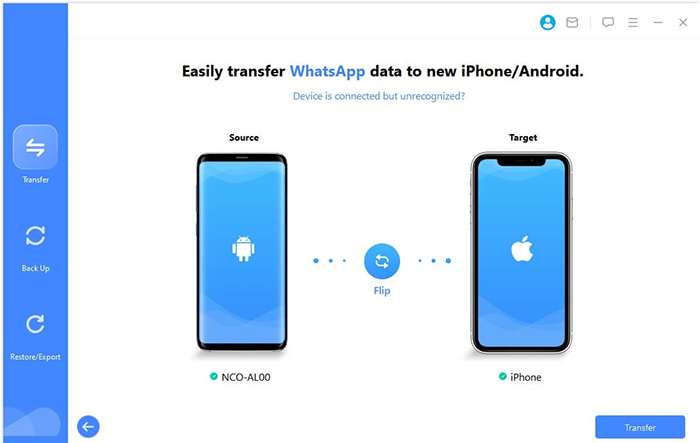
- Once connected, the tool will automatically detect both devices and display them on the screen.
- It will designate one phone as the source (where the data will be copied from) and the other as the target (where the data will be transferred to).
- If the assignment is incorrect, simply click the Flip button to reverse their roles.
- Finally, click the Transfer button located in the lower right corner to begin the process.


FAQs about Cloning WhatsApp
Q1. Is it safe to clone WhatsApp?
Yes, it is generally safe when using official system features such as Dual Apps or trusted tools like Parallel Space. However, unknown or modified APK versions may pose security risks and should be avoided.
Q2. Do I need two phone numbers to clone WhatsApp?
Yes, each WhatsApp account must be verified with a unique phone number. You cannot use the same number for both the original and cloned app.
Q3. Can I use WhatsApp calls and video calls on a cloned app?
Yes, cloned WhatsApp apps usually support full features, including messaging, voice calls, and video calls, just like the original app.
Q4. Will cloning WhatsApp affect my main account?
No, both apps run independently and do not interfere with each other because each has separate data storage and settings.
Q5. What is the difference between Dual Apps and Parallel Space?
Dual Apps is a built-in system feature on some phones, while Parallel Space is a third-party app that creates a virtual environment to run cloned apps.
Q6. Can cloned WhatsApp apps be updated automatically?
In most cases, updates depend on the cloning method; system-level dual apps may update automatically, while some third-party clones require manual updates.
Q7. Will WhatsApp ban my account for cloning?
Using official features like Dual Apps or Companion Mode is generally safe, but unauthorized modified apps may violate WhatsApp policies and risk restrictions.
Q8. Can I clone more than one WhatsApp account?
Yes, some cloning tools allow multiple instances, but built-in system features usually support only one extra WhatsApp account.
In Closing
So here we are, at the end of a path that began with a simple frustration: one phone, two identities, and the endless tap-tap-tap of logging in and out. You now have four methods, as mentioned above. The real trick is choosing the one that respects your privacy and won't break after the next system update.
Before cloning, check if your phone offers a native "Dual Apps" or "Parallel Spaces" feature - it's often safer than third-party clones. After cloning, rename the second WhatsApp icon (e.g., "Work WA") so you never send a weekend meme to your boss by mistake.
Related Articles:
How to See Deleted Messages on WhatsApp in 7 Ways? [Android/iOS]
How to Fix WhatsApp Issues on Android Phone? 10 Smart Strategies
How to Access WhatsApp Backup on Google Drive, iCloud, iTunes, or Locally?
WhatsApp Downloaded Failed? Here Are 20 Solutions to Fix It!
