
WhatsApp Message Not Delivered? Causes and 8 Easy Fixes You Should Try
WhatsApp is a widely used messaging app that keeps people connected through texts, voice messages, photos, and videos. However, problems such as WhatsApp messages not being delivered, delayed sending, can't connect to WhatsApp, or group messages failing can sometimes occur, leaving many users confused and concerned.
When messages fail to deliver, it can affect communication efficiency and overall user experience. In this guide, we will explore the most common causes behind WhatsApp message delivery issues and share practical solutions to help you fix the problem quickly and easily.
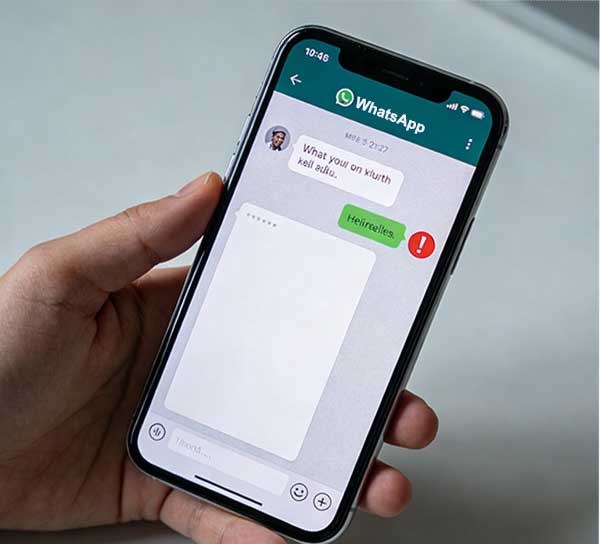
Part 1: What Does "WhatsApp Message Not Delivered" Mean?
WhatsApp uses a small check-mark system to show the status of every message you send:
- One gray check mark: The message was sent from your phone but hasn't reached the receiver.
- Two gray check marks: The message arrived on the recipient's device but hasn't been opened.
- Two blue check marks: The message has been delivered and read.
If your WhatsApp message shows only one gray check mark, it means the message was sent out but failed to arrive on the other person's phone. This usually happens because of connection problems, device issues, or sometimes because the recipient has blocked you.
Extended Reading:
Part 2: Why Is My WhatsApp Message Not Delivered?
- Unstable or Missing Internet Connection: A weak Wi-Fi signal or disabled mobile data is the leading cause. Without a stable connection, WhatsApp cannot send your messages.
- The Recipient Is Not Connected: If the other person's phone is switched off, in airplane mode, or disconnected from the internet, your message will stay undelivered until they come back online.
- You May Have Been Blocked: When someone blocks you on WhatsApp, your messages usually remain stuck with a single gray check mark and never reach the recipient. (How to Block/Unblock Someone in WhatsApp on iPhone?)
- Temporary WhatsApp Server Problems: Occasionally, WhatsApp experiences server outages. During these periods, messages may stop sending for many users at the same time.
- Using an Old App Version: Running an outdated version of WhatsApp can sometimes lead to sending or delivery errors. Updating the app often resolves this issue.
- Low Storage or System Glitches: Insufficient phone storage or minor system faults can interfere with WhatsApp's normal function and stop messages from being delivered correctly.
Part 3: How to Fix WhatsApp Message Not Delivered (8 Quick Solutions)
If your WhatsApp messages are not sending or stuck with one gray tick, don't worry. In most cases, the issue can be solved quickly with a few simple checks and adjustments.
1. Check Your Internet Connection
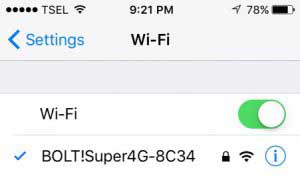
WhatsApp needs a reliable internet connection to send and receive messages smoothly. If your connection is weak or disconnected, your messages may fail to deliver. Therefore, the first step is to check your mobile data or Wi-Fi. Open your network settings, connect to a stable network, and wait a few moments to see if your messages are sent successfully.
2. Restart Your Phone
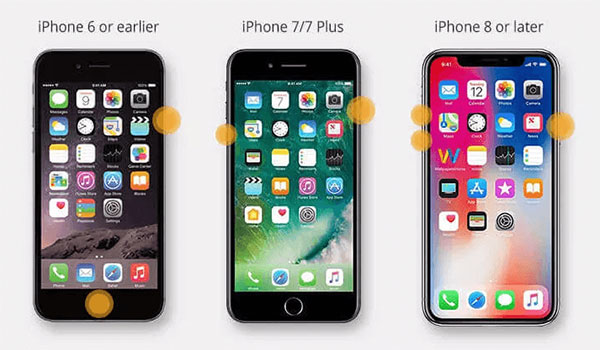
Some installations and actualizations could have experienced issues and errors. Mobile devices are no immune to these problems. You can try to restart your phone and reinstall WhatsApp to avoid application malfunction.
With an Android device, you can use the restart option by pressing for a while block bottom. On an iPhone device, you need to press the Volume up and Volume down buttons for a while, then sliding the power option on the screen.
3. Verify the Recipient's Status
Sometimes the problem is not on your side. The message may remain undelivered if the recipient's phone is turned off, in airplane mode, or not connected to the internet. You can check whether they were recently online or try sending another message later. If your messages always show only one gray tick and you cannot see their profile updates, you may have been blocked. (WhatsApp Contacts Not Showing?)
4. Update WhatsApp to the Latest Version
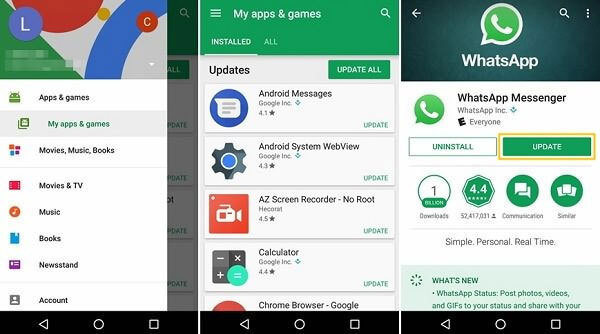
Using an outdated version of WhatsApp may cause sending or delivery errors. Installing the newest version can fix bugs and improve connection stability.
- Open the "App Store" (iPhone) or "Google Play Store" (Android).
- Search for "WhatsApp Messenger".
- Tap "Update" if a new version is available.
- Wait for the update to complete, then reopen WhatsApp and try sending the message again.
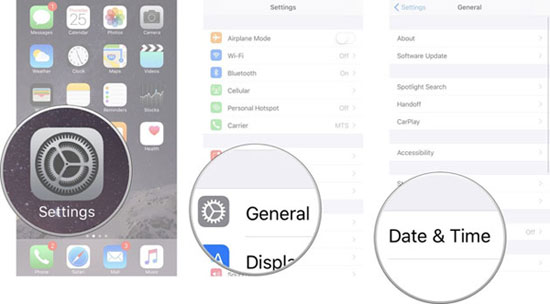
5. Check Date and Time Settings
Incorrect date and time settings can prevent WhatsApp from connecting properly, which may stop messages from being delivered. Make sure your device uses the correct automatic time.
- Open "Settings" on your phone.
- Go to "General" (iPhone) or "System / Additional Settings" (Android).
- Tap "Date & Time".
- Enable "Set Automatically" (or "Use network-provided time" on Android).
- Restart WhatsApp and try sending the message again.
6. Turn Off Data Saver or Background Restrictions
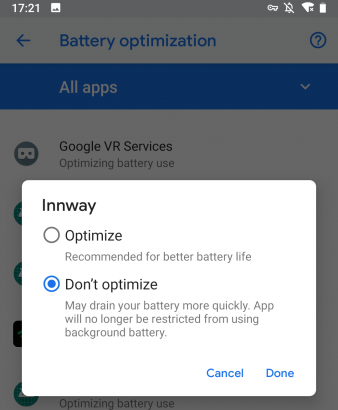
If Data Saver or background limits are enabled, WhatsApp may be prevented from using the internet properly, causing messages to remain undelivered. Try disabling these settings to restore normal performance.
- Open "Settings" on your phone.
- Go to "Network & Internet" (or "Connections") > "Data Saver", then turn it Off.
- Return to "Settings" > "Apps" > "WhatsApp".
- Tap "Mobile Data & Wi-Fi" (or "Data Usage") and allow "Background data".
- Go to "Battery" > "Background usage limits" (or "Battery optimization") and set WhatsApp to "Unrestricted / Don't optimize".
- Restart WhatsApp and try sending the message again.
7. Clear WhatsApp Cache
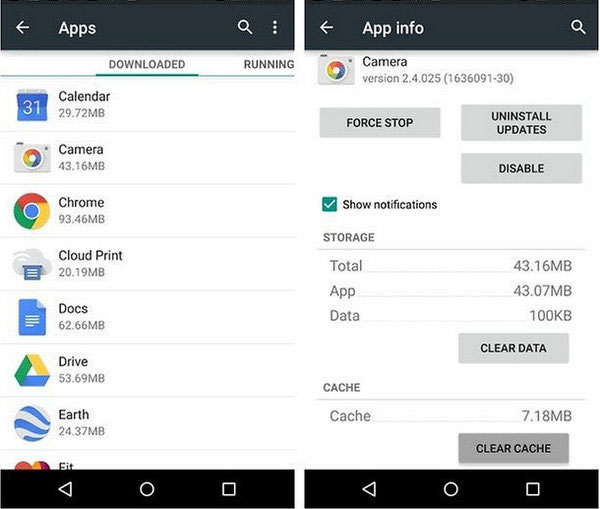
Clearing the cache can remove temporary files that may cause WhatsApp to malfunction or stop messages from sending properly. This process will not delete your chats or media, but it is only for Android devices.
- Open "Settings" on your Android phone.
- Tap "Apps" or "App Management".
- Find and select WhatsApp from the app list.
- Tap "Storage & Cache" (or "Storage").
- Choose "Clear Cache".
- Restart WhatsApp and try sending the message again.
8. Reinstall WhatsApp
If the problem continues, reinstalling WhatsApp can remove hidden app errors and refresh all system components. Make sure you back up your chats before uninstalling to avoid losing important conversations.
- Open WhatsApp and go to "Settings > Chats > Chat Backup", then create a full backup.
- Delete WhatsApp from your phone (press and hold the app icon, then choose "Uninstall/Delete App").
- Restart your device to clear temporary system files.
- Go to the "App Store" (iPhone) or "Google Play Store" (Android) and reinstall WhatsApp.
- Open WhatsApp, verify your phone number, and restore your chat backup when prompted.
Extended Reading:
Bonus: How to Recover Deleted WhatsApp Messages on iPhone
If important WhatsApp messages were deleted while troubleshooting delivery issues, don't panic. With a professional recovery tool like MobiKin Doctor for iOS, you still have a good chance to retrieve lost WhatsApp chats, attachments, and other data from iTunes or iCloud backup. This tool can also recover deleted contacts and messages even without a backup.
What Can Doctor for iOS Do for You:
- Recover deleted WhatsApp messages, chats, and attachments from iTunes backup.
- Retrieve deleted contacts and messages from iOS device directly, even without a backup.
- Recover other data types like contacts, SMS, photos, videos, and notes.
- Support data recovery without overwriting current data.
- Preview WhatsApp data before recovery and select only what you need.
- Compatible with most iPhone models and latest iOS versions, including iPhone 17 and iOS 26.


How to recover deleted WhatsApp data from iPhone without data loss:
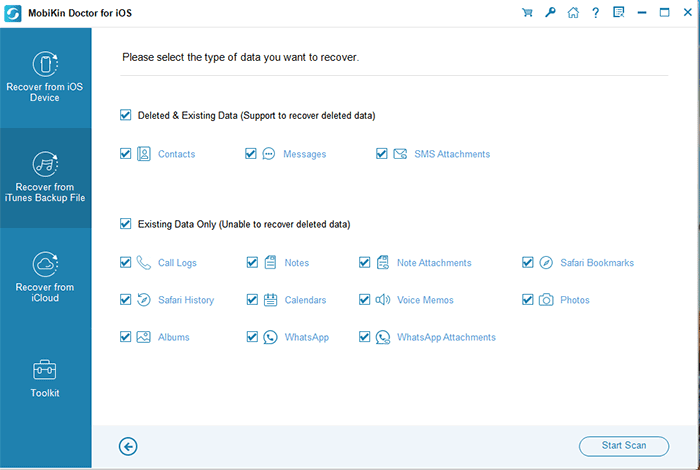
Step 1: Install and open MobiKin Doctor for iOS on your computer. Choose the "Recover from iTunes Backup" mode from the left sidebar and all iTunes backup files on your computer will be scanned out.
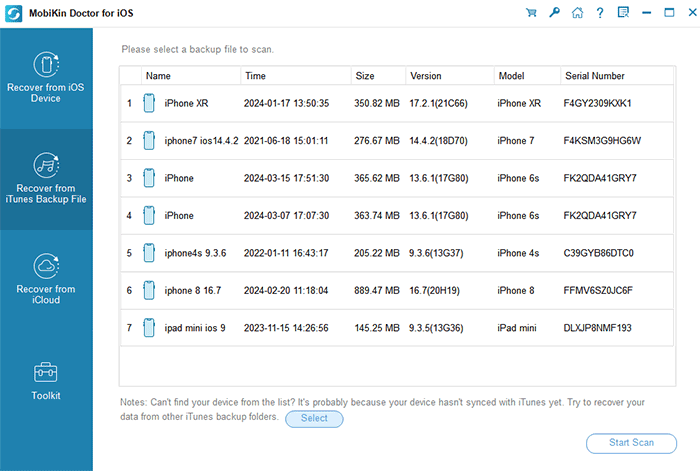
Step 2: Select the iTunes backup you need and click "Start Scan". Choose "WhatsApp" and "WhatsApp Attachments" and click "Start Scan" again.
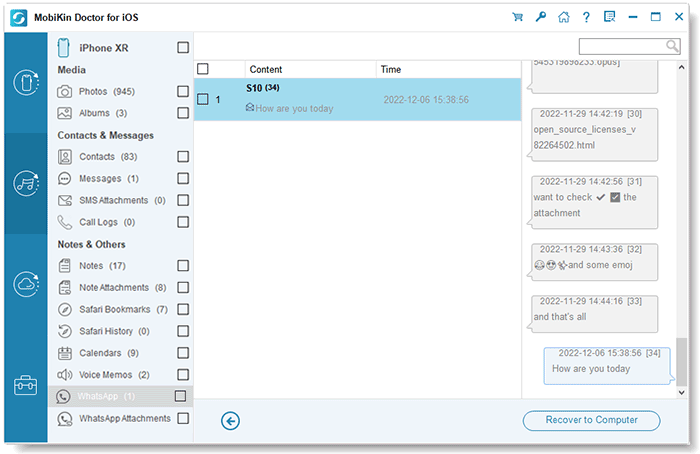
Step 3: Preview and select the WhatsApp data you want to restore and click "Recover to Computer" to save them on your computer.
Video Guide:
FAQs About WhatsApp Message Not Delivered
Q1. Why do my WhatsApp messages stay on one tick for a long time?
This often means the recipient is not connected to the internet, their phone is turned off, or they may have blocked you. It can also happen during temporary WhatsApp server issues or network disruptions.
Q2. How do I know if I am blocked on WhatsApp?
Common signs include messages always showing one gray tick, not seeing the person's last seen or online status, no profile photo updates, and calls not going through. However, these signs are not always 100% certain.
Q3. Can WhatsApp messages fail to deliver because of poor internet?
Yes. A weak or unstable internet connection is one of the most common reasons messages fail to deliver. Switching networks, restarting your connection, or turning Airplane mode on and off often helps.
Q4. Will messages be delivered after the recipient comes online?
Yes. If your message was sent successfully (one gray tick), it will automatically be delivered once the recipient reconnects to the internet, unless you were blocked or the message was deleted before delivery.
Ending Part
In summary, WhatsApp messages not being delivered is usually caused by internet problems, recipient status, app glitches, or temporary server issues. The good news is that most cases are easy to fix by checking your connection, updating the app, adjusting settings, or reinstalling WhatsApp. If messages are lost during troubleshooting, you can still recover them from backups using reliable recovery tools like MobiKin Doctor for iOS. By following the methods in this guide, you can quickly restore normal message delivery and avoid future problems.
Related Articles:
How to Back Up WhatsApp on iPhone without iCloud? 3 Solutions are Here!
How to Recover Deleted WhatsApp Videos/Photos from Android & iPhone?
3 Simple Steps to Transfer WhatsApp Backup from Google Drive to iCloud
Top 10 iOS/Android WhatsApp Recovery Apps Help You Restore WhatsApp Data
