
How to Set Up New iPhone from Old iPhone? 4 Methods & FAQs
TL;DR:
You can save hours of manual work when moving from an old iPhone to a new one by using Quick Start, iCloud, or a PC backup to transfer apps, passwords, and settings. A pro tool provides even greater control, allowing a faster, selective transfer without full backups. For a seamless and worry-free setup, we recommend using MobiKin Transfer for Mobile to move only the data you choose directly between both iPhones.
"I just bought a new iPhone and want to transfer everything from my old one. I'm not sure if I should use Quick Start, iCloud backup, or connect to a computer." -- from iphonecleaner.net
The process of setting up a new iPhone from an old iPhone turns what could be a tedious afternoon into a smooth transition. Instead of staring at a blank home screen, you bring over everything that made your previous device feel like home.
This approach saves hours of manually re-downloading apps, re-entering passwords, and re-configuring settings like Wi-Fi, wallpaper, and notifications. Check out this article to learn how to do it with 4 optimal ways and additional tips for this topic.
- Part 1: Setting Up New iPhone from Old iPhone Directly via Quick Start
- Part 2: Setting Up New iPhone from Old iPhone via iTunes/Finder
- Part 3: Setting Up New iPhone from Old One Using iCloud
- Part 4: Setting Up New iPhone from Old iPhone with MobiKin Tool [Professional]
- Part 5: Setting Up Additional Features after Transfer Data to New iPhone
- FAQs about Setting Up New iPhone from Old iPhone
Part 1: Setting Up New iPhone from Old iPhone Directly via Quick Start
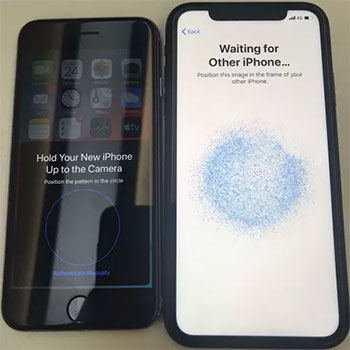
Setting up a new iPhone becomes nearly automatic when using Quick Start. Just bring both devices close together and follow on-screen prompts to initiate a direct wireless migration. This method copies most settings, Apple ID credentials, and even iCloud Keychain passwords without needing external cables or a computer. It works best when both iPhones run iOS 12.4 or later, but the transfer can take time if you have many gigabytes of data.
How-to Guide:
- Place your old and new iPhones together, turn on the new device, and tap Continue when the Quick Start prompt appears on the old iPhone.
- Scan the animation or enter the code manually to pair the devices.
- Enter your old iPhone's passcode on the new one and set up Face ID or Touch ID.
- Choose Transfer from iPhone to move data directly or select Download from iCloud if preferred.
- Keep both devices nearby and powered on until the transfer is fully completed. (Quick Start doesn't work?)
Do I need to put a SIM card in a new iPhone before transferring data? No, you do not need to insert a SIM card before transferring data. SIM cards are only required for cellular network activation and do not participate in transferring personal data like contacts or photos. You can complete the data migration first, then handle the SIM or eSIM transfer afterward.
Part 2: Setting Up New iPhone from Old iPhone via iTunes/Finder
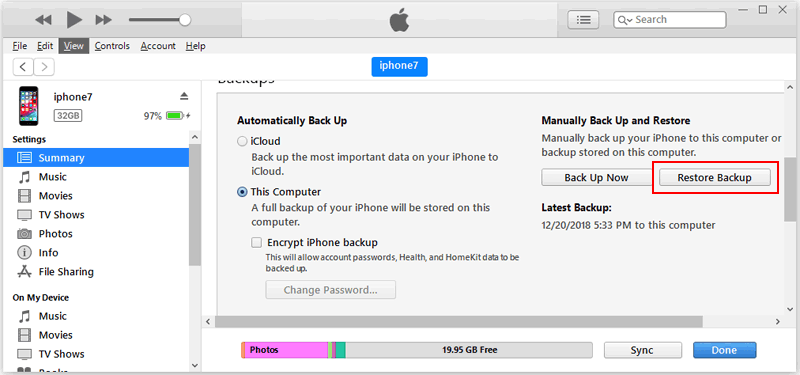
A wired connection through iTunes (or Finder on macOS Catalina and later) gives you a full, encrypted backup of the old phone. Restoring that backup onto the new device preserves health data, passwords, and Wi-Fi settings that wireless options might miss. The process requires a computer and a USB cable, yet it runs faster than iCloud for large backups and doesn't depend on internet speed or cloud storage space.
How-to Guide:
- Connect your old iPhone to a computer (Mac with Finder or Windows with iTunes), open the app, and create a full backup (enable encryption if you want to include Health and passwords).
- Turn on your new iPhone and follow the setup process until you reach the Apps & Data screen.
- Choose Restore from Mac or PC, then connect the new iPhone to the same computer.
- Select your device in Finder/iTunes, click Restore Backup, and choose the correct backup based on date and size.
- Enter the backup password if encrypted, and keep the device connected until the restore finishes and setup completes.
Part 3: Setting Up New iPhone from Old One Using iCloud
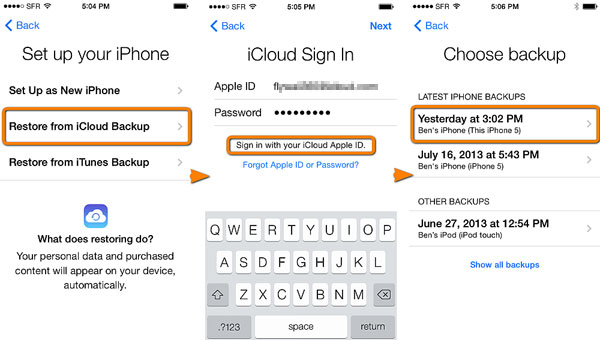
Wirelessly backing up to Apple's cloud service, iCloud, lets you restore from a previous snapshot during setup. Sign in on the new iPhone with the same Apple ID, choose a recent backup from the list, and wait for the download to finish. This approach frees you from any computer or cable, but you need enough free iCloud storage (upgrades cost extra) and a steady Wi-Fi connection for potentially hours.
How-to Guide:
- Back up your old iPhone to iCloud: go to Settings > [your name] > iCloud > iCloud Backup > Back Up Now and ensure it completes over Wi-Fi.
- Turn on your new iPhone and follow the setup until you reach the Apps & Data screen.
- Select Restore from iCloud Backup and sign in with your Apple ID.
- Choose the most recent backup (check date and size to confirm it's correct).
- Keep the device connected to Wi-Fi and power while your data (apps, photos, settings) downloads and restores in the background.
You Might Also Enjoy: iCloud Backup vs iTunes Backup: Which One Should We Choose?
Part 4: Setting Up New iPhone from Old iPhone with MobiKin Tool [Professional]
Third-party software such as MobiKin Transfer for Mobile (Windows/Mac) performs a selective one-to-one transfer between two connected iPhones. After installing the program on a computer and plugging in both devices, you pick only the data types you want - like photos, messages, or contacts - and click a copy button.
Unlike iCloud or iTunes, this tool never creates a full backup, saving time when you just need a few file categories moved to the new phone.
|
Core Functions
|
Description
|
How It Helps Set Up a New iPhone
|
|
Direct iPhone-to-iPhone Transfer
|
One-click direct data move without cloud or backup. |
Fast, simple setup without extra steps. |
|
Wide Data Type Support
|
Transfers contacts, messages, photos, videos, music, apps, call logs, etc. |
Brings all important data to the new phone at once. |
|
Cross-Platform Transfer
|
Moves data between iOS and Android. |
Ideal for Android users switching to iPhone. |
|
Selective Transfer
|
Choose only specific data types to move. |
Avoids junk; clean setup. |
|
Data Integrity & Security
|
upports iOS 5.0 to the latest (including iOS 26). |
Perfect copies of photos, messages, etc. |
|
Wide Compatibility
|
Transfers contacts, messages, photos, videos, music, apps, call logs, etc. |
Works with old and newest iPhone models. |
|
User-Friendly Interface
|
Clean design showing source & destination. |
Easy navigation during setup. |
|
Flip Function
|
Swap source/destination if incorrectly positioned. |
Prevents overwriting the new phone with old data. |
|
No Data Loss
|
Safe transfer without overwriting target data. |
Peace of mind; new phone's default data stays safe. |
|
Supports Latest iOS
|
Fully compatible with iOS 26 and newest iPhones. |
Future-proof for future iPhone setups. |


How can I set up my new iPhone from the old one using MobiKin Transfer for Mobile?
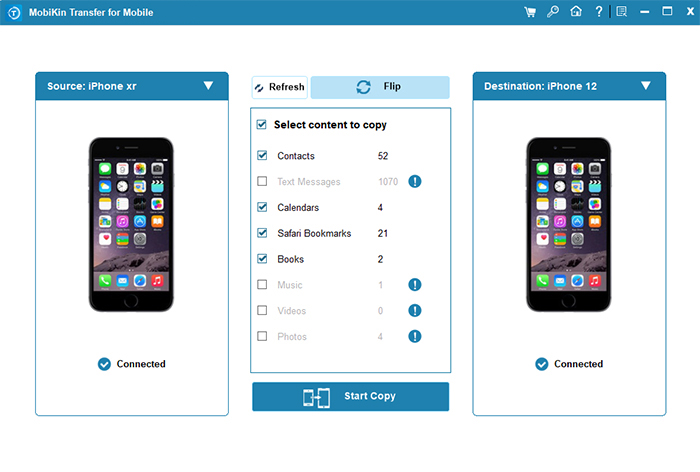
Step 1: Download, install, and launch MobiKin Transfer for Mobile on your computer. Connect both iPhones (old and new) using two USB cables, then tap "Trust" on each device if a popup asks you to trust the computer.

Step 2: Once connected, the program will automatically display the two iPhones as "Source iPhone" and "Destination iPhone" (data will transfer from source to destination). If needed, click "Flip" to set your new iPhone as the destination device.
Step 3: In the middle of the screen, tick the boxes next to the data types you want to transfer, then click "Start Copy" to begin setting up your new iPhone from the old one.
Video Guide:
Part 5: Setting Up Additional Features after Transfer Data to New iPhone
Setting up a new iPhone doesn't end once your data has been transferred, as several important features still need to be configured for full functionality. The following steps will guide you through completing essential settings and personalizing your device for a smoother experience:
- Set up Face ID or Touch ID and review security settings to protect your device. (iPhone Face ID not working?)
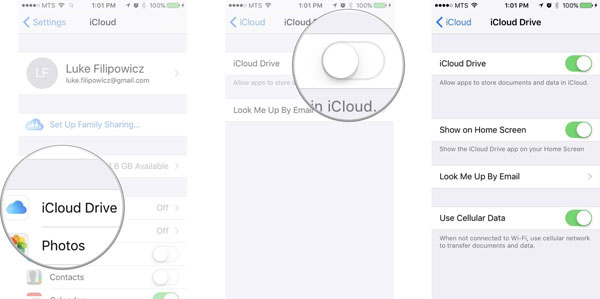
- Sign in and enable iCloud services (Photos, Contacts, iCloud Drive) to sync your data across devices.
- Add email and other accounts via Settings > Apps > Mail > Accounts > Add Account.
- Customize system preferences like Background App Refresh, Autofill, and Battery Percentage for better usability.
- Enable key Apple features such as Siri, Apple Pay, Location Services, and Find My iPhone for full functionality.
- Review privacy settings and remove unnecessary apps or clutter to optimize performance and personalize your experience.
FAQs about Setting Up New iPhone from Old iPhone
Q1. What should I do before starting the setting up?
A1. Ensure both iPhones are charged, updated, connected to Wi-Fi, and back up your old device.
Q2. Do both iPhones need to use the same Apple ID?
A2. Yes, both devices must use the same Apple ID to transfer data, apps, and settings properly.
Q3. How long does iPhone data transfer take?
A3. It depends on data size and method, usually ranging from 30 minutes to several hours.
Q4. Will all apps be transferred to the new iPhone?
A4. Yes, apps are transferred, but they may need to re-download from the App Store after setup.
Q5. Can I still use my old iPhone after transfer?
A5. Yes, you can still use it after transfer, but verify all data has moved before resetting or selling it.
Q6. Will passwords and health data transfer automatically?
A6. Only if you use an encrypted backup via iCloud or a computer.
Q7. Do I need to set up everything again on the new iPhone?
A7. Most settings transfer automatically, but some features like Apple Pay and Face ID need to be set up again.
In Conclusion
Here is the quiet truth nobody puts on a product box: the real value of moving from one iPhone to another isn't the data itself. It is the feeling of picking up the new phone and finding your old self already waiting inside it. Before you begin, delete large video files and old app caches from the old iPhone. A leaner backup or transfer runs twice as fast and spares you the "transfer failed due to insufficient storage" headache at 95% completion.
Related Articles:
7 Methods to Activate and Use an iPhone without SIM Card
12 Quick Fixes to New iPhone Stuck on Install Now [Rational Analysis]
Top 6 Ways to Transfer WhatsApp Messages to New Phone (iOS/Android)
How to Sync iPhone and iPad Calendars with 4 Proven Solutions?
