
Tenorshare ReiBoot Review: Features, Pros, Cons & Best Alternative
TL;DR:
Tenorshare ReiBoot can help fix common iOS problems, but compare its paid features with iOS System Recovery before choosing a repair tool.
- ReiBoot repairs iOS system issues from a Windows PC or Mac via USB.
- Use Standard Repair to preserve data or Deep Repair for serious issues, which erases the device.
- Connect your iPhone, click "Start," select "Standard Repair," download the matching firmware, and begin the repair.
- Enjoy a beginner-friendly interface, but check paid-plan limits and back up your data.
- Consider iOS System Recovery for another guided repair option.
An iPhone stuck on the Apple logo or trapped in a restart loop can quickly become a headache. Tenorshare ReiBoot claims to make these problems easier to fix, even if you're not familiar with iOS troubleshooting. But how well does it work, and are its paid features worth the money? In this Tenorshare ReiBoot review, we'll look at what ReiBoot offers, how to use it, and where it falls short. We'll also explore iOS System Recovery as an alternative if ReiBoot isn't the right fit.
Part 1: What Is Tenorshare ReiBoot?
Tenorshare ReiBoot is a system repair tool for iPhone, iPad, and iPod touch. It also offers versions for macOS and tvOS. According to the vendor, it can fix over 150 iOS and iPadOS system issues directly from your computer.
It helps resolve common problems like iPhones stuck on the Apple logo, endless boot loops, frozen screens, and iTunes update errors. Simply install it on your Windows PC or Mac, connect your device via USB, and follow the on-screen instructions. Its straightforward interface makes it an easier option for users who don't want to deal with Apple's manual recovery process.
Part 2: Key Features of Tenorshare ReiBoot?
Standard Repair (Enter/Exit Recovery Mode)
Standard Repair is ReiBoot's main repair feature. It aims to fix common iOS issues without deleting your photos, messages, apps, or other data. The tool reinstalls iOS while keeping your files intact. You can also enter or exit Recovery Mode with one click for free.
Deep Repair
If Standard Repair doesn't solve the problem, Deep Repair offers a more thorough fix. However, it completely erases your device, so make sure you have a backup before using it.
Factory Reset
ReiBoot can reset an iPhone to factory settings and, in certain situations, do so without an Apple ID or passcode. This can be useful if you're locked out of your device, but the reset will erase its data.
Fix iTunes and iOS Update Errors
ReiBoot can help resolve common iTunes and update errors, including codes 4013, 11, and 1110. It also targets issues such as an iPhone stuck on the Apple logo, a continuous boot loop, or a black screen. It's worth considering when an iOS update fails or leaves your device stuck.
Supported Devices and iOS Versions
ReiBoot supports a wide range of Apple devices and software versions. Its compatibility covers iOS 9 and later, including iOS 27, as well as iPhone models from the iPhone 18 series to older generations, iPads, and iPod touch. It also runs on Windows 11 and older versions down to XP, along with macOS 10.13 and later, including the latest releases. This broad compatibility makes it a flexible option for different devices.
Part 3: How to Use ReiBoot (Step by Step)
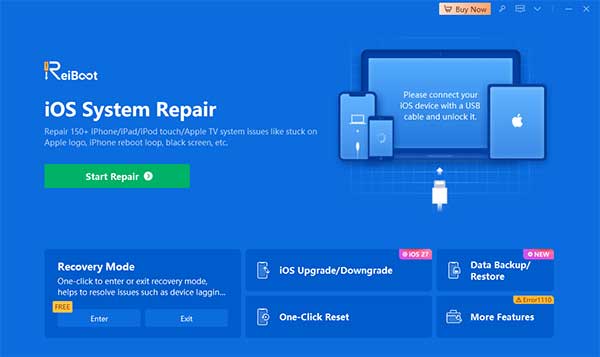
ReiBoot is easy to navigate, so you can follow the repair process without much hassle. Here's how it works:
- Download and install ReiBoot on your Windows PC or Mac, then launch the program.
- Connect your iPhone to the computer with a USB cable and tap "Trust" if prompted.
- Click "Start" and select "Standard Repair" to fix the issue without losing data.
- Check your device information and allow ReiBoot to download the appropriate firmware.
- Start the repair and wait for your iPhone to restart.
The interface guides you through each stage, making it easy to follow along without guessing what to do next.
Part 4: Pros and Cons of ReiBoot
Pros:
- Repairs many common iOS issues with a few clicks, even for beginners.
- Standard Repair is designed to fix system problems without data loss.
- Simple interface with clear, step-by-step instructions.
- Supports a wide range of iPhones and iOS versions, including older models.
- Offers a 30-day money-back guarantee.
Cons:
- Most advanced repair features require a paid Pro plan.
- Some users report problems with refunds and customer support.
- Deep Repair erases all data on the device.
- Results are not guaranteed, especially for hardware-related issues.
Part 5: Best ReiBoot Alternative - iOS System Recovery
If ReiBoot's paid repair features don't fit your budget, iOS System Recovery is another option worth considering. It helps fix common iPhone, iPad, and iPod touch system problems, including frozen screens, boot loops, Apple logo issues, and iTunes errors. Its Standard Mode is designed to repair iOS without deleting personal data, while Advanced Mode handles more serious system problems at the cost of erasing the device.
With a simple interface and a guided repair process, it's a practical choice for users who want to get their Apple device working again without complicated troubleshooting.
Key Features of iOS System Recovery:
- Fix iOS issues. Resolve problems like black screens, frozen devices, boot loops, and Apple logo errors.
- Two repair modes. Standard Mode aims to preserve data, while Advanced Mode erases the device.
- One-click Recovery Mode. Enter or exit Recovery Mode for free with one click.
- Fix iTunes errors. Address common errors such as 4013, 4014, and 3014.
- Factory reset. Reset supported devices without a passcode, but all data will be erased.
- Wide device support. Compatible with iPhone, iPad, and iPod touch on supported Windows and Mac systems.


How to Repair an iPhone with iOS System Recovery?
Step 1:Download and install Aiseesoft iOS System Recovery on your Windows PC or Mac, then launch the program. Connect your iPhone, iPad, or iPod touch to the computer using a USB cable. Once the device is detected, select "More Tools" > "iOS System Recovery" from the main interface.
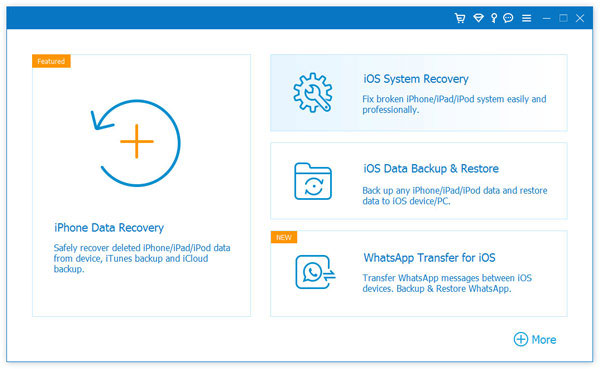
Step 2: Click "Start" and choose the appropriate repair mode. Select Standard Mode if you want to try repairing the device without losing data.
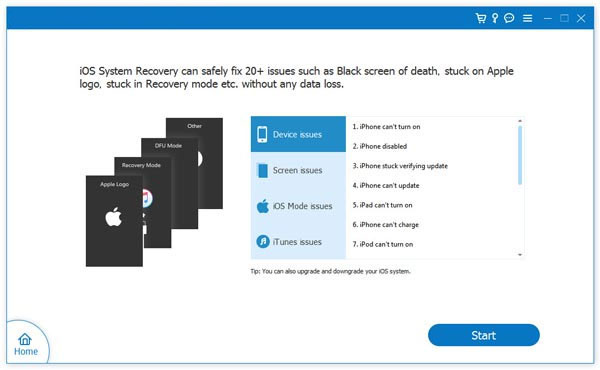
Step 3: Follow the on-screen instructions to confirm your device information and download the matching firmware.
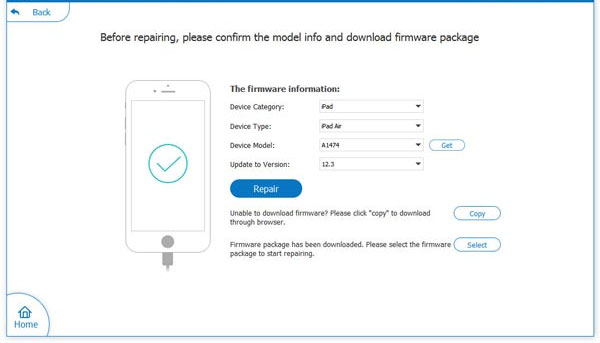
Step 4: Click "Repair" to begin the process, then wait for the software to finish and your device to restart.
FAQs About Tenorshare ReiBoot
Q1. Is Tenorshare ReiBoot safe to use?
Generally, yes. ReiBoot is a legitimate iOS repair tool. However, download it from the official website and back up your device before attempting repairs to reduce the risk of data loss.
Q2. Is Tenorshare ReiBoot free?
ReiBoot offers some free features, including entering and exiting Recovery Mode. Most advanced repair functions require a paid license.
Q3. Will ReiBoot erase my iPhone data?
It depends on the repair mode. Standard Repair is designed to preserve your data, while Deep Repair erases the device. Back up your iPhone before starting any repair if possible.
Q4. Can ReiBoot fix an iPhone stuck on the Apple logo?
It can help fix this issue if the cause is related to iOS software. However, it may not work if the problem comes from damaged hardware.
Q5. Is Tenorshare ReiBoot worth buying?
It can be useful if your iPhone has persistent system problems that basic troubleshooting cannot fix. Before purchasing, check which features are included in the plan and whether they cover your specific issue.
Conclusion
ReiBoot is worth considering if you want a straightforward way to deal with common iOS glitches without navigating complicated recovery steps. Still, its paid features and Deep Repair's data-erasing process may not suit everyone. Before making a purchase, consider the issue you're trying to fix and the features you actually need. If you'd like another option, iOS System Recovery is worth checking out to see whether it better fits your repair needs and budget.
Related Articles:
iPhone Stuck on Restore Screen? 7 Simple Fixes to Try Out
Top 7 Best TunesKit iOS System Recovery Alternatives 2026
