
Mi Mover Not Working? User Guide, Errors, Fixes, Alternative, & FAQs
Even the most convenient tools can stumble, and Mi Mover, while designed to simplify phone-to-phone data transfers, sometimes fails to perform as expected. When users encounter Mi Mover not working, the frustration of stalled connections and incomplete migrations can turn an exciting device upgrade into a puzzling ordeal. Today, this passage offers the 7 symptoms and fixes, along with a more flexible replacement.
- Part 1: Step-by-Step Guide to the Latest Mi Mover
- Part 2: How to Fix Mi Mover Not Working? (7 Symptoms & Solutions)
- Part 3: Other Supplementary Solutions to Mi Mover Not Working
- Part 4: The Best Alternative to Mi Mover [Always Work]
- FAQs about the Best Mi Mover Alternative - MobiKin Transfer for Mobile
Part 1: Step-by-Step Guide to the Latest Mi Mover
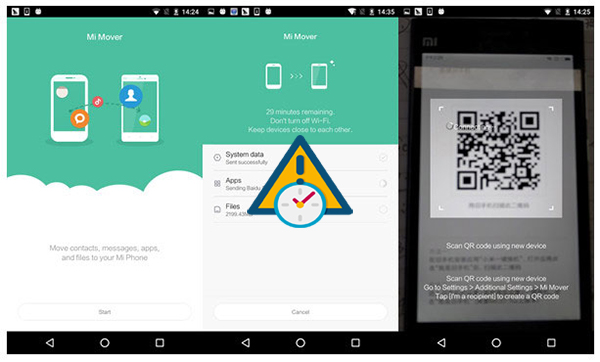
Switching to a new Xiaomi/Redmi/POCO phone can be exciting, but moving your data safely and smoothly is just as important. To help you complete the transfer without confusion, follow the simple step-by-step guide below using the latest version of Mi Mover:
- Download and install the Mi Mover from Google Play Store on both your old and new phones.
- Open the app on your Samsung (or other Android) device and carefully read the Terms and Conditions, then tap Agree to continue.
- Select Old Phone/Sender Mode to start preparing your data for transfer.
- Allow all required permissions so the app can access your storage, contacts, and media files.
- Launch the same app on your new Xiaomi phone and choose New Phone/Receiver Mode.
- Make sure both devices are connected to the same Wi-Fi network or hotspot created by the app.
- Let the app search for nearby devices and tap your Xiaomi phone when it appears on the screen.
- Choose the data types you want to transfer, such as contacts, photos, videos, apps, and messages.
- Tap Send/Start Transfer and keep both phones close and unlocked during the process.
- Wait until the progress reaches 100%, then check your Xiaomi phone to confirm that all files were successfully received.
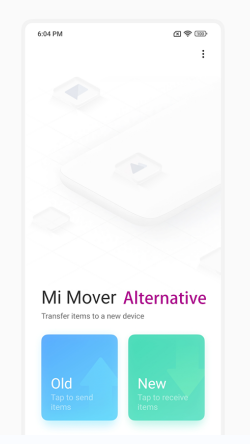
Part 2: How to Fix Mi Mover Not Working? (7 Symptoms & Solutions)
Symptom 1 - Transfer Stuck, Slow, or Never Finishes
What happens: The progress bar freezes or moves very slowly.
Solution:
- Transfer data in smaller groups (contacts, photos, videos, etc.).
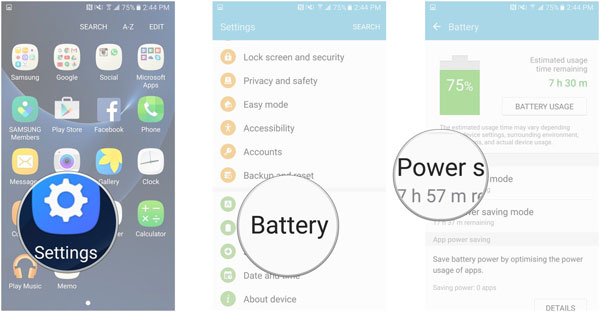
- Make sure both phones have over 50% battery.
- Avoid using the phones during transfer.
You Might Also Like: Why Is My Phone Charging So Slow? 15 Possible Causes & 12 Methods
Symptom 2 - Connection Interrupted/Can't Connect
What happens: Mi Mover shows "Connection interrupted" or disconnects during transfer.
Solution:
- Keep both phones within about 30 cm.
- Turn off VPN and battery-saving modes.
- Restart both devices before retrying.
- Update Mi Mover and the system on both phones.
Symptom 3 - Only Some Data Transferred
What happens: Certain files transfer, but SMS or call logs are missing.
Solution:
- Send data in separate batches.
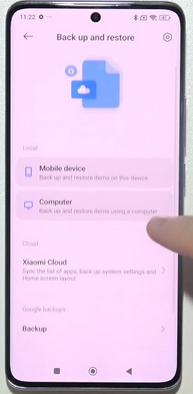
- Export missing data from Mi Cloud and import it afterward.
Symptom 4 - App Data/Logins Are Missing
What happens: Apps are installed, but settings and accounts are lost.
Solution:
- Mi Mover only transfers app files, not internal data.
- Log in again and set up apps manually after the transfer.
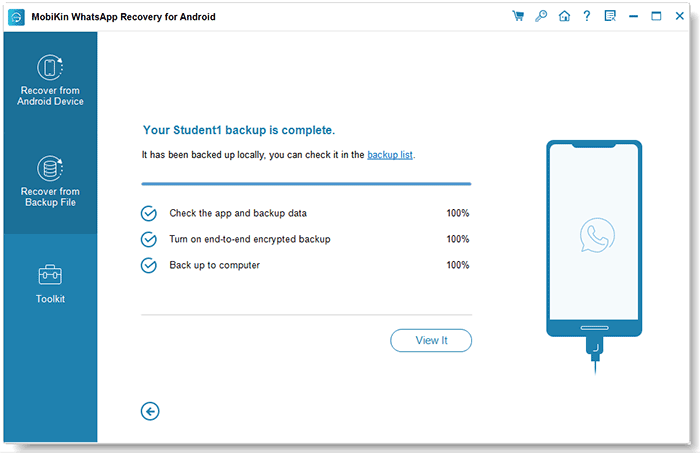
Symptom 5 - WhatsApp Chats Didn't Transfer
What happens: Chat history does not appear on the new phone.
Solution:
- Back up WhatsApp using a trusted program.
- Restore chats after setup, since encrypted data isn't supported.
Symptom 6 - App Doesn't Appear or Install Properly
What happens: Mi Mover fails to install or lacks the receive option.
Solution:
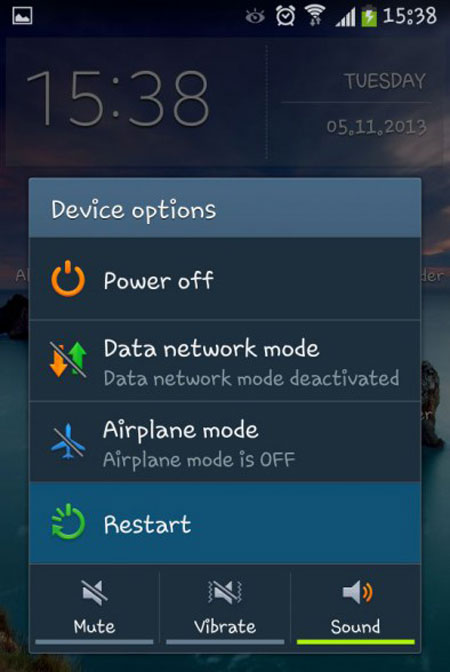
- Clear the cache or reinstall Mi Mover on both phones.
- Restart devices and ensure both versions match.
Symptom 7 - Data Conflicts or Compatibility Errors
What happens: Frequent crashes or error messages during transfer.
Solution:
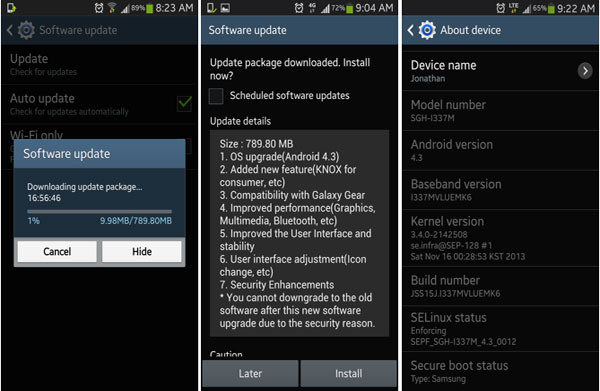
- Update both phones to the latest system version.
- Transfer different data types separately instead of all at once.
Part 3: Other Supplementary Solutions to Mi Mover Not Working
If Mi Mover still fails to work properly after trying common fixes, you may need to explore some additional solutions to resolve hidden system or connection issues. The following supplementary methods can help improve transfer stability and ensure your data migration goes smoothly.
- Update Google Play Services on both phones to ensure wireless transfer functions properly.
- Disable Dual Apps or App Cloning features to avoid network interference.
- Enable automatic date and time settings on both devices.
- Move to an area with less Wi-Fi interference, away from crowded networks.
- Turn off Private DNS in network settings.
- Sign out of unnecessary Google or Xiaomi accounts to prevent syncing issues.
- Reset network settings to fix hidden Wi-Fi and connectivity problems.
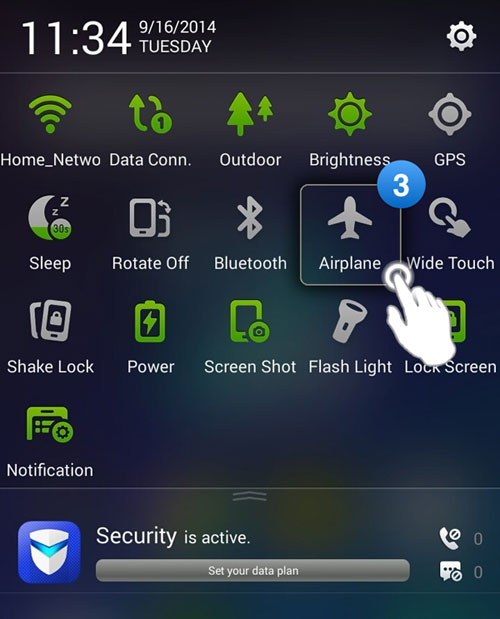
- Turn on Airplane Mode first, then manually enable Wi-Fi for a more stable connection.
- Try transferring data in Safe Mode to avoid third-party app conflicts.
- Use a USB cable with OTG support for a wired transfer if available.
- Check for system hotfixes or reinstall recent updates if problems started after an upgrade.
Part 4: The Best Alternative to Mi Mover [Always Work]
When Mi Mover fails to work, you can rely on a stable alternative that transfers data seamlessly between Android and iOS devices. MobiKin Transfer for Mobile (Windows/Mac) lets you move contacts, messages, photos, videos, apps, and more without depending on wireless connections. Its fast, reliable, and user-friendly interface ensures all your important data is migrated smoothly from one phone to another.
|
MobiKin Transfer for Mobile - Core Features
|
Benefit as a Mi Mover Alternative
|
|
Cross-Platform Support |
Works with all devices, not limited to Xiaomi phones. |
|
Wide Data Coverage (contacts, SMS, call logs, photos, videos, music, apps, documents) |
Best Mi Mover substitute to transfer all important data types in one go. |
|
Wired Connection (USB cable) |
Ensures fast and stable transfers without relying on Wi-Fi. |
|
Preview & Selective Transfer |
Lets you choose specific data types, avoiding unnecessary bulk transfers. |
|
No Data Overwriting |
Step-by-step guide simplifies the process for beginners. |
|
Easy-to-Use Interface |
Keeps existing data safe during migration. |
|
High Speed & Stability |
Avoids interruptions and transfer failures common in wireless methods. |
|
Broad Device Compatibility |
Works across Xiaomi, POCO, Redmi, Samsung, Huawei, OPPO, OnePlus, iPhone, and more. |
|
Offline Transfer |
Eliminates Wi-Fi or hotspot dependency, solving connectivity issues. |
How to use the best Mi Mover alternative?
- Initiate the Transfer for Mobile program on your computer once you have successfully downloaded and installed it.
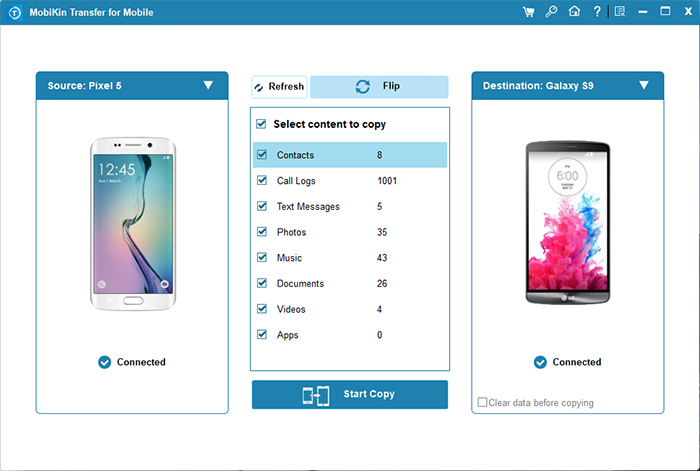
- The program's initial interface will be displayed, resembling the screenshot provided below.
- Next, connect both iPhone/Android/Xiaomi/POCO/Redmi phones to the computer using USB cable.
- The tool will automatically detect the devices and present them as the source and destination on the left and right sides, respectively. If they are not arranged correctly, click on "Flip".
- Finally, select the data type(s) by ticking the corresponding checkbox(es).
- After that, click the "Start Copy" button to commence.



Video Instructions:
FAQs about the Best Mi Mover Alternative - MobiKin Transfer for Mobile
Q1. Can MobiKin Transfer for Mobile replace Mi Mover completely?
Yes, it works as a full-featured alternative to Mi Mover, allowing you to transfer contacts, messages, photos, videos, apps, and more without relying on wireless pairing.
Q2. Does MobiKin Transfer for Mobile require Wi-Fi or hotspot connections?
No, it uses a USB cable connection, which avoids common Wi-Fi disconnection and pairing problems found in Mi Mover.
Q3. Is MobiKin Transfer for Mobile safe to use?
Yes, it is read-only during transfers and does not overwrite existing data unless you choose to replace it.
Q4. Do I need technical skills to use this software?
No, it features a simple interface with guided steps, making it suitable for beginners and non-technical users.
Q5. How fast is the transfer compared to Mi Mover?
Because it uses wired connections, MobiKin Transfer for Mobile is usually faster and more stable than wireless-based tools like Mi Mover.
Q6. Will it work even if Mi Mover keeps failing on my phone?
Yes, it operates independently of Mi Mover and system transfer services, so you can use it even when Mi Mover cannot connect or complete transfers.
Related Articles:
10 Tried-and-true Ways to Fix Copy My Data App Not Working
How to Hard Reset Xiaomi/Redmi/Mi with/without Computer? 6 Options
Top 4 Methods to Transfer WhatsApp from Huawei to Xiaomi/Redmi
How to Recover Lost Files from Redmi/Mi Internal Memory with/without Backup
