
10 Tried-and-true Ways to Fix Copy My Data App Not Working
When switching to a new phone, many users use Copy My Data to move their files quickly, yet problems often appear during the process. Situations where phones cannot detect each other, the transfer stops midway or shows no progress, or the Copy My Data app not working message appears can make the upgrade experience stressful. In this post, we shall guide you through why this happens and how to fix it in a few simple ways.
Section 1: Why Is Copy My Data App Not Working
When Copy My Data fails to transfer files smoothly, it can be frustrating and time-consuming, especially during phone upgrades. Before jumping into solutions, it's important to understand the main reasons why the app may not be working properly.
- Devices aren't on the same local Wi-Fi - the app transfers data over your home network, not the internet.
- Connection interruptions - weak Wi-Fi signal or automatic network switching can break the transfer.
- App permissions missing - if contacts, storage, or media access are blocked, data can't be read or moved.
- App or system bugs - crashes, freezes, or incompatibilities with your Android version can stop the process.
- Low storage/memory - not enough free space or too many background apps can halt large transfers.
- Battery saver or background restrictions - system optimization may pause the app mid-transfer.
Section 2: How to Troubleshoot Copy My Data Not Working? 10 Quick Fixes
Fix 1. Make Sure Both Devices Are on the Same Wi-Fi Network
Copy My Data transfers files through a local Wi-Fi connection, so both phones must be connected to exactly the same network. Double-check the Wi-Fi name on each device and avoid using public or guest networks. If the signal is weak, move closer to the router for better stability.
Fix 2. Keep the App in the Foreground
Switching to other apps, answering calls, or locking the screen may pause or cancel the transfer. Keep Copy My Data open and active until the process finishes. Disable battery-saving modes if they automatically close background apps.
Fix 3. Restart the App and Both Phones
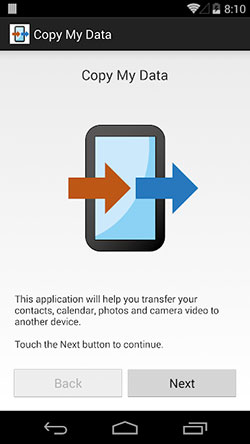
Temporary system glitches or background conflicts can interrupt the transfer process. Close the app completely on both devices, then restart each phone. After rebooting, reopen the app and try again for a cleaner connection.
If the reboot does not help, uninstall Copy My Data from both devices. Restart both phones, then reinstall the app from Google Play. This removes corrupted files and ensures a clean installation.
Fix 4. Clear Cache and App Data
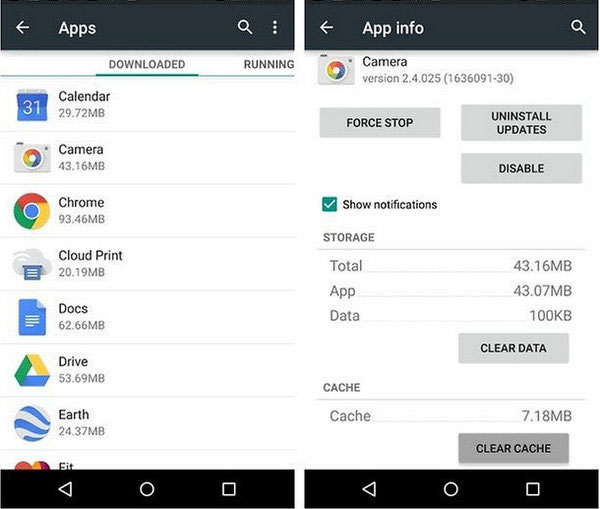
Corrupted cache files may cause crashes or connection problems. Open Settings > Apps > Copy My Data > Storage, then clear the cache. If issues persist, clear app data as well (note that this resets app settings), then reconfigure the transfer.
Fix 5. Grant All Required Permissions
The app needs access to contacts, photos, storage, calendar, and network settings. If any permission is denied, transfers may fail or skip data. Go to Settings > Apps > Copy My Data > Permissions and enable all required options before restarting the app.
Fix 6. Check Storage Space and Memory
If your phone has low storage or limited RAM, large transfers may stop midway. Delete unnecessary files, uninstall unused apps, and close background programs. Make sure the receiving phone has enough free space for all incoming data.
Fix 7. Update to the Latest Version
Older versions may not work well with newer Android systems. Open Google Play, search for Copy My Data, and install the latest update. Updates often fix bugs, improve compatibility, and enhance connection stability.
Fix 8. Reboot router
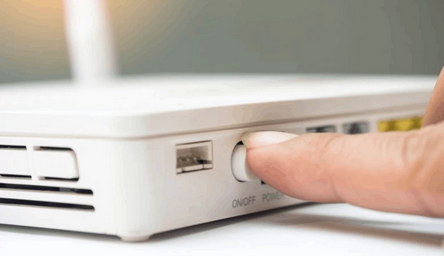
Unplug your Wi-Fi router's power cable and modem (if separate), then wait about 30 seconds to fully clear the connection. Plug them back in, turn them on, and wait 2-3 minutes until all indicator lights return to normal. Once the internet is stable again, reconnect both phones to the same Wi-Fi network and reopen Copy My Data to retry the transfer.
Fix 9. Improve Network Stability or Switch Networks
Unstable Wi-Fi is one of the most common causes of failed transfers. Restart your router, disable mobile data, and turn off "smart network switching" features. If problems continue, try another Wi-Fi network or a personal hotspot.
Fix 10. Contact Support or Report the Issue
If none of the fixes work, the problem may be related to your device model or Android version. Contact the developer's support team and provide details such as phone model, Android version, and error messages. This helps them diagnose and fix the issue faster.
Bonus Tips for Better Success:
- Try transferring data in smaller batches instead of everything at once.
- Keep both phones fully charged or plugged in during transfer.
- Disable VPNs and firewall apps that may block local connections.
- Consider using built-in tools (Google Backup, Nearby Share) if repeated failures occur.
Section 3: Ultimate Way to Try When Copy My Data App Doesn't Working
When Copy My Data fails to work properly, MobiKin Transfer for Mobile (Windows/Mac) can serve as a dependable solution for transferring data between mobile devices smoothly. It enables fast and stable migration of contacts, messages, photos, videos, and other important files without relying on unstable Wi-Fi connections.
With its straightforward interface and direct connection method, users can complete the transfer process quickly and with minimal interruptions.
More Features of MobiKin Transfer for Mobile:
- Direct Phone Transfer - Moves data without relying on Wi-Fi only.
- Fast Performance - Delivers smooth and stable transfers.
- Cross-Platform Support - Works between Android and iOS devices.
- Multiple Data Types - Transfers contacts, messages, photos, videos, and more.
- One-Click Migration - Transfers data with a single click.
- No Overwriting - Keeps existing files safe.
- Easy to Use - Beginner-friendly interface and higher success rate.
How to use the the Copy My Data alternative?
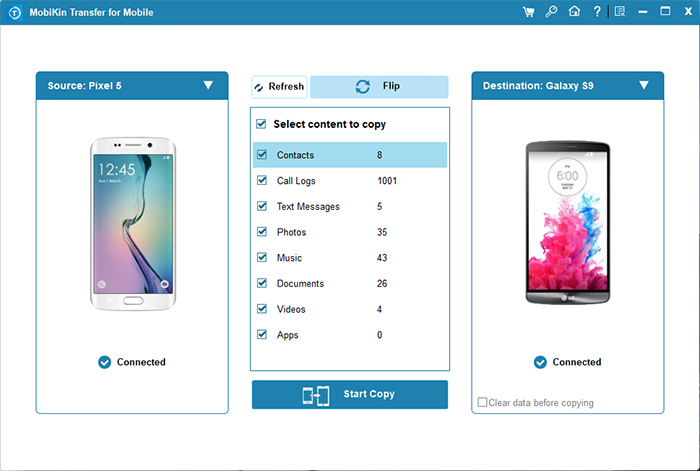
- To begin, initiate the MobiKin Transfer for Mobile program on your computer, ensuring it has been downloaded and installed. The program's primary interface will resemble the screenshot below.
- Using USB cables, establish a connection between your computer and the two devices. Next, enable USB debugging or trust your computer on your mobile phones to let the tool identify both. If you've inadvertently switched the source and destination devices, simply click "Flip" to correct their positions.
- After completing the previous setup, choose the specific data types you wish to transfer, then click the "Start Copy" button. This will commence the process of data transfer from the source phone to the destination one.


Video Guide:
Concluding Thoughts
If repeated attempts still fail and the Copy My Data app keeps causing connection or transfer issues, choosing a more stable tool can save time and effort. In this case, MobiKin Transfer for Mobile is a practical option, as it supports fast, direct, and reliable data migration between devices without depending heavily on unstable Wi-Fi.
Additional Tip:
Before starting any transfer, always back up your important data to cloud storage or a computer, so you have a secure copy in case unexpected errors occur during the migration process.
Related Articles:
7 Worry-free Options to Transfer Photos from Android to iPhone 17/16?
[4 Solutions] How to Sync Calendars Between Two Android Phones?
How to Transfer WhatsApp Messages to New Phone without Backup? 3 Ways
Top 7 PC to Mobile File Transfer Apps for Windows/Mac [Detailed Guide]
