
How to Transfer Contacts from IQOO to IQOO? [Way 1 Is the Quickest]
Transferring important data between devices can be a daunting task, especially when it comes to contacts that contain critical personal and professional information. Many iQOO users want to move contacts seamlessly without manually entering each number and other specific info.
Knowing how to transfer contacts from iQOO to iQOO efficiently can save both time and effort, particularly for those who rely on their phones for work and personal communication. This article will explore 4 smart ways to transfer contacts between iQOO phones, providing step-by-step guidance for each method.

#1: Transfer Contacts from IQOO to IQOO via MobiKin Transfer for Mobile [Expert]
Transferring contacts from one iQOO phone to another can be done quickly and safely using a desktop solution. With MobiKin Transfer for Mobile (Windows/Mac), you can connect both devices to a computer and move contacts along with other data types seamlessly.
The software allows you to select only the contacts you need, avoiding unnecessary files during the transfer. Its fast and secure process ensures no data loss, making it ideal for users switching between iQOO models.
Core Features of MobiKin Transfer for Mobile:
> Android to Android Transfer - Easily moves contacts and other data from one iQOO phone to another.
> Cross-Platform Support - Works for Android to/from Android and Android to/from iOS transfers.
> Selective Transfer - Lets you transfer only contact lists without copying unnecessary data types.
> Safe & Secure - Transfers data locally via USB without overwriting existing contacts.
> Wide Compatibility - Supports most Android brands and iQOO models, covering iQOO Number, Z, Neo, U, and Legend series (e.g., 14/13/12/11, Z9/Z8, Neo 9/8, U5/U3, Legend models).
> Fast & Simple - Clean, three-step process: connect, select contacts, transfer.
> Optional Data Reset - Can clear target phone data before transfer if needed.


User Guide:
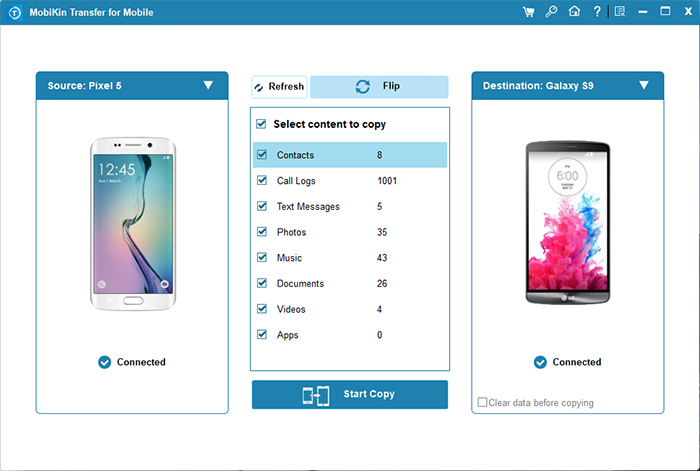
- Install and launch the tool on your computer after the free and secure download.
- Connect both IQOO phones using USB cables and enable USB debugging on them as prompted so the software can detect them.
- If the source and destination are reversed, use the "Flip" button to switch their positions.
- All supported file types will appear on the screen.
- Select the data types (for this topic, pick "Contacts") to transfer.
- Click "Start Copy" to begin moving files from one IQOO device to the other.
Video Guide:
Click to Learn: You can retrieve contacts from your old IQOO phone if you are unable to find them from within.
#2: Transfer Contact List from iQOO to iQOO Using EasyShare
Wireless transfer between iQOO phones is simple and efficient, especially when using a dedicated phone-to-phone tool. EasyShare enables direct connection through QR code scanning, establishing a secure link in seconds. Contacts and other important data can be selected and cloned to the new device without complicated setup. Even phones with screen locks are supported, requiring only the PIN or password to proceed with the transfer.
User Guide:
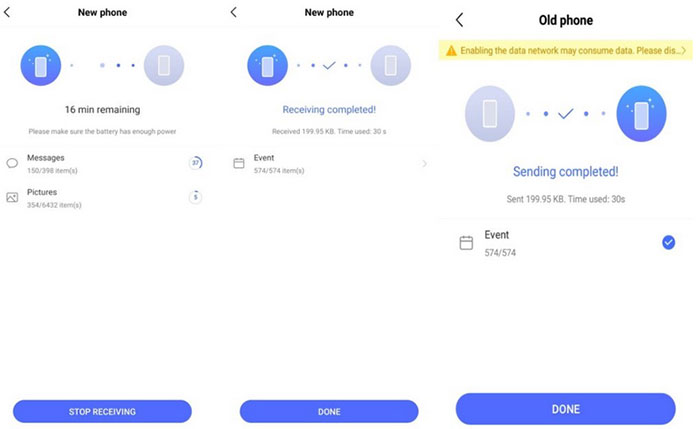
- Open EasyShare on both the old iQOO and the new iQOO, then tap Phone Clone.
- On the old phone, select Old phone; on the new phone, select New phone.
- The old phone will generate a QR code.
- Use the new phone to scan the QR code displayed on the old phone.
- Wait a few seconds for the two phones to establish a connection.
- On the old phone, select Contacts (or other data if needed), then tap Start Phone Clone.
- If a screen lock is enabled on the old phone, enter the PIN, password, or pattern to continue.
- Once the transfer is complete, tap Start using your new phone on the new iQOO.
You May Also Like: EasyShare Not Working? Possible Causes, 9 Fixes, & 1 Alternative
#3: Copy Contacts from One IQOO Phone to Another with PhoneCopy: Backup & Restore
Contacts can be securely backed up from an old iQOO phone to the cloud and later restored on a new device without any loss. Using PhoneCopy: Backup & Restore, the process of transferring your contact list between iQOO phones becomes simple and reliable. A few taps are enough to synchronize selected contacts, ensuring they appear on the new phone exactly as they were.
User Guide:
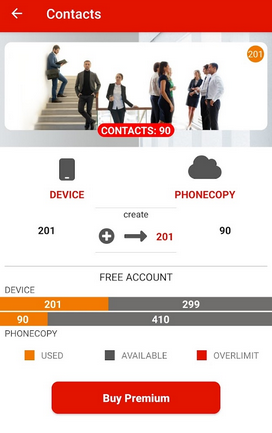
- Install PhoneCopy - Download and install PhoneCopy: Backup & Restore from Google Play on your old iQOO phone.
- Sign In and Backup - Open the app, create an account or log in, and grant it permission to access your contacts. Tap Backup or Synchronize to upload your contacts to the PhoneCopy cloud.
- Install on New Phone - On your new iQOO, install the PhoneCopy app and sign in with the same account.
- Restore Contacts - Once logged in, tap Restore or Synchronize to download your backed-up contacts to the new phone.
- Verify Contacts - Open the Contacts app on the new iQOO to ensure all contacts have been successfully transferred.
#4: Share Contacts from IQOO to IQOO via Share Contacts: Text, VCF, CSV
For users who prefer file-based sharing, exporting contacts is straightforward and flexible. The Share Contacts: Text, VCF, CSV app, serving as a great PhoneCopy substitute, allows contacts to be saved as a VCF file and shared via Bluetooth, Nearby Share, or messaging apps.
After sending the file to the new iQOO, it can be opened and imported effortlessly. This method provides control over exactly which contacts are transferred while remaining fast and reliable.
User Guide:
- Install Share Contacts: Text, VCF, CSV on the old iQOO from Google Play.
- Open the app and allow contact access.
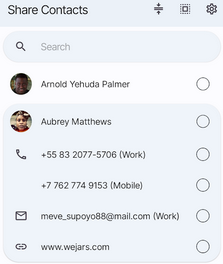
- Select the contacts you want to transfer (or choose Select All).
- Choose VCF (vCard) as the export format.
- Tap Share and send the VCF file via Nearby Share, Bluetooth, or any messaging app.
- Accept the file on the new iQOO 14/13/12/11/Z9/Neo 11/U6, etc.
- Open the VCF file and tap Import to add the contacts.
Words in the End
While tools like EasyShare, PhoneCopy, and Share Contacts: Text, VCF, CSV offer convenient ways to move contacts, MobiKin Transfer for Mobile is your best bet due to its speed, security, and comprehensive compatibility. It allows users to transfer not just contacts but also other types of data directly between iQOO devices without risk of loss.
The selective transfer feature ensures that only the necessary contacts are moved, avoiding clutter and saving time. So, try this software now after the free download.
Related Articles:
4 Intelligent Solutions to Transfer Contacts from realme to realme
5 Tried-and-true Methods to Unlock IQOO Phone without Effort
Top 6 Best IQOO Sync Managers for Safe Backup/Transfer/Management
IQOO Mobile Hard Reset: 4 Options to Factory Reset IQOO Phones
