
[Guide] How to Transfer Data from itel to iPhone Quickly and Safely?
Switching from an itel phone to an iPhone can be exciting, but moving your important data might feel a little challenging at first. Many users worry about losing contacts, photos, messages, or other valuable files during the process. Fortunately, there are several practical ways to transfer data from an itel device to an iPhone safely and efficiently.
Whether you prefer using official apps, cloud services, a computer, or third-party tools, each method has its own advantages. In this guide, we will introduce some of the most common and effective solutions to help you move data from itel to iPhone with ease.
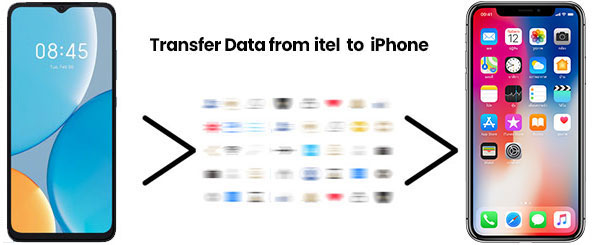
- Part 1: Transfer Data from itel to iPhone Using Move to iOS
- Part 2: Transfer from itel to iPhone with Transfer for Mobile
- Part 3: Move Data from itel to iPhone via Google Drive
- Part 4: Transfer Files from itel to iPhone Using a Computer
- Part 5: Copy Content from itel to iPhone with File Sharing Apps
Part 1: Transfer Data from itel to iPhone Using Move to iOS
Move to iOS is an official app developed by Apple to help Android users move their data to a new iPhone. It allows you to transfer important content like contacts, messages, photos, and more directly from your Android device to your iPhone. The process is straightforward and does not require a computer or extra tools.
Steps to transfer data from itel to iPhone using Move to iOS:
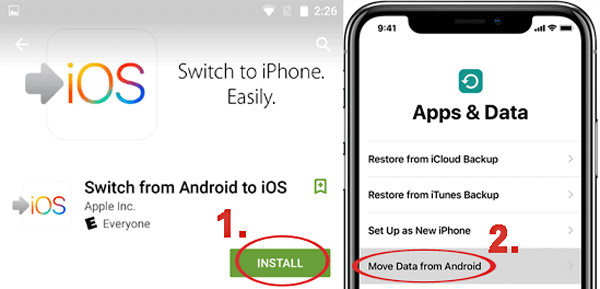
- Turn on your iPhone and place it close to your itel (Android) phone.
- Follow the setup instructions on the iPhone screen. (Move to iOS Stuck on Preparing to Transfer?)
- When you reach the "Apps & Data" screen, select "Move Data from Android".
- On your itel phone, download and install "Move to iOS" from the Google Play Store.
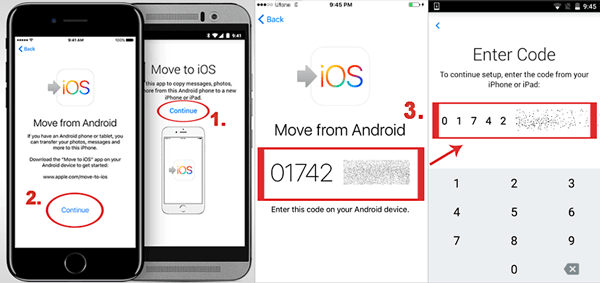
- Open the app and tap "Continue", then agree to the terms and permissions.
- On your iPhone, tap "Continue" on the "Move Data from Android" screen. A 6-digit or 10-digit code will appear.
- Enter the code on your itel phone to connect the two devices.
- Your iPhone will create a temporary Wi-Fi network. Tap "Connect" on the itel phone when prompted.
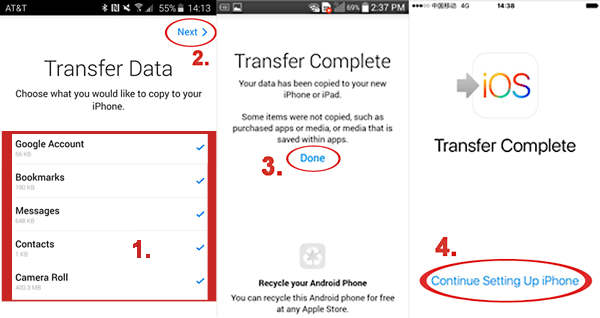
- Select the types of data you want to transfer and tap "Continue".
- Keep both devices connected and powered until the transfer bar on the iPhone is complete.
- Tap "Done" on the itel phone and "Continue" on the iPhone to finish the setup.
Part 2: Transfer from itel to iPhone with Transfer for Mobile
If you have already set up your iPhone or Move to iOS doesn't work properly, using a professional transfer tool can be a better option. MobiKin Transfer for Mobile (available for both Windows and Mac) allows you to move data directly from an itel phone to an iPhone through a computer. The program supports multiple data types and provides a fast and stable transfer process. With just a few clicks, you can safely copy important files between devices without complicated settings.
Why Choose MobiKin Transfer for Mobile?
- Transfer data directly from iOS to Android, Android to iOS, Android to Android, and iOS to iOS.
- Support to transfer contacts, text messages, photos, videos, music, and more.
- Compatible with thousands of phone models, including the iPhone 17/16/15/14/13/12/11/X/8/7/6, itel A80/A70/A60/A50/A18/A16, P70/P65/P55//P40/P36/P33/P15, etc.
- Compatible with the latest iOS and Android systems.
- Ensures safe and fast data transfer without data loss.


How to transfer data from itel to iPhone with Transfer for Mobile:
Step 1: Launch Transfer for Mobile
Download and install MobiKin Transfer for Mobile on your computer and launch the program. Connect your itel phone and iPhone to the computer using USB cables.

Step 2: Confirm the source and destination devices
Once the devices are detected, make sure the itel phone is shown as the Source device and the iPhone as the Destination. You can click Flip if the order is incorrect.
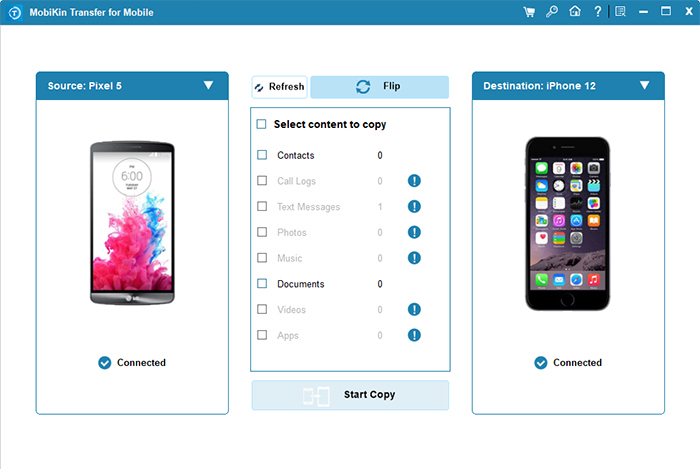
Step 3: Transfer Your Data
Select the types of data you want to transfer, and then click "Start Copy" to begin transferring data from the itel phone to the iPhone. Wait until the process finishes.
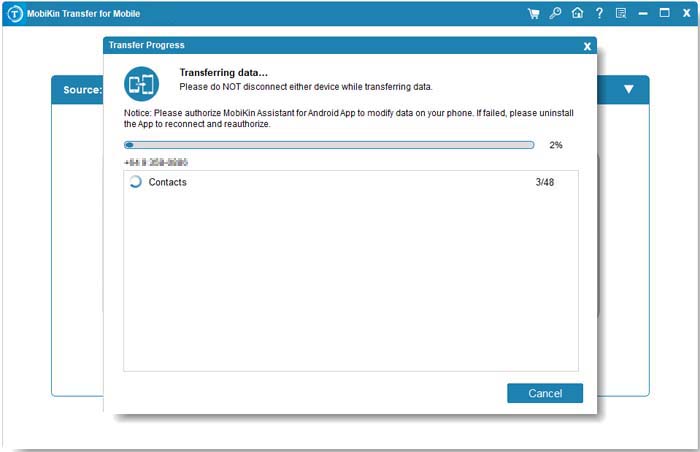
Video Guide:
You May Need:
Part 3: Move Data from itel to iPhone via Google Drive
Another convenient way to move data from an itel phone to an iPhone is by using Google Drive. This cloud-based service allows you to back up important information from your itel device and access it later on your iPhone. It works particularly well for transferring photos, contacts, and calendar events without needing a computer.
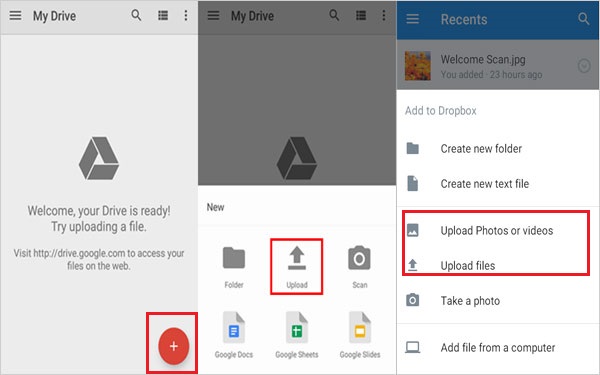
- Install Google Drive on your itel phone from the Google Play Store if it is not already installed.
- Open the app and sign in with your Google account. Then tap "Menu > Settings > Backup".
- Tap "Start Backup" to begin backing up your data. The process may take some time depending on the amount of data stored on your device.
- After the backup is complete, on your iPhone, download Google Drive from the App Store and sign in using the same Google account.
- Your backed-up photos, contacts, and calendar information will be available in the app or can sync to your iPhone after adding the Google account in "Settings".
You May Need:
Part 4: Transfer Files from itel to iPhone Using a Computer
Using a computer as a bridge is another practical way to transfer files from an itel phone to an iPhone. This method is especially useful for moving large files such as photos, videos, or music. You can first copy the data from the itel device to your computer and then transfer it to the iPhone with the help of iPhone management software.
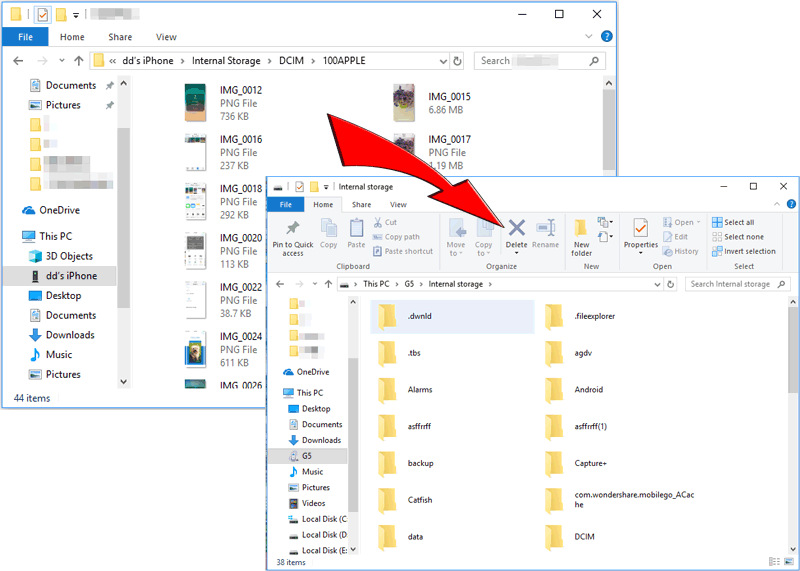
- Use a USB cable to connect your itel phone to the computer. Choose "File Transfer (MTP)" mode on the phone so the computer can access its storage.
- Open the itel device folder on the computer and copy the photos, videos, music, or other files you want. Save them to a folder on your computer.
- Disconnect the itel phone and connect your iPhone to the computer with a USB cable.
- Use iPhone management software or media syncing tools to import the files from the computer to your iPhone.
Part 5: Copy Content from itel to iPhone with File Sharing Apps
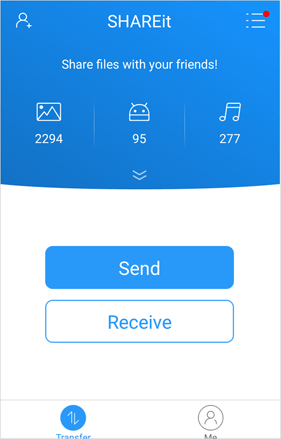
File sharing apps like SHAREit and Xender (SHAREit vs. xShare), are another quick and convenient way to transfer content from an itel phone to an iPhone. These apps allow you to send files directly between devices using a wireless connection, so you don't need a computer or cables. They are especially useful for transferring photos, videos, music, and documents. Here we take SHAREit as an example:
- Download and install SHAREit from the Google Play Store on your itel phone and from the App Store on your iPhone.
- Launch the app on both phones. Make sure the two devices are connected to the same Wi-Fi network.
- On the itel phone, tap "Send", then choose the files you want to transfer, such as photos, videos, or documents.
- On the iPhone, tap "Receive" to allow the device to be detected.
- Select the iPhone from the available devices list on the itel phone to begin sending the files.
- Wait for the process to finish. The received files will be saved in the SHAREit app on your iPhone.
The Bottom Line
Transferring data from itel to iPhone is simple and quick when you choose the right method. Whether it's syncing photos, copying contacts, or transferring other important data, you can complete the process in just a few minutes. Just pick the method that works best for you, and you'll be good to go!
Related Articles:
3 Options: How to Manage itel Phone Contacts on Computer
4 Tactics to Recover Lost Files from itel Internal Memory
