
4 Secure Solutions to Transfer Messages from Samsung to IQOO
Upgrading to an iQOO device and wanting to retain your SMS history without losing important conversations is a common concern for many Samsung users. Text messages often contain receipts, confirmations, passwords, or work-related information that users need to keep.
This article will guide you through how to transfer messages from Samsung to iQOO efficiently, discussing four reliable methods to accomplish the task.
Option 1: Transfer Messages from Samsung to IQOO with MobiKin Program (Error-free)
With MobiKin Transfer for Mobile (Windows/Mac), users can move SMS messages along with contacts, call logs, photos, and more between Samsung and iQOO phones in a single session. The program connects both devices via USB, ensuring a stable and fast transfer without relying on cloud services.
Flexibility is offered by allowing selective transfer, so only messages or other chosen data types are copied. Security is enhanced since no factory reset is required, and data remains on the local computer during the process.
Why Select MobiKin Transfer for Mobile?
> Supports multiple data types: Transfer messages, contacts, photos, videos, music, apps, and more.
> Cross-device & cross-OS: Works between Android to Android, iOS to Android, and iOS to iOS.
> Selective transfer: Choose only the data types you want to move, like SMS.
> Fast and stable via USB: More reliable and quicker than wireless or cloud methods.
> No factory reset needed: Transfer without wiping the new phone.
> Wide device compatibility: Supports the 8,000+ Android/iOS devices.
Apply to almost all Samsung models and IQOO devices such as:
- Number Series: 13, 12/12 Pro, 11/11 Pro/11S, 10/10 Pro, 9/9 Pro;
- Z Series: Z9, Z8, Z7/Z7 Pro, Z6/Z6 Pro, Z5;
- Neo Series: Neo 9/9S Pro, 8/8 Pro, 7/7 Racing, 6;
- U Series: U5e, U5, U3/U3x;
- Legend Series: 12 Legend, 9 Legend, 5 Legend.


Quick Steps: How to transfer SMS conversations from Galaxy to IQOO with MobiKin Transfer for Mobile?
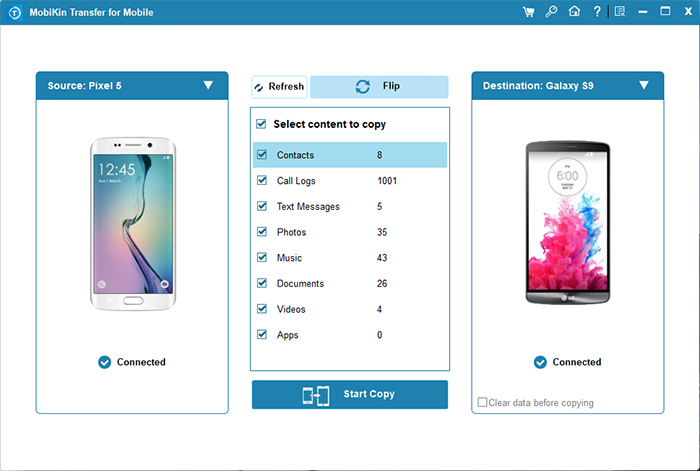
- Install MobiKin Transfer for Mobile on your computer and open the program.
- Connect both your Samsung and iQOO phones to the computer using USB cables.
- Follow the prompts on-screen to allow the software to detect your devices.
- The program will show your phones as source and destination; if they are reversed, click "Flip" to switch them.
- Tick the box for Messages to select SMS as the data to transfer.
- Click Start Copy to begin moving your text messages to the new device.
Video Directions:
Limitations:
- Requires a computer to run, which may be inconvenient if one isn’t available.
- The paid version may be needed for full access; free trial limits functionality.
- USB cables must be compatible and work for both devices.
- Large message histories may take time to transfer despite fast connection.
You May Also Like: Want to recover your lost data from your Samsung phone before copying it to your new IQOO phone? Here are the 10 reliable tools.
Option 2: Transfer My Samsung Messages to My New IQOO Phone via EasyShare
Messages stored on a Samsung phone can be sent seamlessly to an iQOO device using EasyShare, leveraging Wi-Fi Direct for quick transfers. The app guides users through selecting message data and establishing a secure connection between devices.
Transfers complete in just a few minutes, even when moving large amounts of SMS history. Its interface simplifies the process for those unfamiliar with more technical data migration methods.
Quick Steps:
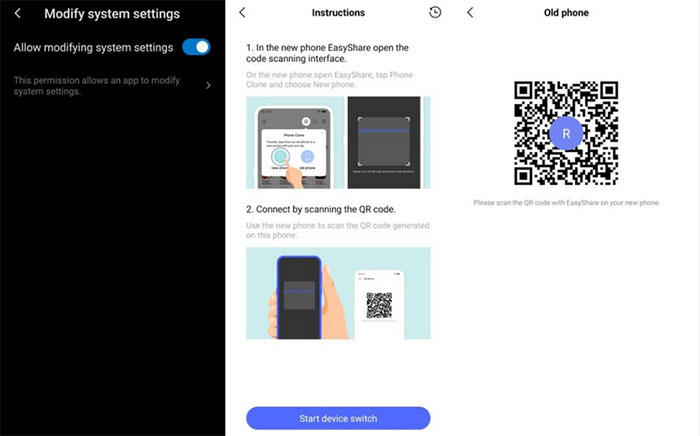
- Install EasyShare on both your Samsung and iQOO phones (available on Google Play).
- Open EasyShare on both phones and grant the necessary permissions (storage, contacts, SMS, etc.)
- On your Samsung phone, select "Send" and choose Messages (SMS) as the data type to transfer.
- On your iQOO phone, select "Receive" in EasyShare.
- The Samsung phone will scan for nearby devices - select your iQOO phone from the list.
- Confirm the connection and allow EasyShare to establish the transfer channel.
- Wait for the transfer to complete - all selected messages will be copied to the iQOO phone.
- Once done, verify that your SMS threads appear correctly on the iQOO. (IQOO EasyShare doesn't work?)
Limitations:
- Both phones must have EasyShare installed and connected to the same Wi-Fi or hotspot.
- Some older Samsung or iQOO models may not be fully supported.
- Large SMS histories can take longer than expected over Wi-Fi Direct.
- Only works for devices that support EasyShare, limiting cross-brand flexibility.
Option 3: Transfer SMS Messages from Samsung to IQOO by Bluetooth
For a simple wireless option, Bluetooth can facilitate moving SMS backup files from Samsung to iQOO, though it cannot transfer messages directly. By first creating a backup using a compatible app, the file can be sent over the paired Bluetooth connection to the new device.
Once received, the backup can be restored, bringing all message threads intact to the iQOO phone. This method works without additional software installations and is widely available on all Android devices.
Quick Steps:
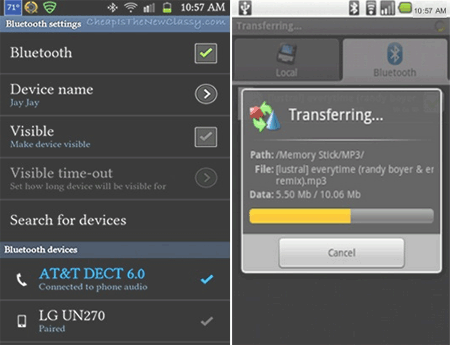
- Enable Bluetooth on both the Samsung and iQOO phones by going to Settings > Bluetooth on each device.
- Pair the two devices by selecting the other phone’s name from the list of available Bluetooth devices and confirming the pairing request.
- Since SMS cannot be transferred directly via Bluetooth, first export your Samsung text messages to a file using an SMS backup app (such as SMS Backup & Restore).
- Then, open the built-in File Manager on your Samsung, locate the exported SMS backup file, tap Share, and choose Bluetooth.
- Select your iQOO phone as the target device when the Bluetooth device list appears.
- Accept the file on the iQOO, and once the transfer completes, open the SMS backup app on the iQOO to import/restore the transferred backup file.
Limitations:
- Cannot transfer SMS directly; a backup file must be created first.
- Transfer speed is slow compared to USB or Wi-Fi Direct, especially for large files.
- File size limits may prevent very large message backups from sending.
- Requires manual backup and restore, making the process less convenient.
Option 4: Transfer SMS from Samsung to IQOO with SMS Backup, Print & Restore
Text messages can also be preserved and transferred using SMS Backup, Print & Restore, which exports SMS to a file before moving it to the iQOO 13/12/11/Z9/Neo 9/U5/12 Legend. The backup file, saved in formats like CSV or TXT, can be shared via Bluetooth or cloud storage and then imported on the new device.
Restoration preserves the original message order, timestamps, and threads, making it a reliable option for message migration. Users benefit from both the flexibility of export formats and the ability to keep a permanent copy of their conversations.
Quick Steps:
- Install SMS Backup, Print & Restore on both your Samsung and iQOO phones from Google Play.
- Open the app on the Samsung phone and choose Backup SMS/Export SMS.
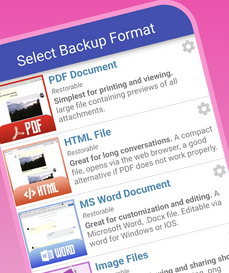
- Select Backup to File (DOC/PDF/HTML, etc) and save the backup to SD card, internal storage, or cloud.
- Transfer the backup file to your iQOO phone using Google Drive, Bluetooth/Nearby Share, or a USB-connected PC.
- Open the app on the iQOO phone and tap Import/Restore SMS.
- Select the transferred backup file and temporarily set the app as the default SMS app when asked.
- Let the restore process complete, then switch back to your preferred SMS app (e.g., Google Messages).
Limitations:
- Messages must be exported and then manually transferred to the new device.
- MMS or RCS messages may not be fully preserved in the backup.
- Some technical knowledge may be needed to locate and restore the backup file.
- Time-consuming for large message histories due to export and import steps.
Round Off
Among the four methods covered, MobiKin Transfer for Mobile acts as the most efficient and user-friendly solution. Here are the pros of this software:
- Transfers SMS and other data types in one simple session without relying on cloud storage.
- Provides fast and stable USB-based transfers, minimizing the risk of data loss.
- Allows selective migration, so only chosen messages or files are copied to the new iQOO phone.
Related Articles:
Top 6 Best IQOO Sync Managers for Safe Backup/Transfer/Management
IQOO Mobile Hard Reset: 4 Options to Factory Reset IQOO Phones
How to Recover Text Messages after Factory Reset Android? 5 Tactics
How to Delete Messages on Samsung Phone? 4 Ways to Ease Your Life
