
5 Solutions to Transfer Photos from Redmi to Redmi [Stress-free]
"I bought the Redmi Note 13 Pro 5G, the easiest way to transfer the data (images) from my old Redmi phone?" -- from Reddit
Photos often contain important personal memories, such as family pictures, travel snapshots, or special events, making it crucial to move them safely when upgrading devices. Many Redmi users wonder how to transfer photos from Redmi to Redmi, because manual transfer via Bluetooth or cloud can be slow or cumbersome.
This article will deliver 5 effective ways to make the transfer, covering each method's unique process and its specific cons, and helping you preserve your memories without stress.
- Way 1: How to Transfer Photos from Redmi to Redmi via MobiKin Transfer for Mobile [Seamless]
- Way 2: How to Transfer Photos from Old Redmi to New Redmi with Mi Mover
- Way 3: How to Copy Photos from Redmi to Redmi via ShareMe
- Way 4: How to Move Photos from Redmi to Redmi Using InShare
- Way 5: How to Transfer Pictures from Redmi to Redmi via LocalSend
Way 1: How to Transfer Photos from Redmi to Redmi via MobiKin Transfer for Mobile
A reliable cross-platform transfer experience is offered by MobiKin Transfer for Mobile (Windows/Mac), especially when moving photos from Redmi to Redmi without quality loss. Users appreciate that the tool establishes a secure connection that keeps files intact throughout the migration.
The process supports a wide range of data types, making photo transfers feel effortless. Many people find that the clear interface speeds up switching between two Redmi devices.
What Makes MobiKin Transfer for Mobile Remarkable?
> Direct transfer - Moves photos straight between Redmi/mobile phones.
> No quality loss - Keeps images in original resolution.
> Fast speed - Handles large albums quickly.
> Easy interface - Simple steps for all users.
> Broad compatibility - Works with all Redmi models, covering Note 13/12/11/14C/13 5G/12R/K/A/Turbo, etc.
> Batch transfer - Sends whole albums at once.
> Stable connection - Prevents errors or corruption.
> Offline use - No internet or data needed.
> Multi-file support - Transfers photos plus other data.
> Great for upgrades - Ideal for setting up a new Redmi.


How-tos:
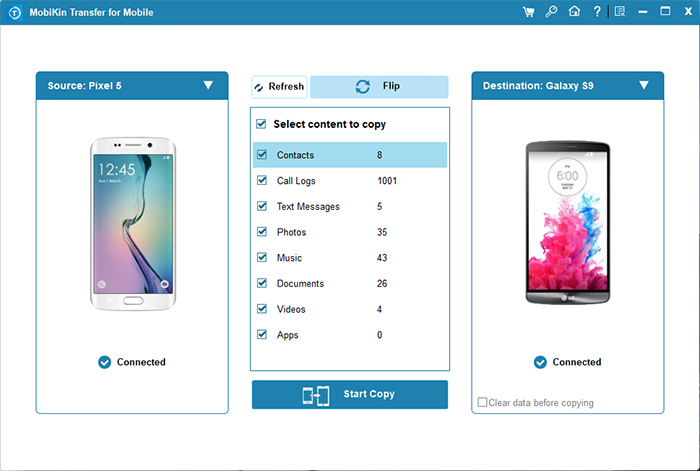
- Install MobiKin Transfer for Mobile on your computer.
- Connect both Redmi phones to the computer using USB cables.
- Enable USB debugging on both devices when prompted.
- Wait for the program to detect both phones and make sure the source and destination positions are correct.
- Select "Photos" from the data types available.
- Click the "Start Copy" button to begin transferring photos.
- Keep both phones connected until the transfer completes.
- Check the Gallery on your new Redmi to confirm all photos are moved.
Video Instructions:
Fall Short in:
- Requires a computer to operate.
- USB cables must be available and functional.
- Not free - only a trial version is available with limits.
Way 2: How to Transfer Photos from Old Redmi to New Redmi with Mi Mover
Seamless device-to-device migration becomes possible with Mi Mover, thanks to its built-in optimization for Xiaomi and Redmi models. Transfers rely on a direct a Wi-Fi hotspot, enabling fast movement of large photo batches. The app guides both phones through a simple QR-based pairing system that minimizes mistakes. Photo organization remains intact after the transfer, which many users find convenient.
How-tos:
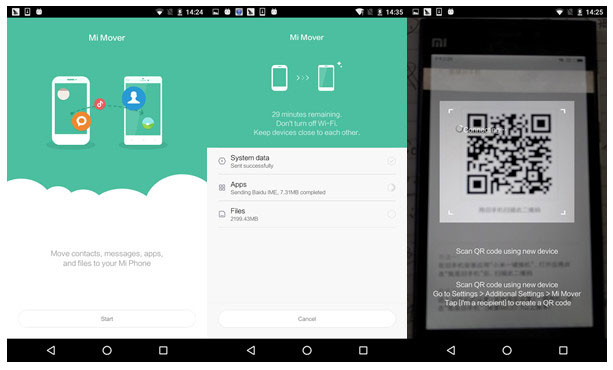
- Install Mi Mover on both the old Redmi and the new Redmi (it is usually pre-installed on Xiaomi/Redmi phones).
- Open Mi Mover on both devices.
- On the new Redmi, select "I'm a receiver."
- A QR code will appear on the new device.
- On the old Redmi, tap "I'm a sender.
- Use the old Redmi to scan the QR code on the new Redmi to connect both phones.
- After connection, on the old Redmi, select "Photos" (or other items you want to transfer).
- Tap "Send" to start transferring your photos.
- Wait until the transfer completes - keep both phones close and do not exit the app.
- Once done, open the Gallery on your new Redmi to check all transferred photos.
Fall Short in:
- Only works on Xiaomi/Redmi devices.
- Transfers rely on Wi-Fi hotspot, which may be unstable in crowded areas.
- Large photo batches can take longer than expected.
- Limited to the data types supported by the app.
- Occasional connection failures may require restarting the process.
You May Also Need: 6 Most Amazing Mi Mover Alternatives You Should Never Miss
Way 3: How to Copy Photos from Redmi to Redmi via ShareMe
Fast and stable wireless sending is supported by ShareMe, allowing Redmi users to copy photos without internet access. An intuitive layout helps beginners immediately understand how to initiate transfers. Files move through Wi-Fi Direct, which boosts speed far beyond Bluetooth levels. Cross-device recognition works smoothly, ensuring that the receiving Redmi connects instantly.
How-tos:
- Install ShareMe on both Redmi phones (it usually comes pre-installed on Xiaomi/Redmi).
- Open ShareMe on both devices.
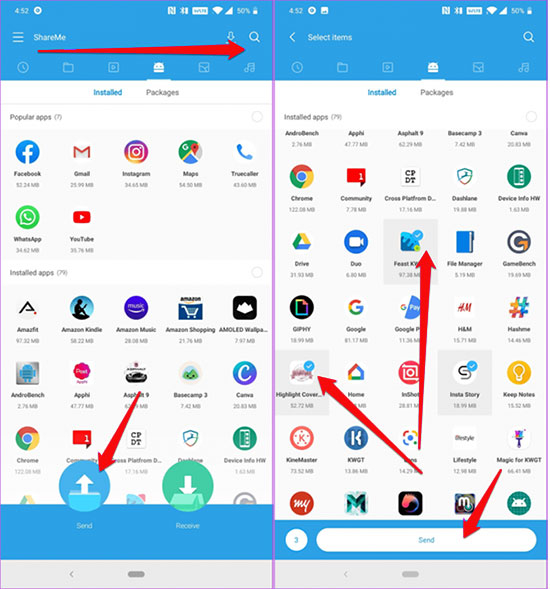
- On the receiving Redmi, tap "Receive."
- On the sending Redmi, tap "Send."
- Choose Photos from the file categories.
- Select the pictures you want to transfer.
- Tap the Send button.
- The sending Redmi will search for nearby devices - select the receiving Redmi when it appears.
- Accept the connection request on the receiving phone if prompted.
- Wait for the transfer to finish - keep both phones close until completed.
Fall Short in:
- The free version contains ads, which can be distracting.
- Wi-Fi Direct connection may fail with some Android versions.
- Large transfers may slow down if many files are selected.
- No desktop version for PC-to-phone transfers.
- Some users report occasional device detection issues.
Learn More: Want to erase your old Redmi phone after transferring data to your new Redmi device?
Way 4: How to Move Photos from Redmi to Redmi Using InShare
A polished and ad-light interface is delivered by InShare, giving users a straightforward way to send photos between Redmi phones. High-speed protocols help the app complete large transfers in just a few moments. Support for multiple file categories makes switching between albums and folders simple during the selection process. The pairing workflow is easy to follow, so both devices stay connected until the photos arrive safely.
How-tos:
- Install InShare on both Redmi phones from Google Play.
- Open InShare on both devices.
- On the receiving Redmi, tap "Receive."
- On the sending Redmi, tap "Send."
- Go to the Photos category on the sending device.
- Select the pictures you want to transfer.
- Tap the Send button to start device searching.
- When the receiving Redmi appears on the screen, tap it to connect.
- Accept the incoming transfer request on the receiving phone if needed.
- Wait until all photos finish transferring and ensure both phones stay close during the process. (Learn more about InShare)

Fall Short in:
- Ads appear frequently during transfers.
- Connection stability can be affected by network interference.
- File organization is basic; selecting many photos can be cumbersome.
- Slower for very large photo libraries compared to some other apps.
- Works best only on devices with compatible Android versions.
Way 5: How to Transfer Pictures from Redmi to Redmi via LocalSend
A privacy-focused, open-source approach defines LocalSend, enabling Redmi users to transfer photos offline through their local network. By avoiding external servers, the tool keeps transfers fully local and secure. The layout offers clean navigation for choosing images and albums efficiently. Connections remain stable over the same Wi-Fi or hotspot, allowing photo batches to move quickly between devices.
How-tos:
- Install LocalSend on both Redmi phones from Google Play.
- Open LocalSend on both Redmi Note 13/12/11/14C/13 5G/12R/K/A/Turbo, etc.
- On the receiving Redmi, stay on the "Receive" tab (it waits automatically).
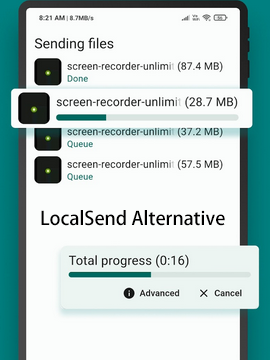
- On the sending Redmi, tap "Send."
- Choose "Files" and navigate to your Photos/Gallery folder.
- Select the pictures you want to transfer.
- Tap the Send button to begin device discovery.
- When the receiving Redmi appears in the list, tap its name to connect.
- Accept the transfer request on the receiving phone if prompted.
- Wait for the transfer to finish - keep both devices connected to the same Wi-Fi or hotspot for the fastest speed.
Fall Short in:
- Requires both phones to be on the same Wi-Fi or hotspot.
- Slightly technical setup for first-time users.
- Limited additional features beyond file transfer.
- Transfer speed depends on local network quality.
- The open-source version may lack customer support if issues arise.
Round Off
After examining all options, MobiKin Transfer for Mobile distinguishes itself as the most reliable and efficient way to transfer photos between Redmi devices. Compared with Mi Mover, ShareMe, InShare, and LocalSend, this program:
- Offers faster transfers, full photo quality retention, and a smoother interface that requires minimal technical knowledge.
- Its ability to handle large photo batches securely and offline makes it especially advantageous for users upgrading to a new Redmi device or moving multiple albums at once.
Related Articles:
How to Recover Lost Files from Redmi Internal Memory with/without Backup
5 Smart Tactics to Unlock Redmi Phone without Difficulty
Xiaomi Redmi Stuck on Mi Logo? 7 Troubleshooting Tips [2025]
