
Lenovo FRP Bypass: 4 Stress-free Ways to Bypass FRP on Lenovo
"I had the same problem with Lenovo smartphones, I contacted Lenovo business support yesterday and was told that this was not possible. Do you have a contact at Lenovo?" -- from community.spiceworks.com
When Is It Necessary to Bypass a Google Account on a Lenovo Device?
- You forget the Google account email or password linked to the device.
- You buy a second-hand Lenovo phone that is still linked to the previous owner's account.
- The device was factory reset without first removing the Google account
- You cannot recover the Google account through official recovery options.
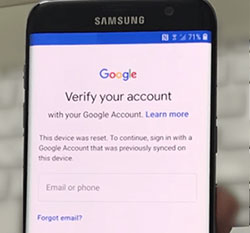
- The phone is stuck on the "Verify your account" screen during setup.
This article introduces 4 worry-free ways for Lenovo FRP bypass, covering different situations users may face, from using official Google account recovery to practical PC tools and APK-based methods.
Part 1: Perform Lenovo FRP Bypass via Android Lock Wiper [Highest Success Rate]
Before you start:
- Android Lock Wiper works best on most Android 6.0 and newer.
- Safer and more stable than APK methods.
- Requires PC; not fully mobile-based.
- May erase all data during unlocking Lenovo ThinkPhone 25, Legion Y70 series, Legion Duel 3 5G, Legion Phone 3, and K15 series.
Main functions:
- Remove Google FRP lock from many Android devices, including Lenovo phones and tablets.
- Known for a high success rate in bypassing FRP, especially on Android 6.0 and up, making it more reliable than most APK-based methods.
- Unlock devices even if the Google account credentials are completely forgotten.
- Supports multiple brands, including Lenovo, Samsung, Huawei, OPPO, and others.
- Provides an easy interface that guides users through each unlocking step.
- Includes standard and advanced modes to handle different FRP scenarios.
- Works via PC and USB connection, reducing the need for risky APK installations.
- Can detect device information and apply the correct unlocking method automatically.

How does it work?
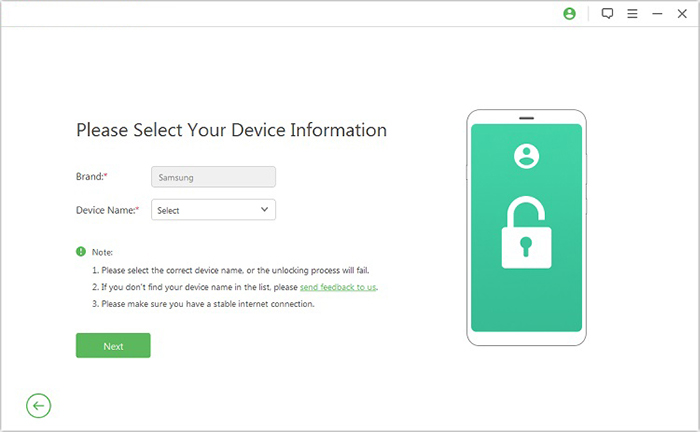
Step 1: Download and install the phone unlocking software on your computer, then select "Remove Google Lock (FRP)" and choose "Advanced Mode." Connect your Lenovo device to the PC using a USB cable and click "Start", then follow the prompts to enter your device details and proceed.
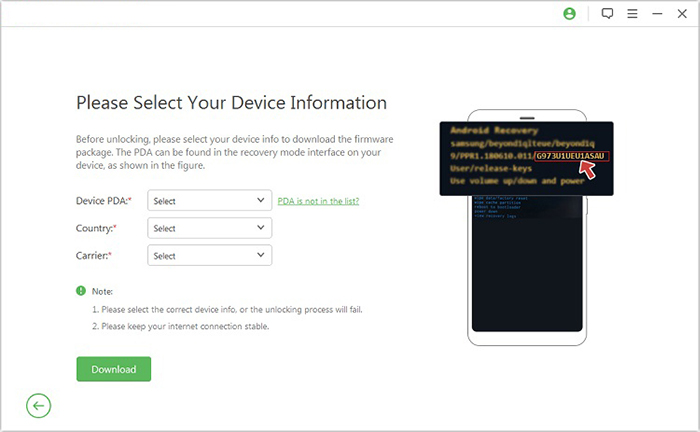
Step 2: Follow the on-screen instructions to boot your device into Recovery Mode, then select the correct PDA, country, and carrier information. Click "Download" to obtain the required data package.
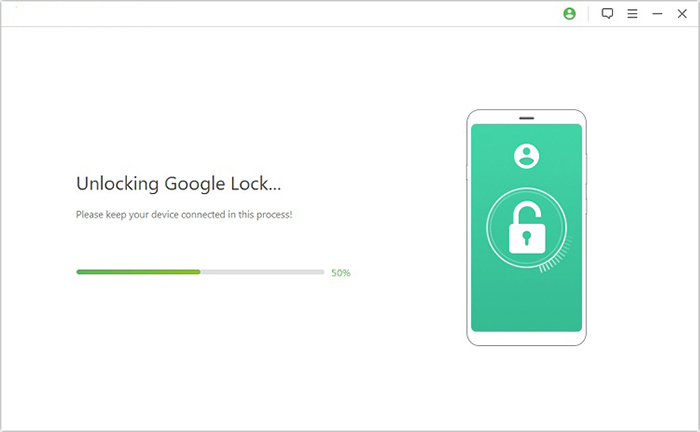
Step 3: Click "Start to Extract" and complete the guided steps, including entering Download Mode, enabling USB debugging, activating OEM unlock, and extracting firmware. Once finished, the tool will automatically begin removing the FRP lock.
You Might Also Need: 5 Tactics to Recover Formatted Data from Android Phone with/without Backup
Part 2: Bypass Lenovo FRP Lock via QuickShortcutMaker
Before you start:
- It boasts the ability to access browser or hidden settings.
- APK file installed manually.
- Works mainly on Android 5-10.
- Needs multiple APK compatibility checks.
- Can fail if security patch is updated.
How does it work?
- Turn on the Lenovo phone and connect to Wi-Fi.
- On the Google verification screen, open a browser (via keyboard help/settings or share option).
- Download QuickShortcutMaker APK (and Google Account Manager if needed).
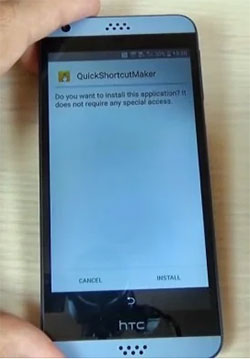
- Install and open QuickShortcutMaker.
- Search for Google Account Manager inside the app.
- Select "Type Email and Password" (or similar login activity).
- Tap "Try" to open the hidden sign-in screen.
- Log in with a new Google account before restarting the device.
- Complete setup without the old account verification.
People Also Like: 5 Trouble-free Ways to Transfer Data from Lenovo Phone to Computer
Part 3: Bypass Lenovo FRP Using Google Credentials
Before you start:
- It requires an original Google account email and password.
- Stable internet connection.
- Access to login screen during setup.
- Official and safest method.
- No bypass risk or third-party tools needed.
- Will not work if credentials are forgotten.
- May require Google account recovery (24-72 hours delay sometimes).
How does it work?
- Turn on your Lenovo phone or tablet after the factory reset.
- Connect the device to a stable Wi-Fi network.
- On the setup screen, tap "Next" or "Verify your account."
- Enter the original Google account email and password previously synced with the device.
- Wait for Google to verify the credentials online.
- Once verified, the FRP lock is removed automatically.
- Continue the setup process and access your device normally.
Part 4: Bypass Lenovo Google FRP via Technocare APK
Before you start:
- This app can access browser from setup screen (TalkBack/Assistant trick).
- Downloaded Technocare APK file.
- "Install unknown apps" permission enabled.
- Works mainly on older Android versions (5-9).
- APK sources may be unsafe or outdated.
- Less stable after Google security updates.
- Risk of installing modified or malicious APK.
How does it work?
- Reset your Lenovo device and connect it to a Wi-Fi network.
- On the Google verification screen, tap the text field and type anything.
- Press and hold the typed text, then choose "Assist" or Google Assistant.
- In Google Assistant, type "Chrome" and open the browser.
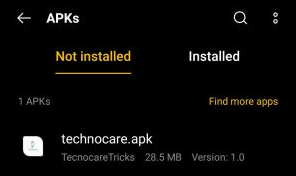
- Download the Technocare APK from a trusted site.
- Enable Unknown Sources and install the APK file.
- Open Technocare APK and access the FRP bypass options.
- Add a new Google account or remove the existing locked account.
- Complete setup without Google verification.
FAQs about Lenovo FRP Bypass
Q1. Why does FRP lock appear on Lenovo devices?
It appears when a Lenovo phone or tablet is reset without removing the Google account first, or when the original account credentials are not entered during setup.
Q2. Does FRP bypass delete data on Lenovo devices?
In most cases, yes. Many bypass methods or unlock tools may erase data during the process, especially PC-based solutions.
Q3. Is FRP bypass legal?
Bypassing FRP is only legal if you are the rightful owner of the device. It should not be used for unauthorized access.
Q4. Does FRP bypass work on all Lenovo models?
No. Success depends on Android version, security patch level, and device model. Newer Lenovo devices are harder to bypass.
Q5. What happens if FRP bypass fails?
If it fails, the device will remain locked. In that case, users may need official account recovery or professional unlocking tools.
Q6. How can I prevent FRP lock in the future?
Always remove your Google account before performing a factory reset and ensure you remember your login credentials.
Wrap It Up
Lenovo FRP lock can feel restrictive, especially when account details are unavailable or recovery options are limited. By comparing different approaches, users can select a method that fits their specific case without unnecessary trial and error.
Before performing a factory reset on any Lenovo device, always remove the Google account from Settings > Accounts first. This simple step prevents FRP activation and avoids being locked out of the device later.
Related Articles:
4 Simple Ways to Recover Deleted Photos/Videos from Lenovo Phone
[Step-by-Step Guide] 4 Most Reliable Methods for Lenovo Mobile Recovery
5 Easy Ways to Transfer Files from Lenovo to iPhone 17/16/15
4 Ways to Remove Activation Lock without Previous Owner/Password
