
MTK Meta Utility Tool Review: Is It Truly Dependable? [Full Guide]
TL;DR:
- Overall, MTK Meta Utility Tool is a worthwhile option for experienced users who need free, multifunctional servicing tools for compatible MediaTek devices, but its limited compatibility, technical requirements, and potential security risks are worth considering.
- If you prefer a simpler unlocking process with broader Android brand support, Android Lock Wiper is another option to explore, provided your device and unlocking scenario are supported.
- Whichever tool you choose, verify its compatibility, download it from a trustworthy source, and back up important data in advance.
Note: We encourage the lawful use of MTK Meta Utility Tool and its alternatives. Please use them only on devices you own or have proper permission to service. Thank you for your cooperation.
MediaTek phones come with their own set of repair headaches, especially when FRP locks, authentication errors, firmware failures, or partition problems get in the way. For anyone who needs a way to service, troubleshoot, or unlock MediaTek-powered Android devices, MTK Meta Utility Tool may be worth a closer look.
In this MTK Meta Utility Tool review, we'll examine its features, supported devices, security, advantages, drawbacks, how-tos, bug fixes, then put its performance under scrutiny through real tests and multiple comparison tables to see where it works well and where another Android unlocking solution may be a better choice.
- Section 1: What Is MTK Meta Utility Tool
- Section 2: What Devices Does MTK Meta Utility Tool Support
- Section 3: MTK Meta Utility Tool: Latest Version & Main Updates
- Section 4: How to Free Download & Use MTK Meta Utility Tool
- Section 5: MTK Meta Utility Tool: The Good & Bad
- Section 6: How to Fix MTK Meta Utility Tool Not Working
- Section 7: What Could Be Better Than MTK Meta Utility Tool [Tested]
- FAQs about MTK Meta Utility Tool
Section 1: What Is MTK Meta Utility Tool
Introduction:
The MTK Meta Utility Tool is a Windows-based utility designed to manage, repair, and perform advanced operations on Android devices powered by MediaTek (MTK) chipsets. It provides various functions, including FRP lock removal, firmware flashing, partition management, and security authentication handling, making it useful for mobile repair technicians and experienced Android users.
However, its compatibility depends on the device model, chipset, and security level, and improper operations may cause data loss or system damage.
Core Features:
According to GitHub's description of MTK Meta Utility, we summarize its core functions as follows:
|
Feature
|
Description
|
Details/Notes
|
|
FRP Bypass
|
Helps remove Factory Reset Protection (FRP) locks from supported MediaTek devices. |
Useful when the owner cannot access the previously linked Google account. |
|
Firmware Flashing
|
Flashes or reinstalls stock or custom firmware. |
Can help resolve certain firmware-related problems. |
|
Partition Management
|
Reads, writes, backs up, and modifies device partitions. |
Requires correct partition information to avoid damaging system data. |
|
Bootloader Unlocking
|
Offers bootloader-related unlocking functions on supported devices. |
Not universally available across all models. |
|
Device Repair
|
Helps troubleshoot firmware, boot, and software-related issues. |
Incorrect operations may cause boot failures or brick the device. (Can I unbrick a phone?) |
|
Security
|
Its safety depends heavily on the downloaded package and how it is used. |
Unverified versions may contain malware, while improper operations can cause data loss or device damage. |
|
Operating Environment
|
Primarily intended for Windows computers. |
Requires appropriate USB drivers and a compatible connection. |
|
Data Protection
|
Some operations can erase device data. |
Back up important files before flashing, formatting, or modifying partitions. |
Section 2: What Devices Does MTK Meta Utility Tool Support
MTK Meta Utility Tool primarily supports Android smartphones and tablets equipped with MediaTek (MTK) processors. According to AppGeeker, compatible devices include selected models from Samsung, realme, POCO, OPPO, TECNO, and Motorola.
|
Supported Brand
|
MediaTek Chipset Examples
|
|
Samsung |
MT6735, MT6765, MT6768, MT6771 |
|
Xiaomi/POCO |
MT6765, MT6785, MT6833, MT6853, MT6873 |
|
OPPO |
MT6580, MT6765, MT6771, MT6885 |
|
realme |
MT6765, MT6768, MT6833, MT6853 |
|
Motorola |
MT6739, MT6765, MT6833 |
|
TECNO |
MT6580, MT6761, MT6765, MT6768 |
|
Infinix |
MT6761, MT6765, MT6768, MT6833 |
|
Other MTK-based devices |
MT6572, MT6582, MT6592, MT6595, MT6737, MT6750, MT6779, MT6785, MT6883, MT6889, MT6891Z, MT6893, MT8127, MT8163, MT8173, MT8183, MT8385, MT8516, MT8590, MT8765WB, MT8766B, MT8695 |
Note: The chipset examples are not confirmed compatibility lists for every brand or model. Actual support depends on the device's exact model, chipset, firmware, security patch, and supported connection mode. Always verify compatibility before using the tool.
Section 3: MTK Meta Utility Tool: Latest Version & Main Updates
According to Sketchfab, MTK Meta Utility Tool's latest reported release is V200, published in 2026, also known as Android Utility PRO V200. It provides functions for device detection, META Mode communication, firmware operations, partition management, Android repair, etc.
Main Updates and Improvements in V200:
|
Update/Feature
|
Key Details
|
|
Interface |
Improved layout and navigation. |
|
Offline Mode |
Supports offline operation. |
|
Boot Repair |
Fixes certain Motorola UniSoC boot issues. |
|
BootROM Support |
Handles authentication and preloader operations. |
|
Partition Management |
Reads, writes, and formats partitions. |
|
FRP Functions |
Provides FRP-related servicing options. |
|
Bug Fixes |
Improves stability and fixes minor errors. |
Section 4: How to Free Download & Use MTK Meta Utility Tool
Free Download:
- Find a Download Source: Visit a reputable site like mediafire to download MTK Meta Utility Tool.
- Download the Package: Save the ZIP or RAR archive to your Windows computer.
- Scan the File: Use Windows Security or another trusted antivirus program to scan the downloaded package.
- Extract the Files: Right-click the archive and select Extract All or use a trusted extraction program.
- Install Required Drivers: Install the appropriate MediaTek USB drivers if they are required by your device and utility version.
How-to Guide (Take the FRP removal of Samsung mobile phones as an example):
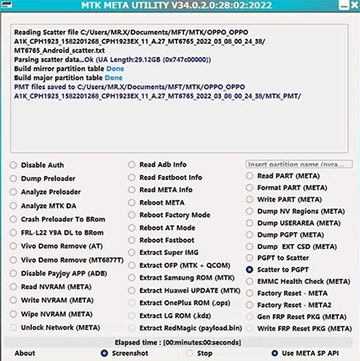
- Launch MTK Meta Utility Tool: Open the program on your Windows computer and wait for its main interface to load.
- Connect Your Samsung Phone: Use a compatible USB cable to connect your device to the computer. If required, follow the device-specific instructions to enter Preloader Mode.
- Select the FRP Function: Find and open the FRP Bypass section in the MTK Meta Utility Tool interface.
- Start the FRP Operation: Select Erase FRP Samsung and follow the on-screen prompts to initiate the operation.
- Check the Result: Wait for the process to finish. If successful, the phone may restart and proceed to the initial setup screen.
Section 5: MTK Meta Utility Tool: The Good & Bad
MTK Meta Utility Tool is a useful option for experienced users and repair technicians who need advanced servicing functions for compatible MediaTek devices. Its free availability and multifunctional capabilities are appealing, but beginners should be cautious because incorrect operations can cause data loss or system problems.
The Good:
- Free to Use: Most available versions can be downloaded without a license fee.
- Multifunctional: Offers FRP-related operations, firmware flashing, and partition management.
- Broad Brand Support: Works with selected MediaTek-powered devices from OPPO, vivo, Xiaomi, Samsung, and others.
- Flexible Repair Options: Supports partition reading, writing, and backup.
- Windows Compatibility: Runs on Windows computers with the necessary drivers.
The Bad:
- Limited Compatibility: Only supports certain MediaTek chipsets and device models.
- Technical Knowledge Required: Advanced repair operations may challenge beginners.
- Data Loss Risk: Flashing, formatting, or modifying partitions can erase personal files.
- Security Concerns: Unofficial installation packages may contain malware or modified files.
- Inconsistent Results: Success depends on the device model, firmware, and security patch level.
Section 6: How to Fix MTK Meta Utility Tool Not Working
If MTK Meta Utility Tool fails to launch, detect your phone, or complete an operation, try the following troubleshooting methods:
- Check Device Compatibility: Ensure your phone's MediaTek chipset and firmware are supported.
- Reinstall USB Drivers: Update or reinstall the necessary MediaTek USB VCOM drivers.
- Check USB Connection: Try another data cable or USB port.
- Enter the Correct Mode: Follow your device's instructions to enter BootROM or META Mode.
- Run as Administrator: Right-click the tool and select Run as administrator.
- Change the Tool Version: Try a verified release compatible with your device.
- Verify Firmware: Use firmware that matches your exact phone model.
- Restart Both Devices: Reboot your phone and computer, then reconnect them.
- Check Antivirus Alerts: Review whether security software has blocked or quarantined the utility.
- Seek Professional Help: Consult a qualified technician if the problem persists.
Section 7: What Could Be Better Than MTK Meta Utility Tool [Tested]
Android Lock Wiper offers a guided, wizard-driven approach to bypassing screen locks and FRP protections, prioritizing ease of use over low-level chipset manipulation. Unlike the MTK Meta Utility Tool, which demands technical knowledge of MediaTek modes and partition operations for device recovery, this software automates the unlocking sequence for broader Android brands with minimal user input.
Its capacity to surpass the utility lies in delivering comparable FRP removal results without requiring specialized hardware authentication bypasses or scatter file configurations.
5 Advantages of Android Lock Wiper Over MTK Meta Utility Tool
- Wider Device Compatibility: Supports various Android brands and models rather than focusing mainly on MediaTek-powered devices.
- Easier Operation: Provides a more beginner-friendly interface without requiring extensive knowledge of BootROM or META Mode.
- More Unlocking Options: Handles different screen locks and supported FRP restrictions, offering more choices for Android unlocking.
- Simpler Setup: Doesn't require users to deal with as many low-level driver and connection procedures for supported unlocking methods.
- Privacy Protection: The software does not collect users' private data during the unlocking process.
Safe Download: No ads, bundles, or hidden uploads.

How to bypass Google FRP locks on Android without MTK Meta Utility Tool via Android Lock Wiper?
Step 1: Prepare the tools and back up your data - Download and install the program on your computer (this step is mandatory), then back up your Android device first - doing so is essential to prevent data loss during the Google FRP lock bypass.
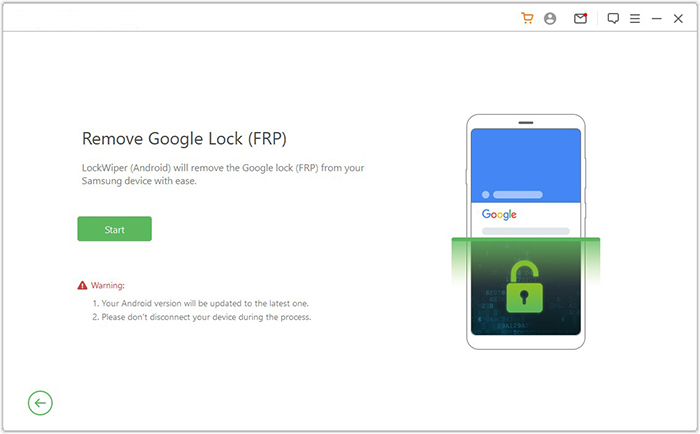
Step 2: Connect the device and select the unlock mode - Launch the software, choose "Remove Google Lock (FRP)," and pick "Advanced Mode." Link your Android device to the computer using a USB cable, then click "Start" and enter the required device details as instructed before pressing "Next."
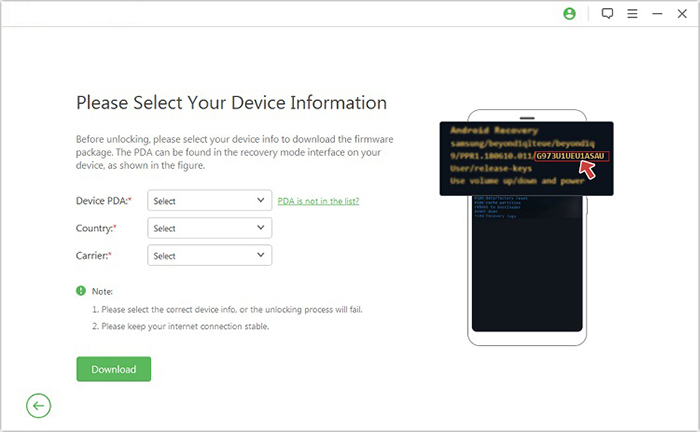
Step 3: Boot into Recovery, fetch the firmware, and unlock - Follow the on-screen prompts to boot your device into Recovery Mode, then select the correct PDA, country, and carrier and click "Download" to obtain the data package. Click "Start to Extract," follow the instructions to enter Download Mode, enable USB debugging, activate OEM unlock, and extract the firmware and other essential components - after which the software will begin unlocking the FRP lock.
FAQs about MTK Meta Utility Tool
Q1. Is MTK Meta Utility Tool safe to use?
Its safety depends on the download source and operation performed. Unverified packages may contain malicious files, while incorrect flashing or partition modifications can damage the system.
Q2. What is META Mode in MediaTek phones?
META Mode is a special service mode used for communicating with MediaTek devices to perform supported diagnostic, configuration, and maintenance operations.
Q3. Why does MTK Meta Utility Tool show an authentication error?
This may happen when the device has DAA/SLA security restrictions, unsupported firmware, or requires authorized authentication.
Q4. Does MTK Meta Utility Tool require root access?
No. Most of its basic servicing operations do not require Android root access, but certain functions may have additional device-specific requirements.
Q5. What should I do if MTK Meta Utility Tool cannot detect my phone?
Check the USB cable, reinstall the MediaTek drivers, verify the connection mode, and ensure your device is compatible with the utility.
Q6. Can MTK Meta Utility Tool repair a bricked Android phone?
It may help recover certain software-related problems on supported MediaTek devices. However, it cannot guarantee recovery from every boot failure or hardware fault.
Q7. What is the difference between MTK Meta Utility Tool and MTK FRP Tool?
MTK FRP Tool mainly focuses on Factory Reset Protection removal, while MTK Meta Utility Tool offers additional functions such as firmware flashing, partition management, and device servicing.
Related Articles:
Chimera Tool Review: Features, Updates, User Guide, FAQs, & 1 Alternative
How to Remove iCloud Activation Lock without Password in 2026?
How to Retrieve Deleted Photos/Videos from Locked Samsung? 4 Options
How to Reset Android Phone When Locked in 2026? Top 5 Methods