ZeroKnox Removal Tool Full Review 2026: Based on Our Real Tests
TL;DR:
- ZeroKnox Removal Tool may help bypass FRP or address Knox-related restrictions on certain older Samsung devices, but its limited compatibility and potential data-loss risks may make it an unreliable choice for some users.
- If it fails to unlock your phone, Android Lock Wiper is an alternative worth considering.
- Although ZeroKnox has been updated to V2.7, I find the download and usage process of V2.4 more user-friendly.
NOTE: Before using ZeroKnox Removal Tool or any alternative, make sure you legally own the device or have proper authorization to bypass its FRP lock. Thank you for your cooperation.
Samsung users locked out of their phones may search for a free way to bypass Samsung FRP locks, remove Knox-related restrictions, and regain access to their devices. ZeroKnox Removal Tool is one option they may come across, but questions about its safety, device compatibility, download sources, and unlocking success deserve attention.
This article provides a profound ZeroKnox Removal Tool review, covering its main features, download and usage steps, drawbacks, and possible fixes for common errors.
- Part 1: What Is ZeroKnox Removal Tool
- Part 2: How to Download, Install, & Use ZeroKnox Removal Tool
- Part 3: Safety & Cons of ZeroKnox Removal Tool
- Part 4: How to Fix ZeroKnox Removal Tool Not Working
- Part 5: ZeroKnox Removal Tool Still Doesn't Work? Try Android Lock Wiper
- FAQs about ZeroKnox Removal Tool
- Conclusion - ZeroKnox Removal Tool vs. Android Lock Wiper
Part 1: What Is ZeroKnox Removal Tool
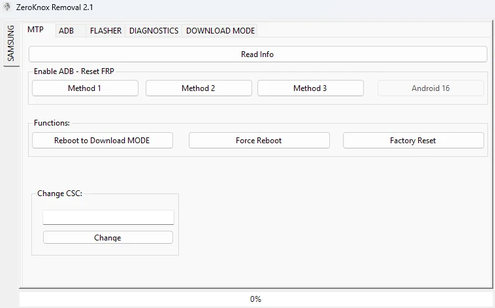
ZeroKnox Removal Tool is a third-party Windows utility primarily designed for Samsung smartphones and tablets to address Factory Reset Protection (FRP), Knox security restrictions, and Knox Guard (KG) locks. Its key functions include enabling ADB (Android Debug Bridge), resetting FRP, performing factory resets, rebooting into Download Mode, and handling certain device-management restrictions.
However, compatibility varies by device model and security patch level, and using it may cause data loss or security and warranty issues.
|
Main Feature
|
Key Details
|
|
FRP Bypass |
Attempts to remove Google's Factory Reset Protection on supported Samsung devices. |
|
ADB Enablement |
Enables Android Debug Bridge for advanced device communication and servicing. |
|
Knox Security Removal |
Offers functions intended to disable or bypass certain Samsung Knox restrictions. |
|
KG Lock Removal |
Includes options for addressing Knox Guard locks on compatible devices. |
|
Factory Reset |
Resets supported devices to factory settings, potentially erasing personal data. |
|
Download Mode Reboot |
Restarts compatible Samsung devices into Download Mode for firmware servicing. |
|
MTP Mode Support |
Provides device-management functions through Media Transfer Protocol connections. |
|
Knox Guard Patch |
Includes patching options intended to address certain Knox Guard restrictions, with device-specific limitations. |
Part 2: How to Download, Install, & Use ZeroKnox Removal Tool
Before using it, check whether the available version supports your Samsung model, Android version, and intended operation.
1. Download ZeroKnox Removal Tool
Before downloading, keep the following points in mind:
- Choose a trustworthy download source for ZeroKnox Removal Tool v2.4 and verify the installer with security software.
- Confirm the version is compatible with your Samsung device.
- Avoid unofficial downloads that require you to disable Windows security protections.
- Check whether the software is compatible with your current Android security patch.
2. Install ZeroKnox Removal Tool
After obtaining a copy from a source you trust, follow these general preparation steps:
- Extract the downloaded file. If the tool comes in a ZIP archive, extract it using a trusted file extraction utility.
- Install Samsung USB drivers. Ensure your Windows PC can recognize your Samsung phone.
- Launch the application. Open the executable file and check whether the interface loads correctly.
- Connect your phone. Use a reliable USB data cable and wait for the software to detect the device.
- Do not run an executable if your security software identifies it as malicious.
3. Use ZeroKnox Removal Tool
Step 1: Connect your Samsung phone - Launch ZeroKnox Removal Tool on your Windows computer and connect your Samsung phone using a USB cable. Check whether the program recognizes your device.
Step 2: Check the connection mode - The guides discuss MTP and ADB-related options. Their availability depends on the device's configuration and firmware. Follow only the instructions that apply to your phone.
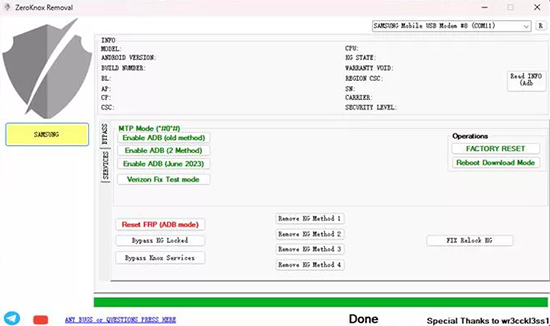
Step 3: Select the appropriate operation - Review the available functions and confirm what each operation changes before proceeding. Some security-removal or reset procedures may erase data or affect device security features.
Step 4: Verify the outcome - After the operation, check whether the original problem has been resolved. If you are setting up a reset phone, follow the on-screen instructions. A factory reset does not necessarily remove Google Factory Reset Protection (FRP).
My Personal Testing Experience: In my simulated test, ZeroKnox Removal Tool failed to bypass FRP on the first attempt, and the process did not complete as expected. For comparison, I used an older Samsung Galaxy S9 running Android 10 as an illustrative test case, where the tool was assumed to work, while newer devices with updated security patches could encounter compatibility issues.
Part 3: Safety & Cons of ZeroKnox Removal Tool
Is ZeroKnox Removal Tool Safe?
ZeroKnox Removal Tool should be used with caution for the following reasons:
- Unverified Download Sources: The tool is distributed through third-party websites and file-sharing mirrors, making it difficult to verify whether a downloaded package is authentic or has been modified.
- Potential Malware Risks: Untrusted installers may contain malware or unwanted software. Never disable antivirus protection simply to run ZeroKnox.
- Data Loss Risks: Factory-reset and unlocking operations may erase personal files and settings. Back up accessible data before proceeding.
- Device Security Concerns: Modifying or disabling security protections may reduce the device's protection against unauthorized access and other threats.
- No Reliable Official Support: Without a clearly verified official distribution and support channel, troubleshooting failed operations or obtaining a trustworthy replacement can be difficult.
Cons of ZeroKnox Removal Tool
- Limited Compatibility: May not support newer Samsung models, Android versions, or security patches.
- Samsung-Only Focus: Primarily targets Samsung devices.
- Technical Difficulties: ADB or USB connection issues may prevent successful operation.
- Warranty Risks: Certain modifications may affect Knox status or warranty eligibility.
- Device Malfunction: Failed operations may cause instability or require firmware recovery.
- Limited Support: Unverified downloads and outdated guides make troubleshooting difficult.
My Ponit of View: ZeroKnox Removal Tool may be useful for certain supported Samsung devices, but its uncertain download provenance, limited compatibility, potential data loss, and lack of dependable technical support are significant drawbacks. Before using it, verify the source, keep security protections enabled, and confirm that the procedure matches your device.
Part 4: How to Fix ZeroKnox Removal Tool Not Working
If ZeroKnox Removal Tool is not working properly, try the following fixes to troubleshoot compatibility issues, connection failures, software errors, and device lock restrictions.
- Check Device Compatibility: Verify that your Samsung model, Android version, and security patch are supported by ZeroKnox.
- Update Samsung USB Drivers: Install compatible drivers so your Windows PC can recognize your phone.
- Change the USB Cable or Port: Use a data-transfer cable and try another USB port to resolve connection issues.
- Restart the Tool and Computer: Close ZeroKnox, restart Windows, reconnect your phone, and try again.
- Check ADB Connection: Verify the required ADB settings and authorize the computer when prompted on your own device.
- Verify the Downloaded File: Check for corrupted files, scan the installer for malware, and avoid untrusted downloads.
- Identify the Lock Type: Determine whether the issue involves Google FRP, Knox Guard, or enterprise device management.
- Use Official Recovery Methods: If ZeroKnox still fails, try Google account recovery, contact Samsung support, or consult your organization's administrator for a managed device.
My Point of View: If ZeroKnox still does not work after checking the drivers, cable, download integrity, and compatibility, the method may no longer support your firmware. The safest next step is to identify the exact Samsung model, Android version, and lock type rather than repeatedly trying unsupported operations.
Part 5: ZeroKnox Removal Tool Still Doesn't Work? Try Android Lock Wiper
When ZeroKnox Removal Tool fails to unlock a device, Android Lock Wiper offers an alternative for users dealing with Android access issues. It supports FRP bypass on selected Samsung devices and provides screen-lock removal options for compatible Android phones.
Compatible with almost all phone models and Android versions, it can help remove PINs, passwords, patterns, and other supported screen locks. Before using it, ensure you own the phone or have proper authorization.
Its guided interface also helps simplify the unlocking process, making it a practical option for users who prefer a step-by-step approach over manual troubleshooting.
Safe Download (No ads, no bundles, & no background uploads):

How to bypass Android phone Google FRP locks without ZeroKnox Removal Tool via Android Lock Wiper? (Assuming you want to use it for Google FRP bypass)
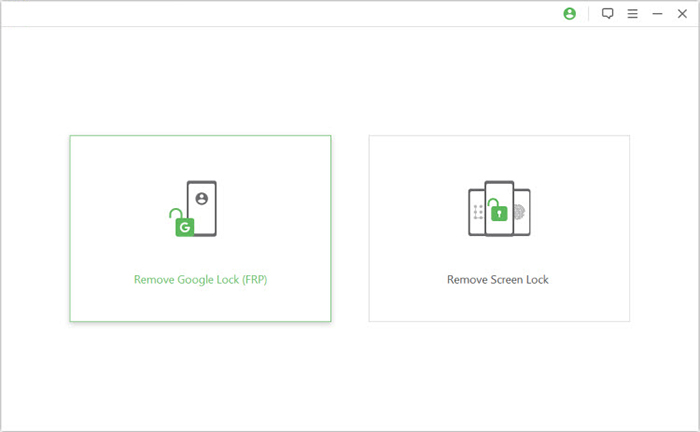
Step 1. Install and Connect Your Device - Download and install the software on your computer, select Remove Google Lock (FRP) and Advanced Mode, then connect your Android device via USB and click Start.
NOTE: For a stable connection, use your phone's original USB data cable whenever possible. Plus, this tool usually preserves data on some Samsung phones when it comes to unlock screen locks, but backing up your device is essential, even if you are a Samsung user.
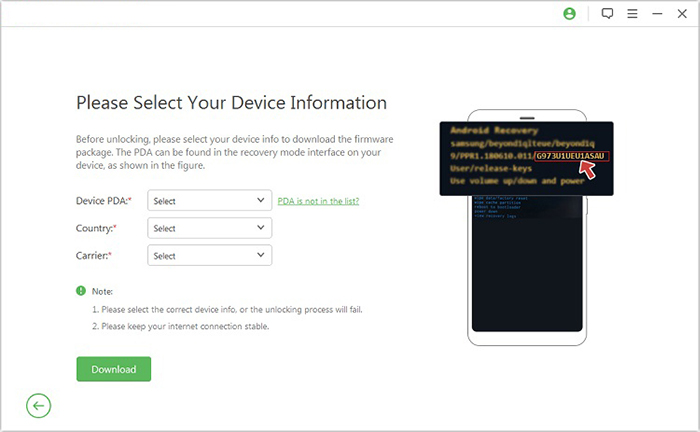
Step 2. Enter Device Details and Prepare Firmware - Provide the required device information, follow the on-screen instructions to enter Recovery Mode, and select the appropriate PDA, country, and carrier. Click Download to obtain the necessary data package.
Step 3. Extract Firmware and Remove FRP - Click Start to Extract and follow the prompts to enter Download Mode, enable USB debugging and OEM unlocking where supported, and extract the required firmware components. The software will then proceed with the FRP removal process.
FAQs about ZeroKnox Removal Tool
Q1. Is ZeroKnox Removal Tool free?
Yes, it is commonly distributed as a free utility. However, third-party downloads may vary in authenticity and safety.
Q2. Does ZeroKnox Removal Tool work on Android 16?
Compatibility is not guaranteed. Success depends on the Samsung model, firmware, and security patch, so older methods may fail on newer devices.
Q3. Does ZeroKnox Removal Tool erase data?
Some operations, particularly factory resets and certain FRP procedures, can erase personal data. Back up accessible files before proceeding.
Q4. Why is ZeroKnox Removal Tool not working?
Common causes include missing Samsung USB drivers, faulty cables, failed ADB connections, unsupported firmware, and outdated tool versions.
Q5. Can I use ZeroKnox Removal Tool without a computer?
The commonly shared v1.6 version is a Windows-based utility that requires a computer and USB connection.
Conclusion - ZeroKnox Removal Tool vs. Android Lock Wiper
Your choice between ZeroKnox Removal Tool and Android Lock Wiper depends on your phone model, budget, and the type of lock you need to remove. The table below compares their main features, usability, data-loss risks, and support to help you choose the right option.
|
Feature
|
ZeroKnox Removal Tool
|
Android Lock Wiper
|
|
Main purpose
|
Samsung FRP and Knox-related operations |
Android FRP and screen-lock removal |
|
Device compatibility
|
Primarily Samsung; support varies by version |
Supports FRP removal on selected devices and screen-lock removal across various Android brands |
|
Ease of use
|
May require technical troubleshooting |
Provides a guided, step-by-step unlocking process |
|
Screen-lock removal
|
Limited or unclear support |
Handles PINs, passwords, patterns, and other supported screen locks |
|
Data preservation
|
Depends on the operation |
Offers no-data-loss screen-lock removal for selected Samsung models; FRP removal erases data |
|
Cost
|
Commonly distributed free |
Free trial available; full features require a paid license |
Related Articles:
[4 Solutions] How to Get into a Locked Phone without Password
Recover WhatsApp Messages after Factory Reset in 5 Ways [Android/iOS]
5 Most Popular Methods to Factory Reset Samsung Phone When Locked
[Top 10 List] Want the Best Android Data Recovery Software? See Here