
Mi Unlock Tool Not Detecting My Device? 10 Simple Ways to Fix It
TL;DR:
- In some cases, the "Mi Unlock Tool not detecting my device" issue can be resolved by checking drivers, verifying Fastboot mode, updating account settings, or troubleshooting USB connectivity.
- If the problem is linked to firmware corruption or Android system glitches, a specialized solution such as Android Repair may provide a more reliable path to restoring proper device detection.
- By choosing the method that matches your specific situation and understanding the benefits and risks of bootloader unlocking, you can improve your chances of completing the process safely and successfully.
"I'm trying to unlock the bootloader of my Redmi Note 12 to install a custom ROM (like LineageOS). I followed all the steps correctly, but the Mi Unlock Tool shows "not connected to phone". -- from Reddit
- Why Is Mi Unlock Tool Not Detecting My Device?
This issue is usually related to missing USB drivers, an incorrect Fastboot connection, or a faulty USB cable. The tool can only recognize Xiaomi devices that are properly connected in Fastboot mode and linked to the correct Mi Account. Enabling USB Debugging and OEM Unlocking in Developer Options can also help resolve detection problems.
Understanding these common causes is the first step to fixing the "Mi Unlock Tool not detecting my device" error and successfully unlocking the bootloader.
- Section 1: Fix Mi Unlock Tool Not Detecting My Device in 9 Ways
> Way 1. Reinstall the Xiaomi USB Drivers
> Way 2. Check Whether the Phone Is Really in Fastboot Mode
> Way 3. Switch to Another USB Port
> Way 4. Enable USB Debugging on Xiaomi
> Way 5. Bind the Mi Account Again
> Way 6. Verify Fastboot Can See the Mi Device
> Way 7. Try Another Version of Mi Unlock
> Way 8. Return to Official Firmware
> Way 9. Use a Different Computer - Section 2: Fix Mi Unlock Tool Not Detecting My Phone with a Specialized Tool
- Conclusion - Benefits & Risks of Bootloader Unlock & ROM Flashing
The most effective solution depends on the root cause of the detection issue, whether it stems from drivers, Fastboot configuration, account settings, or underlying system faults. The table below compares each method and highlights the scenarios where it delivers the best results.
|
Method
|
Best Scenario
|
Key Benefit
|
|
Reinstall or Update Xiaomi USB Drivers
|
The computer fails to recognize the Mi phone in Fastboot mode |
Restores proper communication between the device and Mi Unlock Tool |
|
Verify Fastboot Mode
|
The device is connected but does not appear in Mi Unlock Tool |
Ensures the phone is in the required mode for bootloader unlocking |
|
Change the USB Cable or Port
|
Frequent disconnections or inconsistent device detection |
Eliminates common hardware-related connection issues |
|
Enable USB Debugging and OEM Unlocking
|
The unlocking process cannot be initiated |
Allows the device to communicate correctly with unlocking tools |
|
Bind the Mi Account to the Device
|
Mi Unlock Tool reports authorization or account-related errors |
Meets Xiaomi's bootloader unlocking requirements |
|
Test the Fastboot Connection
|
Uncertainty about whether the phone is properly detected |
Confirms whether the PC can communicate with the device through Fastboot |
|
Reinstall Drivers with Driver Signature Enforcement Disabled
|
Drivers fail to install or work correctly on Windows |
Resolves driver conflicts that may prevent device recognition |
|
Update the Mi Unlock Tool
|
Older versions fail to support newer Xiaomi devices |
Improves compatibility and stability during the unlocking process |
|
Use Android Repair
|
Device detection problems caused by system glitches, boot failures, or firmware issues |
Repairs Android system errors, simplifies troubleshooting, and can serve as a more stable alternative when Mi Unlock Tool repeatedly fails to detect the device |
Section 1: Fix Mi Unlock Tool Not Detecting My Device in 9 Ways
Way 1. Reinstall the Xiaomi USB Drivers
Mi Unlock may fail to detect the phone if the Fastboot or Xiaomi USB drivers are missing or corrupted. Removing the existing drivers and installing a fresh copy often restores the connection between the device and the PC.
Way 2. Check Whether the Phone Is Really in Fastboot Mode
Many detection issues occur because the device was connected while running the normal operating system. Make sure the handset is in the correct mode before opening Mi Unlock.
- Power off the phone completely.
- Hold the Volume Down and Power buttons together.
- Wait until the Fastboot screen appears.
- Connect the phone to the computer.
- Launch Mi Unlock and check whether the handset appears.

Way 3. Switch to Another USB Port
- Disconnect the device.
- Connect the cable to a different USB port.
- Avoid USB hubs, splitters, or docking stations.
- Use a port directly attached to the motherboard whenever possible.
- Reopen Mi Unlock and test the connection again.
A weak or unstable port can interrupt communication even when charging still works normally. Plus, a cable that charges the phone is not always capable of handling data transfers properly. Trying another data cable, preferably the original one supplied with the device, can quickly rule out a hardware-related communication issue.
Way 4. Enable USB Debugging on Xiaomi
USB Debugging is a requirement for many Android communication tasks. If it is turned off, the computer may struggle to establish a proper connection with the handset.
- Open Settings on Xiaomi/Redmi/POCO.
- Navigate to Developer Options.
- Enable USB Debugging.
- Reconnect the device.
- Retry the unlock process.

Way 5. Bind the Mi Account Again
Account synchronization problems sometimes appear as connection failures. Removing the existing association and linking the account again can help clear inconsistencies.
- Open Developer Options.
- Tap Mi Unlock Status.
- Select Add Account and Device.
- Wait for the confirmation message.
- Restart the phone and test the connection once more.
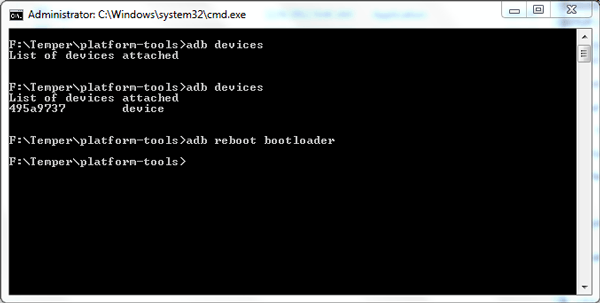
Way 6. Verify Fastboot Can See the Mi Device
Before blaming Mi Unlock, confirm that Fastboot itself can communicate with the phone.
- Open Command Prompt.
- Navigate to the Android platform-tools folder.
- Run: Shell fastboot devices
- If a serial number is displayed, Fastboot is working.
- If nothing appears, focus on drivers, cables, or USB ports rather than Mi Unlock.
Way 7. Try Another Version of Mi Unlock
Some releases behave differently across firmware builds. If the current version refuses to recognize the device, testing an earlier or newer official release may produce better results.
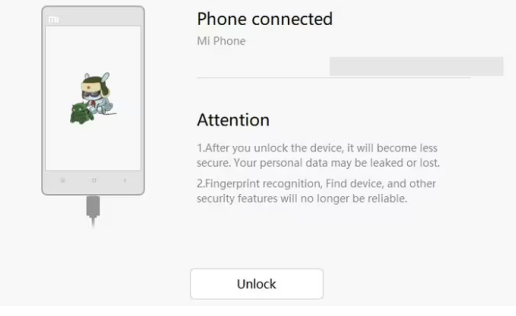
Way 8. Return to Official Firmware
Modified software can interfere with Xiaomi's unlocking procedures. If the phone is running a custom ROM, restoring the official MIUI or HyperOS package may resolve the detection problem.
- Back up personal files.
- Download the appropriate stock firmware.
- Flash the official build.
- Reboot into Fastboot mode.
- Launch Mi Unlock and check for recognition.
Way 9. Use a Different Computer
- Install Mi Unlock on another Windows computer.
- Install the required Xiaomi drivers.
- Put the phone into Fastboot mode.
- Connect it with a known-good data cable.
- Attempt the unlock procedure again.
Section 2: Fix Mi Unlock Tool Not Detecting My Phone with a Specialized Tool
Designed to resolve Xiaomi system issues without complex procedures, Android Repair offers a streamlined solution for devices stuck in boot loops, black screens, system crashes, and other firmware-related problems. Compared with traditional unlocking utilities, it can serve as a more stable and efficient Mi Unlock Tool alternative, with broader device recognition and fewer connection-related interruptions.
Its toolkit includes Android system repair, firmware restoration, one-click fixing workflows, and support for multiple Xiaomi/Redmi/POCO device models. Thanks to its guided interface and automated repair process (No data loss on Xiaomi), users can address software malfunctions with minimal technical effort.
Safe Download (No ads, no bundles, & no background uploads):

How to fix Xiaomi/Redmi/POCO phone system errors/problems with Android Repair?
Step 1: Launch Android Repair and Connect Your Mi Phone
- Install and open Android Repair on your computer, then select "System Repair" from the main interface.
- Connect your Mi device to the PC using a compatible USB cable.
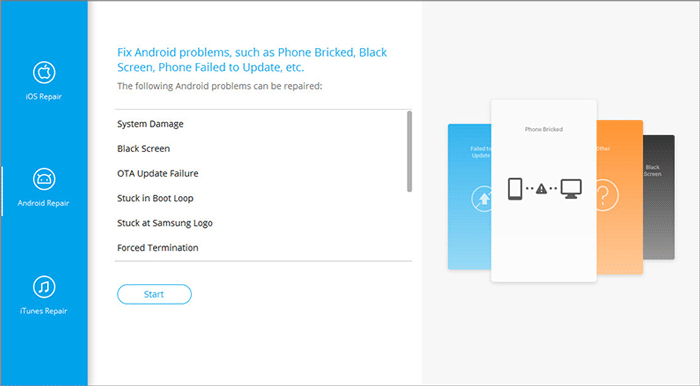
Step 2: Choose Android Repair and Confirm Device Details
- Click "Android Repair" from the left panel and review the list of supported system issues.
- After selecting "Start," enter your device information, click "Next," type "000000" in the verification field, and press "Confirm."
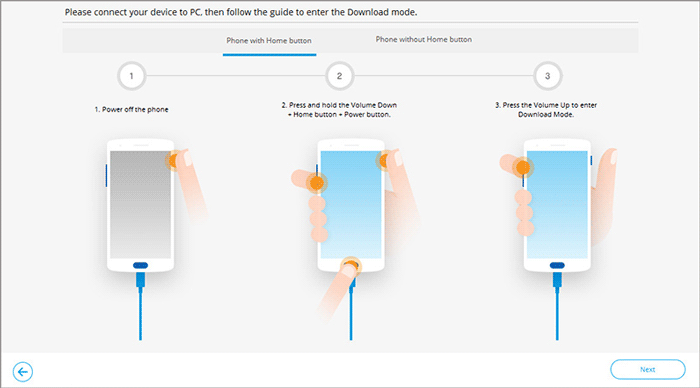
Step 3: Put Your Mi Device into Download Mode
- Power off your phone and follow the on-screen instructions to enter Download Mode according to your device model.
- Once the device successfully enters Download Mode, proceed by clicking "Next."
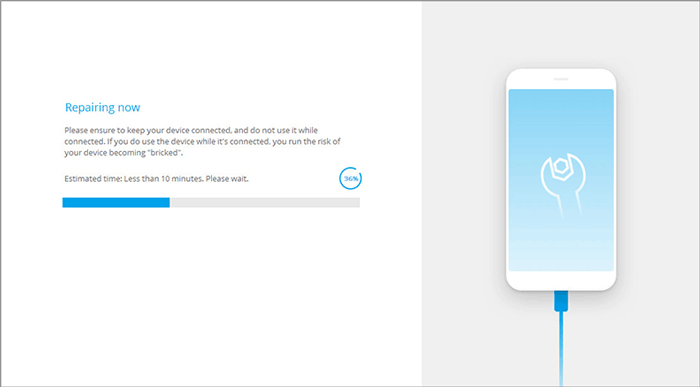
Step 4: Download Firmware and Repair the System
- The software will automatically download the appropriate firmware package for your device.
- After the download is complete, the repair process begins, resolving system-related issues and restoring normal device functionality.
Limitations:
- Requires payment - Most repair features are paid.
- May reinstall firmware - Can reset settings and modifications.
- Can't fix hardware issues - Won't help with faulty cables or ports.
Conclusion - Benefits & Risks of Bootloader Unlock & ROM Flashing
Bootloader unlocking and ROM flashing can unlock greater customization, enhanced control, and access to features not available in the stock software. However, understanding the potential risks and preparing carefully before making system-level changes is essential for a smooth and successful experience.
Benefits
- Install custom ROMs.
- Remove unwanted apps.
- Gain root access.
- Use custom recovery tools.
- Enhance performance or battery life.
- Get newer Android versions.
Risks
- Data may be erased.
- Flashing errors can cause boot loops.
- Security protections may be reduced.
- Some apps may stop working properly.
- Incompatible firmware can cause issues.
- Official support may be limited.
Related Articles:
How to Fix Xiaomi Touch Screen Not Working? 10 Reliable Solutions
How to Bypass Xiaomi FRP? 4 Easy & Quick Methods to Focus on
How to Transfer WhatsApp from Xiaomi to Samsung? 3 Error-free Methods
Screen Mirroring Xiaomi to PC: 7 Tactics to Cast Mi Phone to PC
5 Best Xiaomi Data Recovery Software/Apps [High Success Rate]