
5 Ways for realme FRP Bypass [Compatibility & Limitations Included]
TL;DR:
Getting past realme FRP protection requires choosing a method that matches your phone's model and software version. The five solutions discussed below provide possible ways to address Google account verification, though their effectiveness may vary across devices. Before proceeding, check compatibility carefully and whether you have backed up the content of your realme phone if necessary.
NOTE: Before proceeding with any solution, make sure you legally own the realme phone or have explicit permission to remove its Google FRP lock. Thank you for your understanding and cooperation.
An FRP lock can become an obstacle when you receive or inherit a realme phone but cannot contact the previous owner to complete account verification. If you are stuck on the Google account verification screen and cannot proceed with the initial setup, there are several approaches worth considering.
This article introduces 5 clever strategies for realme FRP bypass, covering practical options to help you regain access to your device while explaining their limitations and compatibility.
Section 1: Bypass realme FRP via Android Lock Wiper
For users struggling with Google account verification on realme phones, Android Lock Wiper provides an FRP removal feature for selected Android devices. The software runs on a computer and guides users through the unlocking procedure with on-screen instructions. Its support for realme models depends on the Android version and device firmware.
The program also supports removing screen locks such as PINs, passwords, patterns, and fingerprints on compatible Android devices. It does not require users to provide personal account details during the unlocking process.
NOTE: Back up your realme phone beforehand, as the FRP unlocking process may erase all data stored on the device.
Secure Download: Free from ads, unwanted bundles, and background uploads.

Compatibility:
- Mainstream realme models (The product is constantly being updated and optimized).
How-to Guide:
- Begin by downloading and installing the product above on your computer.
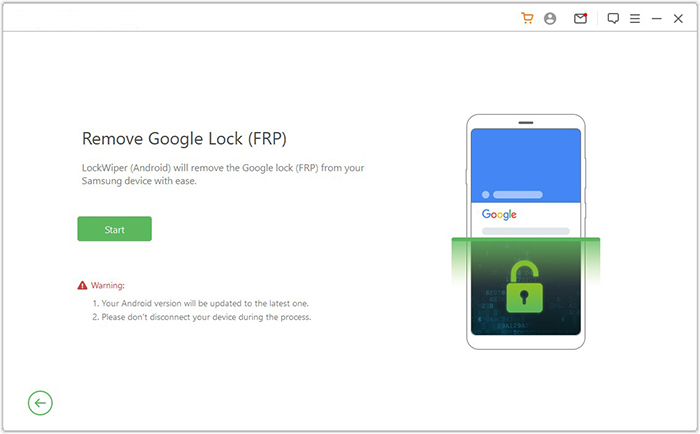
- After installation, select the "Remove Google Lock (FRP)" option and choose "Advanced Mode."
- Use a USB cable to connect your realme smartphone to the computer. (realme doesn't connect to PC?)
- Click "Start" to begin the Google lock removal process.
- Follow the prompts to enter your device details and click "Next."
- Follow the on-screen instructions to access recovery mode on your realme.
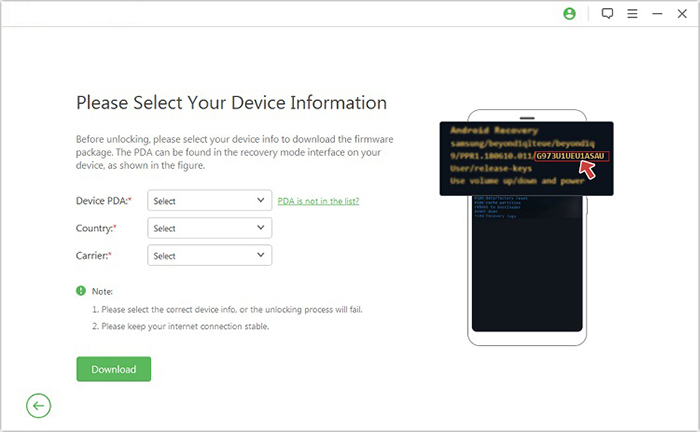
- On the next screen, choose the correct PDA, country, and carrier, then click "Download" to get the required data package.
- Then click "Start to Extract" and follow the on-screen instructions to put your device into Download Mode.
- Next, enable USB debugging, activate OEM unlock, extract the firmware, and complete any other required steps.
Cons:
- Requires a Windows computer and a stable USB connection.
- Most features require a paid license.
- Success depends on the realme model and Android version.
Section 2: Bypass realme FRP Lock with Android Unlock
Another option worth considering is Android Unlock, which includes a dedicated function for removing Google FRP locks on supported Android phones. Users can follow its desktop instructions to address post-reset account verification issues on compatible realme devices. Check the supported model list before purchasing, as newer realme firmware may not be covered.
Compatibility:
- Main realme models, especially helpful for realme C series running Android 2.0 and above.
How-to Guide:
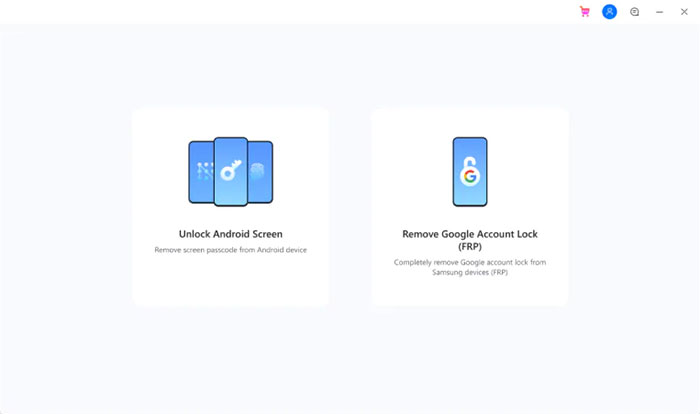
- Open Android Unlock on your computer and navigate to Toolbox > Screen Unlock.
- On the next screen, select Android to proceed with the FRP removal process.
- Choose Remove Google Account/FRP Lock from the two available options.
- Select your Android phone's brand from the list of supported manufacturers.
- Wait while Android Unlock automatically downloads the necessary device driver.
- Turn off your phone and connect it to the computer. While plugging it in, press and hold the Volume Up and
- Volume Down buttons simultaneously for approximately three seconds.
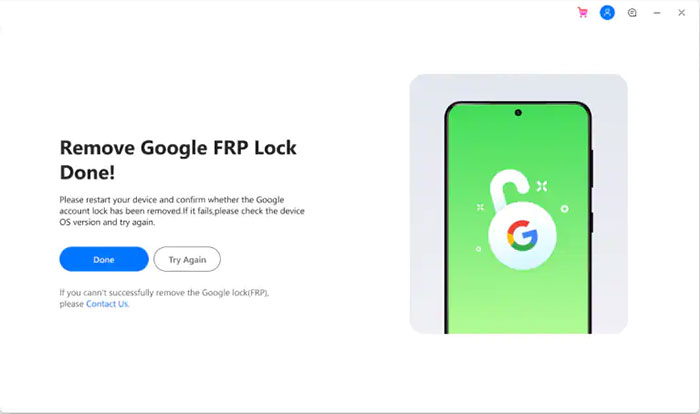
- Follow the software's on-screen instructions to proceed with the FRP removal process.
Cons:
- Requires a computer to complete the unlocking process.
- Some functions are available only in the paid version.
- Incorrect operations may interrupt the unlocking process.
You May Also Like: How to Unlock realme Phone with/without Losing Data? 6 Methods Included
Section 3: Bypass Google FRP on realme via FRP Reset Code
These are not universal realme FRP unlock codes. Their behavior depends on the device model, Android version, and realme UI build.
Compatibility:
- Your realme model: e.g., realme C11, C35, C55, 8, 10, or 11.
- Your Android version: e.g., Android 11, 12, 13, or 14.
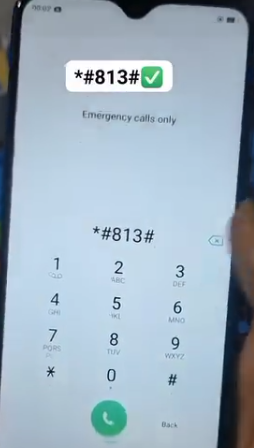
This article demonstrates this method using a realme C35 running Android 12.
How-to Guide:
- Turn on the realme phone and connect it to Wi-Fi.
- Open the Emergency Call option on the Google account verification screen.
- Enter one of the codes (*#813# or *#812#).
- If the code is unsupported, stop rather than repeatedly trying random codes.
- If it opens a settings or setup interface, do not assume FRP has been removed.
- Verify that the device can complete normal setup using an authorized Google account.
Cons:
- FRP reset codes may not work on newer Android versions.
- Code availability and functionality vary by realme model.
- Unverified codes from online sources may be ineffective or unsafe.
Section 4: Bypass Google FRP Lock on realme with Talkback
The TalkBack method is designed for realme C11, C30, and C35. It uses Android's accessibility features to navigate the initial setup interface without a computer.
Compatibility:
- realme C11, realme C30, realme C35, realme C51, realme C53, realme C55, etc.
How-to Guide:
- Connect the FRP-locked realme phone to a Wi-Fi network.
- Press and hold the Volume Up and Volume Down buttons simultaneously.
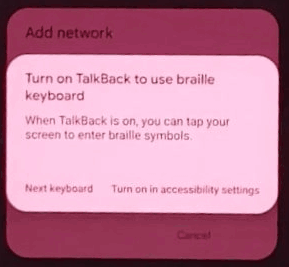
- Tap Turn on to activate TalkBack.
- Repeat the volume-button shortcut if necessary to enable TalkBack.
- Draw an L-shaped gesture on the screen to open the TalkBack menu.
- Explore the available accessibility options and voice-command features.
- The tutorial then uses Google Assistant to access YouTube.
- Navigate to YouTube's profile and open Settings.
- Select About and access YouTube Terms of Service.
- The tutorial uses Chrome to reach additional device settings.
- It then attempts to modify Google Play Services and Android Setup settings to bypass account verification.
- Complete the remaining Android setup process.
Cons:
- The procedure can be complicated for inexperienced users.
- TalkBack shortcuts and menus vary across Android versions.
- Google security updates may disable previously available workarounds.
Section 5: Bypass realme Google FRP Lock with AddROM
AddROM supports realme among its listed Android brands, but its compatibility depends more on the Android version, security patch, and device firmware than on the realme model alone.
Compatibility:
- realme 1, realme 2, realme 2 Pro, realme C1, realme C2, realme 3, realme 3 Pro, realme 5, realme 5 Pro, realme C11, realme C12, and realme C15.
- Older realme devices running Android 5-9.
How-to Guide:
- Prepare a second Android phone and an active SIM card for the FRP-locked realme device.
- Visit the official AddROM website: https://addrom.com/bypass/.
- Review the available FRP resources and check whether they match your realme model and Android version.
- Check the compatibility of the Google Account Manager (GAM) APK with your Android version.
- Be aware that AddROM relies on older Android setup shortcuts and third-party APKs.
- Avoid installing APKs from unverified sources, as they may contain malicious software.
- If AddROM is incompatible, use Google Account Recovery or contact realme support with proof of ownership.

Cons:
- Some APK links or instructions may become outdated.
- The process may involve multiple steps and manual configuration.
- Third-party downloads may contain unwanted or unsafe files.
Additional Tips:
If the four methods above do not work, you can also explore other FRP-related resources and tools, such as vnROM, Direct Open FRP Mobiletech, and GSMneo FRP Tool. Their availability and compatibility may vary depending on your realme model, Android version, and security patch level. Always check the source and instructions before downloading third-party files, and consider contacting realme support if you cannot verify ownership through other means.
Related Articles:
4 Handy Ways to Transfer Data/Files from realme to realme [Latest]
realme Data Recovery: 5 Simple Options to Recover Data from realme
4 Easy Options: How to Screen Mirror realme to PC [Latest]
Top 4 Best realme Sync Software/Tools [Worth Your Attention]