Too Many Incorrect Unlock Attempts on Samsung? 11 Easy Solutions
TL;DR:
Too many incorrect unlock attempts on Samsung usually come from repeated wrong credentials, accidental touches, wake gestures, high touch sensitivity, a temporary glitch, or the security timer, and the basic fixes above range from waiting and restarting to adjusting settings and, as a last resort, resetting the phone.
When those methods fail and you want to keep your data, Android Lock Wiper provides a guided computer-based way to remove PIN, pattern, password, fingerprint, and face locks on many Samsung models. Its process covers device selection, Download Mode, and lock removal, making it a practical option for regaining access to a locked Galaxy phone.
NOTE: Before trying any of the solutions below, please make sure you are the lawful owner of the Samsung phone or have proper authorization to unlock the Galaxy device. Thank you for your cooperation.
"My phone's touchscreen was accidentally pressed while it was in my pocket. This was happening unnoticed for a while. How can I disable this behavior?" -- from android.stackexchange.com
Too Many Incorrect Unlock Attempts on Samsung? Why?
- You entered the wrong PIN, password, or pattern several times.
- The touchscreen registered unintended touches while the phone was in your pocket or bag.
- Double tap to wake repeatedly activated the screen.
- Touch sensitivity is too high, causing accidental screen inputs.
- A temporary system glitch caused incorrect touch or unlock detection.
- Someone else tried to unlock the phone without knowing the correct credentials.
- The phone was accidentally touched while being handled or transported.
- A security feature temporarily locked the device after repeated failed attempts.
Now, check out this article to figure out the possible fixes for this issue.
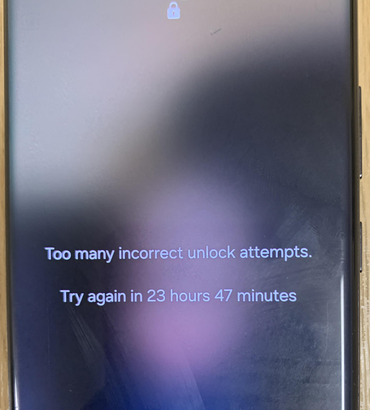
Section 1: Unlock Samsung after Too Many Incorrect Unlock Attempts [10 Basic Ways]
Way 1: Wait for the Timer
The simplest approach is to wait until the countdown on the Samsung lock screen reaches zero. Avoid entering random PINs, passwords, or patterns during this period, as repeated failed attempts can lead to another, potentially longer, waiting period. Samsung users have reported lockout timers ranging from minutes to many hours.
Once the timer expires, enter the correct screen-lock credential carefully. If you know the correct PIN, password, or pattern, this option is preferable because it does not erase the phone's data.
How many times can you attempt to unlock Samsung? Samsung generally allows multiple incorrect PIN, password, or pattern attempts, but there is no single fixed maximum for all models. After failed attempts, the phone may impose progressively longer waiting periods before another attempt is allowed. If you continue entering incorrect credentials, some settings may eventually trigger a factory reset or require account recovery.
Way 2: Restart Samsung Galaxy
A restart may help when the message is caused by a temporary system or touchscreen problem rather than an actually forgotten password. Some Samsung users have reported that accidental screen touches or other unexpected behavior can trigger the lockout message.
- Press and hold the Side/Power button and Volume Down button.
- Keep holding them until the phone restarts.
- Wait for the lock screen to appear.
- Enter the correct PIN, password, or pattern once the device allows another attempt.
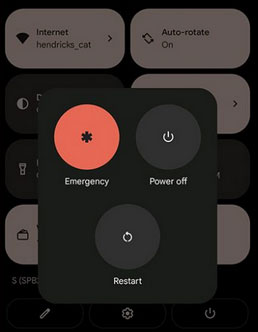
Way 3: Enable Accidental Touch Protection
If the problem happens while the Samsung phone is in a pocket or bag, accidental screen touches may be worth checking. Samsung's Accidental Touch Protection is intended to reduce unintended screen interactions in dark or enclosed conditions, although community reports show that the feature does not prevent every lockout situation.
- Go to Settings > Display > Accidental touch protection and turn it on.
- After enabling it, keep the phone's screen facing away from objects that could repeatedly touch the display.
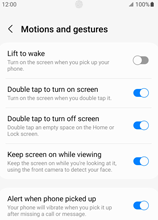
Way 4: Disable Double Tap to Wake
Double tap to wake can turn on the display when the phone receives repeated touches. If the device is frequently waking inside a pocket, disabling this function may reduce unintended screen activity. Samsung-related troubleshooting discussions also recommend checking this setting when a phone wakes up unexpectedly.
- Open Settings > Advanced features > Motions and gestures and turn off Double tap to turn on screen or the similarly named option available on your One UI version.
Way 5: Adjust the Auto Lock
Changing the screen-lock timing can help reduce situations where the phone repeatedly wakes and locks while you are handling it. The exact options vary according to the Samsung model and One UI version.
- Open Settings > Lock screen > Secure lock settings and review the available Auto lock when screen turns off or related lock-timing settings.
- Choose a setting that gives you enough time to use the phone without repeatedly triggering the lock screen.
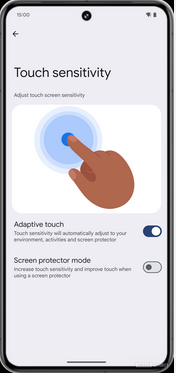
Way 6: Switch Off Touch Sensitivity
If the screen is registering touches too easily, reducing touch sensitivity may help prevent unintended input from being interpreted as an unlock attempt. This is particularly worth checking if the problem occurs when the phone is inside a pocket or bag.
- Go to Settings > Display > Touch sensitivity and switch it off if it is currently enabled.
- Then lock the phone and check whether the issue returns during normal use.
Way 7: Try SmartThings Find
SmartThings Find can be used to manage a Samsung device remotely when the device is linked to the required Samsung account and meets the service's conditions. However, current instructions describe Erase data rather than a simple remote screen-lock removal, so this method should be treated as a reset option and not as a data-preserving unlock.
- Open SmartThings Find in a browser and sign in with the Samsung account associated with the phone.
- Select the locked Galaxy device.
- Choose Erase data.
- Complete the account verification steps.
- Confirm the erase operation.
Warning: Erasing the device removes locally stored data, so check whether your important photos, contacts, messages, and other files have already been backed up.
Way 8: Use Google Find Hub
Google Find Hub provides another remote option for a Samsung phone connected to the relevant Google account. Like SmartThings Find, its factory-reset function is intended to erase the device rather than unlock it while preserving the local data.
- Open Google Find Hub and sign in with the Google Account associated with the Samsung phone.
- Select the locked Samsung device.
- Choose Factory reset device.
- Follow the verification instructions.
- Confirm the reset.
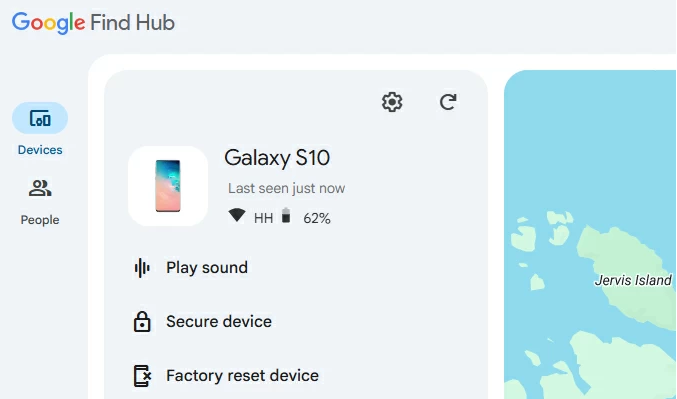
After the reset, you can set up the phone again using the required account credentials.
Way 9: Boot Samsung into Safe Mode
Safe Mode can help investigate whether a recently installed third-party app is contributing to abnormal screen behavior. It does not directly remove a forgotten PIN, password, or pattern, so it is mainly useful when the lockout keeps happening because of an app or unusual phone behavior.
- Press and hold the Side/Power button until the power menu appears.
- Touch and hold Power off.
- Tap Safe mode when the option appears.
- Use the phone in Safe Mode and check whether the unexpected lockout behavior continues.
- If the problem disappears, consider uninstalling recently installed or suspicious third-party apps after returning to normal mode.
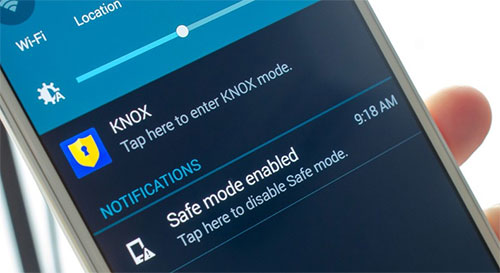
If you cannot access the power menu because of the current lockout, this method may not be practical on your particular Samsung model.
Way 10: Factory Reset in Recovery Mode
If you cannot remember the screen-lock credential and the other options do not work, a factory reset through Recovery Mode can restore the phone to its original software state. This removes the locally stored data, so it should be considered only after checking for available backups.
- Turn off the Samsung phone.
- Connect newer Galaxy models to a computer with a USB cable if required for Recovery Mode access.
- Hold the appropriate Power/Side and Volume buttons for your model until the Recovery screen appears.
- Use the volume buttons to highlight Wipe data/factory reset.
- Press the Power/Side button to select it.
- Choose Factory data reset and confirm.
- Select Reboot system now after the reset finishes.
Section 2: Fix Too Many Incorrect Unlock Attempts Samsung via a Dedicated Program
Can I unlock my Samsung without losing data after too many attempts? If you have forgotten the credential, many recovery options may require a factory reset, which erases locally stored data. However, you can try Android Lock Wiper, a professional and secure program for Samsung lock screen removal without losing data.
This tool can help users regain access to various Samsung devices when they encounter issues such as too many incorrect unlock attempts. It supports removing almost all types of Android screen locks with simple clicks.
Core Features of Android Lock Wiper:
|
Core Feature
|
Short Description
|
|
Fix Too Many Incorrect Unlock Attempts |
Unlocks overall Samsung phones (Samsung Galaxy S26 series included) after repeated failed attempts. |
|
Remove PIN Lock |
Removes forgotten PIN locks. |
|
Remove Pattern Lock |
Removes forgotten pattern locks. |
|
Remove Password Lock |
Removes forgotten password locks. |
|
Remove Fingerprint & Face Lock |
Removes biometric locks on supported devices. |
|
Samsung Unlock Without Data Loss |
Unlocks supported Samsung models without erasing data. |
|
Android Screen Lock Removal |
Removes locks from various Android devices. |
|
Google FRP Removal |
Removes FRP on supported Android devices. |
|
Simple Unlock Process |
Provides guided steps for removing device locks. |
|
Privacy Protection |
Does not collect or upload users' private data during the unlock process. |
Safe Download (Clean):

User Guide:
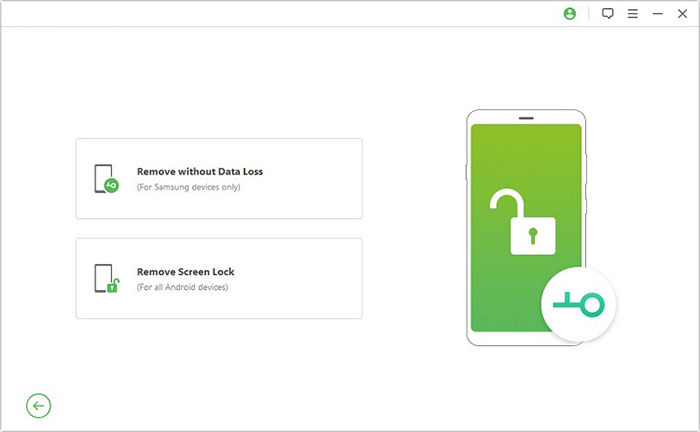
Step 1: Select Your Device and Download the Data Package
- Install and launch Android Lock Wiper on your computer.
- On the main screen, choose Standard Mode.
- For most Samsung Galaxy devices, select Remove without Data Loss.
- Click Start to continue.
- Choose your device name and model from the list.
- Review the device information displayed on the screen.
- After confirming the details are correct, click Confirm.
- The software will automatically download the required data package.
- Once the download is complete, click Next.
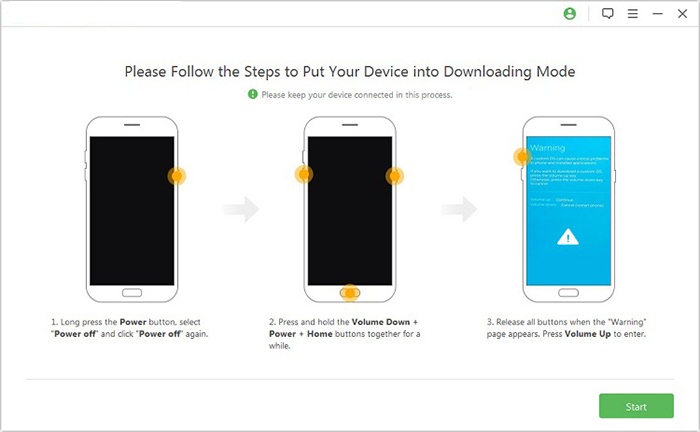
Step 2: Connect Your Device and Enter Download Mode
- Use a USB cable to connect your Samsung Galaxy device to the computer.
- Follow the on-screen instructions provided by the software.
- Put your device into Download Mode by following the prompted steps.
- Wait until the program detects that the device has successfully entered Download Mode.
- Click Start to Unlock to begin the unlocking process.
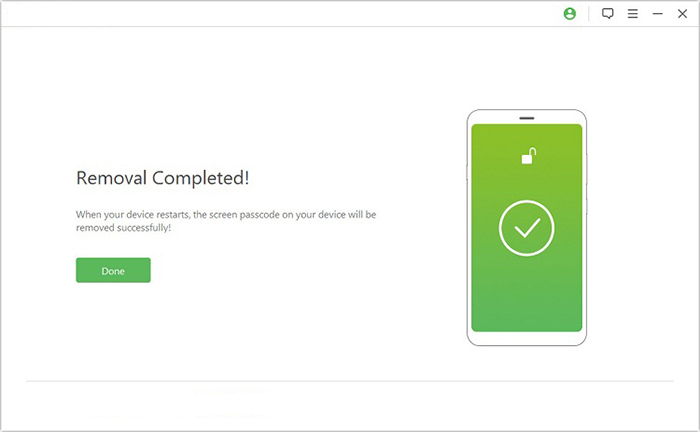
Step 3: Remove the Screen Lock
- The software will start removing the screen lock from your Samsung device.
- Keep your device connected throughout the process.
- Wait for the unlocking procedure to complete
- Once finished, the screen lock will be successfully removed.
FAQs about Samsung Galaxy Unlock
Q1: How many times can you attempt to unlock a Samsung phone?
The number of attempts varies by Samsung model and One UI version. On Galaxy devices running One UI 9.0, 5 failed attempts trigger a 1-minute lockout, 10 attempts trigger a 4-hour lockout, 12 attempts trigger a 24-hour lockout, and the 13th failed attempt can permanently lock the device and require a factory reset.
Q2: What happens after 10 failed passcode attempts on Samsung?
On Samsung Galaxy devices with One UI 9.0, the 10th failed attempt results in a 4-hour lockout rather than an immediate factory reset.
Q3. How long does Samsung lock you out after too many incorrect attempts?
The waiting period varies by Galaxy model, One UI version, and the number of failed attempts. Wait for the on-screen timer to expire before trying the correct credential again.
Q4. How to keep from Too Many Incorrect Unlock Attempts on Samsung next time?
Use a PIN, password, or pattern that you can reliably remember and avoid repeatedly guessing when you are unsure of the credential. You can also enable Accidental touch protection, review touch sensitivity, and disable unnecessary screen-wake gestures to reduce unintended inputs.
Q5. Can I use face recognition after Samsung is locked?
Face recognition may not be available after certain security conditions, such as a restart or a period requiring stronger authentication. When prompted, enter the device's screen-lock credential.
Q6: Does a Samsung Galaxy automatically erase itself after failed unlock attempts?
Not every Samsung phone automatically erases its data after failed attempts. Whether an automatic wipe occurs depends on the device's software, security configuration, and any enabled device-management policies.
Q7: Can I recover photos after too many incorrect unlock attempts?
If the phone has not been reset, your locally stored photos may still be on the device, but access depends on successfully authenticating. If a factory reset has already been performed, recovery of internal storage data is generally not guaranteed.
Related Articles:
How to Retrieve Deleted Photos/Videos from Locked Samsung? 4 Options
Samsung Phone Not Turning on after Update? Reasons & 8 Solutions
All You Want to Know about Intelligent Lock Screen on Samsung [2026]
Top 7 Samsung Device Managers You Wish You Knew Sooner [Updated]