
10 Simple Fixes to AnyDesk Not Connecting/Working [2026]
Many users are experiencing difficulties using the software and are looking for solutions, troubleshooting tips, or explanations when AnyDesk fails to function properly. If you've encountered AnyDesk not connecting/working, it can be frustrating, especially when you rely on it for remote access or collaboration.
This guide is designed to help you learn how to fix connectivity problems without wasting time, providing clear steps and practical tips to get AnyDesk back up and running efficiently.

Part 1: Why Is AnyDesk Not Connecting
The following table summarizes the most common reasons why AnyDesk may fail to connect, along with detailed explanations for each cause. Reviewing these causes can help you quickly identify and resolve connection issues.
|
Causes
|
Details/Explanation
|
|
Network Issues |
Unstable or weak internet connections on either device can prevent AnyDesk from connecting. Switching networks or restarting the router often resolves this. |
|
Firewall or Antivirus Blocking |
Firewalls or antivirus programs may block AnyDesk's ports or processes. You may need to whitelist AnyDesk or allow it through the firewall. |
|
Incorrect AnyDesk ID |
Entering the wrong ID or trying to connect to an offline device will fail. Always verify the remote device's AnyDesk ID and ensure it is online. |
|
Server Outages |
AnyDesk servers may occasionally be down or under maintenance, preventing connections. Check the AnyDesk Status Page for updates. |
|
VPN or Proxy Interference |
VPNs or proxies can interfere with network routing and block required ports. Disabling or configuring them properly can fix connection issues. |
|
Remote Device Settings |
Security settings on the remote device (like Privacy Mode, Interactive Access, or Access Control) may deny your connection. Adjust these settings to allow access. |
|
Outdated AnyDesk Version |
Running an old version of AnyDesk can cause compatibility issues. Updating to the latest version on both devices is recommended. |
|
Software Conflicts |
Other remote desktop software or apps that use networking may conflict with AnyDesk. Close unnecessary apps or temporarily disable them. |
|
Display or GPU Issues |
If the remote device's display drivers are outdated or misconfigured, AnyDesk may connect but fail to show the screen ("Waiting for image" or black screen). |
|
Temporary Device Glitches |
Minor software or system glitches can prevent connections. Restarting both the local and remote devices often resolves these issues. |
You May Also Like: AnyDesk Review: Everything You Want to Know about AnyDesk [Updated]
Part 2: 9 Quick Ways to Fix AnyDesk Not Connecting
Way 1: Check Your Account Info
When connecting to the AnyDesk network, make sure to enter the username and password associated with your account. If you still cannot connect after entering your credentials, try resetting your password by clicking the "Forgot password" link on the login page to create a new one.
Way 2: Inspect the Remote Device ID
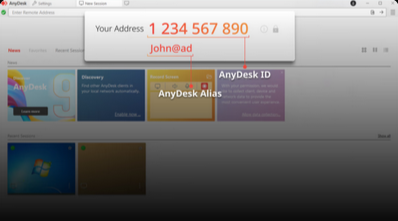
Ensure both devices are using the same 9-digit code and watch out for common mistakes like confusing the number 0 with the letter O, typing errors, or missing segments. Also, confirm that the ID hasn't changed due to a device reset or update.
Way 3: Verify Your Internet Connection
Check that your internet connection is stable on both the local and remote devices. Try opening websites or streaming content to ensure the network is working properly. If the connection is unstable, restart your router or switch to a different network, such as a mobile hotspot, to improve connectivity.
You Might Also Enjoy: How to Access PC/Computer Files from Android Phone Remotely? [5 Great Options]
Way 4: Check AnyDesk Server Status
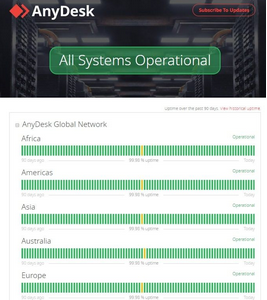
Before trying complex fixes, first check the AnyDesk server status on their official website for any outages or maintenance. If the server is down, wait until it's back online; if it's working, proceed with other troubleshooting steps. Staying informed helps quickly identify the root cause of connection issues.
Way 5: Allow AnyDesk via Firewall
Sometimes, Windows Firewall can block AnyDesk, causing disconnections. To fix this:
- Go to Control Panel > System and Security > Windows Defender Firewall.
- Select "Allow an app or feature through Windows Defender Firewall."
- Find AnyDesk, enable it by ticking the box, and click OK to allow network access.
Antivirus software or other remote desktop apps can block AnyDesk connections. Temporarily disable your antivirus or firewall and close other remote desktop programs to prevent conflicts. Once disabled, try reconnecting with AnyDesk to see if the issue is resolved.
Way 6: Update AnyDesk
To fix AnyDesk not connecting or not working, ensure you're using the latest version:
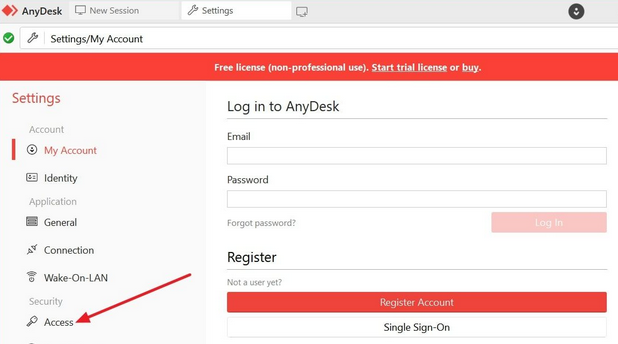
- Open AnyDesk, click the three horizontal lines, go to Settings > Security > Access, and click Unlock to authorize changes.
- Scroll to the Automatic Update section and ensure Enabled - Main Channel (Recommended) is selected. This keeps AnyDesk automatically updated on your computer.
Way 7: Disable VPN/Proxy Connections
VPNs or proxy connections can interfere with AnyDesk's network access. To fix this, temporarily disable any active VPN or proxy on your device. Once disabled, try reconnecting with AnyDesk to see if the connection issue is resolved.
Way 8: Run a clean boot
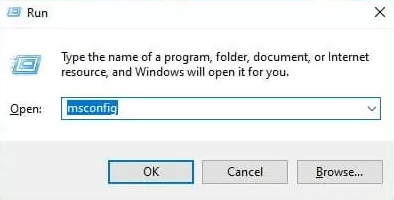
Third-party software can sometimes cause AnyDesk to disconnect. Performing a "clean boot" can resolve this by starting Windows with only essential services. Open msconfig on your PC, select Selective startup with Load system services, then go to Services, hide all Microsoft services, disable the rest, and click OK.
Way 9: Disable IPv6
- Go to Control Panel > Network and Internet > Network and Sharing Center.
- Select Change adapter settings, right-click your active network, select Properties, and uncheck Internet Protocol Version 6 (TCP/IPv6).
- Click OK and restart your connection, then try AnyDesk again.
Way 10: Check Router Settings
Router settings can block AnyDesk connections if certain ports are restricted. Log in to your router's admin panel and ensure that ports 80, 443, and 6568 are open and not blocked by firewall rules. After adjusting the settings, restart your router and try reconnecting with AnyDesk.
Apart from the above, restarting your device and router can resolve temporary network or software glitches affecting AnyDesk. Turn off your computer and router, wait for about 30 seconds, then power them back on. Once both are restarted, open AnyDesk and try connecting again.
Part 3: AnyDesk Still Doesn't Connect? Try Its Best Alternative
Screen Mirror lets you mirror and control your mobile device on a PC effortlessly. Compared to AnyDesk, it provides smooth, low-latency mirroring and allows full control of apps, messages, and games using a mouse and keyboard. Plus, it connects instantly without requiring device IDs or complex setup, making it a convenient and reliable alternative.
|
Core Feature
|
Description
|
|
Screen Mirroring |
Mirror 8,000+ Android or iOS device to PC in real-time with minimal lag. (How to mirror iPhone to Mac?) |
|
Full Device Control |
Operate apps, games, and messages directly from your computer using mouse and keyboard. |
|
Instant Connection |
Connects without device IDs or complicated setup processes. |
|
High-Resolution Display |
Maintains original screen quality for a clear and smooth viewing experience. |
|
Cross-Platform Support |
Works with both Android and iOS devices on Windows or Mac. |
|
Keyboard Shortcuts |
Use the PC keyboard for typing, gaming, and app navigation on the mirrored device. |
|
Screenshot & Recording |
Capture screenshots or record the mirrored screen for tutorials or sharing. |
How to use the best AnyDesk alternative - Screen Mirror?
Step 1: Download and install Screen Mirror on your computer, then launch the program.


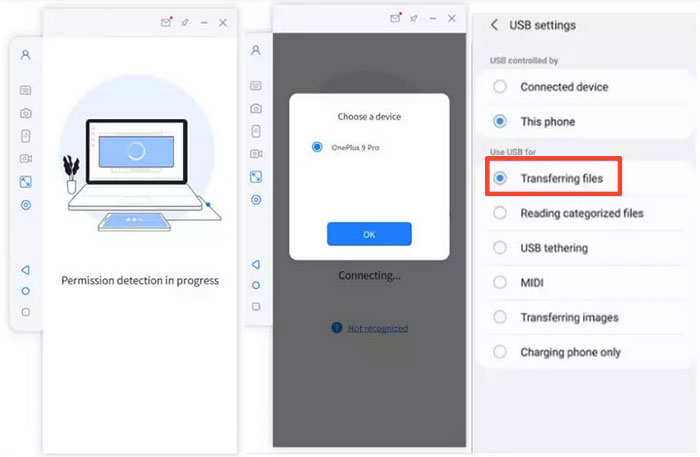
Step 2: Connect your Android device to the PC via USB and select it, choosing Transfer files to establish the connection.
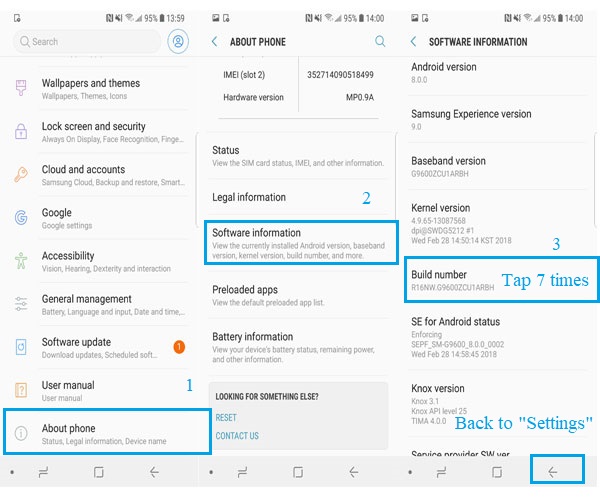
Step 3: On your phone, go to Settings > About phone > Software information, tap Build number seven times to enable Developer options, then return to Settings and turn on USB debugging.
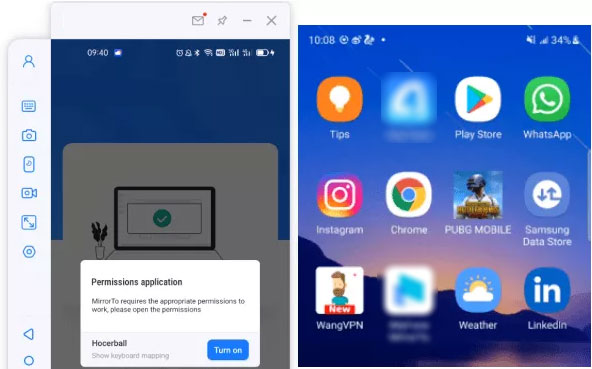
Step 4: Grant the necessary permissions for the program, allow it to display over other apps, and tap Turn on to install Screen Mirror on your phone.
Step 5: Once completed, your Android device will be mirrored to the PC, allowing full control directly from your computer.
Part 4: FAQs about AnyDesk Not Connecting
Q1: What prevents me from managing my antivirus software remotely using AnyDesk?
Remote antivirus management may be blocked because many security programs restrict remote-control tools for protection against unauthorized access. Your antivirus might automatically block AnyDesk's processes, screen control, or permission prompts. To fix this, whitelist AnyDesk in the antivirus settings and ensure remote access permissions are enabled on both devices.
Q2: What steps can I take to verify if AnyDesk is undergoing maintenance?
You can check the current status of AnyDesk servers and services on our Status page. If you encounter any problems not shown there, please contact us through the my.anydesk II customer contact form.
Q3: What should I do if AnyDesk keeps saying "Waiting for image" or shows a black screen?
This issue is related to display permissions or GPU/drivers on the remote device. Update the display drivers, enable hardware acceleration, and ensure the remote device has a monitor attached (or use a dummy HDMI plug for headless systems). On Android, enable screen recording permission for AnyDesk.
Q4: Why does AnyDesk say "Session denied" even though the remote device is online?
This happens when the remote device's security settings block your connection request. The remote side may have disabled Interactive Access, enabled Privacy Mode, or restricted access to specific IDs. To fix this, adjust the Security settings on the remote device and allow your ID or enable "Always Allow".
Q5: Why is Screen Mirror the best alternative to AnyDesk?
- Stable Screen Mirroring - Mirror your Android/iOS phone or tablet or pad to PC/Mac with minimal lag, providing a smoother experience than remote desktop apps that rely heavily on network speed.
- Direct iOS/Android Control from PC - Operate your mobile apps, games, and messages directly using mouse and keyboard, which AnyDesk doesn't fully support for mobile devices.
- No Device ID Required - Connect instantly without needing complicated device IDs or codes, avoiding the "Remote device not accepting connection" issues common in AnyDesk.
So, just give this software a free download before a satisfactory trial.
Related Articles:
[Tested] 10 Solutions to Fix iPhone Transfer Not Working Quickly
What to Do When iPhone Won't Connect to Mac? [11 Workarounds]
Android Not Connecting to WiFi? Here Are the Reasons & 11 Easy Fixes
Samsung Phone Not Connecting to PC/Computer? 7 Troubleshooting Tips
