
iTools Virtual Location Review: Is This Software Worth It?
Before committing to any GPS spoofing software, many users are keen to learn how well the tool works for spoofing GPS on iOS devices before downloading or purchasing it. Understanding potential issues such as map crashes or connection problems can save time and frustration.
This iTools Virtual Location review explores its features, usability, and limitations, giving readers a clear view of what to expect and whether it meets their specific needs. By examining its performance and stability, users can make a more informed choice.
- Part 1: iTools Virtual Location - Overview & Main Features
- Part 2: iTools Virtual Location - Pricing & Safety
- Part 3: iTools Virtual Location - How to Use
- Part 4: iTools Virtual Location - Bug Fixes
- Part 5: iTools Virtual Location - FAQs
- Part 6: iTools Virtual Location - Pros and Cons
- Part 7: iTools Virtual Location - Best Substitute
Part 1: iTools Virtual Location - Overview & Main Features
Recent updates from ThinkSky have enhanced the "Virtual Location" feature, making iTools Virtual Location easier to spoof the GPS location on iOS devices. Originally, iTools functioned primarily as an iOS management tool with limited location-spoofing capabilities, but these improvements have significantly broadened its functionality.
The program is available for both Windows and Mac, allowing users to manage and manipulate device locations directly from their computer. With these upgrades, it offers a practical solution for apps or games that rely on GPS without requiring a jailbreak.
|
Feature
|
Description
|
|
GPS Spoofing |
Allows users to change their iPhone or iPad location to any place in the world. |
|
Two-Mode Operation |
Offers "Single-Spot Mode" for setting one location and "Multi-Spot Mode" for simulating movement along a route. |
|
Cross-Platform Support |
Compatible with both Windows and Mac, enabling location management from a computer. |
|
iOS Device Management |
Integrated within iTools, which also provides backups, restores, and file management for iOS devices. |
|
Real-Time Location Updates |
Changes take effect immediately on the iOS device for apps that rely on GPS. |
|
Ease of Use |
Simple interface with intuitive controls to select locations, routes, and travel speeds. |
|
Gaming & App Support |
Supports apps and games that require GPS data, such as Pokémon GO, location-based social apps, and map tools. |
Part 2: iTools Virtual Location - Pricing & Safety
Pricing:
- Premium License: Around $30.95–$34.95 for use on a few PCs or Macs.
- Platinum License: About $69.95 for broader computer support.
- Bundle Option: Combined package with other tools available around $59.95.
- Subscription Plans: Optional yearly or monthly subscription for certain advanced features.
- Free Trial: A 30-day trial is often offered to test the software before purchase.
Safety:
- No Jailbreak Needed: Works without jailbreaking your iPhone, reducing system risk.
- System-Level GPS Spoofing: Alters location via computer connection rather than installing risky apps on your phone.
- Official Source Safety: Safe when downloaded from the official provider and not third-party sites.
- Compatibility Risks: May fail or cause errors on newer devices if updates lag behind iOS releases.
- Stability Issues: Users sometimes report map crashes, failed location changes, or occasional software instability.
Part 3: iTools Virtual Location - How to Use
To spoof your iPhone's location using iTools Virtual Location, you need to follow a few simple steps that guide the software to simulate the desired GPS position. The following instructions walk you through connecting your device, selecting a location, and confirming the virtual movement on the map. Here are the details:
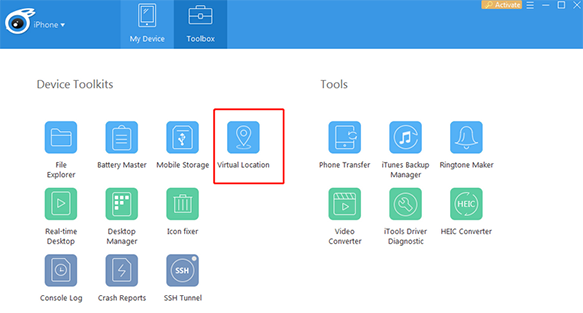
Step 1: Use a USB cable to connect your iPhone to your computer, then launch iTools. Navigate to the Toolbox section and select the Virtual Location option.
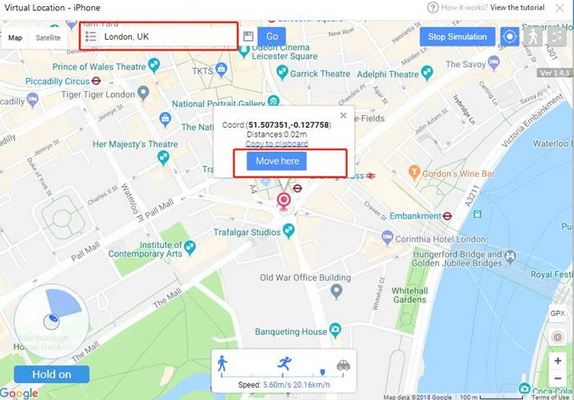
Step 2: Enter the address or GPS coordinates of your desired location in the search box and click Go. iTools will begin simulating the virtual location, and the map will shift to the selected spot within a few seconds.
Step 3: For example, if you choose Covent Garden, click Move Here to confirm your selection.
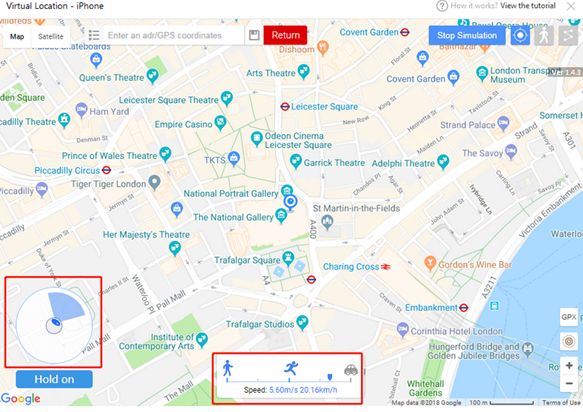
Step 4: You have now "arrived" at Covent Garden. Zoom in on the map to select a more precise spot, then tap the person icon in the top-right corner to finalize your location.
Part 4: iTools Virtual Location - Bug Fixes
If iTools Virtual Location isn't working as expected, it can be frustrating, especially when you need to spoof your iPhone's GPS quickly. The following list provides practical solutions to troubleshoot common issues and get the feature running smoothly again.
- Restart iTools and your devices to refresh the connection.
- Update iTools and iTunes (or Apple Mobile Device drivers) to the latest versions. (Can't install iTunes on your PC?)
- Use a high-quality USB cable and try different USB ports.
- Unlock your iPhone, tap "Trust This Computer," and ensure Location Services are enabled.
- Check your internet connection and switch map sources if the map fails to load or crashes.
- Run iTools as an administrator on Windows for full access.
- Reset your iPhone's Location & Privacy settings to fix permission issues.
- Ensure your iOS version is compatible; consider alternatives if iTools does not support the latest iOS.
Part 5: iTools Virtual Location - FAQs
Q1. Why isn't my virtual location updating in some apps?
Many apps cache location data or use additional security checks, so you may need to restart the app, toggle GPS settings, or enable location permissions again after spoofing.
Q2. Can I simulate movement between multiple locations?
Yes - iTools offers a multi-spot mode that can simulate movement along a route with adjustable speeds and stops.
Q3. How accurate is the fake GPS location?
The simulated location updates in real time and usually reflects accurately in apps that use standard GPS services, but some apps may use additional location validation methods.
Q4. What should I do if the map won't load or crashes?
Check your internet connection, close and reopen iTools, or switch to a different map view; in some cases updating the software can resolve map issues.
Part 6: iTools Virtual Location - Pros and Cons
When considering a GPS spoofing tool, it's important to weigh both its strengths and limitations. The table below highlights the main pros and cons of iTools Virtual Location to help you decide if it fulfills your criteria:
|
Merits
|
Demerits
|
|
No jailbreak required - works without modifying the device system |
May not always work reliably on the latest iOS versions |
|
Available for both Windows and macOS |
Some apps can detect spoofed locations and block functionality |
|
Easy to use with a simple interface |
Map loading or crashes reported by some users |
|
Offers both single-spot and multi-spot location simulation |
Integrated within iTools, which also provides backups, restores, and file management for iOS devices. |
|
Real-Time Location Updates |
Requires a computer connection (not a mobile app) |
|
Works with many GPS-based apps and games |
Occasional recognition or connectivity issues with devices |
Part 7: iTools Virtual Location - Best Substitute
For users seeking a reliable way to change their iPhone's GPS without the limitations of iTools, Virtual Location Tool offers an intuitive and versatile solution. It allows precise location spoofing, whether you want to jump to a single spot or simulate a realistic route across multiple points.
With seamless compatibility across the latest iOS/Android versions, it ensures that apps and games respond naturally to the virtual movements. Its straightforward interface and fast connection make it an appealing choice for anyone looking to manage device location effortlessly.
Why Choose Virtual Location Tool?
> One-Click Location – Change GPS to any place instantly.
> Route Simulation – Simulate movement with two-spot or multi-spot routes.
> GPS Joystick – Control movement direction in real time.
> iOS & Android Support – Works on both platforms (iOS 26/Android 16 included).
> App Compatibility – Works with almost all games, social media, and location apps.
> GPX Route Files – Import, export, or reuse saved routes.
> Adjustable Speed – Customize movement speed along routes.
> USB/Wi-Fi Connection – Flexible connection options for devices.


How can I use the best iTools Virtual Location alternative - Virtual Location Tool?
- After downloading, install and launch the program.
- Tap "Get Started" to see the welcome screen, then connect and unlock your iPhone or Android phone.
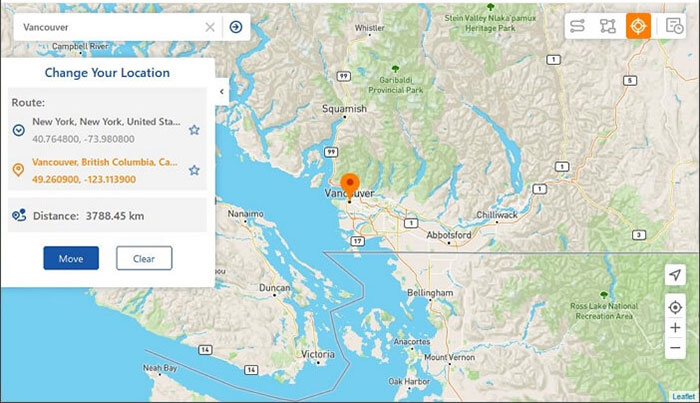
- Once the map appears, click on the "Teleport" button located in the upper-right corner.
- Choose your desired location using the search box in the upper-left corner, or zoom in/out on the map to select a destination manually.
- Click the "Move" button to apply the new location.
- You can then open Apple Maps/Google Maps on your smartphone to verify that the location has been updated.

Summary
Admittedly, iTools Virtual Location offers basic GPS spoofing and route simulation, it sometimes struggles with stability, compatibility, and limited functionality on newer iOS versions. Virtual Location Tool, on the other hand, provides smoother operation, broader device support, and precise route simulation. It transforms the often cumbersome task of GPS spoofing into a seamless experience.
Related Articles:
[Full Guide] How to Share Location between iPhone and Android in 2026?
Spoof GPS Locations with the Top 11 iTools Virtual Location Alternatives
iTools Pokemon GO: Overview, Features, Safety, Risks, & Alternative
5 Methods to Stop Parents from Tracking Your Phone [Updated]
