
How to Back Up Calendars on Android Phone? 4 Simple Techniques
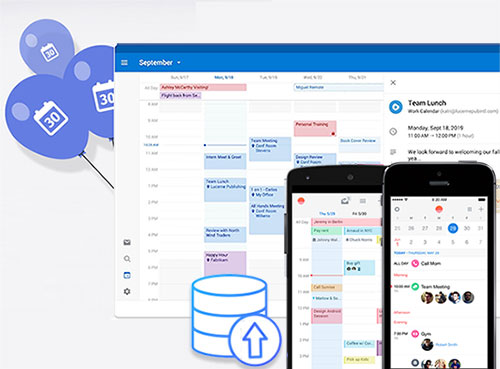
The Calendar app plays an important part in keeping daily lives in order, especially for highly efficient people. We often keep track of vital to-do items on the app. And it is also pretty convenient for us to view and update tasks whenever necessary. All these make it necessary to back up calendar from Android for safekeeping.
So, how can we do that? OK, we are here to list easy ways to export Android calendars to computers or Google in this guide. Let's cut the crap and get down to business now.
Part 1: Why Is It Important to Back Up Android Calendar
We may back up Android files like contacts, photos, and videos, mainly because we cannot afford to lose them. Well, what makes it essential to make a copy of Android calendars? It starts with the role the calendar plays in our everyday life. Here are some instances.
Android calendars help us:
- Streamline daily tasks and responsibilities.
- Never miss an important date or event.
- Facilitate long-term planning and strategy.
- Build consistent and organized habits.
- Create a central hub for community interaction.
- Reduce anxiety and manage events with confidence.
As such, more and more people are aware of what do calendars mean for us, especially for those who have lost some, as mentioned in the preface. OK, we will now teach you how to back up Android calendars to a PC.
You May Need:
Part 2: How to Back Up Calendar from Android to Computer
Considering Android data transfer, are you annoyed by the tedious operations in using some tools? If so, Phone Backup will amaze you. After your Android phone is connected to a computer, you can easily use this program to export the calendars to any location on your computer with only three clicks.
Further, this utility also allows you to transfer calendar to another Android/iPhone in an indirect manner. And it applies to almost all data types in Android devices.
All in all, it is an ideal tool for Android calendar backup and restore.
Why choose Phone Backup:
- Selectively back up Android data to PC/Mac.
- Work for files like calendar, call history, photos, videos, messages, contacts, audio, apps, etc.
- Enable you to preview and restore any backup to Android/iOS devices.
- Restore iTunes or iCloud backup to Android phones.
- Work for overall Android devices, covering Samsung, Huawei, Sony, Motorola, Xiaomi, Google, vivo, OnePlus, OPPO, realme, etc.
- It never records any of your privacy.


How do I transfer my Android calendar to my computer with Phone Backup?
Step 1. Launch the program on your computer and choose "Phone Backup" among all the functions. Then link your Android phone to the computer via a USB cable.
Step 2. You may now need to enable USB debugging on Android to have your phone recognized by the tool. After that, click "Backup".
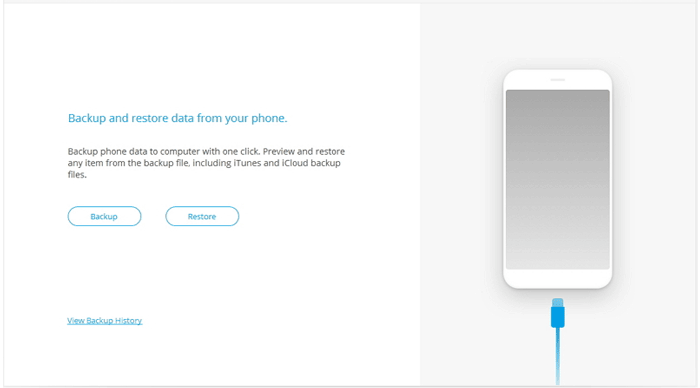
Note: If you have used this tool to back up your phone before, you can preview your past backup by tapping "View backup history".
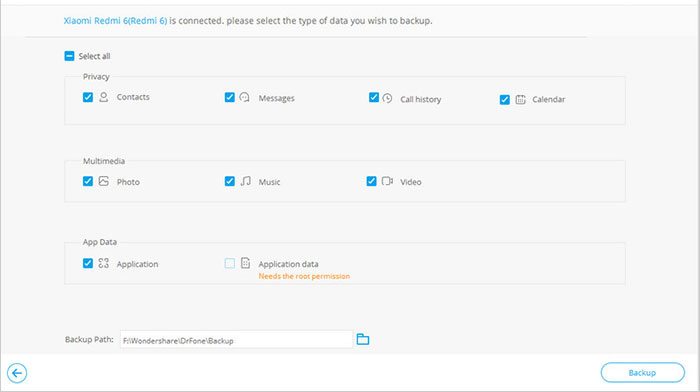
Step 3. Check the "Calendar" option on the program interface and then click "Backup" to export Android calendars to your computer.
This procedure would take a few minutes. Please be patient and wait for the process to play out.
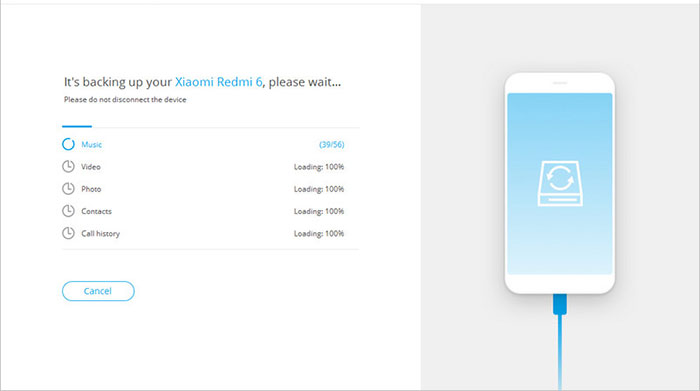
Once completed, you can click "View the backup" to check what's in the backup file.
Part 3: How to Back Up Android Calendar to Google Account
You might have used a Google account to sync Android contacts. The account can also be used to back up calendars from Android devices. If you don't know how to do this or haven't even had an account linked to your device before, you can follow the steps below.
How do I back up my calendar on my Android phone to a Google account?
- Get into your Android system Settings and locate Accounts.
- Select "Add account" (It is generally at the bottom of the list).
- Choose "Google" from the menus of service providers.
- Enter your account info to set up the account or create a new account if you don't have one.
- Click the account to go to its settings.
- You can select the calendar here to sync with your account.
- Select "Sync now" at the top-right menu.
- Your calendars will sync to your Google account automatically.
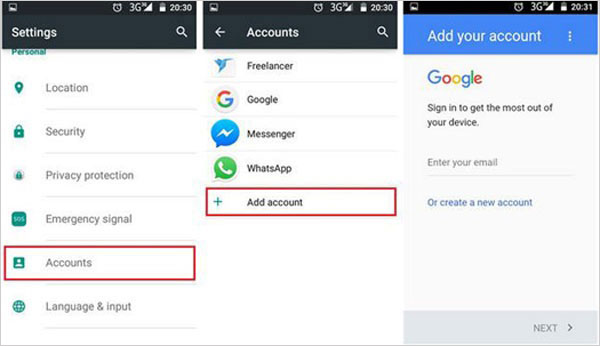
For some Android phones, besides the steps above, you may need to navigate under the calendar's screen, press the menu key, and select "Sync" manually. Furthermore, you can add multiple Google or other supported accounts (e.g., Outlook) to your phone. Each account will have its own calendar, and you can enable sync for each one individually in your device's Accounts settings.
Read Also:
Part 4: How to Back Up Calendar on Android with Google Calendar
Google Calendar is a powerful scheduling tool that's deeply integrated with Android. Its best "backup" feature is actually its automatic, continuous cloud sync. You don't need to manually back up. Once you create an event, it's instantly saved to your Google Account. This means:
- If you lose your phone, all your events automatically reappear when you sign into a new one.
- Your schedule is safe on Google's servers and accessible from any device.
Here's how it works:
- Launch the Google Calendar application on your Android device.
- Select the Menu icon (three horizontal lines) located in the upper left corner.
- Navigate to Settings, and then choose the calendar you wish to synchronize.
- Make sure that the Sync option is activated.
- Verify your phone's primary Settings > Passwords, Passkeys and Accounts > your Google account to ensure that your calendar is configured to sync.
Part 5: How to Back Up Calendar on Android Phone with Smart App
As a lightweight app, Acronis True Image: Mobile lets you export Android calendars, contacts, messages, photos, and videos to your computer or Acronis Cloud. To carry out the job, ensure your computer and the Android device are within the same WiFi network and router. Then pair your devices through the given QR code.
After pairing, your Android phone will connect to the computer automatically each time the gadget links to this WiFi network.
To export calendars from Android to a computer via Acronis True Image: Mobile:
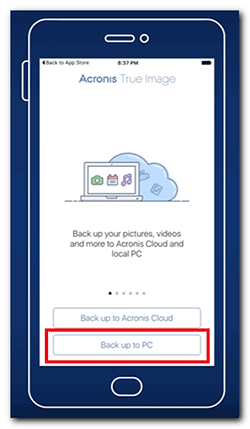
- Download Acronis True Image: Mobile from the Google Play Store.
- Install and open it on your Android device.
- Select "Back up to PC".
- Tap "Request Download Link."
- Go to the computer on which you wish to save the backup.
- Open the email that contains the link.
- Follow the instructions to download and install Acronis True Image on the computer.
- Run the tool on the computer and tap "Register" to sign up for an account.
- Log in with your new username and password.
- From the application window, switch to the "Dashboard" Tab > click "Mobile Device Backup".
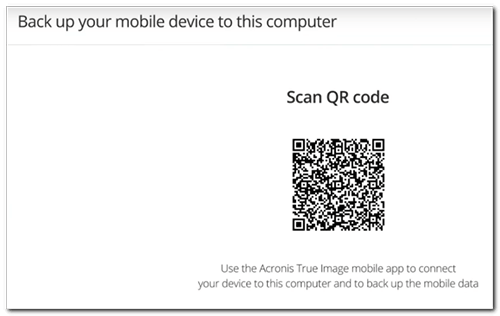
- "Scan QR Code" should appear in the pop-up window.
- On your Android phone, tap "I Already Have It" > "Scan QR Code".
- Capture the QR code on the phone to pair the computer and the handset.
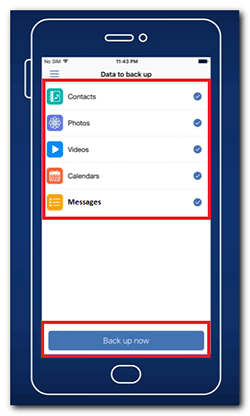
- Choose the data type(s) you need to back up.
- Tap "Back up now".
Calling It a Warp
On the whole, you can back up your Android calendar to your computer, Google, or other clouds at your will. For safety, it is recommended that you take your computer as a destination for your Android calendars. In this regard, you had better pick Phone Backup or Acronis True Image: Mobile. However, the latter may leave heavy system footprints and is inconvenient to operate, partly because it lacks tooltips.
Related Articles:
iPhone Calendar Disappeared? Top 10 Fixes to Get It Back
How to Transfer Calendar from iPhone to Mac in 3 Simple Ways?
4 Tested Methods to Sync Microsoft Outlook Calendar with Android
