
How to Sync Google Photos with/to Samsung Gallery? 4 Easy Options
"Can anyone help? I need to get all my videos and photos from my Google Photos to my Samsung Gallery?" -- from Samsung Community
Gone are the days of cumbersome manual transfers and scattered photo libraries. By syncing your Samsung Gallery with Google Photos, you can effortlessly streamline the management of your photos and ensure that every moment is neatly cataloged and easily accessible. Do you want to implement how to sync Google Photos with Samsung Gallery with just a few clicks?
This guide will cover four effective methods to make the sync. In addition, we've included a comprehensive FAQ section to address any potential issues or queries you may encounter along the way.
- Way 1: How to Sync Google Photos with Samsung Gallery via Google Photos App
- Way 2: How to Transfer Google Photos to Samsung Gallery with Google Drive
- Way 3: How to Add Google Photos to Samsung Gallery via Gmail on Computer
- Way 4: How to Download Google Photos to Samsung Gallery with Google Takeout
- FAQs about Google Photos and Samsung Gallery
The video below offers a visual way to learn this topic.
Way 1: How to Sync Google Photos with Samsung Gallery via Google Photos App
Google Photos works on popular operating systems like iOS and Android. It's easy to figure out how to back up Samsung Gallery to Google Photos. Then, this service offers minor editing, such as creating collages and applying effects.
A key benefit is data retention, even if you lose your phone, allowing you to recover and transfer files to a new device. Here's how to move Google Photos to Samsung Gallery:
- Install Google Photos from the Google Play Store.
- Open Google Photos and sign in with your Gmail address.
- Click "Photos" to load your images.
- Select the images you want to transfer.
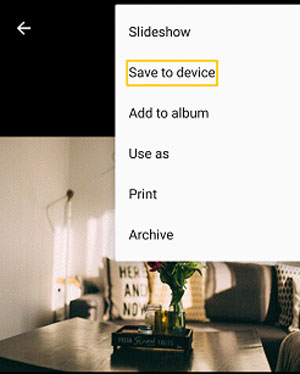
- Tap the three vertical dots in the top right corner.
- Choose "Save to device" from the drop-down menu. (Photos saved from Google Photos will typically appear in the "Downloads" or "Pictures" folder within Samsung Gallery.)
Want to turn Samsung default Gallery access off for privacy concerns? Follow the steps: Open the Google Photos app on your device. Sign in to your Google account. Tap your profile picture or initial in the top right corner. Go to "Photos settings", then tap "Settings". Select "Apps and devices", followed by "Google Photos access". Find and tap the name of the device's default gallery app. Choose "Remove access".
You Might Also Need: What to do when Google Photos refuses to show all photos? Here are the 13 solutions.
Way 2: How to Transfer Google Photos to Samsung Gallery with Google Drive
It's easy to connect Samsung Gallery to Google Photos. Although photos and videos stored in Google Photos do not automatically appear in Google Drive and vice versa, you can still leverage Google Drive to transfer photos to your Gallery on Galaxy:
- Install and open the Google Drive app on your Galaxy phone.
- Sign in to your Google account.
- Tap the "Recent" tab to view your Google Photos uploads.
- Select the photos you want to transfer to the Gallery for offline access.
- In the drop-down menu, find and select the "Download" option.
- Tap "Download" to confirm, and the photos will be saved to your phone's Gallery.
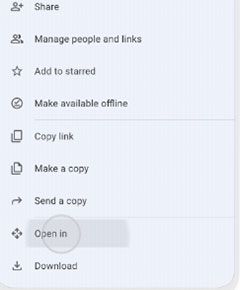
Alternatively, you can complete the transfer by following the steps: Open Google Drive from the Google Apps section on your phone. Log in if needed. Select the photos you want. Choose "Save to Device".
Further Exploration:
Way 3: How to Add Google Photos to Samsung Gallery via Gmail on Computer
If you're a Google Photos user other than a fan of Google Drive, great news! You can still access your photos on your PC as well. Here's how to sync Google Photos with Samsung Gallery using your Google account on a computer:
- Launch Google Photos and sign in to the Google account where your photos are stored.
- Choose the photos you wish to save by holding down "Ctrl" and clicking on them or by marking the ones you want.
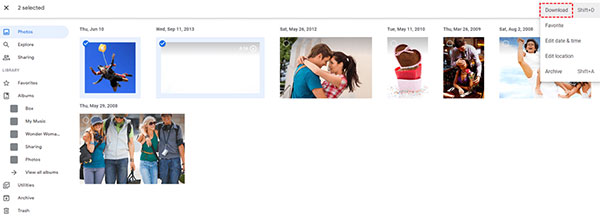
- After selecting the files, right-click and select "Download".
- Alternatively, you can click on the three dots at the top right corner of the screen and choose "Download". (Ensure that your Samsung phone remains connected to the computer while the images are being downloaded.)
Note: If your device runs out of storage, you won't be able to save additional photos from Google Photos to Samsung Gallery. Consider freeing up space or using an external storage option.
Way 4: How to Download Google Photos to Samsung Gallery with Google Takeout
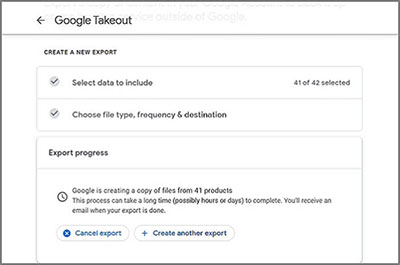
For a simple way to export photos, use Google Takeout. This service supports over 50 different file types, including emails, photos, documents, and more, particularly useful for exporting Google Photos in bulk. It lets you download a copy of your data in just a few clicks. Follow these steps to initiate the sync:
- Open Google Takeout in your browser and log in to your Google account if prompted.
- Select the "Deselect all" option to ensure only Google Photos data is extracted.
- Locate and check the box for Google Photos, then scroll down and click the "Next" button without selecting any other boxes.
- Choose your preferred file type, frequency, and size, then confirm these settings and click the "Export" button.
That's all for this passage. Hopefully, you'll find it your go-to resource for mastering data sync from Google Photos with Samsung Gallery. Finally, here are some Q & A that might be helpful.
FAQs about Google Photos and Samsung Gallery
Q1: Google Photos vs Samsung Gallery: what are the main differences?
Google Photos and Samsung Gallery are two popular photo management apps, each with its own set of features and capabilities. Here are the main differences between the two:
|
Features
|
Google Photos
|
Samsung Gallery
|
|
Backup and Sync
|
Google Photos automatically backs up your photos and videos to the cloud, accessible on all platforms.
|
Samsung Gallery also offers backup and sync using Microsoft's OneDrive, but it's not as seamless as Google Photos.
|
|
User Interface
|
Google Photos focuses on camera pictures and screenshots, while Samsung Gallery shows all media types.
|
Samsung Gallery displays all photos and videos, including WhatsApp images and Facebook photos.
|
|
Editing Features
|
Google Photos provides AI-powered editing suggestions. Samsung Gallery offers basic editing tools.
|
Samsung Gallery has simpler editing tools and filters for enhancing photos.
|
|
Cross-Platform
|
Google Photos is available on iOS, Android, and the web. Samsung Gallery is limited to Galaxy devices.
|
Samsung Gallery is exclusive to Samsung Galaxy phones.
|
Q2: How to sync Samsung Gallery with Google Photos?
If you don't know how to move photos from Samsung Gallery to Google Photos, check out the easy guide below:
- Open the Google Photos app on your Samsung phone and sign in.
- Tap your account profile at the top right, then go to "Photos settings > Back up & sync".
- Toggle "Back up & sync" on or off as needed.
Q3: Will my photos in Samsung Gallery be deleted if I remove them from Google Photos?
No, once you've saved photos from Google Photos to your device, deleting them from Google Photos will not affect the copies saved in Samsung Gallery.
Q4: Can I access Google Photos offline?
Yes, you can download specific photos or albums to your device for offline access.
Q5: Are Samsung Gallery photos backed up automatically?
Not by default. You need to enable cloud backup via Samsung Cloud or sync with Google Photos for automatic backup.
Q6: Can I restore deleted Samsung photos from Google Photos?
Yes, deleted photos go to the Trash for 30 days, where you can restore them before permanent deletion.
Q7: Can Google Photos organize my photos better than Samsung Gallery?
Google Photos offers AI-powered features like automatic tagging, facial recognition, and album suggestions, while Samsung Gallery primarily relies on folders and manual organization.
Q8: Can I free up space on my Samsung device using Google Photos?
Yes, after backing up photos to Google Photos, you can use the "Free up space" option to delete local copies from your device.
Q9: Do Google Photos and Samsung Gallery support video playback?
Yes, both apps allow you to view, play, and share videos, but Google Photos also enables cloud streaming and sharing across devices.
Q10: How to recover lost photos from Samsung Gallery?
If your photos aren't always secure in Google Photos, and you risk losing them before backing up your Samsung album, syncing content from Google Cloud to Samsung albums isn't possible. But don't lose hope! Lost photos can still be recovered.
MobiKin Doctor for Android (Windows and Mac) is a reliable solution, capable of promptly recovering them. This professional tool is highly compatible and offers recovery options for various data types from Android internal storage or SD cards. For further details, please consult this guide: Samsung Gallery not showing all pics? 15 troubleshooting tips.


Video Guide: Click the video below to learn how to quickly recover lost or deleted data from Samsung Gallery without a backup:
Related Articles:
3 Trusted Ways to Back Up Samsung Gallery to Google Drive 2026
Top 5 Methods to Download Photos from Google Drive to iPhone 17/16/15/14/13/12/11/X/8
How to Transfer iCloud Photos to Google Photos? 3 Ways & Some Hot Tips
7 Resourceful Approaches to Transfer Photos from Samsung to PC/Computer
