
Samsung Yellow Screen of Death? Reasons & 18 Feasible Solutions
TL;DR:
This guide has walked you through the full spectrum of solutions for the Samsung yellow screen issue, from simple setting toggles to deeper system resets.
- For cases where the 17 basic solutions fail or the yellow tint persists after a factory reset, Android Repair offers a specialized, one-click repair mode that can resolve software-related yellow screen issues.
- This tool works for many Samsung devices, making it a safer, more efficient ultimate solution before considering costly hardware repair or screen replacement.
"Is anyone experiencing yellow screen/discoloration issues on their Samsung mobile phone?" -- from Reddit
The phrase Samsung yellow screen often surfaces when users notice a yellow tint and want to know if it's a fixable problem or a defect. This issue can be unsettling, especially when it interrupts daily use or raises concerns about long-term reliability.
This passage explores the reasons for Samsung yellow screen of death and provides 18 efficient fixes to it, guiding readers through practical solutions that range from quick settings adjustments to deeper repair methods.
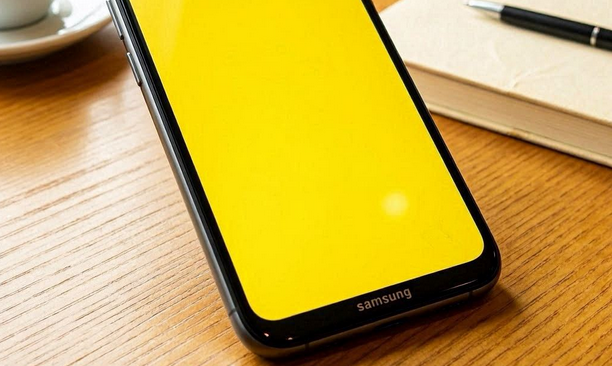
Part 1: Why Is My Samsung Screen Suddenly Yellowish
A Samsung screen can suddenly look yellowish due to display settings changes, software features, or occasional system glitches, rather than permanent damage in most cases. Here are the most common internal factors:
- Eye Comfort Shield (Blue Light Filter) is ON - Adds a warm/yellow tint to reduce eye strain.
- Screen Mode Changed - "Natural" or misconfigured display settings can shift colors.
- Night Mode/Dark Mode Effects - Can slightly warm the screen tone.
- Accessibility Color Settings Enabled - Color correction or filters may alter display colors.
- Software Glitch After Update - Temporary bugs can affect color calibration.
- Auto Brightness or Adaptive Display Changes - May adjust tones dynamically.
- App-Specific Overlay Issues - Some apps may apply color filters.
- Hardware or OLED Aging (Rare) - Long-term use may cause uneven color balance.
You Might Need: What if your Samsung device is frozen? Check out the 10 clever strategies.
Part 2: Can You Fix Samsung Yellow Screen of Death? 17 Basic Solutions
Way 1: Clear Samsung Screen
Gently wipe the display with a soft microfiber cloth slightly dampened with clean water to remove dirt, oils, or residue that may affect visibility. Avoid using harsh chemicals or spraying liquid directly onto the screen, as this can damage the coating and worsen display issues. After cleaning, restart the device and check the display settings to ensure normal color balance is restored.
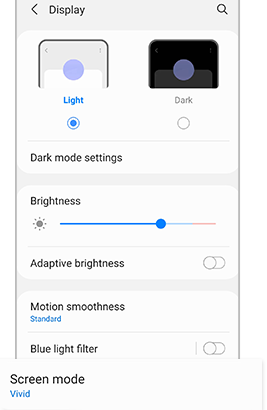
Way 2: Adjust or Reset Display Settings
- Open Settings > Display on your Samsung device.
- Tap Screen Mode and select Natural to reduce yellow tint and restore balanced colors.
- Switch from Vivid to Natural if the screen looks overly warm.
- Adjust Advanced RGB settings (if available) for finer color correction.
- Reset display settings to default if changes do not fix the issue.
- Restart your phone to apply the new display settings properly.
People Also Like: Ultimate Guide: Does Samsung Smart Switch Transfer Everything?
Way 3: Reset All Settings on Samsung
Resetting all settings can help fix the Samsung yellow screen issue by restoring system configurations that may have caused display color changes, without deleting your personal data.
- Open Settings on your Samsung device.
- Tap General Management.
- Select Reset.
- Tap Reset all settings.
- Confirm by tapping Reset settings again.
- Restart your phone after the reset completes to apply changes.
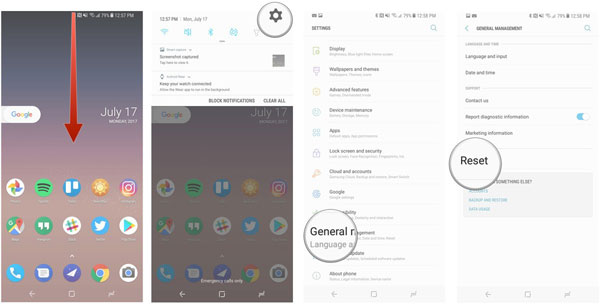
After this, your display settings (including color mode, accessibility filters, and system preferences) will return to default, which often removes the yellow tint issue.
Way 4: Run a Screen Capture Test
- Open Settings > Advanced features > Screenshots and screen recorder on your Samsung device.
- Enable Screen capture gestures or shortcuts, then take a screenshot of your current screen.
- Open the captured screenshot in your Gallery and compare it with the live screen display.
- If the screenshot looks normal but the live screen appears yellow, the issue is likely hardware-related (display panel).
- If the screenshot also shows a yellow tint, the issue is likely software or display settings-related.
- Based on the result, proceed with a display settings reset or seek professional repair if hardware is suspected.
Way 5: Switch off Blue Light Filter
- Open Settings on your Samsung device.
- Tap Display.
- Select Blue Light Filter.
- Turn it OFF to remove the warm/yellow tint from the screen.
- If needed, also disable scheduled activation so it doesn't turn back on automatically.
- Check your screen again to confirm the normal color tone is restored.
Way 6: Disable Eye Comfort Shield
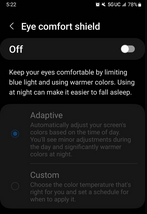
To disable Eye Comfort Shield and fix the yellow screen issue, go to Settings > Display > Eye Comfort Shield and toggle it OFF to restore the normal color tone. If it turns on automatically, also disable its schedule to prevent the yellow tint from coming back.
Way 7: Modify Screen Color Mode
Want to adjust Screen Color Mode to fix the Samsung yellow tint issue? Go to Settings > Display > Screen Mode and select Natural to reduce the yellow tint and restore balanced colors. If the issue persists, switch between Vivid and Natural or reset display settings to bring the screen back to default color calibration.
Way 8: Disable Night Mode
Night Mode can be disabled by opening Settings > Display and turning off Night Mode or Dark Mode, which restores the screen's normal color balance. If a schedule is active, disabling the automatic timing prevents the warm/yellow tint from turning on again.
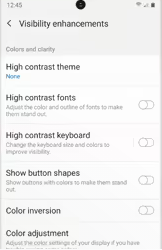
Way 9: Verify Accessibility Settings
- Open Settings on the Samsung device and navigate to Accessibility.
- Check Visibility enhancements and make sure options like Color correction, Color filter, or High contrast settings are turned OFF.
- Review Color adjustment settings and reset them if any custom tuning has been applied.
- Inspect Interaction and dexterity features to ensure no screen overlay effects are enabled.
Way 10: Use Pixel-Fix Apps
Pixel-fix apps like Dead Pixel Test and Fix help correct screen discoloration by rapidly cycling colors across the display to refresh and recalibrate pixels. This process can also detect stuck or faulty pixels that may contribute to yellowish or uneven screen tones.
Steps to Use Pixel-Fix Apps
- Install a pixel-fix app such as Dead Pixel Test and Fix from the Google Play Store.
- Launch the app and choose between Auto or Manual mode for pixel testing.
- Run the color cycling process, allowing the screen to flash multiple colors continuously.
- Let the app complete the scan to detect and attempt correction of stuck pixels.
- Exit the app and restart the phone to check if the yellow tint has improved.
Way 11: Test App Conflicts or Hardware Issues
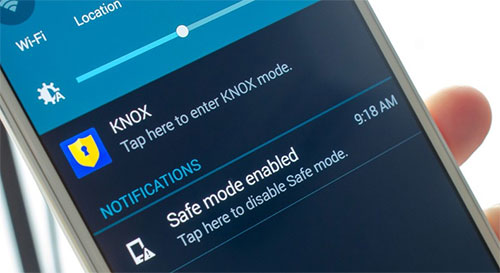
- Boot the device into Safe Mode by holding the power button, then long-pressing Power off > Safe Mode, which disables all third-party apps.
- Observe the screen in Safe Mode; if the yellow tint disappears, the issue is likely caused by a recently installed app or software conflict.
- Restart normally and uninstall suspicious or recently added apps one by one to isolate the cause.
- Run a screen test using the Samsung diagnostic code #0#, then check Red, Green, and Blue displays for color accuracy or defects.
- Take a screenshot of the screen and compare it with the live display; if the screenshot looks normal but the screen is yellow, the issue is likely hardware-related.
- If the tint appears even in Safe Mode and during hardware tests, consider it a possible display panel or internal hardware issue requiring service support.
Way 12: Try Nova Launcher
- Install Nova Launcher from the Google Play Store and set it as the default home app by going to Settings > Apps > Choose default apps > Home app > Nova Launcher.
- Return to the home screen, then long-press on an empty space and select the Widgets > Activity option from Nova Launcher.
- Drag the Activity widget onto the home screen and open the list of hidden settings.
- Scroll down to Settings, then locate Night Light/Night Display activity.
- Tap the shortcut that appears and disable Use Night Light, making sure the schedule is set to None.
- Check the display again; the yellow tint often disappears after turning off the hidden Night Light setting conflict.
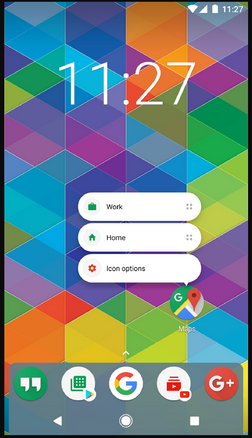
This method is considered a temporary workaround for One UI 6-related yellow screen issues, which are linked to conflicts between Eye Comfort Shield and Android Night Light features.
Way 13: Use ADB Command
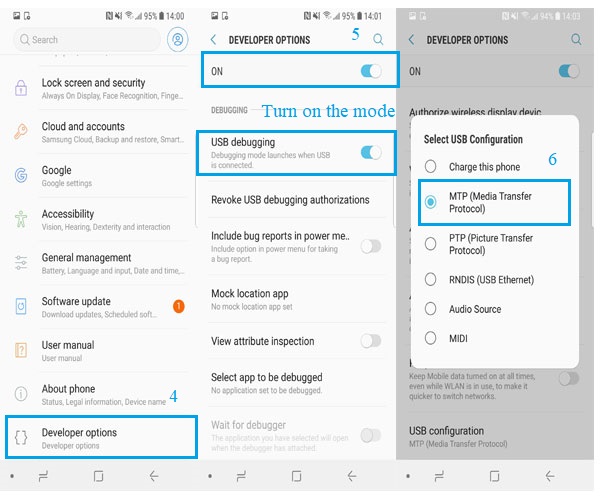
- Install ADB (Android Debug Bridge) on a computer and enable Developer Options on your Samsung device by tapping Build number 7 times in Settings > About phone.
- Turn on USB Debugging under Developer Options, then connect the phone to the computer using a USB cable and allow debugging access.
- Open the command prompt or terminal on your computer and type adb devices to confirm the connection is working.
- Use ADB commands to reset or disable display-related settings that may cause the yellow tint, such as disabling night mode or eye comfort features (if supported by system permissions).
- Restart the phone after running the commands to apply changes and check if the screen color has returned to normal.
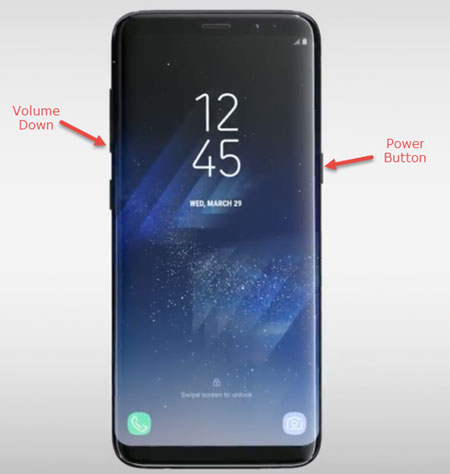
Way 14: Force Restart Your Galaxy
- Press and hold the Power button + Volume Down button at the same time.
- Keep holding both buttons for about 7-10 seconds until the screen turns off.
- Wait for the Samsung logo to appear, then release the buttons.
- Let the device reboot completely and check if the yellow tint issue is gone.
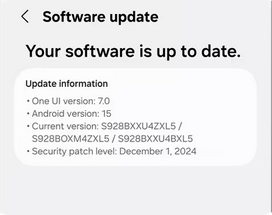
Way 15: Update Samsung Firmware
Updating Samsung firmware can fix the yellow screen issue by installing the latest system optimizations and display bug fixes released by Samsung. Go to Settings > Software update > Download and install to check for and install any available updates. After the update completes, restart the device and verify if the screen color has returned to normal.
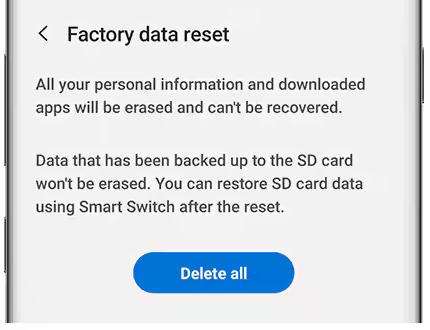
Way 16: Factory Reset Samsung
A factory reset restores the phone to original system settings, which can remove software-related causes of the yellow screen issue. To do it:
- Open Settings on your Samsung device.
- Go to General management > Reset.
- Tap Factory data reset.
- Review the information shown, then scroll down and select Reset.
- Enter your PIN, password, or pattern if prompted.
- Confirm by tapping Delete all to begin the reset process.
- Wait for the device to restart and complete the setup again.
Way 17: Contact Samsung for Help
Contact Samsung support through the Samsung Members app or official website to report the yellow screen issue and request assistance. A support agent may guide troubleshooting steps or perform remote diagnostics to identify the cause. If the issue is hardware-related, they may recommend visiting an authorized service center for repair or screen replacement.
Part 3: How to Fix Samsung Yellow Screen of Death with an Ultimate Solution
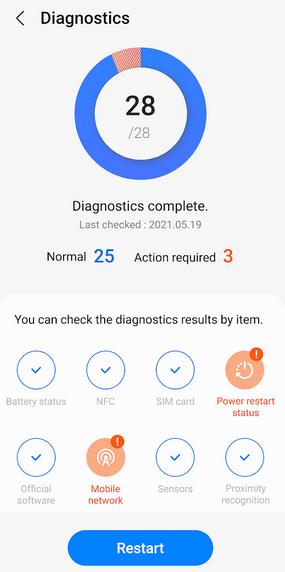
Android Repair helps resolve a variety of Android system issues, such as boot loops, system crashes, and screen-related problems. It can be used to fix the Samsung yellow screen of death when the issue is caused by software errors, corrupted system files, or faulty firmware.
The tool includes a repair mode that can address many problems without deleting existing data and generally achieves a high success rate on supported Samsung devices.
Main Features of Android Repair:
> Android System Repair - Fixes common Android system errors like Galaxy not turning on after update.
> Samsung Yellow Screen Fix - Repairs software-related yellow screen issues.
> One-Click Repair - Simplifies the repair process.
> No Data Loss Mode - Preserves data during supported repairs.
> Wide Compatibility - Supports many Android devices (Samsung/Xiaomi/POCO/Redmi, etc).
> Boot Issue Repair - Fixes boot loops and startup problems.
> System Crash Recovery - Resolves system crashes and freezes.
> Firmware Installation - Downloads and installs firmware on Samsung automatically.
> USB Connection Repair - Fixes device detection issues.
> Display Glitch Fix - Corrects screen tint and color problems.

How to fix Samsung yellow screen of death expertly with Android Repair?
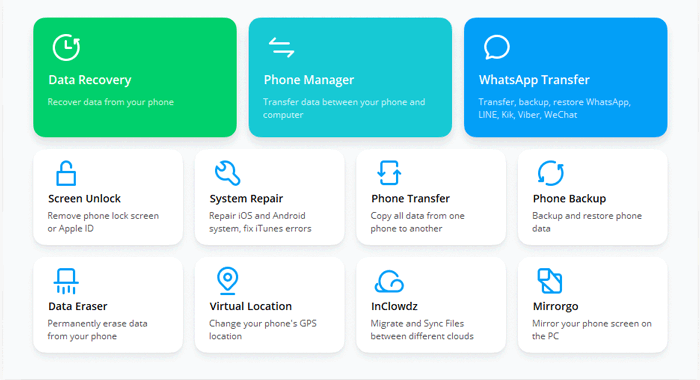
01. Install and Launch
- Download Android Repair.
- Install and launch it.
- Click System Repair and connect your Samsung device via USB.
02. Enter Device Details
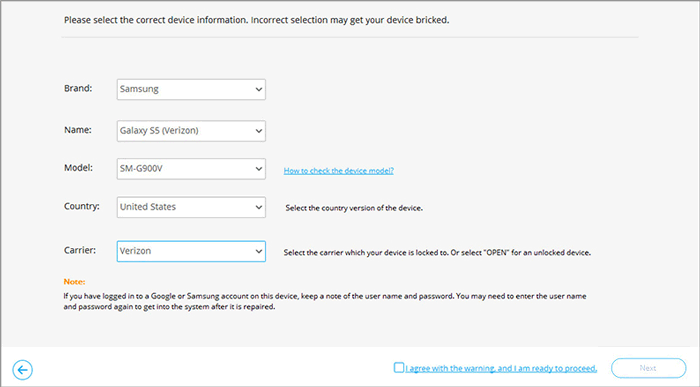
- Select Android Repair from the menu.
- Review issues and click Start.
- Enter device details and tap Next.
- Type 000000 into the field and tap Confirm (note: this may erase data).
03. Repair in Download Mode
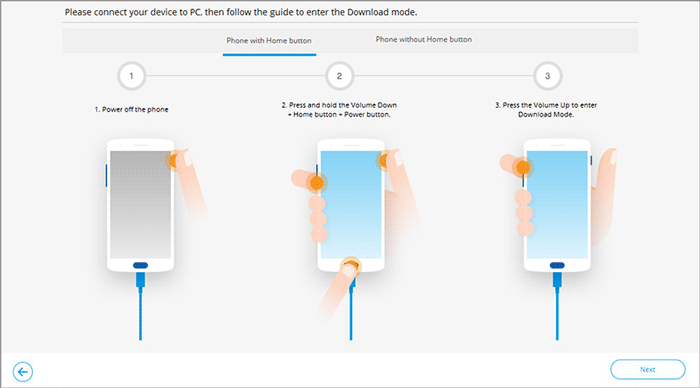
- Switch your phone into Download Mode and let the software repair it.
- Boot your Samsung device into Download Mode.
- Click Next to download firmware.
- The tool will automatically repair the yellow screen.
In a Nutshell
A yellow-tinted display doesn't have to spell the end of your Samsung experience. Think of this guide not just as a troubleshooting manual, but as a roadmap to reclaiming smooth performance and visual comfort.
Before diving into advanced fixes, always check and disable features like Blue Light Filter or Eye Comfort Shield. These settings are the most common culprits behind sudden yellow tint, and switching them off can instantly resolve the issue without further steps.
Related Articles:
Easy Samsung FRP Tool Installing Drivers Failed? Reasons & 9 Fixes
Samsung Experience Service Keeps Stopping? 8 Basic Fixes & 1 Expert Approach
Best Samsung Galaxy Desktop Manager: Unlock the Main Features Here
How to Transfer Apps from Samsung to Samsung? 6 Means [Comparison Table]
