
How to Fix Green Line on Android Phone Screen? 10 Optimal Ways
TL;DR:
A green line on an Android phone screen can often be resolved with the right troubleshooting method, whether the cause is a software glitch, overheating, faulty app, or display-related issue. By following the fixes and using an ultimate repair tool - Android Repair, users can better identify the problem and restore normal screen performance without unnecessary steps.
"I got this green line suddenly today on my screen. Do I have to replace the screen or is there any other cheap way?" -- from Reddit
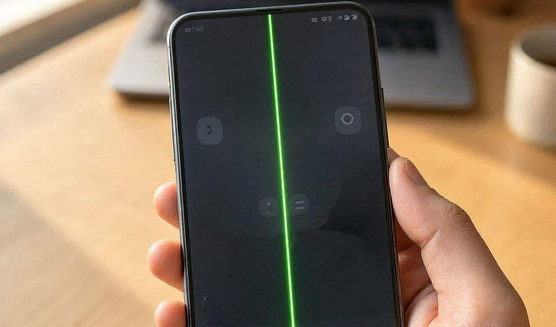
A green line on an Android phone screen can affect visibility, touch experience, and daily use, making it important to find a suitable solution quickly. This issue often appears as a thin vertical stripe running across the display.
In this article, we explore 9 quick fixes and 1 expert tool to troubleshoot the issue, helping users identify whether the problem can be resolved through simple adjustments or requires professional repair.
- Part 1: Why Is There a Green Line on Android Phone Screen
- Part 2: How to Get Rid of Green Line on Android Phone Screen [9 Fixes]
> Fix 1: Don't Use a Flame Near Your Phone
> Fix 2: Alter Display Settings
> Fix 3: Cool Down Your Phone
> Fix 4: Remove Faulty Apps
> Fix 5: Use Safe Mode
> Fix 6: Update Phone Firmware
> Fix 7: Perform a Factory Reset
> Fix 8: Reach out to the Manufacturer
> Fix 9: Visit a Trusted 3rd-party Repair Shop - Part 3: Fix Green Line on Android Phone Screen with a Specialized Tool
- FAQs about Green Line on Android Phone Screen
Part 1: Why Is There a Green Line on Android Phone Screen
A green vertical line on an Android phone screen is usually a sign that the display panel is not functioning properly. While some users notice it after a software update, the update itself is rarely the direct cause. In most cases, the line is related to:
- OLED/AMOLED panel failure - A faulty display panel causes a permanent green line.
- Loose display cable - A damaged connector disrupts screen signals.
- Physical damage - Drops, pressure, or water can damage the display.
- Overheating - Excess heat may expose display faults.
- Software glitches - System bugs or driver issues can create temporary lines.
- Refresh rate/GPU issues - Graphics conflicts may cause display artifacts.
- Manufacturing defects - Defective panels may develop green lines over time.
- Connector wear - Corrosion or aging can affect display connections.
Part 2: How to Get Rid of Green Line on Android Phone Screen
> Fix 1: Don't Use a Flame Near Your Phone
Using a flame to "repair" a green line is a viral internet trick, but it is unsafe and ineffective.
Heating your phone with a lighter or other open flame can permanently damage the OLED display, battery, internal circuits, and waterproof seals. If the green line is caused by hardware failure, exposing the device to extreme heat will not fix it and may make the damage worse. Instead, try to reboot your device to potentially fix the issue.
> Fix 2: Alter Display Settings
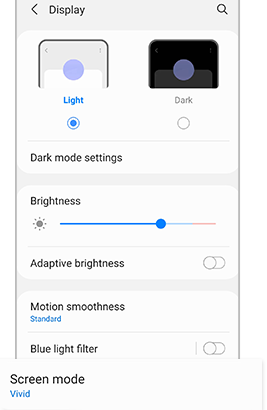
If the green line is related to a temporary display glitch, adjusting certain screen settings may help. To troubleshoot it:
- Open Settings > Display.
- Lower the screen brightness.
- Change the refresh rate (for example, from 120Hz to 60Hz or vice versa).
- Disable features such as Adaptive Brightness or Extra Brightness, if available.
- Restart your phone and check whether the green line disappears.
> Fix 3: Cool Down Your Phone
Excessive heat can trigger or worsen display problems, especially on OLED screens. Here's how to fix it:
- Stop using demanding apps or games.
- Remove the phone case to improve heat dissipation.
- Move the device to a cool, shaded place.
- Let it cool naturally for 15-30 minutes.
- Avoid placing it in a refrigerator or freezer, as sudden temperature changes can cause condensation and damage internal components.
> Fix 4: Remove Faulty Apps
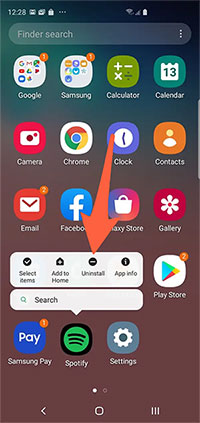
If the green line appeared after installing a new app, the application may be causing display or graphics conflicts. To learn how to uninstall the apps:
- Think about whether the issue started after installing or updating an app.
- Uninstall any recently added or suspicious apps.
- Restart your phone.
- Check whether the green line is gone.
If removing the app solves the problem, avoid reinstalling it until a newer version becomes available.
> Fix 5: Use Safe Mode
Safe Mode disables all third-party apps, making it easier to determine whether software is responsible. To get rid of this issue:
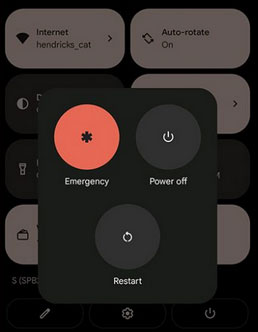
- Press and hold the Power button.
- Touch and hold Power off until the Safe Mode option appears (steps may vary by manufacturer).
- Tap Safe Mode and wait for the phone to restart.
- Check whether the green line is still visible.
- If the line disappears, uninstall recently installed apps before restarting normally. (Your phone gets stuck in safe mode?)
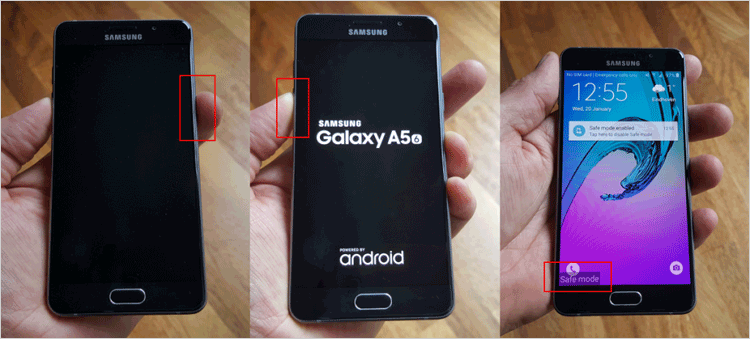
When the line remains in Safe Mode, the problem is more likely related to the display hardware.
> Fix 6: Update Phone Firmware
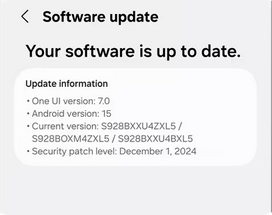
Installing the latest firmware can resolve display bugs and improve system stability. To update your Android phone:
- Go to Settings > System > Software Update (or System Update) and check for available updates.
- Download and install the latest version, then restart your device.
- If the issue was caused by a software bug, the update may eliminate the green line.
> Fix 7: Perform a Factory Reset
A factory reset can help determine whether corrupted system files are causing the display issue. Below is how:
- Back up your important data.
- Open Settings > System > Reset.
- Select Erase all data (Factory reset).
- Confirm the operation and wait for the phone to restart.
- Before restoring your backup, check whether the green line is still present.
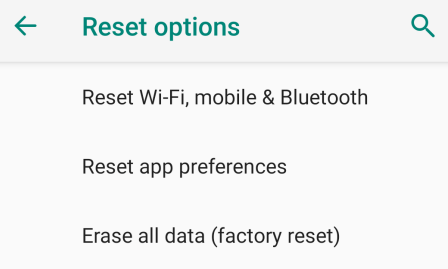
If the line remains after the reset, the screen or its internal connection is likely damaged.
> Fix 8: Reach out to the Manufacturer
If your phone is still under warranty or covered by an extended repair program, contacting the manufacturer is often the best option. To do this:
- Visit the brand's official support website or an authorized service center to ask whether your device qualifies for a free repair or display replacement.
- Some manufacturers have offered repair programs for specific models affected by green line issues.
> Fix 9: Visit a Trusted 3rd-party Repair Shop
When official support isn't available or the warranty has expired, a reputable repair shop can diagnose the problem. So, how can you do it:
- Choose a repair shop with experienced technicians and positive customer reviews.
- Ask for a full hardware inspection before approving repairs.
- Request high-quality replacement parts, preferably OEM-grade components.
- Confirm the repair cost and warranty before the screen is replaced.
- Back up your data before leaving your phone for service.
Part 3: Fix Green Line on Android Phone Screen with a Specialized Tool
An Android system repair tool like Android Repair can help fix software-related issues that may cause green line problems on the screen. This product repairs common Android errors such as black screens, boot loops, frozen screens, and update failures without requiring root access. However, it cannot fix permanent green lines caused by damaged OLED panels or faulty display hardware.
Core Features of Android Repair:
- Fix Green Line Issues - Repairs system glitches that may cause display problems.
- Repair Android Errors - Fixes freezes, boot loops, black screens, and update failures.
- No Root Needed - Repairs systems without rooting the device.
- Easy Repair Process - Provides simple guided repair steps.
- Automatic Firmware Match - Downloads suitable firmware automatically.
- Supports Major Brands - Works with supported Samsung, Xiaomi, Redmi, and POCO devices.
- Fix System Failures - Resolves crashes and corrupted system issues.
- Repair Mode Support - Helps access Android repair modes.
- Beginner-Friendly - Requires no advanced repair skills.
- Supports New Android Versions - Compatible with Android 5.0 and later.
How to fix Android green line with Android Repair?
Step 1: Launch the Tool and Connect Your Device - Download and open the Android Repair tool on your computer. Connect your Android phone via USB, then choose "Android Repair" from the left-side menu.

Step 2: Select the Repair Function and Enter Device Details - The tool will show the Android issues it can fix. Review the list, click "Start", enter your device information, and select "Next" to continue.
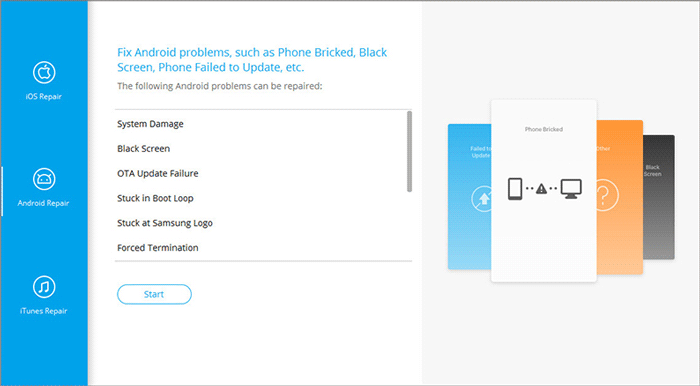
Step 3: Confirm the Repair and Enter Download Mode - Type "000000" in the required field and click "Confirm". Follow the on-screen instructions to put your Android phone into Download Mode. Note that the repair process may erase data on devices other than Samsung, POCO, Xiaomi, or Redmi phones.
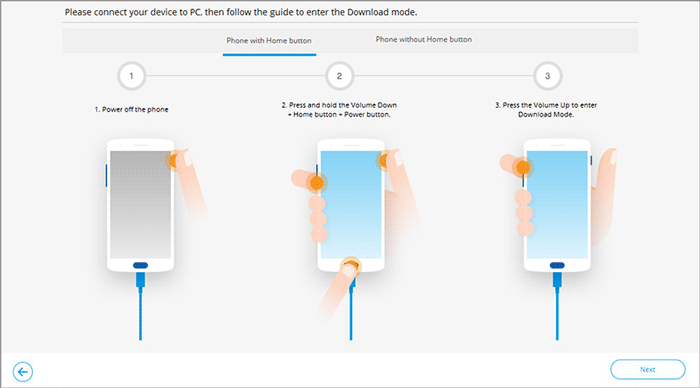
Step 4: Download Firmware and Start Repair - Once your phone enters Download Mode, click "Next" to download the matching firmware. After the download finishes, select "Fix Now" to complete the repair and remove the issue.
FAQs about Green Line on Android Phone Screen
Q1: What is the green line issue on Android phone?
It's a thin vertical or horizontal green line caused by malfunctioning AMOLED pixels or damaged display connectors. It usually runs from top to bottom and remains visible across apps and screens.
Q2: Is it covered under warranty?
If the phone is under warranty and shows no external damage, many brands repair it free. Out-of-warranty repairs may cost 10-30% of the phone's price. Some brands (e.g., OnePlus in India) offer lifetime screen warranties.
Q3: Can the green line on Android spread?
Yes. Pixel degradation can cause the line to widen or multiply, sometimes accompanied by pink or white discoloration.
Q4: How can I check whether the green line is caused by an app?
Boot the phone into Safe Mode to disable third-party apps. If the green line disappears in Safe Mode, a recently installed or faulty app may be responsible.
Q5: When should I replace my Android phone screen?
Screen replacement is recommended when the green line stays permanently, spreads to more areas, appears with flickering, or affects normal phone use. A professional technician can confirm whether the display assembly needs replacement.
Q6: What should I do if the green line does not disappear?
If software fixes do not work, contact the phone manufacturer or visit a trusted repair shop. A technician can check whether the display assembly needs replacement.
Q7: How to keep your Android phone from green line issues?
- Avoid overheating - Keep your phone cool during heavy use.
- Use quality chargers - Use original or certified chargers.
- Protect from drops - Use a case to prevent screen damage.
- Keep it dry - Avoid water and moisture exposure.
- Update software - Install official system updates.
- Avoid risky fixes - Do not use flames or extreme heat.
- Adjust display settings - Avoid excessive brightness and settings.
- Remove faulty apps - Install apps from trusted sources.
- Restart regularly - Clear temporary system errors.
- Back up data - Protect files before repairs.
- Handle OLED screens carefully - Avoid pressure on the display.
- Repair issues early - Check screen problems promptly.
Extra - How to Check Whether the Green Line Comes from Hardware?
Identifying whether the green line is caused by hardware can help you choose the right fix and avoid wasting time on software troubleshooting. If the line appears on the boot logo, remains visible in Safe Mode or after a factory reset, and never changes position, the display panel or its internal connection is likely damaged.
In this case, software fixes are unlikely to work, and you'll need to contact the manufacturer or visit a trusted repair shop for a screen inspection or replacement.
Related Articles:
14 Effortless Ways: How to Fix Ghost Touch on Android Phone?
How to Fix Screen Mirroring Not Working? 16 Smart Strategies Here
Android Multi Tools Not Working? Reasons & 6 Scientific Solutions
Please Sign in Using One of the Owner's Accounts for This Device? 5 Solutions
