
Can't Factory Reset Android Phone? 3 Alternative Solutions
TL;DR:
In short, a factory reset can fail due to software glitches, hardware problems, or security locks like FRP, but alternative methods such as Recovery Mode, Google Find My Device, or specialized tools like MobiKin Eraser for Android can successfully bypass these issues. By identifying the specific cause and choosing the right approach, you can effectively restore your device to a clean state.
"My phone doesn't show the option to do a factory reset in the settings, but also not in the boot. Does someone know how I can get the option back?" -- from community.samsung.com
Why You Can't Factory Reset Android Phone?
- Settings or Recovery Unavailable - Reset options cannot be accessed due to system not responding issues.
- Stuck on Reset Screen - The reset process freezes because of software or storage errors.
- Forgotten Screen Lock - PIN, pattern, or password blocks the reset.
- Google FRP Protection - The device requires the previous Google account after reset.
- System or Firmware Errors - Corrupted software prevents a successful reset.
- Hardware Problems - Faulty components stop reset or recovery mode.
- Wrong Reset Method - Incorrect steps prevent the factory reset.
After we have figured out the cause of this issue, let's take a look at how to complete a successful phone reset using alternative methods.
- Part 1: Forcefully Factory/Hard Reset Android via Recovery Mode
- Part 2: Force a Factory Reset on Android via Google Find My Device
- Part 3: Factory Reset Android Device via MobiKin Eraser for Android [Specialist]
- Part 4: What to Note after Android Phone Factory Reset
- FAQs about Factory Reset on Android
Part 1: Forcefully Factory/Hard Reset Android via Recovery Mode
Can I factory reset an Android phone if it's locked? Yes, of course! Try recovery mode now. The process involves a few key steps. Be aware that the specific button combinations may vary slightly depending on your phone's manufacturer. Here's how to do this:
Step 1: Shut Down Your Phone
- Press and hold the Power button for a few seconds.
- When the on-screen menu appears (with options like Restart, Shutdown, Emergency), tap Shutdown to turn the phone off completely.
Step 2: Boot into Recovery Mode
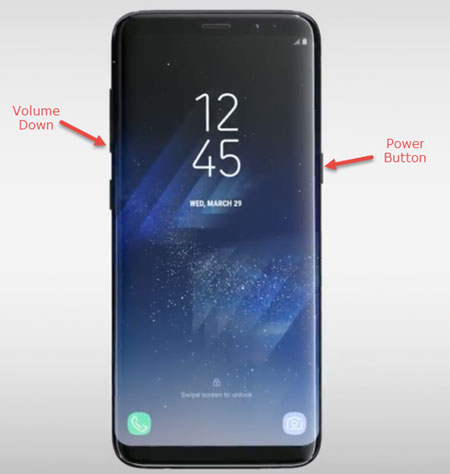
- Press and hold a specific button combination to turn the phone back on. The exact combination depends on your device:
- For Google Pixel phones: Press and hold the Power and Volume Down buttons together.
- For Samsung Galaxy phones: Press and hold the Power and Volume Up buttons together.
- Keep holding the buttons until a special boot menu appears.
Step 3: Navigate and Select "Recovery Mode"
- Use the Volume Up/Down buttons to scroll through the menu options.
- Highlight Recovery Mode and press the Power button to select it.
Step 4: Access the Reset Option (Crucial Step)
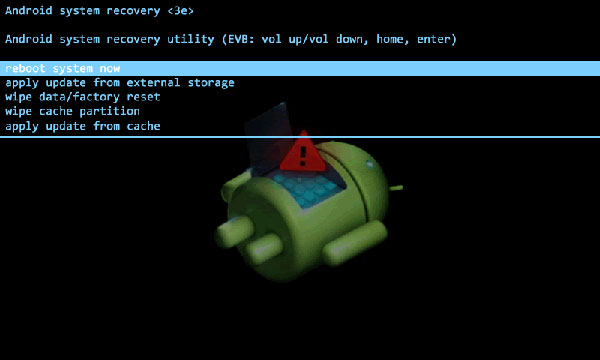
- Your phone may display a "No Command" screen with an Android robot icon.
- If you see this, hold down the Power button, and while holding it, press the Volume Up button once. This will open the full recovery menu.
Step 5: Perform the Factory Reset
- In the recovery menu, use the Volume Down button to scroll down and highlight "wipe data/factory reset".
- Press the Power button to select it.
- You'll be asked to confirm your choice. Use the Volume Down button to highlight "Factory data reset" and press the Power button again to confirm.
Step 6: Reboot Your Phone
- Once the reset is complete, the menu will return. Use the Volume Up/Down buttons to select "Reboot system now".
- Press the Power button to restart your phone.
* In short, this method is the reliable way to regain access to your device when you're locked out, but always remember it comes at the cost of all your personal data.
Part 2: Force a Factory Reset on Android via Google Find My Device
For this method to work, your phone must meet these conditions before it was lost or went offline:
- Signed in: It must be signed in to a Google Account.
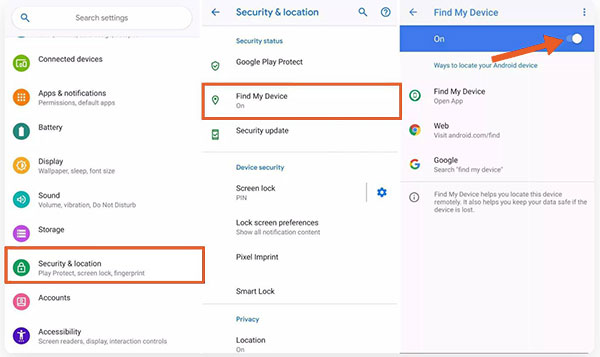
- Settings Enabled: The "Find My Device" and "Location" services must be turned on in the phone's Settings.
- Online: The device must be powered on and connected to the internet (Wi-Fi or mobile data) to receive the reset command.
Learn how to use this method:
- On any computer or another mobile device, open a web browser and go to: android.com/find.
- Sign in using the same Google Account that is linked to the Android phone you want to reset.
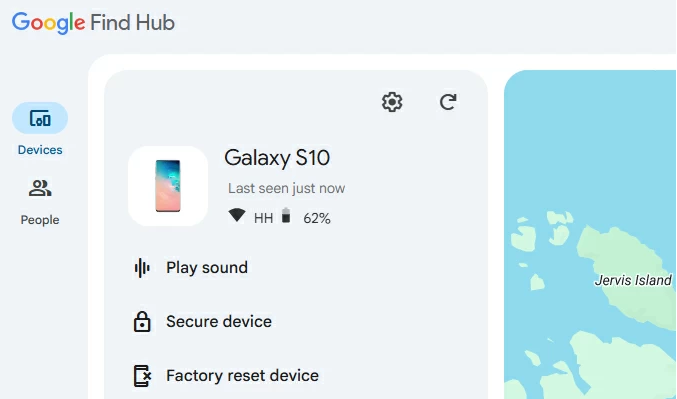
- If you have multiple devices linked to your account, select the one you wish to erase from the list at the top-left corner of the screen.
- On the left-hand menu or screen, you will see options like 'Play Sound', 'Secure Device', and 'Erase Device' (or 'Factory reset device').
- Click on 'Erase Device' to initiate the process .
- A confirmation screen will appear, warning you that this action is permanent and will delete all data.
- You will need to confirm your choice again.
- You may also be prompted to re-authenticate your Google account password for security.
Part 3: Factory Reset Android Device via MobiKin Eraser for Android [Specialist]
When Android devices cannot complete a factory reset through normal methods, MobiKin Eraser for Android (Windows/Mac) provides a practical way to reset phones with a higher success rate.
It can erase Android data permanently and help users restore the device to a clean factory state without complicated steps. With broad Android compatibility, it supports many phone models and offers a reliable option when standard reset methods fail.
|
Key Feature of MobiKin Eraser for Android
|
Details
|
|
Factory Reset Android Successfully |
Helps reset Android phones when standard factory reset methods fail. |
|
Permanent Data Erasure |
Removes personal data, files, accounts, and settings from Android devices to protect privacy before reuse or resale. |
|
One-Click Erasing Process |
Provides a simple operation that allows users to erase Android data with a few steps. |
|
Supports Multiple Data Types |
Deletes contacts, messages, photos, videos, apps, call logs, and other personal information from Android phones. |
|
Wide Android Compatibility |
Works with many Android phone brands and models, making it suitable for different devices. |
|
Secure Data Wiping |
Uses advanced erasing methods to prevent deleted data from being recovered by common recovery tools. |
|
Useful for Device Preparation |
Helps prepare Android phones for selling, donating, or handing them over to another user by clearing previous data. |
|
Simple User Interface |
Offers an easy-to-follow interface without requiring complicated technical knowledge. |
How to factory reset your Android phone successfully using MobiKin Eraser for Android?
- Install the software: Download and set up MobiKin Eraser for Android on your computer.
- Connect your device: Run the program and link your Android to the PC using a USB cable. Turn on USB debugging if a prompt appears.
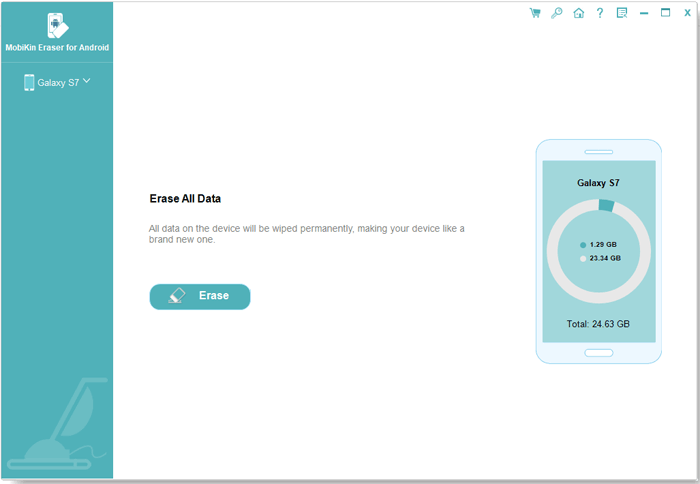
- Start the process: Once the software detects your phone, click the "Erase" button.
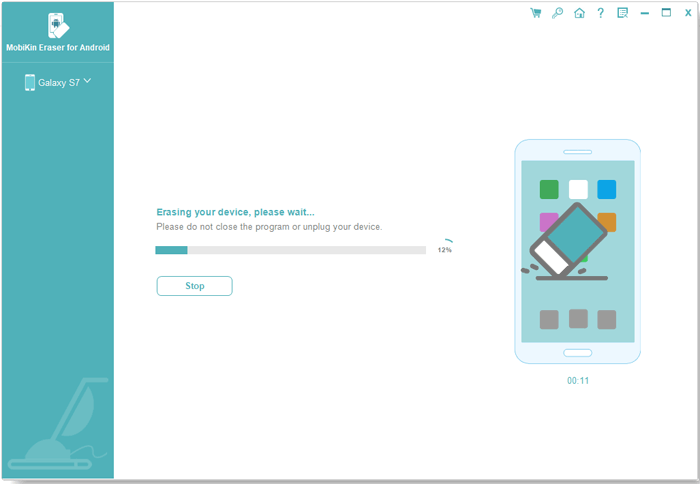
- Set security & confirm: Select your preferred security level, and enter "delete" in the designated box to confirm.
- Wipe data: Click "Erase" to begin deleting all user data.
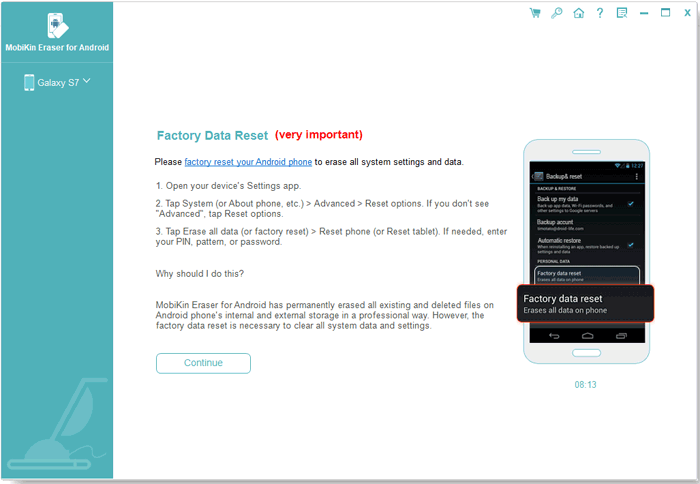
- Factory reset: After the first step, factory reset your phone to remove all system configurations.
- Finalize: Follow the on-screen instructions, then click "Continue" after the reset to permanently wipe the device clean.


Video Directions:
Part 4: What to Note after Android Phone Factory Reset
A factory reset returns your Android phone to its default settings and erases nearly all user data stored in the internal storage. Before or after the reset, keep the following points in mind to avoid activation issues, data loss, or setup problems.
- Restore your backup - Restore contacts, photos, messages, and other important files.
- Verify your Google account - Sign in with the previously synced Google account if FRP is enabled.
- Update the phone - Install the latest Android and app updates.
- Reinstall apps - Download your essential apps and sign in again.
- Reset security - Set up your screen lock, fingerprint, or Face Unlock.
- Restore settings - Reconfigure Wi-Fi, Bluetooth, and other preferences.
- Check cloud sync - Ensure contacts, photos, and other data are syncing.
- Test key features - Verify calls, Wi-Fi, camera, Bluetooth, and GPS work properly.
- Use Wi-Fi and charge - Keep the phone connected and sufficiently charged during setup.
- Remove personal items - Take out the SIM and SD card before selling or giving away the phone.
FAQs about Factory Reset on Android
Q1. What does a factory reset do on Android?
A factory reset erases all data stored in the phone's internal storage and restores the device to its original factory settings. Apps, accounts, settings, and personal files are removed.
Q2. Does a factory reset delete everything?
It deletes data stored on the internal storage, but files on an SD card are usually preserved unless you choose to format the card separately.
Q3. Will a factory reset remove viruses or malware?
In many cases, yes. A factory reset can remove most software-based malware, though it may not fix issues caused by hardware damage or modified system software.
Q4. Will a factory reset remove my Google account?
The account is removed from the device, but Factory Reset Protection (FRP) may require you to sign in with the previously synced Google account during setup.
Q5. Can I recover data after a factory reset?
Often, without a backup, data erased by a factory reset is generally difficult to recover. However, professional tools like Android Data Recovery can help do this. Follow the page - How to recover data after factory reset Android? 5 ingenious ways.
Q6. How long does a factory reset take?
Most factory resets finish within 5-15 minutes, although restoring apps and backups may take much longer.
Q7. Will a factory reset improve phone performance?
Yes. It can resolve software glitches, remove unnecessary files, and improve performance if the problems are software-related.
Q8. Do I need to remove my SIM card before a factory reset?
No. A factory reset doesn't erase your SIM card, but removing it is a good idea if you're selling or giving away the phone.
Q9. When to contact customer support if the reset still failed?
- Contact customer support if your Android phone still fails to reset, won't boot, gets stuck on the logo, or shows persistent errors.
- Seek professional help if FRP issues, Recovery Mode problems, or suspected hardware damage prevent normal use.
- Prepare your device model, IMEI, and purchase details before contacting support for faster assistance.
In a Nutshell
A failed factory reset does not always mean the phone is unusable. By checking reset methods, account settings, and possible system problems, you can find a suitable way to restore your Android device. When standard options cannot complete the job, reliable reset methods in this article can provide another choice for handling stubborn reset issues.
Related Articles:
Files by Google Alternatives: 8 Best File Managers for Android
[Full Guide] How to Factory Restore iPhone with Broken Screen?
[6 Ways] Back Up Android Tablet to PC/Mac/Google Drive/Flash Drive
How to Recover Data from Phone That Won't Turn on? Solved with 4 Solutions
