
Phone Not Allowed for Voice on Android? 13 Basic Fixes & 1 Ultimate Way
"When trying to connect to a carrier, I get a "Phone not allowed for voice" notification from my phone services. When trying to choose a carrier, it notifies that a network could not be found." -- from Pixel Phone Help
A moment of confusion often begins when you suddenly find you can't make or receive calls, even though your phone still shows signal or mobile data works, and the message "phone not allowed for voice" appears without warning. (What if an iPhone doesn't make or receive calls?) In the sections below, we will walk through 13 basic solutions to help restore voice service, followed by 1 definitive way that addresses deeper system-level problems.
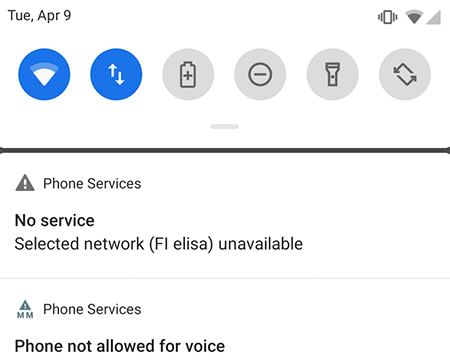
Part 1: Why Is My Phone Saying Phone Not Allowed?
Seeing the message "Phone not allowed for voice" can be confusing, especially when your device seems to be working otherwise. Before diving into fixes, it's helpful to understand the common reasons behind this issue, as outlined below:
- Carrier lock preventing use with other networks.
- SIM card not inserted properly or damaged.
- SIM card not activated or no SIM card error occurs.
- Unpaid bills or suspended carrier account.
- Weak or no network signal.
- Incorrect network or APN settings.
- Phone's IMEI is blacklisted (lost/stolen/unpaid).
- Device not compatible with the carrier network.
- Software bugs or outdated system.
- Call barring or restrictions enabled.
- VoLTE or network feature conflicts.
- Temporary carrier or network outage.
You May Also Like: 12 Simple Fixes to Android Phone Not Ringing [Most People Don't Know]
Part 2: How to Fix Phone Not Allowed for Voice in 13 Basic Ways
Fix 1: Reinsert SIM Card
Before reinserting your SIM card, first check its status by ensuring it's active, properly registered with your carrier, and not damaged or expired. Power off your phone, remove the SIM tray, gently clean the SIM card, and place it back securely in the correct position. Then restart your device and check if the "Phone not allowed for voice" issue has been resolved.
In addition to the above, try these steps: Insert a different SIM card into your phone to check whether the problem is caused by your original SIM or carrier. If the new SIM works, your previous SIM may be inactive, damaged, or restricted by the network provider. After testing, restart your phone to refresh the network connection and apply the changes properly.
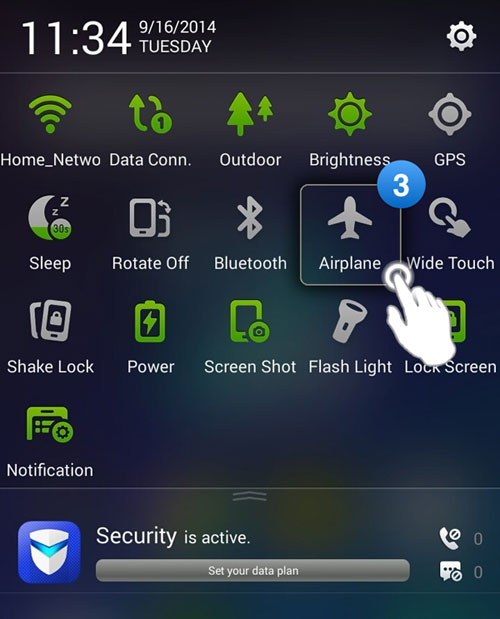
Fix 2: Toggle Airplane Mode
- Turn on Airplane Mode for about 20 - 30 seconds to disconnect all network signals.
- Then turn Airplane Mode off to force your phone to reconnect to the mobile network. This quick reset can help restore voice service if the problem is caused by a temporary network glitch.
Fix 3: Verify Device compatibility with the Network
Start by confirming that your phone is officially supported by your carrier, since some devices cannot access voice services on certain networks due to incompatible frequency bands. You can compare your phone's supported network bands with the information provided by your carrier or the manufacturer's specifications. If there is a mismatch, the device may not be able to place calls, resulting in the challenge.
Fix 4: Reset Network Settings
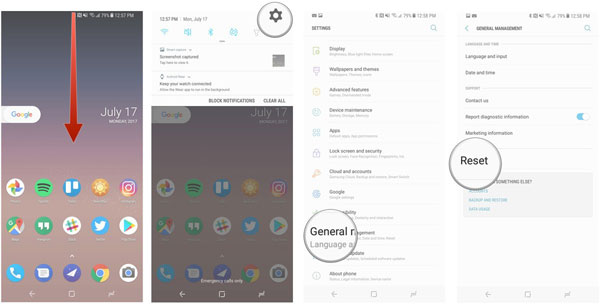
- Open your phone's Settings and navigate to System or General Management, where you will find the reset options menu.
- From there, tap Reset Network Settings to clear all saved network configurations such as Wi-Fi, mobile data, and Bluetooth connections.
- Once the reset is finished, reboot your device so it can establish a fresh connection to your carrier.
If resetting network settings doesn't fix the "Phone not allowed for voice" issue, try switching your network selection to Automatic. Open Settings > Mobile Network > Network Operators, then disable manual selection if it's turned on. Once you enable Automatic Network Selection, your phone will reconnect to the strongest available carrier network, which can often restore voice services.
You Might Also Enjoy: No Service on Android Phone? Possible Reasons & 12 Desirable Ways
Fix 5: Check Call Barring Settings
- Open your Phone app settings and go to Call settings > Call barring to check whether any outgoing or incoming calls are restricted.
- If call barring is enabled, turn it off to restore normal voice calling and fix the error.
Fix 6: Reset APN Settings
- Go to your phone's Settings > Mobile Network > Access Point Names (APN).
- Select the option to reset APN settings to default, which will restore the correct carrier configuration automatically.
- After resetting, restart your phone to ensure the new settings take effect and reconnect properly to the network.
Fix 7: Inspect device locks
Start by checking whether your phone is carrier-locked or IMEI-blocked, since either restriction can prevent voice service from working. You can do this by inserting a SIM from a different carrier or contacting your network provider to confirm the lock or blacklist status. If a restriction is detected, you'll need to request an unlock from the carrier or resolve any account/IMEI issues before voice services can be restored.
Fix 8: Check IMEI Status
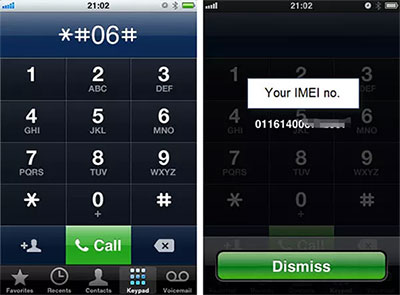
IMEI allows for phone unlocking free. To check IMEI status and fix the "Phone not allowed for voice" issue, first dial *#06# to display your phone's IMEI number. Then contact your carrier or use an official IMEI check service to confirm whether the device is blacklisted, blocked, or reported lost/stolen. If the IMEI is restricted, your phone will not be allowed to use voice services until the carrier resolves or removes the block.
Fix 9: Dial Unlock Code
This method only works on certain carriers and devices, so if nothing happens, you'll need to contact your carrier or try another fix. To do this:
- Open your phone's dialer and carefully enter the carrier-specific unlock code (commonly something like *#78# if supported).
- If your network supports it, the phone will process the request and remove the voice restriction after you confirm the prompt.
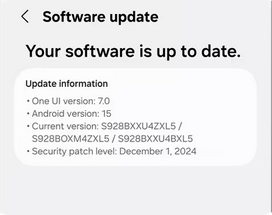
Fix 10: Check for Software Update
- Go to Settings > Software Update and check if any system updates are available.
- Install the latest update to fix possible bugs affecting network and voice services.
- After updating, restart your phone to apply changes and restore normal calling functions.
Fix 11: Check Network Operator Settings
Open your Settings > Mobile Network > Network Operators and turn off "Select automatically." Once the list of available carriers appears, manually choose your correct network operator instead of leaving it on auto selection. After selecting it, wait a few moments for the phone to reconnect and register properly on the network, which can restore voice service.
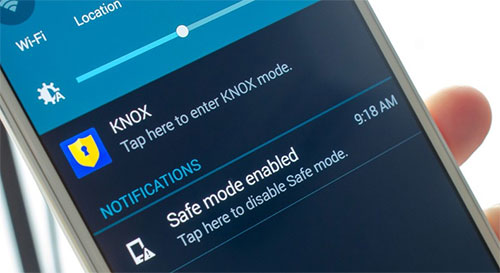
Fix 12: Boot into Safe Mode
- Press and hold the Power button, then long-press Power off until the Safe Mode option appears and tap it to restart your phone.
- In Safe Mode, your device runs only system apps, which helps you check if a third-party app is causing the issue.
- If voice services work normally in Safe Mode, uninstall recently added apps and restart the phone to return to normal mode.
Fix 13: Contact Carrier Operator
Contact your carrier's customer support and report the "Phone not allowed for voice" error. Provide your SIM details and IMEI so they can check for any account or network restrictions. The carrier can then unlock, reactivate, or fix any issues blocking your voice service.
Part 3: How to Allow Phone for Voice in a Definitive Way?
System-level faults that disrupt voice service, including the "Allow Phone for Voice" error, can be repaired using Android Repair, which targets deep Android system issues rather than surface-level fixes. It restores normal calling functions by correcting firmware and network-related glitches that block voice access. Rather than relying on basic troubleshooting, it works as an expert-level solution designed for complex system errors.
Why Select Android Repair for Phone Repair?
- One-click system repair to fix various Android system errors without requiring technical skills.
- Supports fixing issues like 'Phone not allowed for voice', stuck boot loops, and network-related failures.
- Offers a simple step-by-step interface that guides users through the repair process safely.
- Compatible with a wide range of Android devices and brands.
- Ensures no data loss on Xiaomi, POCO, and Redmi devices during the repair.
- Helps restore normal phone functions, including calling, messaging, and network connectivity.
- Provides a safe and effective 'ultimate way' to fix voice-related restrictions by repairing underlying system or firmware issues.

How to fix the phone not allowed for voice with Android Repair?
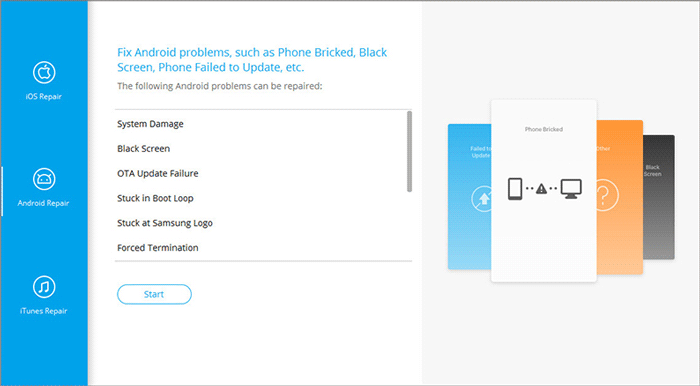
- Launch the software that has been installed on your computer and proceed to the "System Repair" section located on the main interface.
- Connect your Android device to the computer using a USB cable and select the "Android Repair" option.
- Examine the information presented and click "Start."
- Input the details of your device and click "Next." Subsequently, enter "000000" and choose "Confirm."
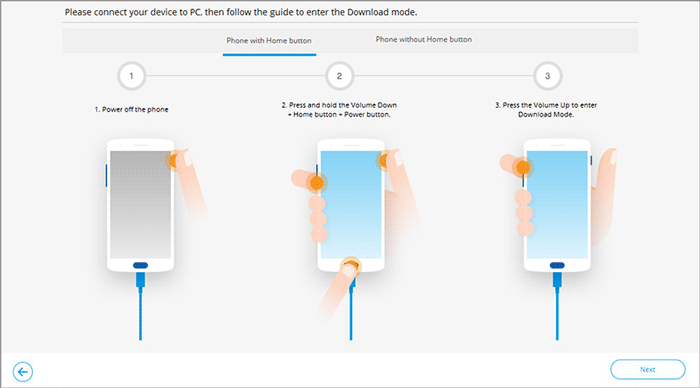
- Follow the image displayed below to place your phone into download mode.
- Once you have successfully entered download mode, click "Next" to download the required firmware.
- The tool will then commence the process to fix the not responding error.
In Conclusion
Once the root cause is identified and handled, voice services can usually return to normal without lasting disruption. From simple checks to advanced fixes, each step plays a role in narrowing down what blocks calling functions.
Before trying multiple fixes, always test your SIM in another phone first - this single step can quickly reveal whether the problem comes from the device or the network, saving you a lot of unnecessary troubleshooting time.
Related Articles:
Locked out of Your Android Phone? Here're 7 Real Fixes!
How to Recover Data from Broken/Damaged Phone? 5 Little-known Ways
Android Phone Calls Go Straight to Voicemail? Here's Why & 16 Solutions
What to Do with Old Cell Phones? 22 Clever Uses [Latest Update]
