
14 Effortless Ways: How to Fix Ghost Touch on Android Phone?
Few phone issues feel as strange as a screen that seems to have a mind of its own. Ghost touch can randomly open apps, send messages, or even dial contacts without your input, turning simple tasks into a frustrating experience. Understanding the reasons and how to fix ghost touch on Android phone with 13 basic solutions and 1 ultimate approach can help you regain proper control of your device. Read on for these details.
Section 1: Why Is My Phone Pressing by Itself
A phone "pressing by itself" is usually called ghost touch, where the screen reacts to taps or swipes that you did not make. This can happen for several reasons:
- Screen damage or faulty digitizer: A cracked or malfunctioning touch layer can register false inputs and make the phone act on its own.
- Moisture, dust, or dirt on the screen: Water or particles under or on the display can interfere with touch signals.
- Low-quality screen protector or case pressure: Poor accessories may trigger unwanted touches.
- Charging issues or faulty cables: Some chargers create interference that leads to random taps, especially while plugged in.
- Software glitches or overheating: Bugs, outdated firmware, or high temperatures can temporarily disrupt touch response.
- Hardware problems (battery or internal pressure): A swollen battery or loose internal parts can physically affect the screen response.
If ghost touch keeps happening even after restarting the phone, cleaning the screen, or removing accessories, it is often a sign of hardware damage. You may notice random taps, unresponsive areas, or the screen reacting without any physical contact. When users find the phone is hardware damaged, try to take it to a service center for proper diagnosis and repair.
Click to Learn: How to Fix Ghost Touch on iPhone? 11 Easy Solutions to Try Out
Section 2: How to Fix Ghost Touch on Android Phone? 13 Quick Solutions
Way 1: Remove the screen protector
- Turn off your phone before starting to avoid accidental touches.
- Use your fingernail or a thin plastic tool to gently lift one corner of the screen protector.
- Slowly peel it off from the edge, pulling evenly to avoid cracking or leaving residue.
- If it's hard to remove, slightly warm the edges (optional) to loosen the adhesive, but avoid overheating the screen.
- Once removed, clean the screen with a soft microfiber cloth to remove dust, oil, or glue.
- Turn the phone back on and test the touchscreen to see if the ghost touch issue is gone.
If removing the screen protector doesn't fix ghost touch, the issue may come from loose or faulty display connectors inside the phone. These connectors can shift after drops or repairs and cause random touch behavior. This usually needs inspection or reseating by a technician or service center.
Way 2: Clean the phone screen
Start by cleaning the screen with a soft microfiber cloth to remove dirt, oil, or moisture that may interfere with touch signals. You can also reset touchscreen calibration (if your device supports it or via built-in settings) to refresh touch accuracy and remove software-related glitches. Additionally, setting a shorter screen timeout helps reduce unnecessary screen activity and overheating, which can sometimes trigger random touch responses.

Way 3: Force restart your phone
To force restart your Android phone (helpful for ghost touch issues), press and hold the Power button and Volume Down button together for about 10 - 20 seconds until the screen turns off and the device restarts. This method forces the system to reboot even if the screen is unresponsive or acting on its own.
Way 4: Make use of high-quality charger
Using a high-quality charger can help fix ghost touch on Android because low-quality or damaged chargers may create electrical interference that affects the touchscreen. This interference can confuse the digitizer and trigger random touches, especially while the phone is charging. (Your phone charges slow?)
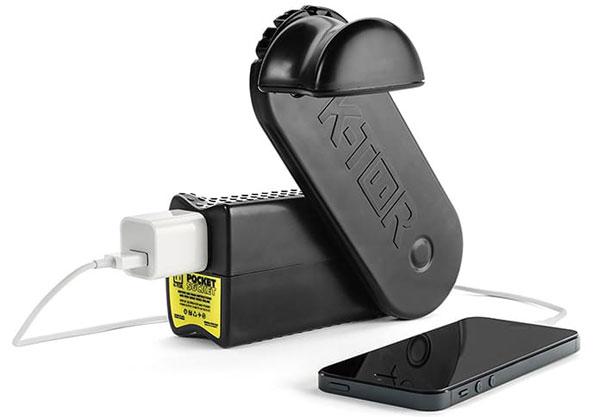
To reduce the issue, use the original charger or a certified fast charger from a trusted brand and avoid cheap or faulty cables that may cause unstable power flow.
Way 5: Reset all settings
To reset all settings on an Android phone to fix ghost touch, open Settings > System > Reset options > Reset settings (or Reset all settings), depending on your device model.
After completing the reset, restart your phone and check if the ghost touch issue is reduced or gone. This step helps remove misconfigured settings or software glitches that may be causing random screen touches.
Way 6: Detach the charging cable
Simply unplug the cable from both the phone and the power source as soon as the screen starts tapping or reacting on its own. This helps stop electrical interference from a faulty charger or unstable current that may be triggering the ghost touches.
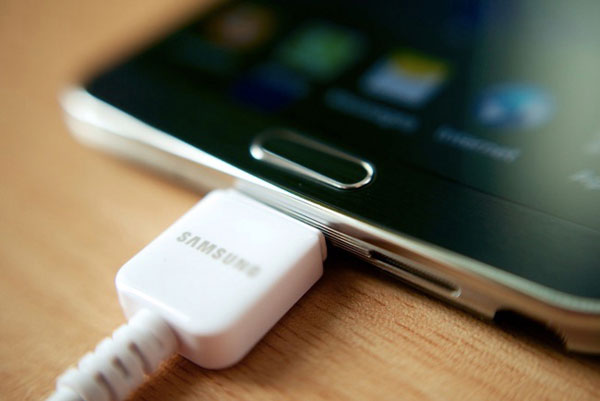
Note: If detaching the charging cable doesn't solve ghost touch, you should check your charger and cable for damage or poor quality. Try using an original or certified charger, as faulty or low-quality accessories can cause electrical interference that triggers random screen touches. You can also test with a different charger to see if the issue disappears, which helps confirm whether the charger is the cause.
Way 7: Check the phone temperature
To check phone temperature for ghost touch, feel if the device is unusually hot around the screen or back, which may indicate overheating. Overheating can disrupt the touchscreen and cause random touches. Let the phone cool down by unplugging it and removing the case before using it again.
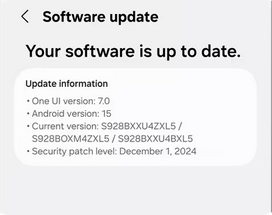
Way 8: Update software
- Open Settings on your Android phone.
- Tap System (or About phone, depending on your device).
- Select Software update/System update.
- Tap Check for update and download the latest version if available.
- Install the update and restart the phone to apply fixes that may resolve ghost touch issues.
Way 9: Factory reset the phone
A factory reset removes software glitches or corrupted settings that may cause ghost touch, restoring the device to its original state.
- Open Settings on your phone.
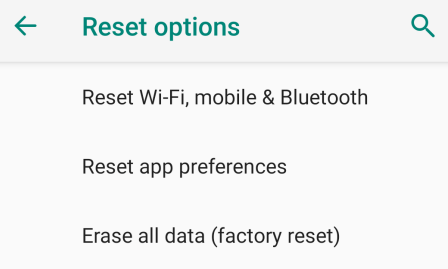
- Go to System > Reset options (or General management > Reset depending on the device).
- Tap Erase all data (Factory reset).
- Review the warning and make sure your data is backed up first.
- Confirm by tapping Reset phone/Erase everything and enter your PIN if required.
- Wait for the process to finish and the phone to restart automatically.
Way 10: Turn off adaptive brightness
To fix ghost touch, go to Settings > Display and turn off Adaptive Brightness. This stops automatic brightness changes that may affect touch response. After disabling it, set a stable brightness level and check if the issue improves.
Way 11: Quit background apps
Open the Recent Apps screen and swipe away all running apps to close them. This reduces background activity that may affect touchscreen performance. Restart your phone if needed and check whether the issue improves.
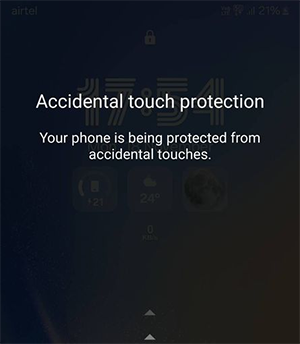
Way 12: Enable accidental touch protection
- Go to Settings > Display, then find the option labeled "Accidental touch protection" and switch it on.
- Once enabled, it prevents the screen from reacting to unintentional touches when the phone is in places like your pocket or bag, helping reduce ghost touch issues.
Way 13: Toggle off hardware overlays
- Go to Settings > About phone and tap Build number several times to enable Developer options.
- Open Settings > System > Developer options.
- Scroll down to "Disable HW overlays" (or "Disable hardware overlays").
- Turn the toggle ON to force the GPU to handle screen rendering instead of the hardware compositor.
This can help reduce display glitches that sometimes trigger ghost touch by changing how the system processes screen input and rendering.
Section 3: How to Fix Ghost Touch on Android Phone with a Professional Tool
Designed to handle stubborn Android glitches, Android Repair offers a practical way to restore devices without complex steps. It can address issues like system instability, screen malfunctions, and even ghost touch on Android phones by correcting underlying software faults. The process is guided and efficient, helping bring devices back to normal operation with minimal hassle.
Core Features - Android Repair:
- Fixes common Android issues (Ghost touch, black screen, crashes, boot loop, OTA errors, etc.)
- High success rate for system repairs.
- Quick and easy Android system recovery.
- Works with major carriers (AT&T, Verizon, T-Mobile, etc.)
- Repairs Samsung, Xiaomi, Redmi, and POCO devices without data loss.
- Ensures user data privacy and security.

How can I fix the ghost touch mode on Android with Android Repair?
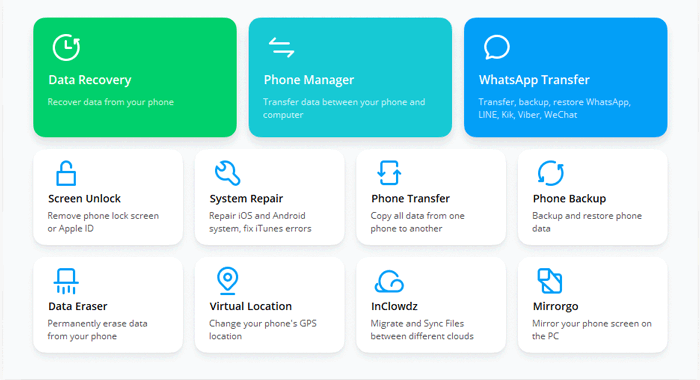
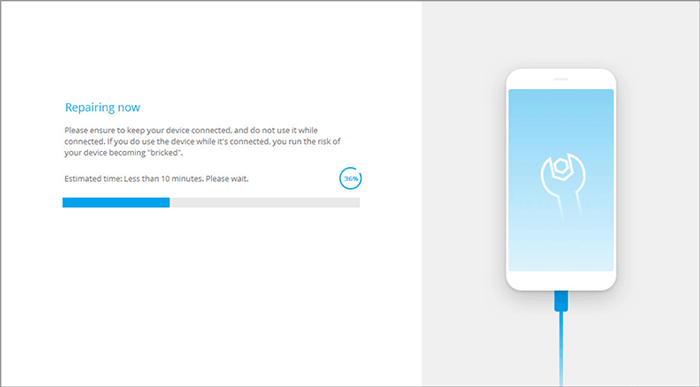
1st Step: Launch the software that has been installed on your computer and proceed to the "System Repair" section located on the main interface. Connect your Android device to the computer using a USB cable and select the "Android Repair" option.
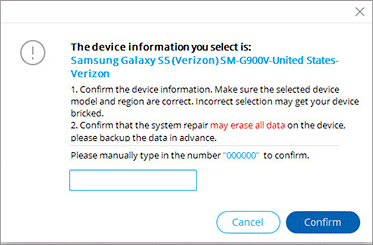
2nd Step: Examine the information presented and click "Start." Input the details of your device and click "Next." Subsequently, enter "000000" and choose "Confirm."
- For devices that feature a "Home" button: turn off your phone, then simultaneously press the "Home," "Power," and "Volume Down" buttons for 10 seconds. Release all buttons, then press "Volume Up" to enter download mode.
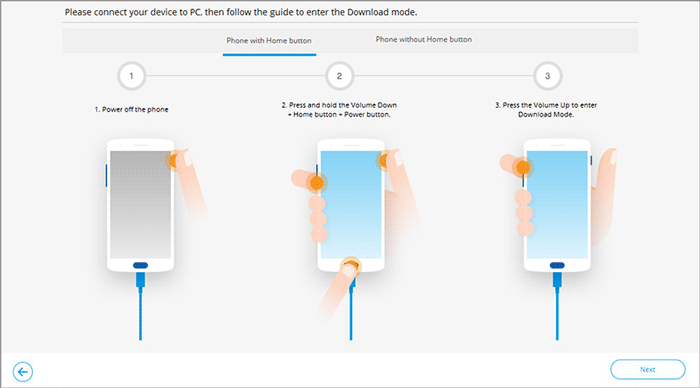
- For devices that do not have a "Home" button: power off your phone, then press the "Bixby," "Power," and "Volume Down" buttons for approximately 10 seconds.
3rd Step: Resolve the issue of the process system not responding on Android using the Android repair tool. Once you have successfully entered download mode, click "Next" to download the required firmware. Finally, the tool will then commence the procedure to fix the ghost touch on Android phone.
FAQs for Fixing Ghost Touch on Android Phone
Q1. Will safe mode help identify ghost touch causes?
Yes. Safe Mode disables third-party apps, helping you check if an app is causing the problem. If ghost touch stops, uninstall recent apps.
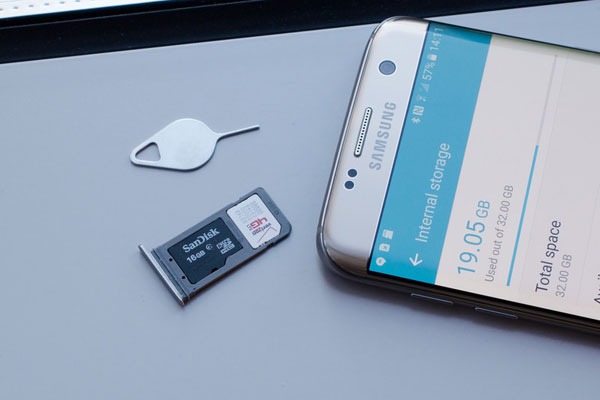
Q2. Can removing the SIM card help fix ghost touch?
In rare cases, removing SIM or SD cards can help identify whether a hardware or connectivity-related issue is affecting the device.
Q3. Can ghost touch happen after dropping the phone?
Yes. Drops can damage the digitizer or loosen internal connections, leading to unresponsive or self-acting screens.
Q4. Is ghost touch more common in cheap screen replacements?
Yes. Low-quality replacement screens often have poor digitizer accuracy, which increases ghost touch issues.
Q5. Can enabling developer options help fix ghost touch?
In some cases, yes. Turning on options like "Show taps" or adjusting pointer settings can help you diagnose abnormal touch behavior, though it won't directly fix hardware issues.
Q6. Will replacing the battery fix ghost touch?
Unlikely. Ghost touch is usually related to the screen or software, not the battery - unless the battery is swollen and pressing against the display.
Q7. Is ghost touch covered under warranty?
It depends. If it's due to a manufacturing defect, it's often covered. However, damage from drops, water, or third-party repairs may void the warranty.
Wrap It Up
Think of your phone as something you rely on quietly every day - until it stops behaving the way it should. Ghost touch interrupts that trust, but it rarely means the end of your device. With the right checks and a bit of patience, most cases can be resolved without major expense. And if the problem goes deeper, there's always a more thorough method waiting as a final solution.
Related Articles:
10 Solutions to Fix Process System Isn't Responding on Android
How to Recover Data from Phone That Won't Turn on? Solved with 4 Solutions
How to Mirror Android to Mac without Obstacle? 8 Desirable Ways
