
Samsung Phone Stuck in Airplane Mode? Causes & 12 Solutions
TL;DR:
A Samsung phone stuck in Airplane Mode disrupts everyday communication, but the outlined methods give you practical ways to restore normal use.
- Consider using Android Repair when software glitches persist after trying standard fixes - this tool reinstalls clean firmware and repairs corrupted system files through a guided process.
- With this program, you can fix over 50 system issues, including phone frozen like Airplane Mode lock, though be aware that the repair may erase data on certain phone models, so back up your device beforehand.
Since this morning, my phone has been stuck on Airplane mode. I've tried everything to turn it off and re-set my phone but nothing is working. -- from community.samsung.com
A Samsung phone stuck in Airplane Mode often leaves users puzzled when they suddenly lose access to calls, texts, and mobile data. This article provides step-by-step help that you can follow instantly, making it easier to understand the issue and apply the right solutions.
Part 1: Why Is Samsung Phone Stuck in Airplane Mode
Many Samsung users face the frustration of Airplane Mode refusing to turn off, which can stem from both software and hardware issues. Below, the reasons are explained in detail to help identify what might be causing the problem and guide you toward the right fix.
- Software glitch - Temporary bugs in One UI or Android can freeze the toggle.
- Third-party apps - Apps with system permissions may repeatedly enable Airplane Mode.
- Misconfigured network settings - Incorrect Wi-Fi, Bluetooth, or mobile data settings can lock the phone.
- Outdated software - Older firmware may contain unresolved bugs affecting connectivity.
- Automation routines - Bixby Routines or Modes & Routines may automatically trigger Airplane Mode.
- Damaged SIM card - A faulty or improperly inserted SIM can block network access.
- Cache partition corruption - Corrupted temporary files may interfere with system toggles.
- Hardware issues - Problems with the antenna or modem firmware can keep Airplane Mode stuck.
Part 2: How to Fix Samsung Phone Stuck in Airplane Mode [11 Quick Ways]
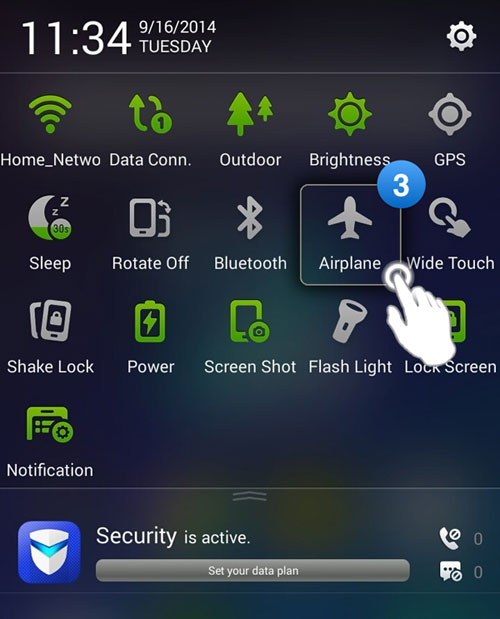
Fix 1: Turn Airplane Mode off and on
Toggling Airplane Mode can refresh the phone's network state and clear temporary glitches that keep Samsung devices stuck. Turn Airplane Mode on, wait about 20-30 seconds, then switch it off again. This simple reset often restores cellular and Wi-Fi connectivity if the system is only temporarily misconfigured.
Fix 2: Check SIM card
A faulty or improperly seated SIM card can prevent the device from exiting Airplane Mode properly.
- Remove the SIM card and inspect it for dust or damage.
- Reinsert it carefully or try another SIM if available.
- Restart the phone after reinsertion.
- If the SIM is the issue, the phone should immediately reconnect to the network after reboot.
Fix 3: Run a hard reboot
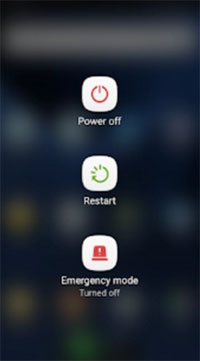
A forced restart can clear system-level glitches that normal restarts don't fix. Press and hold the Power and Volume Down buttons until the device restarts. This refreshes the system memory and often resolves stuck modes like Airplane Mode.
Fix 4: Reset network settings
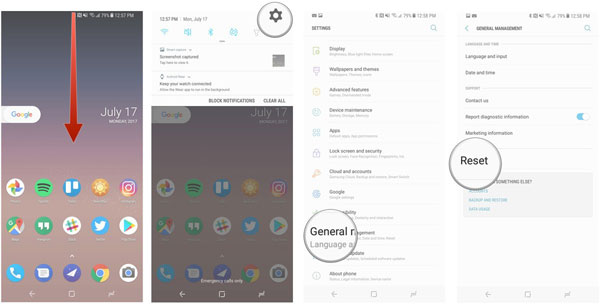
Resetting network settings restores all connectivity configurations to default. Below is how:
- Go to Settings.
- Select General Management.
- Tap Reset > Reset Network Settings.
- Confirm and restart the device.
- This removes incorrect network configurations that may be forcing Airplane Mode to stay active.
Fix 5: Clear cache partition
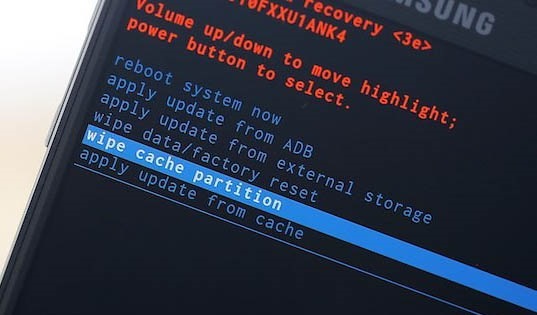
Cached system files can sometimes interfere with connectivity functions. Boot into Recovery Mode and choose "Wipe cache partition" without affecting personal data. After completion, reboot the device to refresh system performance. This helps eliminate corrupted temporary files that may block network services.
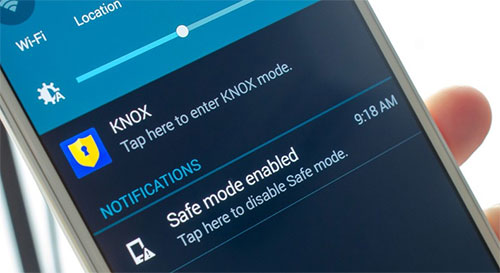
Fix 6: Use Safe Mode
Safe Mode helps determine whether third-party apps are causing the issue. You can get into this mode before uninstalling an app that may cause the stuck in Airplane mode:
- Press and hold the Power button.
- Tap and hold Power Off, then select Safe Mode.
- Observe whether Airplane Mode can be turned off normally.
- If it works in Safe Mode, a recently installed app is likely interfering with system settings.
Fix 7: Keep apps from changing system settings
Some apps may have permissions that interfere with network controls. Go to App Permissions and restrict any apps that can modify system settings. Focus on security tools, automation apps, or battery managers. Limiting these permissions can prevent unwanted toggling of Airplane Mode.
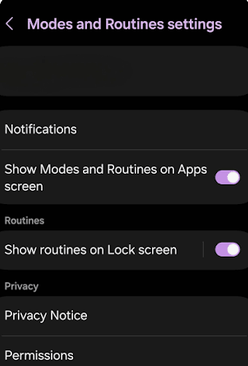
Fix 8: Disable Modes and Routines Automation
Automated routines may accidentally trigger Airplane Mode based on preset conditions. To switch off modes and routines:
- Open Settings > Modes and Routines.
- Review active routines carefully.
- Disable any rule related to connectivity or power saving.
- Test the phone after turning them off.
- This helps ensure no automation is overriding manual network controls.
Fix 9: Update software
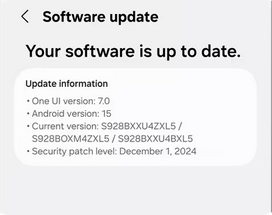
System bugs in outdated software can sometimes lock Airplane Mode. Check for updates in Settings > Software Update and install any available version. Updates often include patches that fix network and system behavior issues. After updating, restart the device to apply changes fully.
Fix 10: Factory reset Samsung
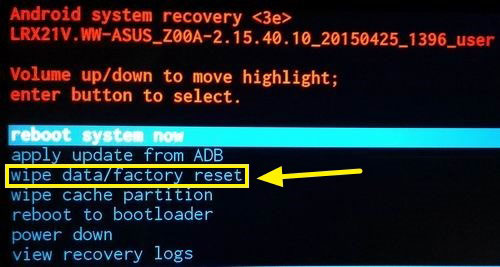
A factory reset can resolve deep system corruption when other fixes fail. To do it:
- Turn off the Samsung phone completely, then press and hold Volume Up + Power (or Side key) until the Recovery Mode screen appears, releasing the buttons when the Samsung logo shows.
- Use the Volume buttons to navigate and the Power button to select options once inside the menu.
- Choose wipe data/factory reset, then confirm by selecting Yes to erase all data and restore system settings, including any network configuration causing Airplane Mode to stay stuck.
- After the reset is finished, select Reboot system now so the phone restarts with fresh settings, which should remove the Airplane Mode issue if it was caused by software corruption.
Fix 11: Seek professional help
If none of the software fixes work, the issue may be hardware-related, such as a damaged network chip or motherboard fault. Visiting an authorized Samsung service center ensures proper diagnosis and repair. Professional tools can detect issues that cannot be fixed through settings or resets.
When the problem is caused by internal hardware damage such as a faulty network IC, antenna failure, or motherboard malfunction and even official troubleshooting or service center diagnostics cannot fully restore connectivity. The only remaining solution is to send the device for professional repair or component-level servicing to properly address the hardware fault.
Part 3: Fix Samsung Stuck in Airplane Mode with an Ultimate Way
A phone stuck in Airplane Mode often points to deeper system errors that ordinary resets cannot resolve. One efficient solution is Android Repair, which addresses glitches by reinstalling clean firmware and repairing corrupted files. With its guided steps, the tool makes it possible to restore normal network access and fix problems like Airplane Mode lock without complicated manual work.
Core Functions of Android Repair:
> System repair - Fixes Android glitches like Airplane Mode lock.
> Samsung support - Optimized for Samsung devices.
> Download mode guide - Clear steps for entering Download Mode.
> Firmware install - Auto-downloads and installs correct firmware.
> Data warning - Alerts that repair may erase data on some phone models.
> Easy interface - Step-by-step navigation for users.
> Fix stuck modes - Resolves Airplane Mode, Recovery Mode, and other 50+ issues.
> Wide compatibility - Works across multiple Android versions, including the latest Galaxy S26.

How to fix Samsung Galaxy stuck on Airplane mode with Android Repair?
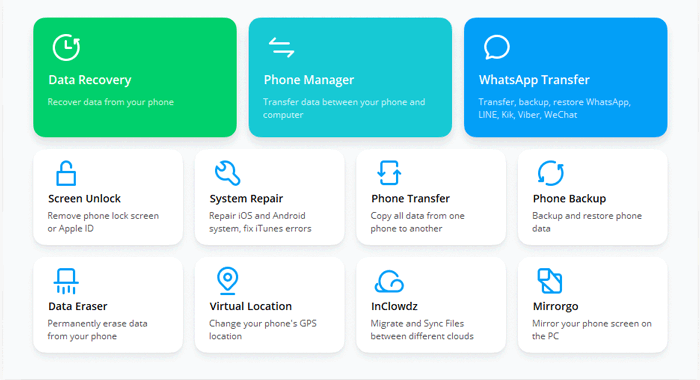
Step 1: Install and Launch - Download the Android Repair tool to your computer. Open the utility and connect your Samsung device using a USB cable, then select System Repair from the left menu and click Start.
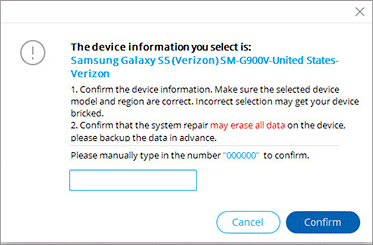
Step 2: Enter Device Information - Fill in your Samsung device details and press Next. Type 000000 into the confirmation field and click Confirm to continue, keeping in mind that this repair may erase all data on your phone.
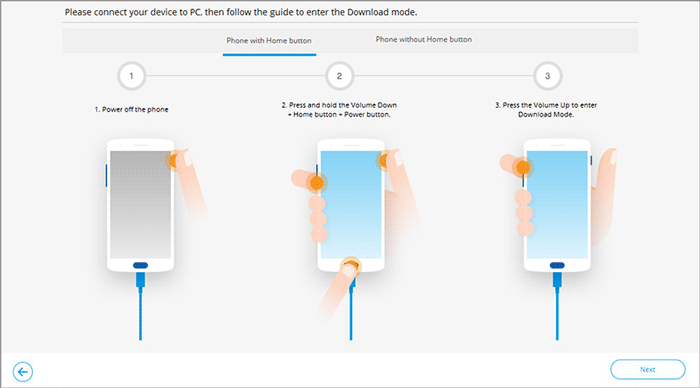
Step 3: Enter Download Mode and Repair - For devices with a Home button, power off and press Home + Power + Volume Down for 10 seconds, then release and hold Volume Up. For devices without a Home button, press Bixby + Power + Volume Down for 10 seconds, release, then hold Volume Up. Once in download mode, click Next to download the firmware. After that, the software will begin repairing the Samsung phone stuck in Airplane Mode.
In Conclusion
A Samsung phone stuck in Airplane Mode disrupts everyday communication, but the outlined methods give you practical ways to restore normal use. By following them carefully, you can keep your device reliable and avoid unnecessary downtime. Before trying advanced resets, always check if automation routines or third-party apps are forcing Airplane Mode on - removing these hidden triggers often solves the problem quickly.
Related Articles:
Samsung FRP Helper v0.2 Review: Complete & Insightful Explanation
Ultimate Guide: Does Samsung Smart Switch Transfer Everything?
Samsung Experience Service Keeps Stopping? 8 Basic Fixes & 1 Expert Approach
How to Fix Samsung Galaxy Phone Stuck in Safe Mode? 11 Simple Solutions
