
10 Optimal Solutions to Samsung Phone Frozen [Tried-and-ture]
TL;DR:
A frozen Samsung phone can be a sudden and frustrating interruption:
- Nine quick tricks - from cooling the device and disabling power-saving mode to force restarting or factory resetting - can resolve some freezes.
- If even those methods fail or if hardware damage is suspected, using Android Repair is the final sensible step.
"My Galaxy suddenly froze and now it's been like this for 10 minutes. Any way to salvage this?" -- from Reddit
A Samsung phone frozen issue often occurs without warning, leaving users frustrated when their device suddenly becomes unresponsive, with the screen stuck and not reacting to touch or buttons. In many cases, this situation makes it difficult to continue using the phone or even perform a normal restart.
R This passage will explore the common causes behind a Samsung phone frozen problem and the practical ways to restore normal operation when you are unable to use or restart the phone normally.
- Part 1: Why Is My Samsung Phone Frozen
- Part 2: Fix Samsung Phone Frozen with 9 Quick Ways
> Trick 1: Put your Samsung where it stays cool
> Trick 2: Disable power-saving mode
> Trick 3: Optimize Samsung via Device Care
> Trick 4: Free up storage
> Trick 5: Clear cache partition
> Trick 6: Uninstall incompatible app in safe mode
> Trick 7: Update Samsung system
> Trick 8: Force restart Galaxy
> Trick 9: Factory reset the phone - Part 3: Fix Samsung Phone Frozen Screen with a Trusted Tool [Productive]
Part 1: Why Is My Samsung Phone Frozen
A slow or lagging device can often be traced back to a combination of system limitations and underlying technical issues rather than a single cause. From low storage space and insufficient RAM to overheating, software glitches, or even hardware damage, several factors can significantly impact your device's overall performance. Here are the details:
- Low Storage Space - Nearly full internal storage slows down system operations.
- Software or App Issues - Buggy apps or a problematic system update.
- Insufficient RAM - Too many apps running in the background.
- Overheating - Processor throttles itself to prevent damage.
- Corrupted System Cache - Temporary system files become corrupted.
- Power Saving Mode - Reduced CPU performance can cause sluggishness.
- Hardware Damage - Physical damage or liquid exposure (less common).
You Might Also Enjoy: Samsung FRP Helper v0.2 Review: Complete & Insightful Explanation
Part 2: Fix Samsung Phone Frozen with 9 Quick Ways
Trick 1: Put your Samsung where it stays cool
To keep your Samsung phone cool, place it in a shaded, well-ventilated area and avoid direct sunlight or enclosed spaces like bags or pockets. Remove thick cases, stop heavy usage (like gaming or charging), and let it rest on a flat surface to dissipate heat naturally. Also, reduce background apps and screen brightness to minimize strain on the processor and prevent overheating.
Trick 2: Disable power-saving mode
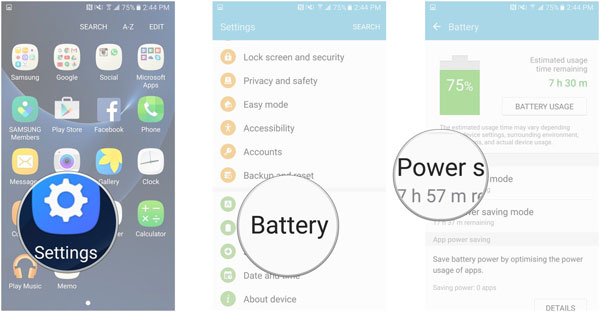
Go to Settings > Battery (or Battery & device care) > Battery, then tap Power saving and toggle it off. Alternatively, swipe down from the top of the screen to open Quick Settings and tap the Power saving icon to turn it off instantly.
Trick 3: Optimize Samsung via Device Care
Option 1: go to Settings > Battery & device care (or Device care) and tap Optimize now to instantly improve performance. This feature will automatically clean memory, delete unnecessary files, close background apps, and scan for issues in just a few seconds.
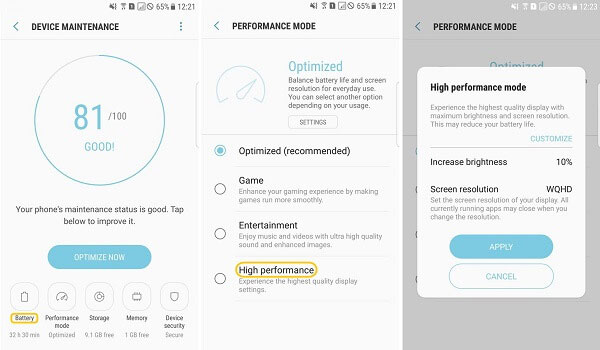
Option 2: For deeper optimization, you can also open sections like Memory, Storage, or Battery inside Device Care to manually clean RAM, free up space, or manage power usage for better performance.
Trick 4: Free up storage
Head over to Settings > Battery & device care > Storage and delete unnecessary files like photos, videos, downloads, and large documents. You should also uninstall unused apps, clear the recycle bin, and remove cached data from apps to quickly reclaim space and improve performance.
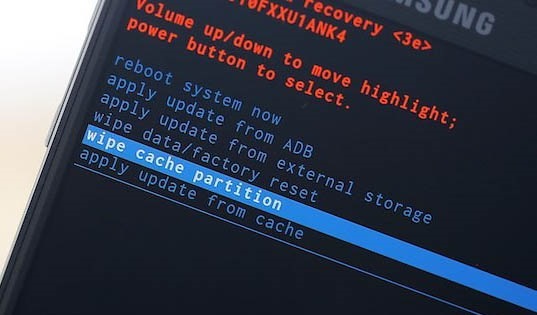
Trick 5: Clear cache partition
- First power off your device completely and connect it to a computer using a USB cable if required for newer models.
- Then press and hold Volume Up + Power (or Volume Up + Side key) until the Samsung logo appears to enter Recovery Mode.
- In the recovery menu, use the volume keys to highlight "wipe cache partition".
- Press the power button to select it, confirm with "Yes", and finally choose "reboot system now."
Trick 6: Uninstall incompatible app in safe mode
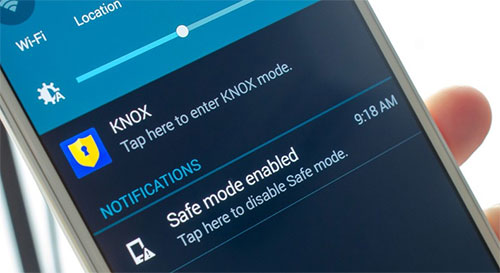
- To start with, press and hold the Power button, then tap and hold Power off and select Safe mode to restart your phone with only system apps running.
- Once in Safe Mode, go to Settings > Apps, find the suspicious or recently installed app, and tap Uninstall to remove it.
- After that, restart your phone normally to exit Safe Mode and check if the freezing issue is resolved.
Trick 7: Update Samsung system
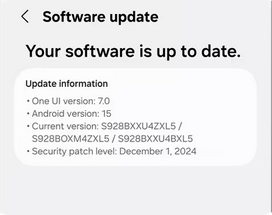
Keeping your system updated is important because Samsung often releases updates that include bug fixes, performance improvements, and stability patches that can directly resolve freezing problems. To do it:
- Open Settings > Software update > Download and install.
- Let your phone check for the latest version and follow the on-screen steps to install it.
If an update is available, make sure your phone has enough battery and is connected to stable Wi-Fi before installing, then restart the device after the update completes to ensure the fixes take effect.
Trick 8: Force restart Galaxy
- To proceed, press and hold the Volume Down button + Side (Power) button together for about 10-15 seconds until the screen turns black and the Samsung logo appears.
- Once the logo shows up, release the buttons and let the phone reboot normally - this method helps fix freezing or unresponsive screens without deleting any data.
Trick 9: Factory reset the phone
- Go to Settings > General management > Reset > Factory data reset.
- Scroll down and tap Reset > Delete all to erase all data and restore the device to its original state.
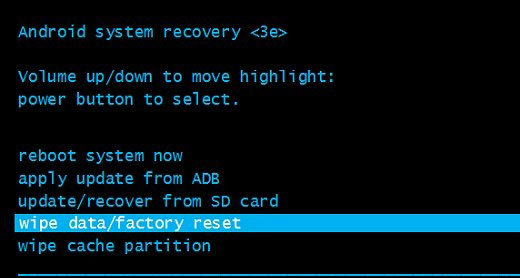
If the phone is unresponsive, you can also do it via Recovery Mode by powering off the device, then holding Volume Up + Side key (or Power button) until the recovery menu appears, selecting wipe data/factory reset, and confirming the action. After the reset, the phone will restart like new, which often resolves deep system glitches causing freezing.
Part 3: Fix Samsung Phone Frozen Screen with a Trusted Tool [Productive]
As an expert desktop toolkit, Android Repair is designed to diagnose and resolve a wide range of system-level malfunctions on Android devices. It provides guided, structured repairs for common issues such as boot loops, black screens, bricked devices, app crashes, and even unresponsive touchscreens.
For Samsung owners, this tool is particularly effective at fixing persistent frozen screens when basic restarts fail, addressing underlying software corruption without requiring a manual factory reset.
Core Features of Android Repair:
> Fixes frozen, unresponsive Samsung and Android phones (the Latest Galaxy S26 included).
> Repairs boot loop issues and devices stuck on Samsung logo or startup screen.
> Fixes system crashes such as unable to boot into download mode and app crash errors.
> Repairs bricked or failed system update devices using firmware reinstallation.
> Supports guided step-by-step repair process via PC without advanced technical skills.
> Offers system repair for various Android OS-related errors and performance issues.

Here's how to fix Samsung phone frozen with Android Repair?
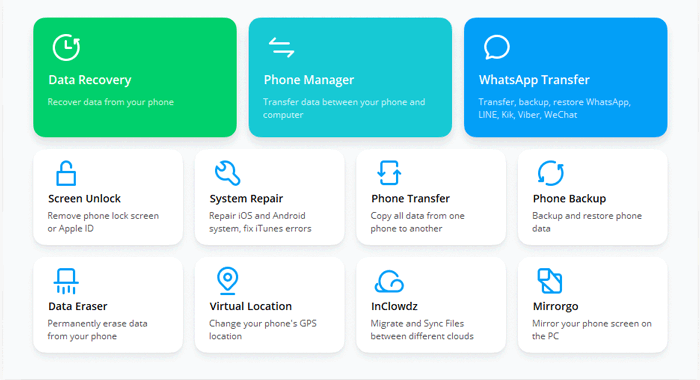
- After downloading Android Repair, install and launch it on your computer.
- In the main window, click System Repair, then connect your Samsung device to the computer using a USB cable.
- Select Android Repair from the left-hand menu. A list of Android issues that the tool can resolve will appear. Review them and click Start.
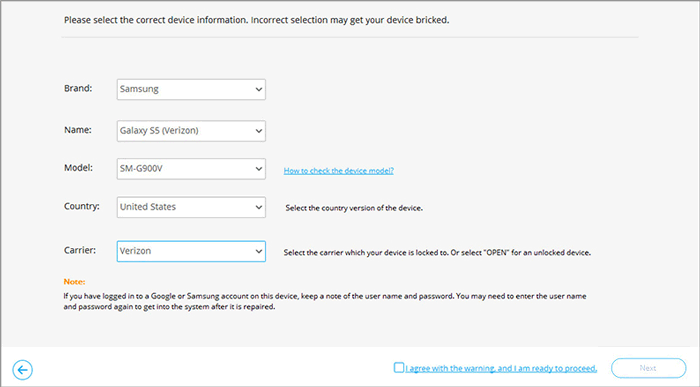
- On the next screen, enter your device details and tap Next to proceed.
- Manually type 000000 into the provided field and tap Confirm. Note that this repair process may erase data from your Samsung phone.
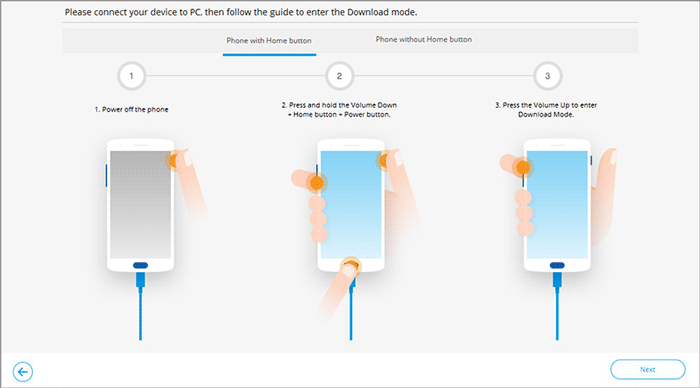
- Boot your Samsung device into Download Mode using the appropriate method, as shown below.
- Once your phone is in Download Mode, click Next to download the necessary firmware.
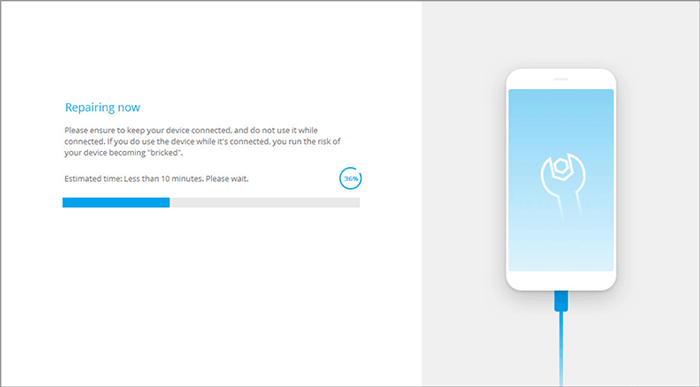
- The software will then automatically begin repairing the Samsung phone frozen.
When should I seek professional repair?
You should seek professional repair for a frozen Samsung phone if it remains unresponsive after trying basic fixes like force restart, safe mode, or charging for an extended period. It's also necessary if the phone is stuck in a boot loop, shows a black screen with no recovery options, or cannot enter recovery/download mode.
Additionally, hardware issues such as battery failure, water damage, or repeated freezing after system repair attempts require a technician's diagnosis.
Related Articles:
4 Options: Transfer Data from realme to Samsung S26/S25/Note/Tab
Samsung Experience Service Keeps Stopping? 8 Basic Fixes & 1 Expert Approach
How to Recover Contacts from Samsung with Black Screen? 4 Options
Top 5 Ways to Transfer WhatsApp from Old Samsung to New Samsung
