
Visual Voicemail Not Working on Android? Reasons & 12 Solutions
TL;DR:
Visual Voicemail issues on Android usually come from network, app, or system-level glitches, and can often be fixed with basic troubleshooting or carrier support.
For deeper system-related problems, Android Repair can help restore device stability when software corruption affects voicemail performance. It is most useful when issues are caused by system errors rather than carrier settings or app misconfiguration.
"Visual Voicemail on Samsung devices through the native Phone app can sometimes be a bit hit-or-miss. Is there an easy fix for my Samsung Visual Voicemail no longer working?" -- from Reddit
* What Is Visual Voicemail on Android?
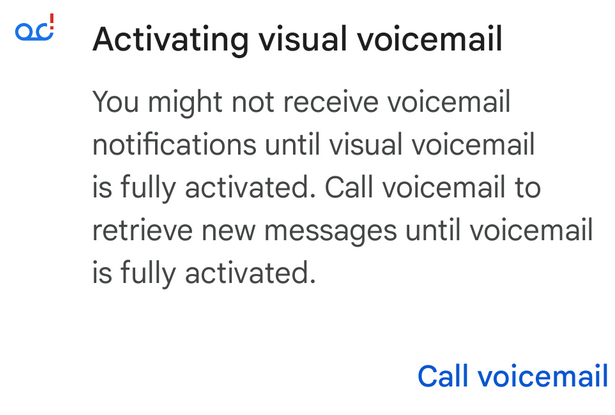
Visual voicemail on Android displays your voice messages as a list in the Phone app, letting you play, delete, or read transcriptions out of order without dialing in. It relies on a data connection and proper carrier provisioning to work correctly.
But when messages stop appearing or won't play - the dreaded "visual voicemail not working on Android" issue - it can stem from various factors. This article walks through common causes and whether system-repair software offers a practical fix.
- Part 1: Why Is My Visual Voicemail Not Working on My Android?
- Part 2: How to Reset Visual Voicemail on Android? [For Various Service Providers]
- Part 3: How to Fix Visual Voicemail Not Working on Android? [Detailed Guide]
- Part 4: Fix Visual Voicemail Not Working Android with a Specialized Tool
- Summary - Tips to Keep from Visual Voicemail Issues in the Future
Part 1: Why Is My Visual Voicemail Not Working on My Android?
Here's a complete list of reasons why Visual Voicemail may not be working on your Android phone, combining both common and advanced causes:
- Unstable network connection - Weak mobile data or Wi-Fi prevents voicemail syncing.
Software or app glitches - Cached data corruption or frozen background processes block voicemail loading. - Incorrect network settings - Misconfigured call forwarding, blocked numbers, or outdated carrier configurations interfere with delivery.
- Full voicemail inbox - New messages won't be stored until old ones are deleted.
- Carrier-related problems - Temporary outages, SIM changes, or plan updates may require reactivation.
- SIM card issues - A damaged or improperly seated SIM can stop voicemail authentication.
- Battery optimization restrictions - Android's battery saver may block voicemail apps from syncing in the background.
- Voicemail app compatibility - Some carrier voicemail apps may not support certain Android versions or custom ROMs.
- Outdated Android or voicemail app - Old versions often cause syncing failures until updated.
- Permissions not granted - Without access to storage, contacts, and network, voicemail apps cannot sync.
- VPN or firewall interference - VPNs or firewalls may block the voicemail app's connection to carrier servers.
You Might Like: Android Phone Calls Go Straight to Voicemail? Here's Why & 16 Solutions
Part 2: How to Reset Visual Voicemail on Android? [For Various Service Providers]
If visual voicemail isn't working on your Android phone, especially with Verizon, T-Mobile, AT&T, and Boost, the most effective fixes are included in the following. These steps address both app glitches and carrier-side problems:
- Check network connection - Ensure strong mobile data or Wi-Fi. Toggle Airplane Mode on/off to refresh your connection. Weak signals often block voicemail syncing.
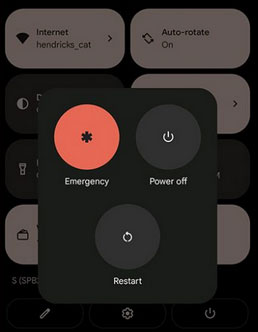
- Restart your phone - A simple reboot clears temporary glitches. On Samsung, hold the Power button > Restart. On other Androids, hold Power > Restart.
- Toggle Visual Voicemail - Open the Phone app > Settings > Voicemail. Turn Visual Voicemail off, wait 1 minute, then turn it back on. This resets the feature.
- Clear app cache - Go to Settings > Apps > Phone > Storage > Clear cache & Clear data. Restart your phone afterward.
- Update software - Check for Android OS and app updates. Outdated software can break voicemail syncing.
- Check carrier voicemail - Dial your voicemail manually. If messages don't appear, the issue may be on your carrier's end. Carriers like Verizon, T-Mobile, AT&T, and Boost sometimes have outages.
- Reinstall voicemail app - For carrier-specific apps (e.g., Verizon Visual Voicemail, Boost Visual Voicemail), uninstall and reinstall from Google Play.
- Reset network settings - Go to Settings > System > Reset Options > Reset Wi-Fi, Mobile & Bluetooth. This clears saved networks and refreshes connections.
- Contact your carrier - If none of the above works, call Verizon, T-Mobile, AT&T, or Boost support. Carrier-side issues may require their intervention.
- Factory reset - Backup your data first. Resetting restores your phone to default settings, which can fix persistent voicemail issues.
Risks & Considerations:
- Carrier outages: Sometimes the issue is beyond your control. Always check your carrier's system status.
- Data loss: Clearing cache or factory reset may delete stored voicemail data. Backup before proceeding.
- App differences: Verizon, T-Mobile, AT&T, and Boost may use different voicemail apps, so steps vary slightly.
Part 3: How to Fix Visual Voicemail Not Working on Android? [Detailed Guide]
Way 1: Ensure you have cellular coverage
First, check your signal strength and move to an area with better reception if needed. Toggle Airplane Mode on and off or restart your phone to refresh the connection. Finally, make sure mobile data is enabled, since Visual Voicemail requires a stable carrier network to sync messages.
Way 2: Check the network connection
- Confirm that Wi-Fi or mobile data is enabled and showing a strong signal.
- If the connection seems unstable, toggle Airplane Mode on and off to refresh it.
- Finally, restart your phone to clear temporary glitches and re-establish a stable link with your carrier.
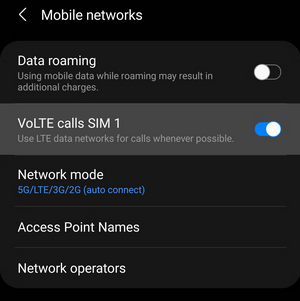
If the connection still fails, toggle Airplane Mode or restart your phone to refresh the link. When these steps don't work, go to Settings > System > Reset Options > Reset network settings to restore default connectivity and fix voicemail syncing.
Way 3: Give permissions to visual voicemail
- Open app settings > Find Visual Voicemail or the Phone app.
- Check permissions > Tap Permissions and review what's enabled.
- Enable required access > Turn on Phone, Contacts, SMS, and Storage permissions.
- Restart your phone > Refreshes the system and applies changes.
Way 4: Make sure you have enough free storage
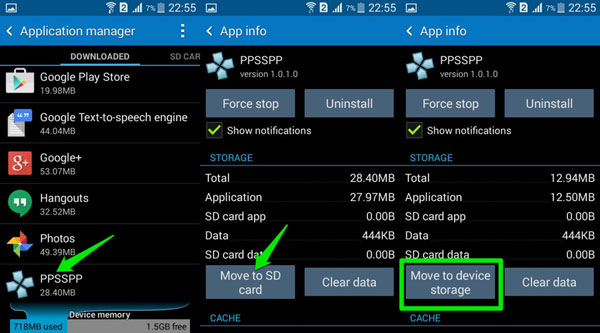
Make sure your Android device has enough free storage space so Visual Voicemail can download and save messages. Open Settings > Storage to check available space, and if it's low, delete unused apps or clear cache. You can also move files to cloud or SD card to free up space and restore voicemail functionality.
Way 5: Turn visual voicemail off & back on
You can refresh Visual Voicemail by turning it off and then back on. Open the Phone app > Settings > Voicemail > Visual Voicemail, toggle it off, wait about a minute, and then toggle it back on.
Way 6: Alter your voicemail settings
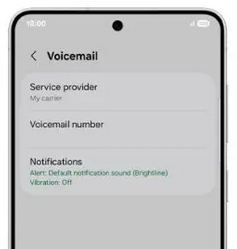
Adjust your voicemail settings directly in the Phone app to improve Visual Voicemail performance. Open the Phone app > tap More (three dots) > Settings > Voicemail, then review options like notifications, voicemail number, and call forwarding. Updating these settings ensures your voicemail is properly configured with your carrier and helps resolve syncing issues.
Way 7: Ensure your carrier's voicemail service is up
Visual Voicemail depends on the voicemail service to sync messages. You can confirm by dialing your voicemail manually (e.g., press and hold 1 in the Phone app) to check if messages are accessible. If voicemail doesn't work, contact your provider (Verizon, T-Mobile, AT&T, Boost, etc.) to verify service status or request reactivation.
Way 8: Verify your call forwarding settings
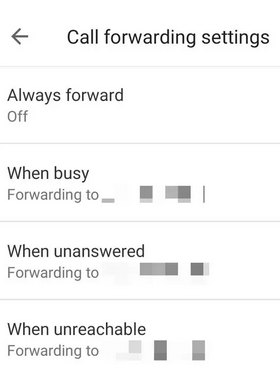
If call forwarding is misconfigured, Visual Voicemail won't receive messages properly until you reset forwarding to voicemail.
- Open the Phone app > tap More (three dots) > Settings > Calls > Call Forwarding.
- Confirm that forwarding is set to your carrier's voicemail number.
Way 9: Clear cache on your Phone app
Clear the cache on your Phone app to remove corrupted temporary files that may block Visual Voicemail. Go to Settings > Apps > Phone > Storage > Clear Cache, then restart your device. This refresh often resolves syncing issues and restores proper voicemail functionality.
If clearing the app cache doesn't solve the issue, you can update the Phone app through the Google Play Store to ensure compatibility with your device. Updating often fixes bugs and improves voicemail syncing reliability.
Way 10: Update Android software
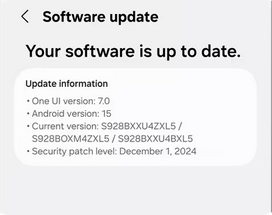
Go to Settings > System > Software Update > Check for updates, then install any available updates. Keeping your OS current often resolves compatibility issues and improves voicemail syncing reliability.
Way 11: Contact your service provider
If Visual Voicemail still isn't working, reach out to your service provider to confirm that voicemail is active and properly configured on your account. You can call customer support or use your carrier's app/website to check voicemail settings. Providers like Verizon, T-Mobile, AT&T, or Boost can reset voicemail services or re-provision your account if needed, ensuring Visual Voicemail syncs correctly.
Part 4: Fix Visual Voicemail Not Working Android with a Specialized Tool
When critical Android errors like boot loops or frozen screens strike, Android Repair offers a straightforward fix by reinstalling firmware without needing root privileges. The software's success rate is well-regarded for OS-level corruption, but its ability to resolve a "Visual Voicemail Not Working" alert rests entirely on whether that glitch traces back to system damage rather than carrier provisioning or app misconfiguration.
|
Android Repair - Feature
|
Description
|
Benefit for Visual Voicemail Issue
|
|
Fix Android system issues
|
Repairs problems like black screen of death, boot loop, and system crashes |
Helps resolve system-level glitches that may disrupt Visual Voicemail service |
|
Samsung Download Mode (Odin) access
|
Quickly enters Download Mode for Samsung devices (free) |
Useful for deep repair when carrier services or voicemail system fails |
|
Fastboot & Recovery Mode control
|
Enter or exit Fastboot/Recovery Mode with one click |
Helps reset system states that may block voicemail syncing |
|
Multi-brand repair support
|
Supports Samsung, Xiaomi, Redmi, POCO phones and tablets |
Ensures compatibility across major Android devices affecting voicemail systems |
|
No technical skills required
|
Simple guided process, no rooting needed |
Makes it easier for users to fix voicemail-related system errors safely |
|
No data loss for select devices
|
100% no data loss guaranteed for Xiaomi/Redmi/POCO repairs |
Preserves voicemail data while fixing underlying system issues |
Free & Safe Download:

How to fix visual voicemail not working on Android phones with Android Repair?
1st Step: Launch the tool and connect your Android device - Open the program on your computer, go to "System Repair", choose "Android Repair", and connect your phone via a USB cable. Review the device information and click "Start".
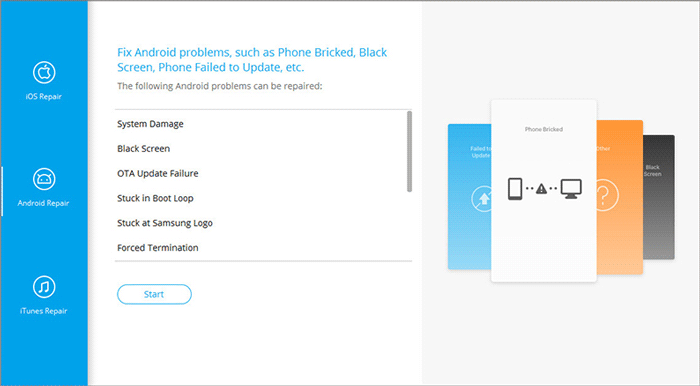
2nd Step: Confirm your device details and enter Download Mode - Verify your phone information, click "Next", type "000000", and select "Confirm". Then, follow the on-screen instructions to boot your device into Download Mode according to whether it has a Home button.
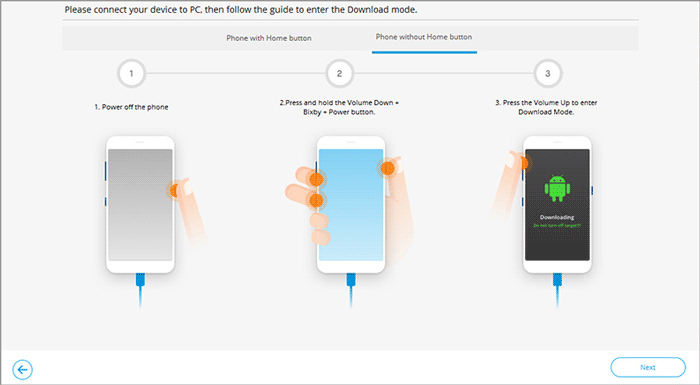
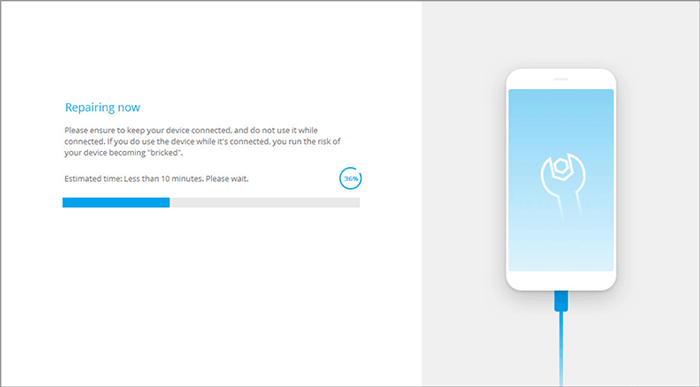
3rd Step: Download the firmware and start the repair - After your phone enters Download Mode successfully, click "Next" to download the required firmware. The software will then begin fixing the Android not responding issue automatically.
Summary - Tips to Keep from Visual Voicemail Issues in the Future
In short, while system-repair tools can help when software corruption is the culprit, most visual voicemail problems are best solved by carrier support and simple app resets - so stick with basic fixes first before reaching for heavier solutions.
Visual Voicemail issues can often be avoided with a few simple habits and regular phone maintenance. The tips below help keep voicemail syncing smoothly and reduce the chance of Visual Voicemail not working on Android in the future.
- Keep Android, carrier services, and voicemail apps updated.
- Maintain a stable cellular connection with mobile data enabled.
- Avoid disabling or force-stopping the Phone or Visual Voicemail app.
- Restart your phone regularly to refresh network services.
- Keep enough storage space for voicemail downloads.
- Exclude voicemail apps from battery optimization.
- Verify Visual Voicemail after changing your SIM card or carrier plan.
- Install carrier settings updates when available.
- Avoid incompatible third-party dialer or voicemail apps.
- Back up important voicemails regularly.
Related Articles:
Phone Not Allowed for Voice on Android? 13 Basic Fixes & 1 Ultimate Way
5 Most Effective Solutions to Recover Deleted Voicemail on Android
[4 Simple Ways] How to Recover Deleted Voicemails from iPhone 2026
Where Do Saved Voice Messages Go on iPhone? Everything You Want to Know
