
Samsung White Screen of Death? Reasons & 15 Troubleshooting Tips
TL;DR:
The Samsung white screen of death is typically caused by system errors, but it can be resolved without replacing your device. A dependable fix is to use Android Repair, which is designed to repair system glitches and restore your phone to normal. With this tool, your Samsung can be back to working smoothly in just a few steps.
"Recently my phone out of the sudden went completely white, the screen is responsive meaning it vibrates when I enter my pin code." -- from Reddit
The Samsung white screen of death is a sudden, alarming issue that makes a phone unusable and raises fears of data loss or costly repairs. Many users search for explanations and guidance because they want to understand the reasons for this issue and explore practical ways to resolve it. In this article, we highlight 15 tested solutions, giving a clear path forward for anyone facing this frustrating problem.
Part 1: Why Did My Phone Screen Suddenly Go White
Your phone screen turning white can be alarming, but it usually stems from either software glitches or hardware malfunctions. To help you understand, here's a clear list of the most common reasons behind this issue:
- Software glitches - Corrupted system files, buggy apps, or failed updates can disrupt display output.
- Accessibility settings - Features like grayscale or color correction may cause the screen to appear white.
- Insufficient storage - Low memory can freeze the system and trigger display errors.
- Cache corruption - Accumulated temporary files may interfere with normal operation.
- Overheating - Excess heat from prolonged use or battery faults can cause screen malfunctions.
- Loose LCD connector - Internal cable disconnections may prevent proper screen rendering.
- Physical damage - Drops, cracks, or water exposure can damage the display panel.
- Battery swelling - A swollen battery can press against internal components, disrupting display function.
- GPU or motherboard failure - Hardware-level defects may cause persistent white screens.
- Third-party apps - Malicious or incompatible apps can interfere with system processes.
- Outdated firmware - Running old software versions may lead to instability.
- Safe Mode diagnosis - If the issue disappears in Safe Mode, it's likely caused by installed apps.
- Factory reset necessity - Severe software corruption may require a full reset.
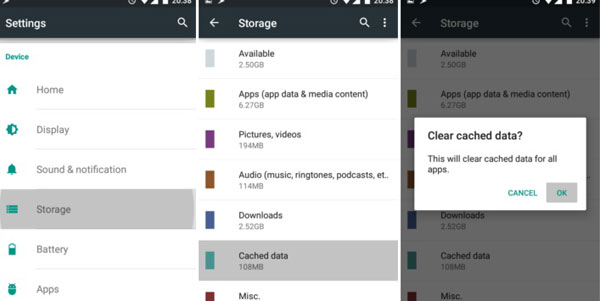
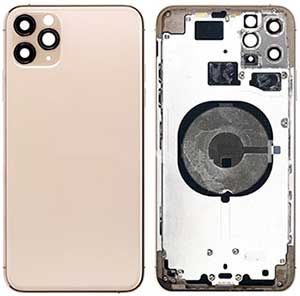
The Samsung White Screen of Death is not always permanent, but ignoring it can make the situation worse over time. If the cause is software-related, the issue may be resolved with resets, cache clearing, or firmware updates. When it stems from hardware damage, leaving it unattended can eventually lead to complete screen failure and costly repairs.
You Might Also Like: Samsung Yellow Screen of Death? Reasons & 18 Feasible Solutions
Part 2: How to Fix Samsung White Screen of Death? 14 Basic Solutions
Fix 1: Inspect Charging Issues
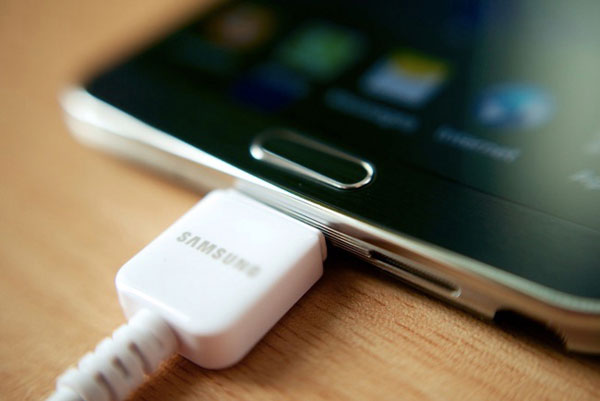
A white screen can sometimes appear because the battery is critically low or the phone is not receiving stable power. Connect your Samsung phone to the original charger and cable, then leave it charging for at least 20-30 minutes before trying to turn it on again. If possible, test a different wall outlet or another Samsung-compatible charger to rule out faulty charging accessories.
Fix 2: Check for LCD Connector
If the white screen appeared after the phone was dropped or repaired, the display connector may have become loose. Since the LCD flex cable is located inside the device, avoid opening the phone unless you have repair experience. Instead, have the display connection inspected and reseated by a professional to prevent additional hardware damage.
Fix 3: Conduct a Soft Reset
A soft reset can remove temporary system glitches without deleting your personal files.
- Press and hold the Volume Down and Power (Side) buttons simultaneously for about 10-20 seconds.
- Release the buttons when the Samsung logo appears.
- Allow the device to reboot completely.
- Check whether the white screen has disappeared.
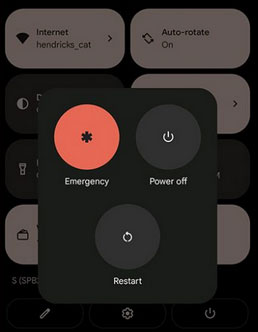
If the issue was caused by a temporary software conflict, the phone should start normally afterward.
Fix 4: Verify Accessibility Settings
Certain accessibility features or display adjustments can occasionally affect how the screen is rendered.
- Open Settings > Accessibility.
- Check whether Color Adjustment, Color Inversion, Color Correction, or similar display options are enabled.
- Disable these features temporarily.
- Restart your Galaxy phone and see if the display returns to normal.
If the white screen appeared immediately after changing display settings, reverting those changes may resolve the problem.
Fix 5: Update Firmware
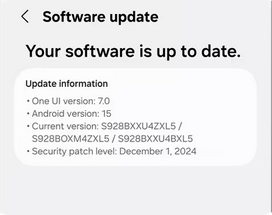
Keeping your Galaxy phone updated helps eliminate bugs that may trigger display-related issues. If the phone remains usable, go to Settings > Software update > Download and install to check for available updates. Install the latest firmware, restart the device, and verify whether the white screen issue has been resolved.
Fix 6: Clear Cache & Data
Corrupted app data can sometimes interfere with normal system operation.
- Open Settings > Apps.
- Select the app that started causing problems.
- Tap Storage.
- Choose Clear Cache first.
- If the issue remains, tap Clear Data (this removes the app's stored information).
- Restart your Samsung phone.
Repeat these steps for other recently installed or suspicious apps if necessary.
Fix 7: Free Up Storage
Insufficient internal storage can slow down Android and occasionally contribute to display or system instability.
- Delete unnecessary photos, videos, and downloads.
- Remove apps you no longer use.
- Empty the Recycle Bin or Trash in Gallery and My Files.
- Transfer large files to a computer or cloud storage.
- Restart the phone after freeing several gigabytes of space.

Maintaining at least 10-20% free storage helps Android operate more smoothly.
Fix 8: Clean Cache Partition
If the white screen is related to corrupted system cache files, wiping the cache partition may help without erasing your personal data.
- Turn off your Samsung phone.
- Boot into Recovery Mode using the button combination for your model.
- Use the volume buttons to highlight wipe cache partition.
- Press the Power button to confirm.
- Select Yes if prompted.
- Choose Reboot System Now after the process finishes.
Only temporary system cache files are removed during this process.
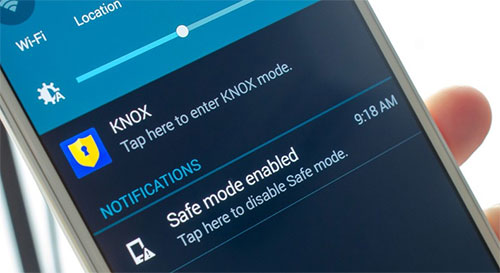
Fix 9: Test Galaxy in Safe Mode
Safe Mode temporarily disables third-party apps, making it easier to determine whether one of them is causing the white screen.
- Turn off your phone.
- Turn it back on and press and hold the Volume Down button when the Samsung logo appears.
- Keep holding it until the phone finishes booting.
- Look for Safe Mode in the lower corner of the screen.
- If the white screen no longer appears, uninstall recently installed or suspicious apps one by one.
- Restart normally after removing the problematic app.
Fix 10: Move Your Apps to SD Card
When internal storage is nearly full, moving supported apps to an SD card can reduce the storage burden on your device. Open Settings > Apps, choose a compatible app, tap Storage, and select Change if the option is available. After moving several large apps to the SD card, restart the phone and monitor whether the white screen issue improves.
Fix 11: Factory Reset Samsung
A factory reset is one of the most effective software solutions when other troubleshooting methods fail.
- Back up important files whenever possible.
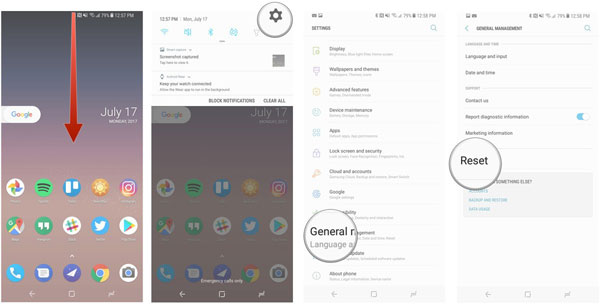
- Open Settings > General Management > Reset > Factory Data Reset, or perform the reset through Recovery Mode if the phone cannot boot normally.
- Confirm the reset and wait for the process to finish.
- Set up the device as new before restoring your backup.
- Check whether the white screen returns before reinstalling all apps.
Since this process erases all data on the phone, it should be considered a last software troubleshooting step.
Fix 12: Check for Physical Damage
Inspect your Samsung phone carefully for signs of hardware damage, such as cracks, dents, water exposure, or pressure marks on the display. If the white screen started immediately after a drop or contact with liquid, the display panel or internal components may have been damaged. In these situations, software troubleshooting is unlikely to solve the problem.
Fix 13: Contact Samsung Support
If the white screen persists after software troubleshooting, it's time to seek official assistance.
- Visit your local Samsung service center or contact Samsung Support.
- Describe when the problem started and the troubleshooting steps you've already tried.
- Ask whether your device is still covered by warranty.
- Follow the technician's recommendations for diagnostics or repair.
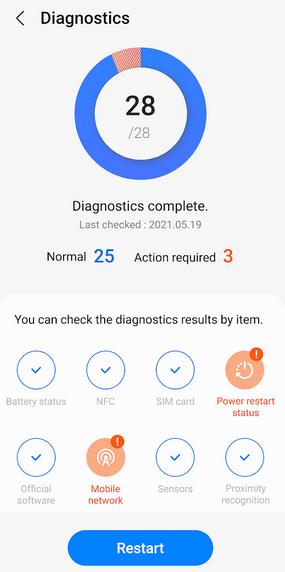
Official support can determine whether the display, motherboard, or another internal component requires replacement.
Fix 14: Find a Qualified Technician
When neither software fixes nor official support resolves the issue, a reputable third-party repair technician may be able to help. Choose a repair shop with experienced technicians, genuine replacement parts, and a warranty on repairs. Before authorizing any repair, request a diagnosis and cost estimate so you can decide whether repairing or replacing the phone is the better option.
Part 3: Fix Samsung White Screen of Death with a Dedicated Tool
A sudden white screen on a Samsung device can often be traced back to system errors, failed updates, or hardware malfunctions. One reliable solution for these issues is Android Repair, which provides targeted fixes for problems like the Samsung White Screen of Death. Beyond display recovery, it also handles boot loops, bricked devices, and other system failures with a guided repair process that avoids complex technical steps.
Core Characteristics of Android Repair:
- Fix White Screen - Resolves Samsung's white screen of death safely.
- Repair Boot Loop - Fixes devices stuck in restart cycles or logo freeze.
- Recover Bricked Phones - Restores devices after failed updates.
- Mode Access - Enter/exit Recovery, Download, or Fastboot easily.
- Update Failures - Repairs crashes after incomplete updates.
- Unfreeze Screens - Fixes frozen or unresponsive displays.
- Stop App Crashes - Resolves repeated app crashes.
- Power Issues - Repairs devices that won't turn on.
- High Success Rate - 99% repair success.
- No Root Needed - Works without rooting.
- Multi-Brand Support - It also works with Xiaomi, POCO, Redmi, and more (No data loss).
- Guided Process - Step-by-step repair instructions.
- Windows Compatible - Runs on Windows PCs.

How to fix white screen of death on Samsung Galaxy with Android Repair?
01 Launch Android Repair
- Open the software on your PC.
- Navigate to the System Repair section on the main interface.
- Connect your Samsung Galaxy S26/S25/S24/S23/S22/S22/S21 via a USB cable.
- Select the Android Repair option.
02 Review and Start
- Review the device details shown on screen.
- Click Start to continue.
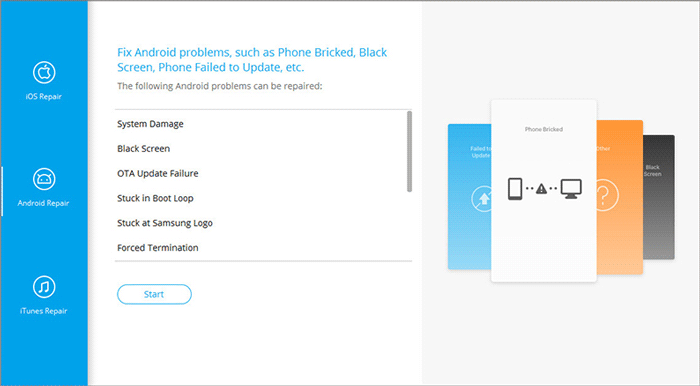
03 Provide Device Details
- Fill in your device details.
- Click Next.
- Enter the code 000000.
- Select Confirm.
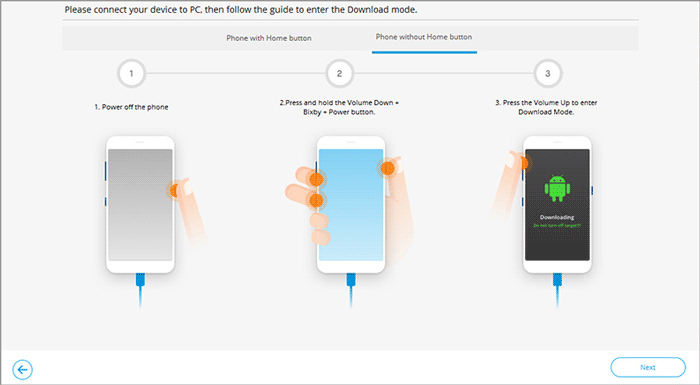
04 Enter Download Mode & Fix
- For devices with a Home button: Power off > Press Home + Power + Volume Down for 10 seconds > Release >
- Press Volume Up.
- For devices without a Home button: Power off > Press Bixby + Power + Volume Down for 10 seconds > Release >
- Press Volume Up.
- Once in download mode, click Next to download firmware and complete the fix.
In Conclusion
A white screen may feel like the end of your device's life, but with the right steps, it often becomes just another hurdle you can overcome. Think of these 15 solutions as a toolkit - some quick, some deeper - that together offer hope and clarity when your Samsung suddenly goes blank.
Before trying advanced fixes, always back up your data and start with the simplest solutions like a soft reset or cache clearing - these often resolve the issue without risking your files.
Related Articles:
How to Boot into Samsung Download Mode? 4 Well-tested Strategies
Easy Samsung FRP Tool Installing Drivers Failed? Reasons & 9 Fixes
