
How to Recover Data from Water Damaged Android Phone? 3 Options
TL;DR:
Water damage does not always mean your Android data is gone; the right recovery method depends on the phone's condition and whether a backup is available.
- Use Android Data Extraction: It may recover supported files from compatible Samsung devices.
- Check compatibility: Confirm your phone model is supported before scanning.
- Protect your data: If the phone won't turn on, seek professional help first.
NOTE: Please ensure that you legally own the phone or have proper authorization to unlock it before proceeding with any of the methods below. Thank you for your cooperation.
It is reported that many Android users have suffered this "Disaster" with the popularity of smartphones, and if you're one of them, what will you do? Today, we will guide you through the tutorials on how to recover data from water damaged Android phone step by step, no matter you have a phone backup or not.
Not all water damage is the same. Some trusted souces explains that liquid can leave contaminants behind and that rice does not remove those contaminants. Salt water, sugary drinks, and cleaning products can introduce additional problems. Here's the comparison:
|
Exposure scenario
|
Main concern
|
Recommended response
|
|
Fresh water
|
Possible internal short circuits and corrosion |
Power off and arrange an inspection if water entered the device. |
|
Salt water
|
Conductive residue and corrosion |
Seek prompt professional cleaning and assessment. |
|
Coffee or sugary drinks
|
Sticky deposits and internal contamination |
Avoid powering on the phone; seek professional inspection. |
|
Phone appears dry but will not boot
|
Hidden internal damage |
Avoid repeated startup attempts and prioritize data-preserving repair. |
Learn how to easily recover data from a water-damaged phone by following the video guide:
Part 1. Something You Can Do to Rescue Your Phone from Water
When your phone has fallen into water, you can take emergency action to avoid data loss or reduce the data lost to the least as follows:
- Get out your phone from the water ASAP, remove the battery and take out the SIM card to reduce the loss or damage on the device. If the battery is unremovable, keep it as it is.
- Don't move or shake the phone frequently so that the water will not run inside your mobile phone.
- You can use regular rubbing alcohol to clean your device.
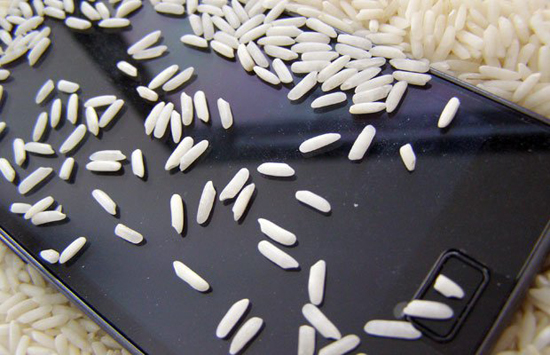
- Wrap the device with a cloth or handkerchief for a few minutes, and then turn off your phone. Place it into a jar or a bag filled with rice for a couple of days.
If you have tried the above solutions, but there is still something wrong with your Android, such as failure to boot, data loss, and so on. You can try the solutions below to recover data from water damaged phone.
Expert tip: Putting a water-damaged Android phone in rice may seem like an easy fix, but it does not remove corrosive residue from internal components. Consumer Reports recommends air-drying the device in a well-ventilated area, while Samsung advises users not to power on a wet device before it has been inspected. If the phone contains important photos or messages, avoid charging it or repeatedly trying to start it; preventing further electrical damage should come before attempting data recovery.
You May Also Need:
Part 2: Recover Data from Water Damaged Android Phone via Android Data Extraction
A cell phone that is immersed in water often has some problems in the follow-up, such as black screen, non-responsive screen, or you cannot touch the screen, and so on, which may cause the cell phone not to work normally and even cause data loss.
You can follow the guide below to fix these issues and extract the existing or lost data from Android as you like. All you need is a program called Android Data Extraction. With it, you can get access to a water-damaged Android without unlocking the screen or enabling USB debugging.
Main Features of Android Data Extraction:
- Recover data from water damaged Android phone without enabling USB debugging.
- Recover files like contacts, SMS, call logs, photos, music, WhatsApp, videos, etc.
- Fix Android system issues and get your device back to normal statuses, such as virus attack, black screen, system crash, phone frozen, phone drown, password forgotten, etc.
- It currently runs on some Samsung devices.
- It is easy to use and 100% secure.
Clean Download: Ad-free, bundle-free, and no background uploads:

How to Recover?
Step 1. Launch the program you've installed on your Windows computer, then connect the water-damaged Android to the PC with a USB cable. Directly enter the mode of "Broken Android Data Extraction", then you'll see an interface like below:
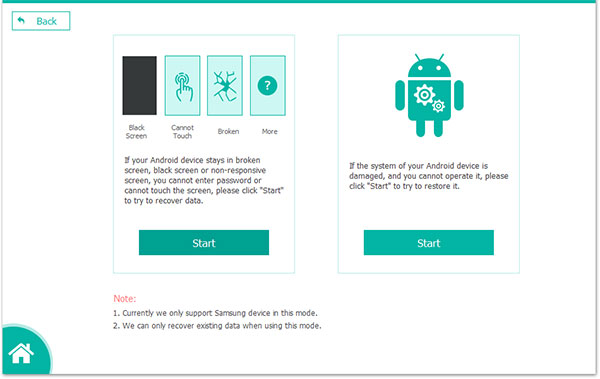
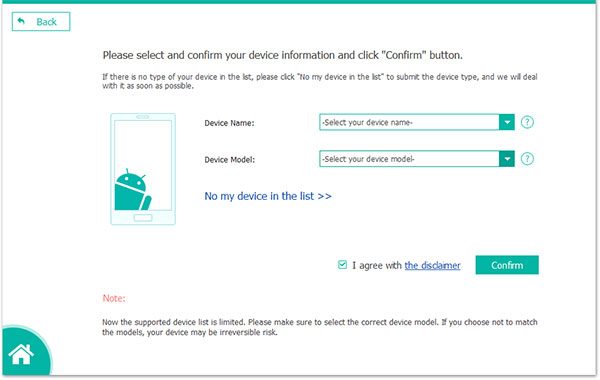
Step 2. Click the "Start" button and choose your device information (Device Name and Device Model). Then hit the "Confirm" button to enter the next step.
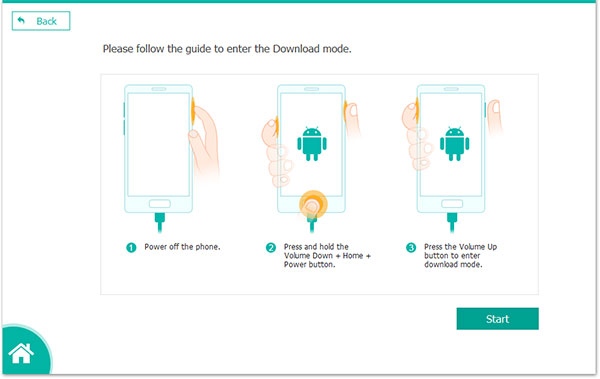
Step 3. Follow the on-screen instructions to enter the Download mode, then click the "Start" button to scan for files.
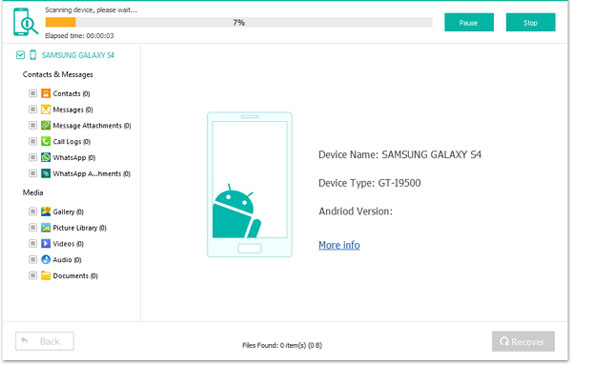
Step 4. When the scanning is finished, you can preview the results in the form of folders. Then select the data you wish to extract and save it on the desktop computer.
Part 3: Recover Data from Water Damaged Phone via Backup
If you have a good habit of backing up Android devices, whether it is backing up to a computer, cloud service, or third-party application, you can choose one of these backup functions to restore the backed-up data to the water-damaged phone.
Let's take Google Drive as an example to tell you how to get contacts from water damaged phone.
- Open a browser on your computer and visit Gmail.com. Log in to your Google account.
- Choose Gmail and click on "Contacts" from the drop-down menu.
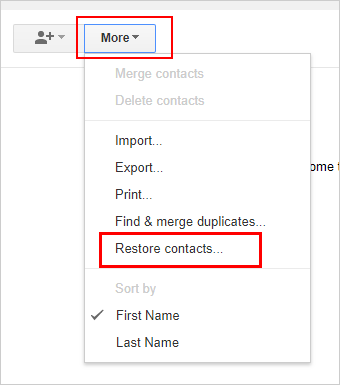
- Click on the "More" option and choose "Restore contacts..." from the drop-down list.
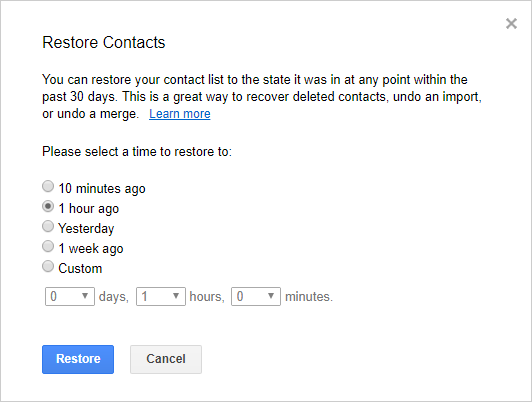
- In the new pop-up window, you can select the time period you want to restore.
- At last, you can click the "Restore" button to restore the contacts from Gmail backup.
Cons:
- The backup space is limited.
- Only contacts recovery is supported.
- You need to have backed up the device to a Google account.
You May Also Need:
Part 4: Recover Data from Water Damaged Samsung via SmartThings Find
If you previously backed up your Samsung data, you may be able to recover important files even if water damage prevents your phone from turning on. Follow the steps below to check your device through SmartThings Find and restore your available data from Samsung Cloud or other backup services. Here's how:
- Open SmartThings Find: Visit the official website and sign in to your Samsung account.
- Select your damaged phone: Check its device status, but avoid remote erasure or factory reset.
- Check your previous backup: SmartThings Find does not store backups, so verify your data in Samsung Cloud or another backup service.
- Use another Samsung phone: Go to Settings > Accounts and backup or Samsung Cloud.
- Restore your data: Select an available backup and restore the supported files.
- Check other backups: Visit Google Photos, Contacts, or Drive for synchronized data.
Cons:
- Only pictures and videos can be restored.
- You need to have logged in to your Samsung account on the device.
- This method is only applicable to Samsung devices.
Time To Verdict
Water damage is the last thing you want to happen to your phone. But if, unfortunately, it has already happened, don't panic. In this article, I mentioned different techniques about how to recover data from water damaged Android phone.
If you have backed up your Android phone before, then you can easily restore your lost data from the backup. For the instant recovery process, it is recommended that you use the powerful Android Data Extraction. The software has the most mature scanning algorithm and has a very high success rate for recovering data from water-damaged Android phones.
We hope this post is beneficial for you and if you have any other suggestions, please discuss them with us by leaving a comment.
Related Articles:
[Full Guide] How to Recover Data from a Water Damaged iPhone?
3 Most Marvelous Means to Back Up Android Phone with Broken Screen
[Top 10 List] Want the Best Android Data Recovery Software? See Here
How to Mirror Android to Mac without Obstacles? 8 Desirable Ways
