
How to Recover Deleted Contacts on Redmi? 4 Trustworthy Options
Contacts are critical for work, family, or social connections, and losing them can create significant inconvenience. Many Redmi users occasionally delete contacts by mistake while managing their phone or clearing duplicates and then need a way to restore them. Understanding the available methods to recover deleted contacts on Redmi can save time and prevent unnecessary stress.
This guide will walk through 4 practical ways to restore your lost numbers and ensure your communication remains uninterrupted.
- Section 1: Retrieve Deleted Contacts from Redmi via Google Service
> Option 1: via Google Contacts Trash
> Option 2: via Google 'Undo Changes' - Section 2: Recover Deleted Contacts from Redmi with Mi Cloud
- Section 3: Restore Deleted Contacts on Redmi via Recover Deleted Contacts
- Section 4: Recover Deleted Contacts on Redmi via MobiKin Software [Professional]
Section 1: Retrieve Deleted Contacts from Redmi via Google Service
> Option 1: via Google Contacts Trash
If you've accidentally deleted contacts on your Redmi phone, Google Contacts Trash provides a simple way to retrieve them within 30 days of deletion. It temporarily stores removed contacts, showing the deletion time and device name for easy identification.
Users can select one or multiple contacts and restore them with a single tap. This ensures that important numbers synced with your Google account are quickly recovered without affecting other data.
How to Recover?
- Open the Google Contacts app on your Redmi phone.
- Tap the Fix & manage tab in the lower-right corner.
- Select Bin to view deleted contacts.
- Find the contact you want to recover (the deletion time and device name will be shown).
- Long-press the contact name to select it.
- Tap the three-dot menu in the upper-right corner.
- Choose Recover to restore the contact.
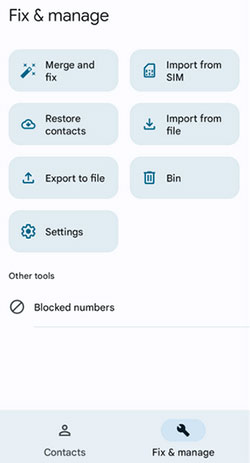
To recover deleted contacts using the Google Contacts web version, open a browser and go to contacts.google.com, then sign in with the same Google account that was syncing your contacts. Next, in the left-side menu click Trash/Bin, select the contact(s), and click Recover to restore them back to your contact list. After that, ensure contact syncing is enabled on your Redmi so the restored contacts sync back to your phone.
> Option 2: via Google 'Undo Changes'
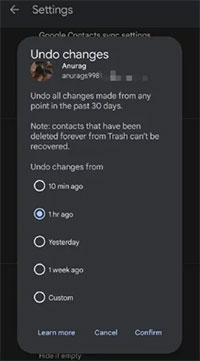
When mistakes happen, Google 'Undo Changes' allows you to roll back your entire contact list to a previous state. You can choose a specific time frame, from the last 10 minutes to up to 30 days, to restore contacts exactly as they were.
This method is useful for recovering multiple deletions at once and avoids the need for individual selection. It works seamlessly with your Google account, reflecting the restored contacts on your Redmi phone automatically.
How to Recover?
- Open the Google Contacts app and tap your profile icon in the upper-right corner.
- Go to Contact settings and select Undo changes.
- Choose a time range (such as 10 minutes, 1 hour, 1 day, or up to 30 days).
- Tap Confirm to restore your contacts.
You Might Also Enjoy: 5 Most Advisable Methods to Back Up Redmi Contacts to MacBook
Section 2: Recover Deleted Contacts from Redmi with Mi Cloud
For more comprehensive recovery without a previous backup, MobiKin Doctor for Android can retrieve deleted contacts even if they are no longer in Google's backup or Trash. The software scans your phone's internal memory to locate lost contact information and reconstructs it for restoration.
You can preview the contacts before restoring them, ensuring only the necessary data is recovered. This tool provides an additional safety net for Redmi users when standard cloud-based recovery options are insufficient.
How to Recover?
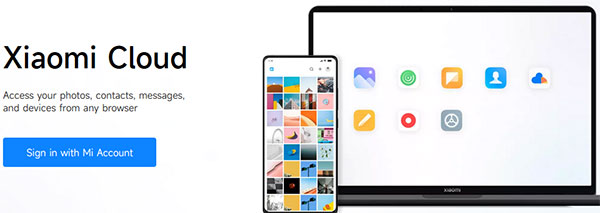
- Open Mi Cloud in a web browser.
- Sign in with your Mi Account ID and password.
- In the left-hand menu, click Restore.
- Select Contacts (or other types of data you want to recover).
- Click Restore to retrieve your deleted contacts to your Redmi phone. (Make sure Contacts sync is enabled on your phone under Settings > Mi Account > Xiaomi Cloud so the restored contacts appear automatically.)
Section 3: Restore Deleted Contacts on Redmi via Recover Deleted Contacts
Before proceeding, ensure you have a previous backup of your Redmi contacts using Recover Deleted Contacts. (To do it: Open the Recover Deleted Contacts app on your Redmi and grant permissions for Contacts, Storage, and Files. Then, use the Backup option to select all or specific contacts and choose a storage location like internal storage, SD card, or Google Drive. Finally, tap Backup and confirm the operation)
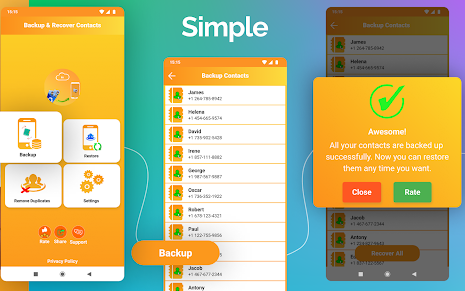
How to Recover?
- Install Restore Deleted Contacts on your Redmi phone.
- In the app, go to Recover/Restore Contacts.
- Tap Scan or Start Recovery to search for deleted contacts.
- Wait until the scan completes.
- Preview the deleted contacts found by the app.
- Select the contacts you want to restore.
- Tap Recover/Restore.
- Check your Phone Contacts app to confirm that the restored contacts have appeared.
Section 4: Recover Deleted Contacts on Redmi via MobiKin Software [Professional]
For more comprehensive recovery without a previous backup, MobiKin Doctor for Android (Windows/Mac) can retrieve deleted contacts even if they are no longer in Google's backup or Trash. The software scans your phone's internal memory to locate lost contact information and reconstructs it for restoration.
Users can preview the contacts before restoring them, ensuring only the necessary data is recovered. This tool provides an additional safety net for Redmi users when standard cloud-based recovery options are insufficient.
What Can MobiKin Doctor for Android Do for You?
> Scan and restore deleted contacts including names, numbers, and emails.
> Recover SMS, call logs, photos, videos, audio, documents, and more.
> Quick or deep scan with preview before recovery for selective restoration.
> Export current or deleted data to PC in various formats.
> Supports most Android devices and OS versions, including Redmi Note, Number, K, A, Turbo series, etc.
> Works on both rooted and non-rooted devices for flexible recovery.
> User-friendly design makes scanning, previewing, and restoring simple.
Best Redmi contacts recovery software free download:


How to Recover?
- First and foremost, ensure that your Redmi device is rooted to grant the program access to your phone for a comprehensive scan.
- Next, install and open the tool on your computer, then connect your Redmi device via a USB cable.
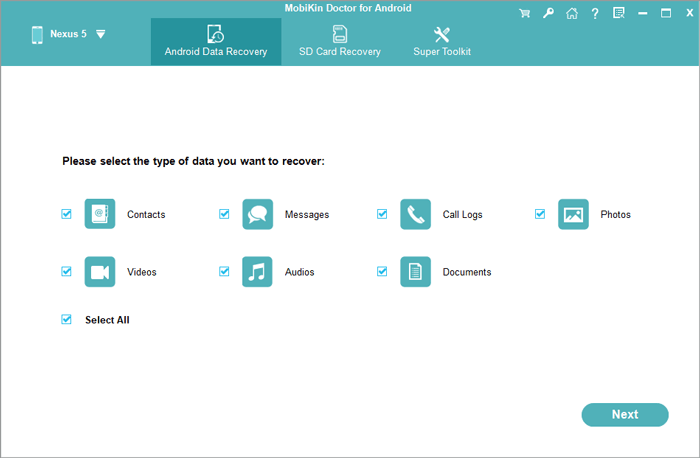
- After the program recognizes your phone, following the on-screen instructions, select the "Contacts" tab and click "Next" to initiate the scanning process.
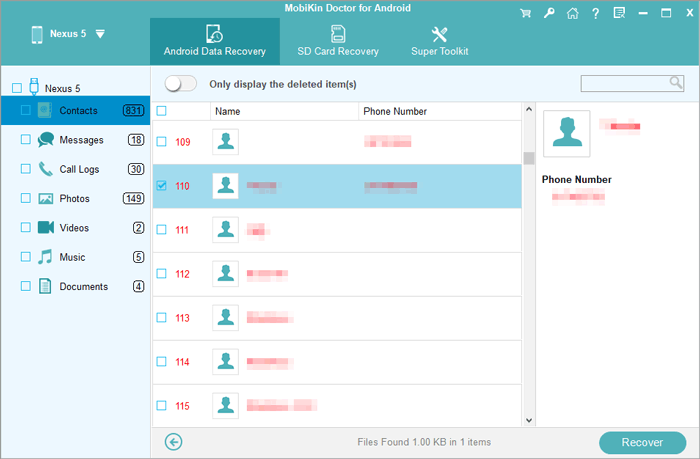
- Once the scan is complete, all deleted contacts will be shown in the right-hand window.
- You may select the contacts you wish to recover and click the "Recover" button to restore them to your computer.
Video Tutorial:
Additional Tips
Regularly syncing contacts with MobiKin Backup Manager for Android, Google Contacts, or Mi Cloud provides a safety net against accidental deletion. It is also wise to export a backup of important contacts periodically, so recovery becomes simple if data is lost unexpectedly.
Related Articles:
5 Simple Tactics to Transfer Contacts from Redmi to Redmi
How to Factory Reset Redmi Phone with Minimum Effort? [4 Tactics]
