
10 Proven Ways to Fix Redmi Phone Frozen [Easy & Efficient]
"Why does my Redmi phone get screen freezes? This occurs every day on my phone. Just around 5 minutes ago, this happened on it, and the only solution was to hold the Power button for a while to reboot." -- from Reddit
Many Redmi users find themselves experiencing situations where their device becomes unresponsive, slow, or completely stuck, making it difficult to perform basic tasks. And the situation persists even after taking a while for your phone to respond. The 'Redmi phone frozen' can be quite frustrating.
Worry not! This article introduces potential reasons behind a frozen Redmi phone and 10 feasible solutions to the challenge. Let's check them out now.
- Part 1: What Could Be Responsible for Redmi Phone Frozen
- Part 2: How to Fix Redmi Phone Frozen in 9 Basic Ways
> Fix 1: Restart to Clear Temporary Files
> Fix 2: Check for Android Updates
> Fix 3: Clear Cache Data
> Fix 4: Disable Battery Saver
> Fix 5: Check Hardware via CIT Mode
> Fix 6: Check for Android Updates
> Fix 7: Back Up and Factory Reset
> Fix 8: Boot Redmi into Safe Mode
> Fix 9: Contact the Manufacturer - Part 3: How to Troubleshoot Redmi Phone Frozen with an Expert Program
Part 1: What Could Be Responsible for Redmi Phone Frozen
A Redmi phone can freeze for a variety of reasons that affect its performance and responsiveness. Issues can range from background apps and software updates to hardware malfunctions, overheating, or even malware infections. Below is the detailed explanation:
- Too many apps are running in the background, consuming memory and CPU resources.
- An outdated Android system or MIUI version is causing software incompatibility.
- Accumulated cache and temporary files are slowing down the device.
- Battery saver or ultra battery saver mode restricts performance.
- Overheating from heavy usage or charging while using the phone.
- Incompatible or poorly optimized third-party apps are causing system conflicts.
- Low storage space, leaving insufficient room for smooth operation.
- Hardware malfunctions, such as touchscreen, memory, or sensors failing.
- Corrupted system files or software glitches from improper updates or app installations.
- Virus or malware infection affecting system performance.

Part 2: How to Fix Redmi Phone Frozen in 9 Basic Ways
Fix 1: Restart to Clear Temporary Files
This simple step can often resolve minor freezes on Redmi without further troubleshooting. To do this:
- Press and hold the Power button.
- Tap Restart or Reboot to restart the phone.
- Restarting the phone closes background processes and clears temporary system files.
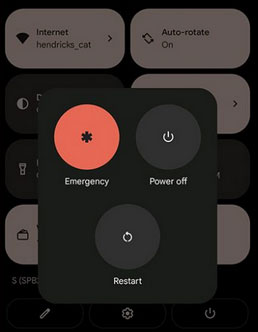
If a simple restart doesn't work on a frozen Redmi phone, you can perform a force restart. Press and hold the Power button for about 10-15 seconds until the device powers off and restarts automatically. This forces the system to reboot and can help unfreeze the phone when it becomes unresponsive.
Fix 2: Force Stop Unused Apps
To force stop unused apps on a frozen Redmi Note, K, A, or Turbo series, go to Settings > Apps > Manage apps. Find the app that is unresponsive or not in use and tap Force Stop. This closes the app completely, freeing up system resources and helping the phone run smoothly again.
Note: When force-stopping apps doesn't fix a frozen Redmi phone, removing unused or recently installed apps can help. Go to Settings > Apps > Manage apps, select the app you want to remove, and tap Uninstall. Removing these apps frees up resources and eliminates potential conflicts that may be causing the freeze.
Fix 3: Clear Cache Data
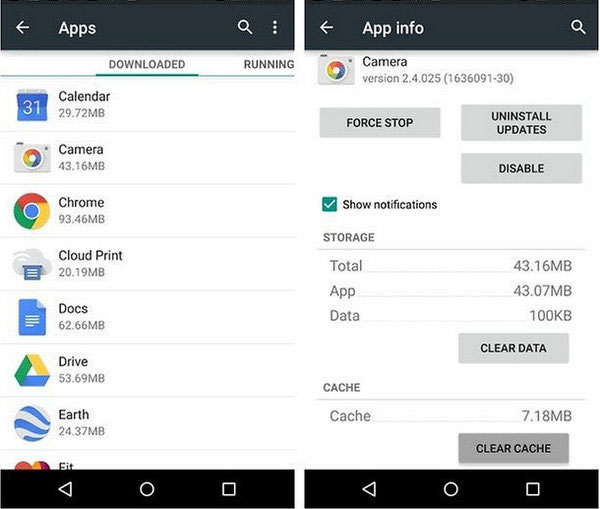
Clearing the cache helps free up storage on Redmi and removes temporary files that can slow down the system. Doing this periodically can prevent freezing caused by accumulated data. Here are the steps:
- Open Settings > Storage > Cached data or use the Security app.
- Proceed to Cleaner/Deep Clean > Tap Clear cache.
Fix 4: Disable Battery Saver
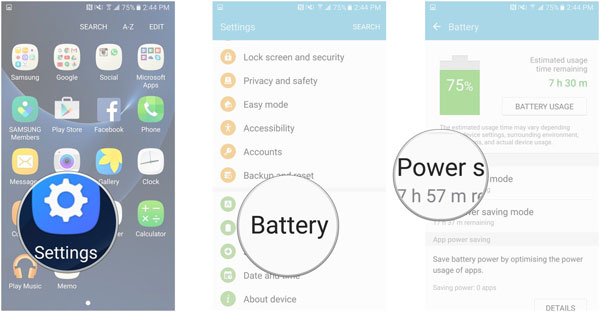
Go to Settings > Battery & performance and turn off Battery Saver or Ultra Battery Saver. Make sure your battery level is above 20%, because low battery or saver modes can limit background performance and cause the Redmi to respond slowly.
Fix 5: Check Hardware via CIT Mode
- Open the Phone app.
- Dial *#*#6484#*#* or *#*#64663#*#*.
- Run the hardware tests to detect any malfunctioning components like the touchscreen, sensors, or memory. This can help you identify issues that software fixes cannot resolve.
Fix 6: Check for Android Updates
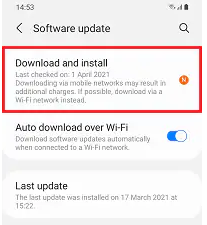
Repeat Fix 2 by going to Redmi's Settings > About phone > System update > Download and install. Keeping your system updated ensures compatibility with apps and reduces the chances of freezes caused by outdated software.
Fix 7: Back Up and Factory Reset
Back up your Redmi data to a computer, Google account, Mi Cloud, or external storage. Then go to Settings > About phone > Factory reset and follow the instructions. A factory reset restores the system to its original state, eliminating software conflicts that may cause freezing.
Fix 8: Boot Redmi into Safe Mode
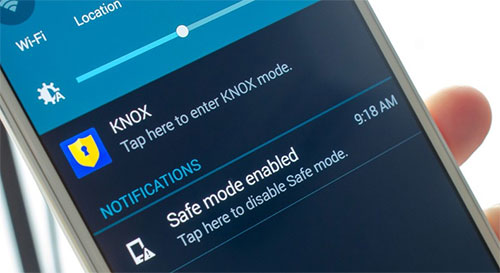
- Tap and hold Power off until Reboot to Safe Mode appears, then tap OK.
- Booting into Safe Mode disables third-party apps temporarily, allowing you to identify if a downloaded app is causing the freeze.
- If the phone works normally in Safe Mode, the problem is likely caused by an app you installed.
Fix 9: Contact the Manufacturer
If other methods fail, contact Xiaomi/Redmi official support. Provide your device model, symptoms, and any troubleshooting steps you've tried. Official technicians can diagnose more serious issues and provide repair or replacement options.
Part 3: How to Troubleshoot Redmi Phone Frozen with an Expert Program
Frozen Redmi phones can be effectively repaired using Android Repair. This software targets system glitches to fix issues like boot loops, black screens, and unresponsive devices. Users can restore their phones like Redmi, POCO, Xiaomi, and Samsung safely, often without losing any data. The intuitive interface makes the repair process simple, even for beginners.
Core Features of Android Repair:
- Fix frozen or unresponsive Redmi phones quickly and safely.
- Resolve various 50+ Android system issues.
- Repair system glitches caused by software errors, failed updates, incompatible apps, and many more.
- Quickly access Download Mode (Odin) on Samsung devices for free.
- User-friendly interface with step-by-step guidance for easy troubleshooting.
- No technical skills or root access required.
- 100% no data loss guaranteed for Xiaomi, Redmi, and POCO repairs.

How to Fix a Frozen Redmi phone with Android Repair?
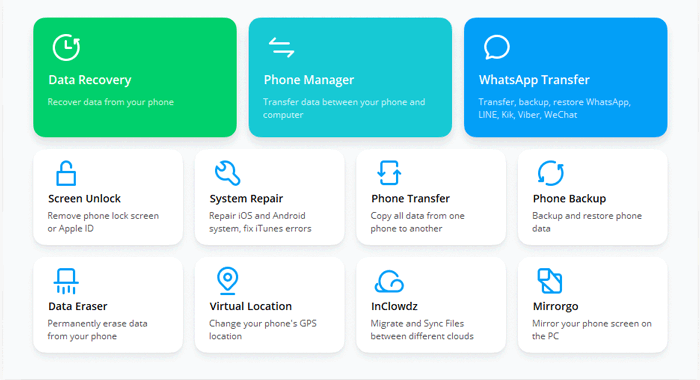
1. Begin by installing and launching Android Repair on your computer. After that, select "System Repair" from the program interface and connect your Redmi phone to the computer using a USB cable.
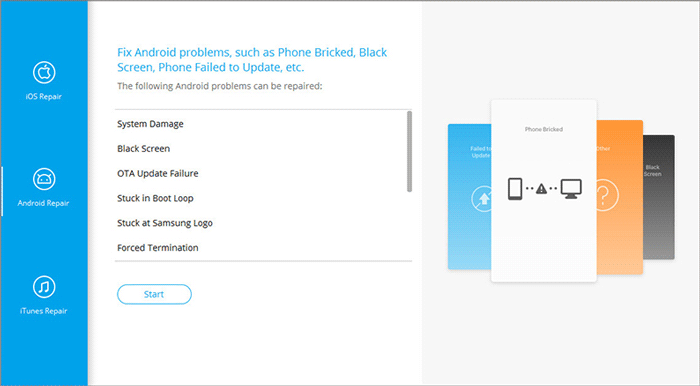
2. From the left-hand menu, choose "Android Repair." The tool will display the various issues related to Redmi that it is capable of resolving. Examine the available options and click on "Start."
3. In the subsequent window, provide your device information and click "Next" to proceed. Enter "000000" in the designated field and select "Confirm."
- Case 1: For devices equipped with a "Home" button: Turn off the device, then simultaneously press the "Sprint," "Home," "Power," and "Volume Down" buttons for about 10 seconds. Release all buttons and press "Volume Up" to access download mode.
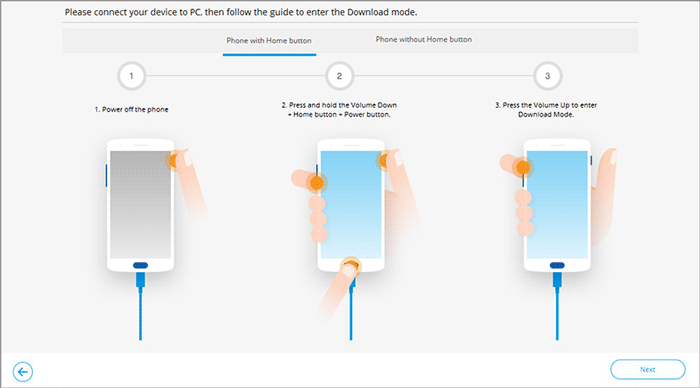
- Case 2: For devices lacking a "Home" button: Power off the device, then press and hold the "Power," "Bixby," and "Volume Down" buttons for roughly 10 seconds; after releasing, press "Volume Up."
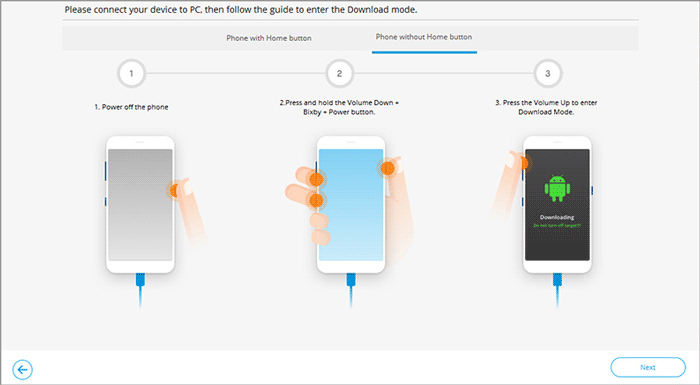
4. Once the Redmi is in download mode, click "Next" to initiate the firmware download. Ultimately, the software will automatically commence the repair of the frozen POCO.
Round Off
While professional tools like Android Repair are effective for resolving severe freezes, there are other helpful tips that can also improve performance. Users can avoid overheating by lowering screen brightness and disabling heavy apps, resetting app preferences from Settings, or freeing up storage space to help the phone run more smoothly.
Combining these practices with routine maintenance can prevent many freezing issues without immediately resorting to specialized software.
Related Articles:
5 Simple Tactics to Transfer Contacts from Redmi to Redmi
5 Smart Tactics to Unlock Redmi Phone without Difficulty
5 Best Redmi Data Eraser Software [Option 1 Is the Most Desirable]
How to Recover Lost Files from Redmi Internal Memory with/without Backup
