
How to Recover Lost Screenshots on POCO? 4 Tested Methods
"Is there a way to recover deleted screenshots from POCO? As the title says, I deleted some screenshots thinking I wouldn't need them, but am finding I now need them." -- from Reddit
Screenshots often store important info such as chats, receipts, and IDs, making them critical for personal or professional use. Many POCO users accidentally lose screenshots when they free up space, perform system updates, or delete files unintentionally.
Understanding how to recover lost screenshots on POCO is essential to avoid permanent data loss. This post delivers four effective ways to restore deleted screenshots, helping users retrieve their valuable information quickly and safely.
- Part 1: Recover Lost Screenshots from POCO Phone Trash Bin
- Part 2: Retrieve Screenshots on POCO via Google Photos Backup
- Part 3: Recover Lost Screenshots from POCO via Deleted Photo Recovery App
- Part 4: Recover Lost Screenshots on POCO via MobiKin Software [High Success Rate]
- FAQs about Recovering Lost Screenshots on POCO
Part 1: Recover Lost Screenshots from POCO Phone Trash Bin
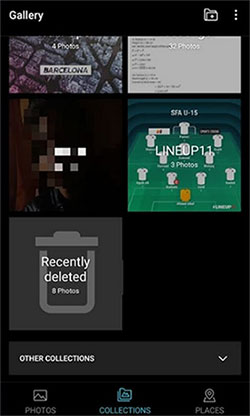
Deleted screenshots are temporarily stored in a special folder within the Gallery app, allowing users to restore them easily. Recovery is straightforward and doesn't require additional apps or permissions. The only requirement is that the screenshots must have been deleted within the last 30 days. Trash Bin on Android provides the fastest and simplest way to recover lost screenshots directly on a POCO C, M, X, and F series.
How-to Guide:
- Open the Gallery app on POCO.
- Tap Albums and locate the Trash or Recently Deleted folder.
- Browse or search for the lost screenshots.
- Select the screenshots you want to recover.
- Tap Restore to return them to their original album. (Act quickly, as Trash items are automatically deleted after 30 days.)
Part 2: Retrieve Screenshots on POCO via Google Photos Backup
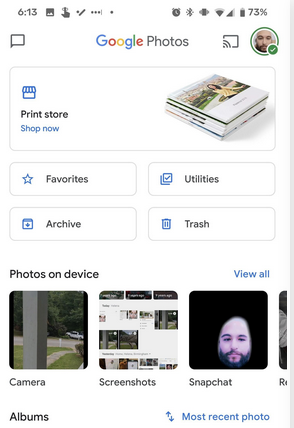
Screenshots backed up to the cloud can be retrieved anytime, even if they are deleted from the device. A Google account and an active backup connection are required for this method to work. Users can search for screenshots by folder or keyword and download them back to their device. Google Photos Backup ensures secure, remote recovery while keeping the original image quality intact.
How-to Guide:
- Open the Google Photos app and sign in with the correct Google account.
- Check the Photos tab for your screenshots.
- Use the search bar and type “Screenshots” to filter results.
- Select the screenshots you want to restore.
- Tap the three-dot menu and choose Download or Save to device.
- Check the Gallery or device Photos folder to confirm they are restored. (If deleted from Google Photos, check the Trash folder; items are kept for 60 days.)
You May Also Like: Top 4 Means to Move Photos/Pictures from Google Drive to Google Photos
Part 3: Recover Lost Screenshots from POCO via Deleted Photo Recovery App
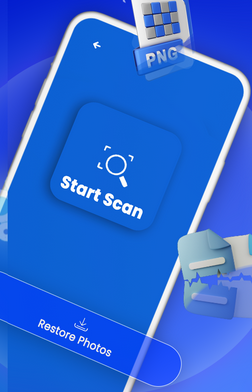
A deeper scan of internal storage can locate recently deleted screenshots that are no longer in the Trash. Granting storage access permissions is necessary for the app to function effectively. After the scan, users can preview the found images and selectively recover the ones they need. The Deleted Photo Recovery App is ideal for users who need a simple yet effective way to restore lost screenshots without difficulty.
How-to Guide:
- Download and install Deleted Photo Recovery App from the Google Play Store.
- Open the app and grant the necessary permissions to access your phone's storage.
- Tap Start Scan or Start Recovery to let the app search for deleted photos.
- Browse the results and locate the lost screenshots.
- Select the screenshots you want to recover.
- Tap Restore or Recover to save them back to your device.
- Check your Gallery or Photos folder to confirm the screenshots have been restored.
Part 4: Recover Lost Screenshots on POCO via MobiKin Software [High Success Rate]
Advanced recovery features allow retrieval of screenshots even after deletion or accidental formatting. Connecting the POCO phone to a computer and enabling USB debugging are required to use this software. A detailed preview is provided before recovery, ensuring that only desired screenshots are restored.
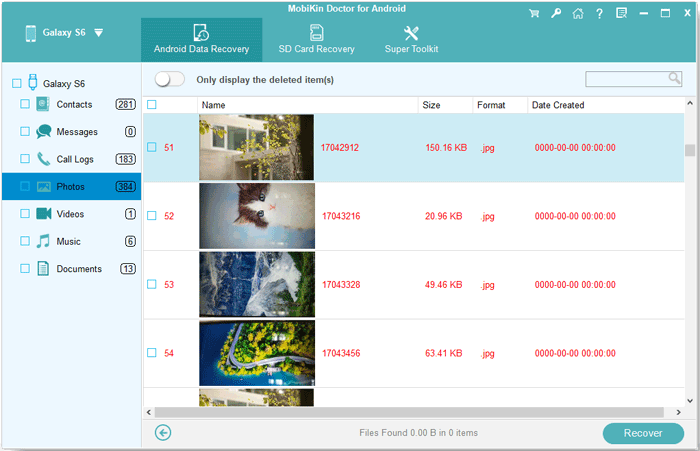
Those could be seen in MobiKin Doctor for Android (Windows/Mac), which offers a professional solution for comprehensive data recovery with high success rates.
MobiKin Doctor for Android - Core Features:
- Recovers photos, screenshots, videos, contacts, and messages.
- Deep scan ensures high success in restoring deleted screenshots.
- Preview files before recovery to select exactly what you need.
- Supports both rooted and non-rooted devices.
- Compatible with POCO and other Android phones, including POCO C, M, X, and F Series (e.g., C75/C71, M7 Pro/M6+, X7 Pro/X6 Neo, F7 Ultra/F7 Pro, etc.)
- Transfers recovered files safely to your computer.
- Easy-to-use interface guides users step by step.


How to use MobiKin Doctor for Android to recover deleted screenshots on POCO?
- Install and run this MobiKin software on your computer.
- Connect your POCO phone to the computer using a USB cable.
- Activate USB debugging on your POCO to allow the tool to recognize the device.
- Once the device is recognized, select "Photos" and click "Next".
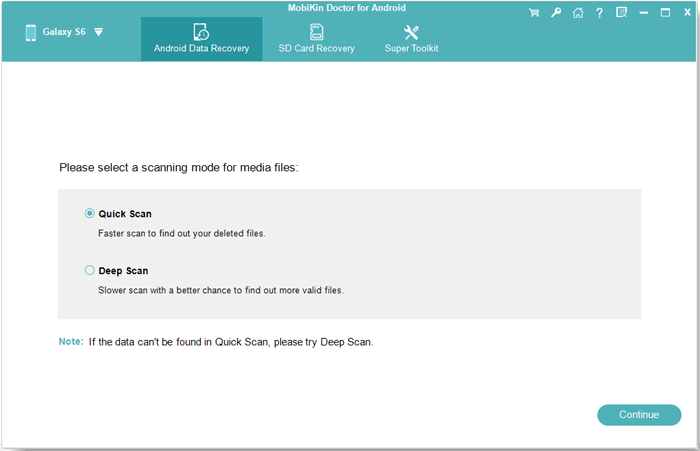
- Choose a scanning mode to initiate the data scan.
- If the items are not located in the scanned results, follow the on-screen instructions to root your phone for a comprehensive scan.
- After the scan is complete, you can preview and select your screenshots to recover from the program interface.
- Finally, click "Recover" to save all selected POCO screenshots to your computer.
Will newly written data affect screenshot recovery? Yes, saving new files can overwrite deleted screenshots, reducing recovery chances. So, it is advisable to minimize phone use until recovery is complete.
FAQs about Recovering Lost Screenshots on POCO
Q1: Where do deleted screenshots go on a POCO phone?
A1: Deleted screenshots are first moved to the Gallery Trash/Recently Deleted folder, where they remain for up to 30 days before permanent deletion.
Q2: Do I need root access to recover screenshots?
A2: Some recovery apps work without root, but rooting can allow deeper scanning and higher chances of recovery.
Q3: Can screenshots be recovered after a factory reset?
A3: It's possible but difficult. Recovery apps like MobiKin Assistant for Android may retrieve data if it hasn't been overwritten.
Completion
Among the four recovery methods, MobiKin Doctor for Android could be the most reliable solution. Unlike other tools, this program:
- Provides comprehensive recovery of screenshots, photos, messages, and more.
- Allows preview and selective restoration, so users recover only what they need.
- Supports both rooted and non-rooted POCO devices, offering flexible and professional recovery.
So, get this intelligent software for free before making a satisfactory attempt.
Related Articles:
How to Recover Deleted Screenshots on iPhone? Discover the Top 5 Methods
How to Transfer Photos from Computer to POCO Phone? 5 Strategies
4 Optimal Ways to Transfer Photos from POCO to POCO [Expert's Advice]
