
4 Feasible Ways to Retrieve Deleted Text Messages on Infinix
Q: Can I recover deleted text messages directly from my Infinix phone?
A: It depends. In most cases, deleted SMS are removed from visible storage, but you may still recover them through archives, Trash (if available), Google Backup, third-party recovery tools, etc. Next, this article will walk you through how to retrieve deleted text messages on Infinix phone with or without a backup.
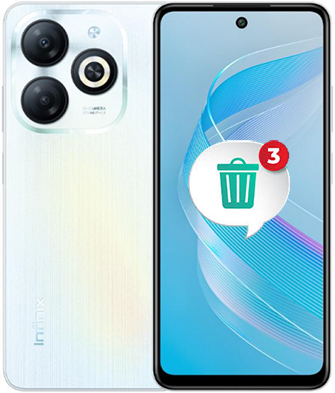
- Option 1: Recover Deleted Text Messages from Infinix via Archive/Trash Folder
- Option 2: Retrieve Deleted Text Messages on Infinix via Doctor for Android [No Hassle]
- Option 3: Find Deleted SMS in Infinix from Google Backup
- Option 4: Recover Deleted Messages on Infinix via RDM: Recover Deleted Messages
- FAQs about Retrieving Deleted Text Messages on Infinix
Option 1: Recover Deleted Text Messages from Infinix via Archive/Trash Folder
When users accidentally delete SMS on their phones, the Archive/Trash Folder in the Messages app can sometimes act as a built-in safety net. It temporarily stores removed conversations so they can be restored within a limited time. This makes it one of the simplest ways to retrieve deleted text messages from an Infinix device without extra tools. However, it only works if the messages are still within the retention period.
Solution 1 - Recover Messages from the Archive Folder (Unarchive Them):
- Unlock your Infinix phone.
- Open the Messages (SMS) app.
- Tap the three-dot menu icon in the top-right corner.
- Select Archived from the menu.
- Browse the list to locate the conversation you previously archived.
- Tap and hold the conversation to select it.
- Tap Unarchive or Move to inbox.
- Return to your main inbox.
- Open the conversation to confirm your text messages are back.
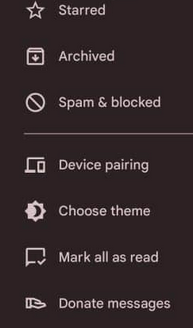
Solution 2 - Restore Messages from Trash/Recently Deleted (If Available):
- Open the Messages app on your Infinix device.
- Tap the three-dot menu icon in the upper-right corner.
- Choose Trash, Bin, or Recently Deleted.
- View the list of deleted message threads stored in Trash.
- Tap and hold the conversation you want to restore.
- Tap Restore/Recover.
- The conversation will return to your inbox.
- Open the thread to confirm the recovered messages.
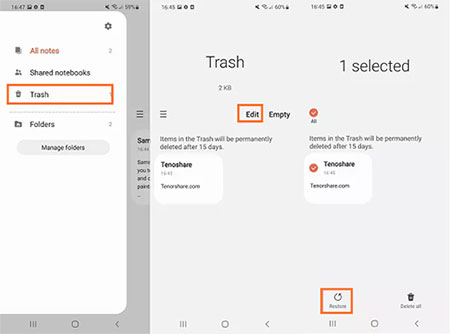
Note: 1. Messages remain in Trash only for a limited time (often 30 days); 2. Not all Infinix models or SMS apps support Trash; 3. If Trash/Archive isn't available, recovery may require backups or third-party tools.
Option 2: Retrieve Deleted Text Messages on Infinix via Doctor for Android [No Hassle]
For those who need a deeper scan, many people rely on MobiKin Doctor for Android (Windows/Mac) because it is designed to detect and recover deleted SMS from internal storage. The software can retrieve messages even after they're no longer visible in the inbox. It works well when there is no backup available. Users often appreciate that it supports a wide range of Infinix models.
Key Features of MobiKin Doctor for Android:
- Recover deleted text messages from Infinix, including content and timestamps, even if no longer visible in the Messages app.
- Preview messages before recovery to select only the ones you need.
- Recover other data types: SMS, contacts, call logs, photos, videos, music, audio, documents, etc.
- Support a whole range of Android smartphones and tablets, including Infinix Zero, Note, Hot, Smart, S/GT Series, etc.
- Export recovered messages in readable formats.
- Works on both rooted and non-rooted devices (root improves deep recovery).
- Simple, user-friendly interface with step-by-step guidance.
- Safe and secure recovery with read-only scanning to prevent data overwriting.
- Frequently updated to maintain compatibility with new Android versions and devices.
How to retrieve deleted text messages from Infinix with MobiKin Doctor for Android?
- Once the program launches after the free download and installation, it will automatically detect the connected phone (Follow the guide to get the device recognized if needed).
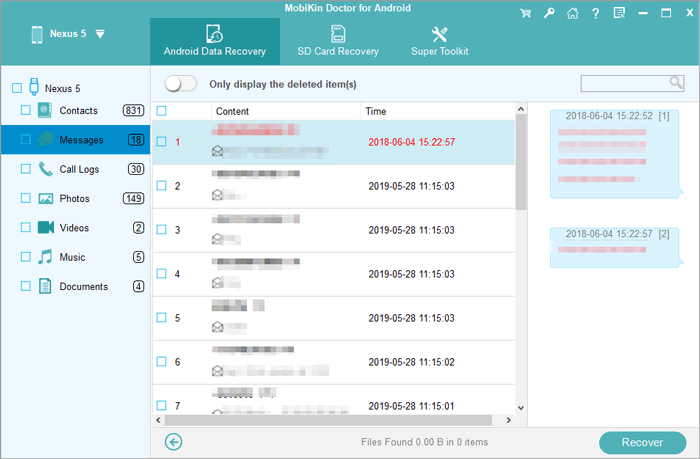
- If your phone is rooted and USB debugging is enabled, the software will perform a deep scan of the internal memory and display both lost and existing messages within the program.
- Next, select the type of files you want to recover (in this case, choose "Messages").
- Then, click "Next" and select a scan mode, either a quick scan or a deep scan, depending on your preference.
- After scanning, preview the messages that have been found and select the ones you want to restore.
- Finally, click the "Recover" button and choose a folder on your computer to save the recovered SMS.


Video Guide:
You May Also Enjoy: How to Recover Text Messages from Broken Android Phone? 4 Practices
Option 3: Find Deleted SMS in Infinix from Google Backup
Another practical solution is enabling Google Backup, which allows text messages to be restored during the device setup process. When SMS backup is turned on beforehand, deleted conversations can be recovered after performing a factory reset. This method is especially useful for users who regularly back up their phones. It keeps important texts protected across devices. Below is how:
- Open Settings on your Infinix phone.
- Scroll down and tap System (or System & updates).
- Tap Reset options.
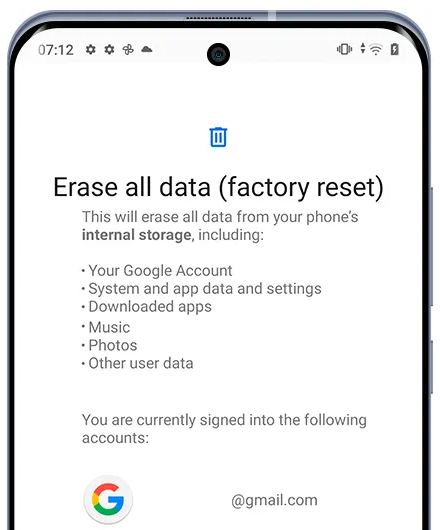
- Select Erase all data (factory reset).
- Confirm the reset and wait for the phone to restart.
- When the phone restarts, connect to Wi-Fi and sign in to the same Google account you used before.
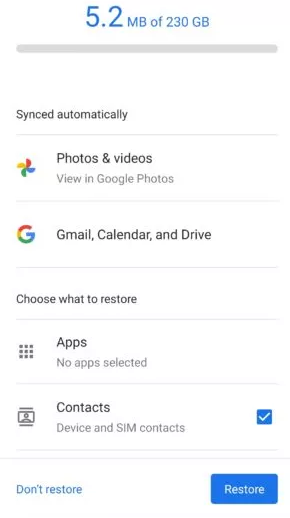
- On the Restore from Google Backup screen, choose your latest backup.
- Make sure SMS messages are checked before restoring them.
- Continue the setup process and wait for the restore to finish.
- Open the Messages app and check if your deleted texts are back.
How can I prevent losing important messages on my Infinix phone in the future? Enable Google SMS Backup, back up regularly, and avoid clearing cache or using cleaning apps that may permanently delete conversations.
Option 4: Recover Deleted Messages on Infinix via RDM: Recover Deleted Messages
Some users prefer notification-monitoring apps, and RDM: Recover Deleted Messages helps capture deleted SMS as soon as they are removed. It works by logging notifications before the messages disappear completely. This allows users to review deleted texts directly inside the app. Although it cannot restore messages deleted before installation, it is still very helpful for future protection. Here's how:
- Open Google Play Store on your Infinix phone.
- Search for "RDM: Recover Deleted Messages" and install the app.
- Launch the app after installation.
- Grant the required notification access and storage permissions so the app can monitor deleted messages.
- Keep the app running in the background.
- When an SMS or notification is deleted, open the RDM app.
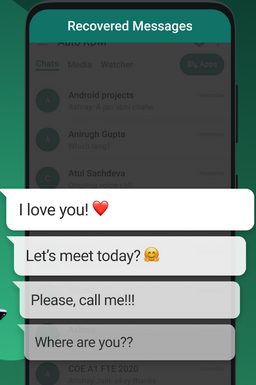
- Go to the section for Chats > Deleted Messages/Notifications.
- Browse the list and select the deleted message you want to view.
- Tap the message to read the recovered content.
1. RDM works by monitoring notifications, so it typically recovers messages deleted after installation, not earlier ones. 2. The app must have notification access enabled to detect deleted messages. 3. Messages deleted before permissions were granted cannot be restored. 4. Some system restrictions or battery savers may limit recovery, so allow the app to run in the background.
FAQs about Retrieving Deleted Text Messages on Infinix
Q1: Will turning off data or Wi-Fi help after deleting messages?
It can reduce background syncing and overwriting, which may improve the chances of recovery if you plan to use recovery software.
Q2: Will factory reset erase all my data when restoring from Google Backup?
Yes. A factory reset deletes everything from your phone, so you should back up important files before restoring SMS from Google Backup.
Q3: Are Infinix messages included in Google One backup?
Yes - if SMS backup is enabled in your Google account settings, your text messages can be backed up and restored.
Q4: What should I do immediately after deleting important messages?
Stop using the phone as much as possible to avoid overwriting deleted data, then try recovery methods like Trash, Backup, or software tools.
Q5: Can WhatsApp or other messaging apps' messages be recovered the same way as SMS?
No. SMS recovery methods differ from app-based messages like WhatsApp, which require their own backup or recovery steps.
Q6: Are third-party data recovery tools safe to use on Infinix?
Reputable tools like MobiKin Doctor for Android are generally safe, but always download from official sources and avoid apps requesting unnecessary permissions. Seeing is believing, don't hesitate to give it a go now.
Related Articles:
5 Smart Picks to Print Out Text Messages from Infinix Phones
How to Unlock Infinix Phone in Different Situations? 4 Simple Tactics
4 Powerful Approaches to Transfer Data from Infinix to Infinix
Infinix GIF Recovery: 4 Popular Methods to Recover GIF from Infinix
