
How to Transfer WhatsApp from POCO to POCO? 4 Trustworthy Ways
"Hi, if I buy a new POCO device, can I transfer all WhatsApp data to my new device from my old device using the built-in transfer tool." -- from Reddit
A new POCO device brings excitement, but it also raises concerns about losing valuable WhatsApp chats and media. When switching POCO device, users often want reassurance that messages, photos, and videos will move safely from the old phone to the new one.
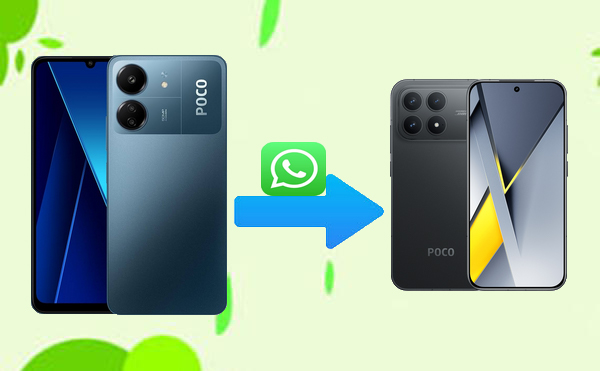
Understanding how to transfer WhatsApp from POCO to POCO is essential to ensure that no data is lost. This article presents four dependable methods, including both built-in and alternative tools. Let's get started now.
- Way 1: Transfer WhatsApp from POCO to POCO via Social App Transfer [No Data Loss]
- Way 2: Copy WhatsApp Chats to Another POCO Phone via Built-in Chat Transfer Tool
- Way 3: Transfer All WhatsApp Chats to New POCO Phone via Google Account
- Way 4: Get Old WhatsApp Data on New POCO Phone via LocalSend
- FAQs about Transferring WhatsApp from POCO to POCO
Way 1: Transfer WhatsApp from POCO to POCO via Social App Transfer
For a more versatile and professional approach, Social App Transfer offers comprehensive WhatsApp migration between POCO devices. It supports moving chats, media, and attachments without data loss or overwriting existing messages.
Users can also transfer specific data types like WhatsApp Business and LINE chats with ease. With its intuitive interface, even beginners can complete a full WhatsApp transfer in a few simple steps.
What Are the Key Features of Social App Transfer?
- Direct WhatsApp Transfer Between Devices - Move chats, media, and attachments from one phone to another, including POCO to POCO C (C75/C71/C65…), M (M7 Pro/M6+/M6 Pro 5G…), X (X7 Pro/X6 Neo/X5 Pro…), F (F7 Ultra/F7 Pro/F6 Pro…) series, etc..
- Cross-Platform Support - Transfer WhatsApp data between Android and iOS devices seamlessly.
- No Data Loss - Ensures that existing messages on the target device remain intact during transfer.
- Backup & Restore - Create a local backup of WhatsApp and restore it anytime to the same or another device.
- High-Speed Transfer - Fast data migration without relying on cloud storage.
- Seamless Google Drive Restore - Easily recover WhatsApp messages from Google Drive onto your iPhone.
- User-Friendly Interface - Simple and intuitive design for easy operation, even for beginners.


User Guide:
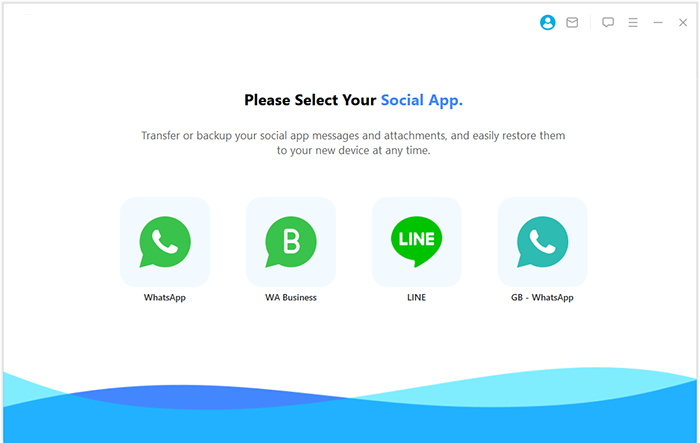
- Begin the process by downloading and installing Social App Transfer on your computer, and then open the application.
- In the left-hand menu, click on the "WhatsApp" icon.
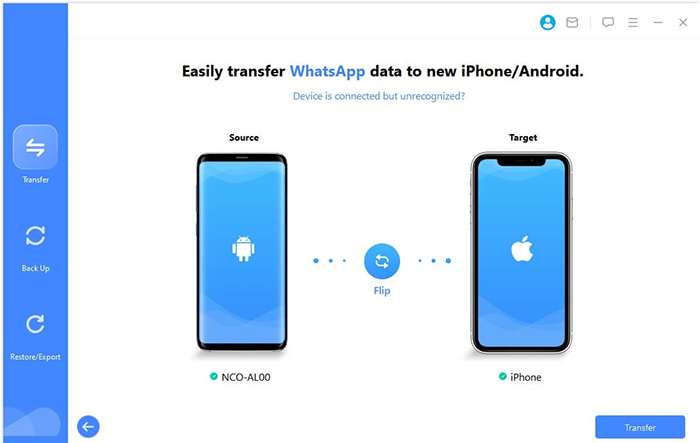
- Subsequently, connect both mobile devices (Android/iOS) to the computer using USB cables.
- Follow the provided instructions to ensure that the devices are recognized correctly.
- The smart software will promptly identify and display the devices, designating one as the source and the other as the destination.
- If the devices are assigned incorrectly, you can easily rectify this by clicking the "Flip" button on the interface.
- To commence the migration, click on "Transfer" located in the lower right corner.
You May Like: 5 Proven Ways to Transfer LINE Chat History to New Phone (iOS/Android)
Way 2: Copy WhatsApp Chats to Another POCO Phone via Built-in Chat Transfer Tool
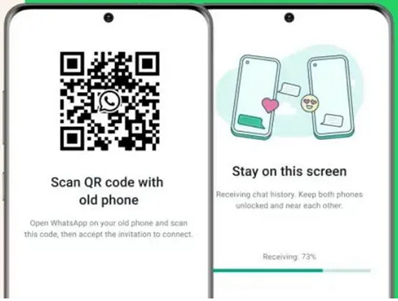
Moving WhatsApp data between POCO phones has never been easier with the Built-in Chat Transfer Tool. It allows a direct transfer over Wi-Fi, making the process fast and convenient. Users don't need a Google account or cloud backup to move chats and media. Simply scan the QR code on the new device, and the tool handles the rest seamlessly.
User Guide:
- Charge both POCO phones and connect them to the same Wi-Fi network.
- Install or update WhatsApp on both devices.
- Open WhatsApp on the new POCO and verify your phone number.
- Select "Transfer Chats from Nearby Device" when prompted.
- A QR code will appear on the new POCO.
- On the old POCO, go to Settings > Chats > Move Chats to Another Device and scan the QR code.
- Wait for the transfer to complete without disconnecting or closing WhatsApp.
- Once finished, all chats and media will appear on the new POCO.
Way 3: Transfer All WhatsApp Chats to New POCO Phone via Google Account
For those who prefer cloud-based solutions, a Google Account can store and restore WhatsApp backups. By creating a backup on the old POCO and logging into the same account on the new device, chats and media can be restored effortlessly. This method ensures that your WhatsApp account, including profile and settings, remains intact. It is particularly useful when transferring data across multiple devices or for long-term backup.
User Guide:
- On your old POCO, open WhatsApp > Settings > Chats > Chat Backup, select Back up to Google Drive, choose your Google account, and complete the backup.
- Turn on your new POCO, connect to Wi-Fi, and install WhatsApp.
- Log in with the same Google account used on your old phone.
- When prompted, select the backup from your old phone to restore.
- Choose the data you want to restore and wait for the process to complete; your chats and media will appear on the new POCO.
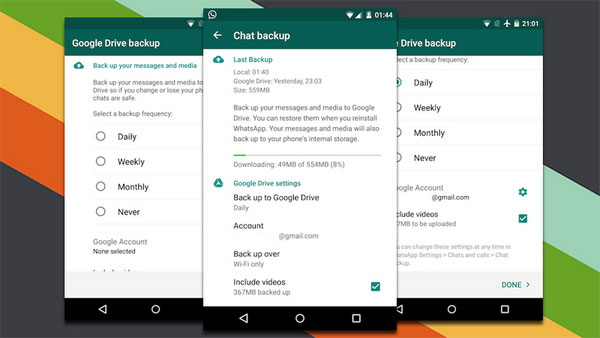
In addition to using a Google account to transfer WhatsApp chats from POCO to POCO, you can also use email for a simple transfer. First, open WhatsApp on your old POCO, go to Settings > Chats > Chat History > Export Chat, and choose the chat you want to send via email. Next, enter your email address, send the chat, and on the new POCO, open the email to view your exported WhatsApp chats-no Google account required.
Way 4: Get Old WhatsApp Data on New POCO Phone via LocalSend
Some users seek an offline, cross-device solution, and LocalSend fits perfectly in this scenario. It transfers WhatsApp backup files directly over Wi-Fi Direct, keeping the data private and fast. The app requires no internet connection, making it ideal for large media files. Once the backup is received on the new POCO, WhatsApp can restore the chats without relying on Google Drive.
User Guide:
- Install LocalSend on both old and new POCO phones.
- On the old POCO, open WhatsApp and go to Settings > Chats > Chat Backup, then tap Back Up.
- Open LocalSend on the old POCO, tap Send, and select the WhatsApp Databases folder from Internal Storage > WhatsApp > Databases
- On the new POCO, open LocalSend and tap Receive, then accept the files from the old phone.
- Place the received backup files in Internal Storage > WhatsApp > Databases on the new POCO.
- Install or open WhatsApp on the new POCO and verify your phone number.
- When prompted, tap Restore to retrieve your old chats.
- Wait for the restore process to complete; your WhatsApp chats and media will now appear on the new phone.
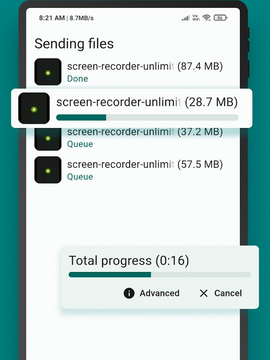
You can easily copy your WhatsApp account to another POCO using either the built-in Chat Transfer tool or LocalSend. This not only transfers your WhatsApp data, including chats and media but also allows you to move your WhatsApp account from one POCO to another without losing any information. Simply verify your phone number on the new device, follow the transfer prompts, and your account and data will be fully restored.
People Also Like: Top 7 Best LocalSend Alternatives to Help You Move Data Smoothly
FAQs about Transferring WhatsApp from POCO to POCO
Q1. Is LocalSend safe for transferring WhatsApp data to POCO?
Yes, LocalSend transfers files directly over Wi-Fi or Wi-Fi Direct without the internet, keeping your data private during the transfer.
Q2. Do I need to uninstall WhatsApp on the new POCO before restoring?
No, simply install WhatsApp and follow the restore prompts. If WhatsApp is already installed, make sure it's not set up with a different account before restoring.
Q3. Will media files be transferred along with chats?
Yes, using Google Drive backup, Chat Transfer tool, or LocalSend, your media files - like photos, videos, and voice messages - can also be transferred.
Q4. How long does it take to transfer WhatsApp data?
Transfer time depends on the size of your chat history and media. Local transfers via POCO's tool or LocalSend are usually faster than cloud-based Google Drive backups.
Q5. What if the POCO-to-POCO WhatsApp transfer fails?
Check that both phones are connected to Wi-Fi, have sufficient storage, and use the same phone number and Google account (if applicable). If problems persist, consider trying another method like LocalSend or email export.
In Conclusion
Upgrading to a new POCO phone can feel risky without a clear plan for WhatsApp data. The built-in Chat Transfer tool, Google account backup, LocalSend, and Social App Transfer all provide reliable ways to move chats and media safely. Following these steps ensures that your messages, photos, and videos remain intact and secure. Choosing the right method makes the transition smooth, letting you enjoy your new device with confidence.
Related Articles:
5 Most Reliable Methods to Hard/Factory Reset POCO Phone [2026]
POCO Phone Frozen? Let's Fix It with 12 Clever Methods [2026]
5 Simple Solutions to POCO Contact Backup & Restore [Verified]
How to Transfer Music from POCO to POCO Easily & Quickly? 4 Ways
