
POCO Phone Frozen? Let's Fix It with 12 Clever Methods [2026]
"Had the POCO F7 for just two years now, and it just sorta wants to die right now. Since two weeks ago, in a few occasions, the phone randomly says System UI not responding." -- from Reddit
Many POCO users occasionally encounter situations where their device becomes unresponsive or stuck, making it impossible to use normally. Experiencing a POCO phone frozen makes you feel embarrassed, especially when urgent tasks are pending.
Worry not! This article covers the potential causes and 11 quick fixes, helping you troubleshoot common freezing issues efficiently. Additionally, it introduces an ultimate way to restore your device safely when the basic fixes fail.
Part 1: Why Is My POCO Phone Frozen?
A frozen POCO phone can be caused by a variety of factors, ranging from software glitches to hardware issues. The following will explain the detailed reasons behind why your device may become unresponsive and freeze:
- Temporary system glitches - Minor software bugs or background conflicts can freeze the phone.
- Insufficient storage space - Low internal storage prevents smooth system operation.
- Problematic or incompatible apps - Poorly optimized or recent apps may cause unresponsiveness.
- Low or unstable battery - Aging or unstable batteries can affect performance and trigger freezes.
- Overloaded RAM - Running multiple apps or heavy games can exceed memory limits.
- Software bugs after updates - New updates may introduce glitches or incomplete installations.
- Corrupted cache or system data - Damaged temporary files interfere with system processes.
- Malware or aggressive adware - Hidden malicious apps can overload CPU and memory.
- Hardware issues - Battery, storage, or motherboard problems can cause persistent freezing.
Part 2: How to Fix POCO Phone Frozen Efficiently? [10 Quick Methods]
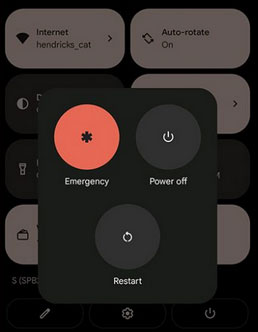
Fix 1: Force Restart POCO
A force restart is the quickest and most effective solution when your POCO phone is completely frozen and does not respond to touch or buttons normally. This method cuts off all running processes and refreshes the system without deleting any data.
- To do this, press and hold the Power button for about 10-15 seconds until the POCO logo appears. This action is safe and often resolves temporary system glitches, app crashes, or memory overloads that cause the screen to freeze.
Fix 2: Charge the Device
Low battery levels can cause your POCO phone to freeze, lag, or become unresponsive, especially if background processes are still running. Even if the battery indicator shows some power, voltage instability may still trigger freezes. (What if your phone doesn't charge?)
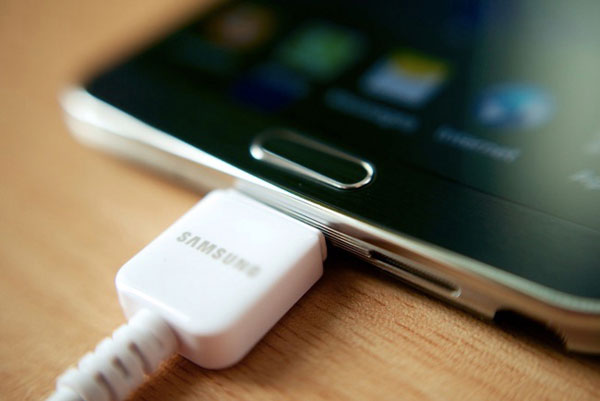
Quick Guide: Connect your phone to an original or certified charger, let it charge for at least 20-30 minutes, and then try turning it on again. Avoid using the phone while charging to allow the system to stabilize properly.
Fix 3: Remove the Phone Case and Accessories
Some third-party phone cases, magnetic covers, game triggers, or USB accessories can interfere with touch sensitivity, sensors, or background processes. Poor-quality cases may also trap heat internally, causing performance throttling even if the phone does not feel hot externally.
Removing all accessories allows the phone to operate under normal conditions and helps you determine whether the freeze is caused by external hardware interference rather than software faults.
Fix 4: Disable or Reduce Animations
MIUI and HyperOS use visual animations for transitions, multitasking, and app switching. On POCO devices with limited RAM or aging processors, these animations can overload the GPU and system memory, causing the interface to freeze momentarily.
By reducing or disabling animations through Accessibility or Developer Options, you lower the system's graphical workload, making navigation smoother and significantly reducing the chances of UI freezing during heavy usage.
Fix 5: Free Up Space on POCO
Insufficient storage space can severely affect system performance, leading to freezes, slow response, and app crashes. When internal storage is nearly full, the system cannot create temporary files required for smooth operation.
- Go to Settings > About phone > Storage, review what is taking up space, and delete unnecessary files such as cached data, unused apps, duplicate photos, or large videos. (Clearing space helps the system regain responsiveness and reduces the risk of future freezing.)
Misconfigured system app permissions or disabled services on POCO may freeze the system. Resetting app preferences restores defaults without deleting data. Path: Settings > Apps > Manage apps > Reset app preferences.
Fix 6: Disable Floating Windows & Picture-in-Picture
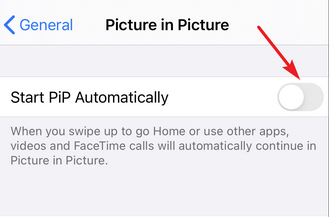
Floating windows, split-screen mode, and Picture-in-Picture (PiP) features allow apps to run on top of each other. While convenient, they consume extra RAM and can conflict with certain apps, especially video players or social apps.
Disabling these multitasking features reduces memory usage and prevents overlay conflicts, which are a common cause of screen freezes and touch unresponsiveness on POCO phones.
Fix 7: Switch Launcher or Reset Launcher Data
The launcher manages the home screen, app drawer, widgets, and gestures. If the launcher cache becomes corrupted or a launcher update introduces bugs, the phone may freeze on the home screen or stop responding to gestures.
Switching to the default POCO Launcher or clearing the launcher's data resets its configuration and often resolves freezes without affecting apps or personal files.
Fix 8: Check Apps in Safe Mode
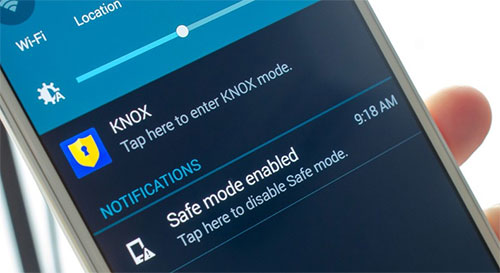
Safe Mode allows your POCO phone to run using only built-in system apps, temporarily disabling all third-party applications. If the phone works normally in Safe Mode, the freeze is likely caused by a recently installed or poorly optimized app.
- To enter Safe Mode, press and hold the Power button, then tap and hold Power off until Safe Mode appears.
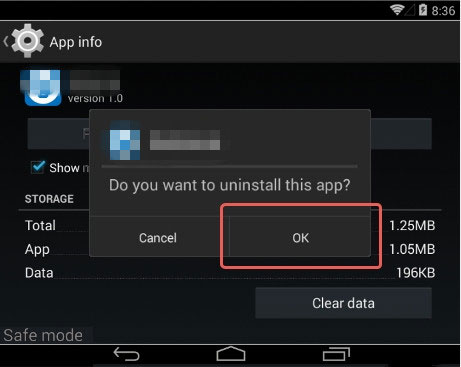
- Once inside, observe the phone's performance. If it runs smoothly, uninstall suspicious or recently added apps after exiting Safe Mode.
Note: If Safe Mode fails to fix a frozen POCO phone, try clearing the cache partition from Recovery Mode. This process deletes temporary system data that can cause issues without affecting your personal files. It is a common troubleshooting step to resolve performance and freezing problems.
Fix 9: Scan for Malware or Adware
Malware and aggressive adware can secretly run background processes, display hidden overlays, or repeatedly access system resources, causing the phone to freeze or lag severely. These apps often disguise themselves as wallpapers, launchers, or utility tools.
Running a security scan helps identify and remove malicious apps, restoring system responsiveness and preventing future freezes caused by unauthorized background activity.
Fix 10: Perform a Factory Reset
When freezing is caused by deep system conflicts, corrupted settings, or long-term software instability, a factory reset provides a clean slate. This removes all apps, user data, and custom settings, eliminating hidden causes of system freezes.
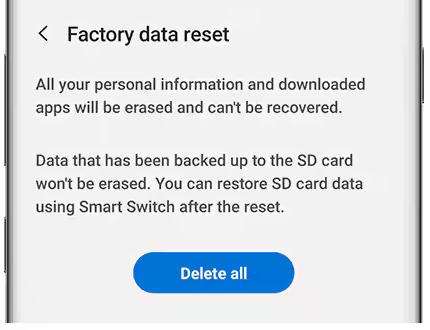
After resetting, avoid restoring apps in bulk. Install apps gradually to ensure the freezing issue does not return due to a problematic app.
If a factory reset doesn't resolve a frozen POCO phone, try updating the device's software next. Installing the latest software version can fix underlying system issues that a reset alone may not address. You can update through the Settings menu or by using the official MIUI recovery tool if the phone remains unresponsive.
Fix 11: Turn to Customer Support
If your POCO phone continues to freeze despite trying all software-based solutions, the issue may be hardware-related. Common causes include battery degradation, motherboard faults, overheating components, or screen issues.
Visit the POCO official support or a reputable repair shop to have professionals check the hardware and battery condition. This ensures accurate diagnosis and prevents further damage caused by repeated freezes.
Part 3: Troubleshoot POCO Phone Frozen with the Highest Success Rate
Frozen or unresponsive POCO phones can be quickly restored to normal with Android Repair. This intelligent program supports multiple POCO series and fixes system issues without requiring root access or technical skills. Known for its highest success rate, it provides a fast, safe, and reliable solution for various POCO device problems.
What Can Android Repair Help You with?
|
Feature
|
Description
|
|
Fix Various Android Issues |
Resolve problems like black screen of death, boot loop, and other system errors. |
|
Quick Download Mode Access |
Easily enter Download Mode (Odin) on Samsung devices for free. |
|
Device Compatibility |
Supports Samsung, Xiaomi, Redmi, POCO Series, such as C (C75/C71/C65…), M (M7 Pro/M6+/M6 Pro 5G…), X (X7 Pro/X6 Neo/X6 Pro…), F (F7 Ultra/F7 Pro/F6 Pro…), etc. |
|
User-Friendly |
No technical skills or root access required - anyone can use it. |
|
Data Safety |
Guarantees 100% no data loss for Xiaomi, Redmi, and POCO device repairs. |
|
Fast Repair Process |
Quickly restores devices to normal without long waiting times. |
|
Reliable & Stable |
Trusted tool for repairing Android systems without causing further issues. |
How to Fix a Frozen POCO Phone Using Android Repair?
- Start by installing and launching Android Repair on your computer. Then, choose "System Repair" from the program window and connect your POCO phone to the computer using a USB cable.
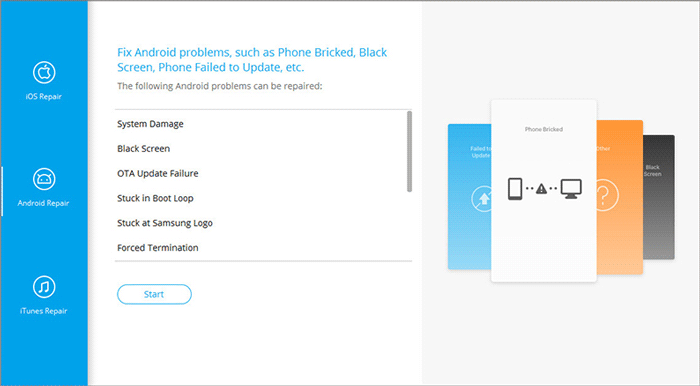
- From the left menu, select "Android Repair." The tool will present the various issues related to POCO that it can address. Review the available options and click on "Start."
- In the next window, enter your device information and click "Next" to continue. Input "000000" in the specified field and select "Confirm."
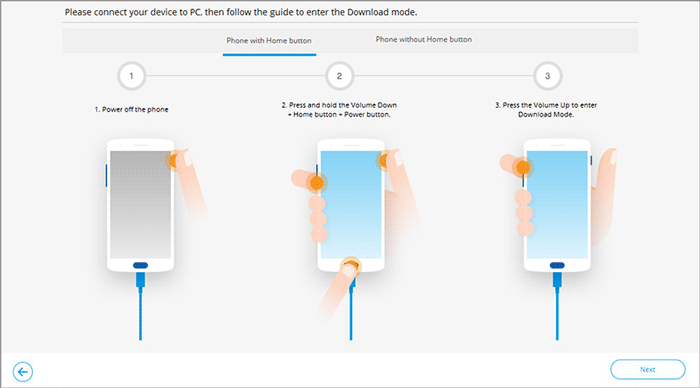
- (Optional) Case 1: For devices with a "Home" button: Power off the device, then simultaneously press the "Sprint," "Home," "Power," and "Volume Down" buttons for about 10 seconds. Release all buttons and press "Volume Up" to enter download mode.
- (Optional) Case 2: For devices without a "Home" button: Power off the device, then press and hold the "Power," "Bixby," and "Volume Down" buttons for approximately 10 seconds; after releasing, press "Volume Up."
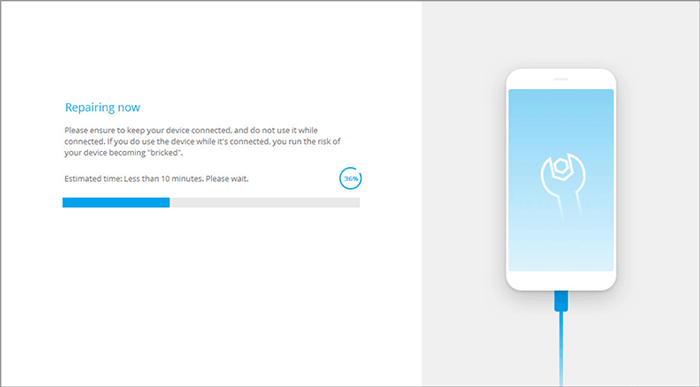
- Once the POCO is in download mode, click "Next" to start the firmware download. Finally, the software will automatically begin the repair of the frozen POCO.

Completion
Admittedly, the 11 quick solutions can resolve some issues. Yet, Android Repair offers the best solution for a frozen POCO phone - not just because of its highest success rate and professional reliability, but also due to its user-friendly design, compatibility with multiple POCO series, zero-root requirement, and ability to repair devices without data loss.
With this top-notch tool, even complex system freezes are handled safely, making it the ultimate choice for restoring your POCO phone to normal.
Related Articles:
Full Guide on How to Fix the iPhone Frozen Issue
5 Simple Solutions to POCO Contact Backup & Restore [Verified]
4 Effective Strategies to Unlock POCO Phone without Effort
POCO Data Recovery without Root: Discover 5 Optimal Tools Here
