
Can't Open HEIC Photos on Windows 11? Try These 4 Fixes
TL;DR:
If HEIC files won't open on Windows 11, install the required extensions or convert them to JPG/JPEG/PNG for easier viewing.
- Check whether missing HEIF Image Extensions, HEVC support, or Photos app issues are preventing your images from opening.
- Install HEIF Image Extensions from Microsoft Store, add HEVC Video Extensions if needed, or go to Settings > Apps > Installed apps > Microsoft Photos > Advanced options > Repair.
- Use MobiKin HEIC to JPG Converter to batch-convert HEIC photos to JPG/JPEG/PNG, adjust output quality, and select a destination folder.
You transfer a few photos from your iPhone to your Windows 11 PC, expecting to view them right away, but nothing happens when you open them. Sometimes, Windows asks you to install an extension; other times, the Photos app simply refuses to display the image. The good news is that you don't have to give up on those pictures or change your entire setup. This guide explains why HEIC files won't open on Windows 11 and shows you how to fix the problem, including converting HEIC images to JPG or PNG.
Part 1: Why Won't HEIC Files Open on Windows 11?
If you've transferred photos from your iPhone to a Windows 11 PC but can't open them, the problem may be related to missing codecs or an app issue. Here are the most common reasons:
- Missing HEIF Image Extensions. Windows 11 may lack the components needed to open HEIC files, resulting in an unsupported format error.
- Missing HEVC Video Extensions. Some HEIC images also require HEVC decoding support to display correctly.
- A malfunctioning Photos app. An outdated or faulty Photos app may fail to open HEIC images even when the required extensions are installed.
- Corrupted HEIC files. If a photo wasn't transferred or downloaded properly, Windows may not be able to read it.
Part 2: How to Fix HEIC Files That Won't Open on Windows 11
Fix 1: Install HEIF Image Extensions
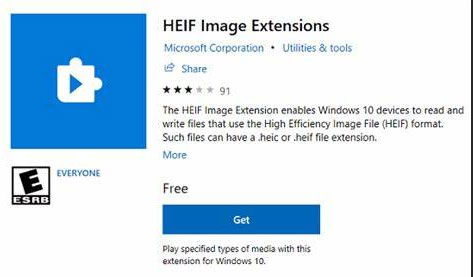
Windows 11 may not be able to open HEIC photos because the required image extension is missing. Installing the HEIC viewer - HEIF Image Extensions from the Microsoft Store can help you view these files without converting them to another format.
- Open the Microsoft Store on your Windows 11 PC.
- Search for "HEIF Image Extensions".
- Select the extension and click "Get" or "Install" to download it.
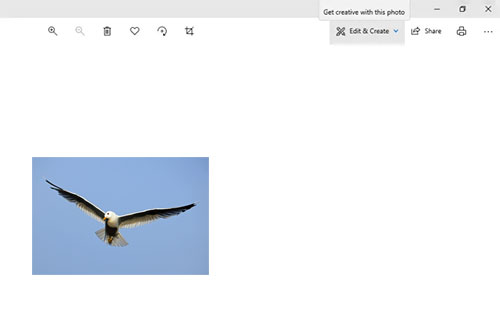
- Once installed, reopen your HEIC photo using the Photos app.
Fix 2: Install HEVC Video Extensions if Needed
If installing HEIF Image Extensions doesn't solve the problem, your PC may also need HEVC Video Extensions. Some HEIC images rely on HEVC decoding support, so missing components can prevent them from opening correctly.
- Open the Microsoft Store on your Windows 11 PC.
- Search for "HEVC Video Extensions".
- Check the available version and click "Get" or "Install" if needed. Depending on your device and region, the extension may require payment.
- After installation, restart the Photos app and try opening the HEIC image again.

Fix 3: Update or Repair the Windows Photos App
If you've installed the required extensions but still can't open HEIC images, the Windows Photos app may be outdated or malfunctioning. Try updating or repairing it before moving on to another solution.
- Open the Microsoft Store, select "Library", and check for updates. Install any available update for Microsoft Photos.
- If the problem persists, open "Settings" > "Apps" > "Installed apps".
- Find "Microsoft Photos", click the three-dot menu next to it, and select "Advanced options".
- Click "Repair" and wait for Windows to finish. This won't affect the app's data.
- Reopen Photos and try opening your HEIC file again.
If repairing the app doesn't help, you can try "Reset" in the same menu. If the file still won't open, converting it to JPG is another option.
Click to Explore:
Fix 4: Convert HEIC to JPG/JPEG/PNG with MobiKin HEIC to JPG Converter
If Windows 11 still won't open your HEIC photos, converting them to JPG or PNG is another option. MobiKin HEIC to JPG Converter lets you convert individual photos or batches of HEIC files into more widely supported formats. You can also adjust image quality and preserve EXIF data, making it easier to view and manage your iPhone photos on your PC.
Key Features of MobiKin HEIC to JPG Converter:
- Convert HEIC to JPG, JPEG, or PNG for better compatibility with Windows and other devices.
- Batch convert multiple HEIC photos at once to save time.
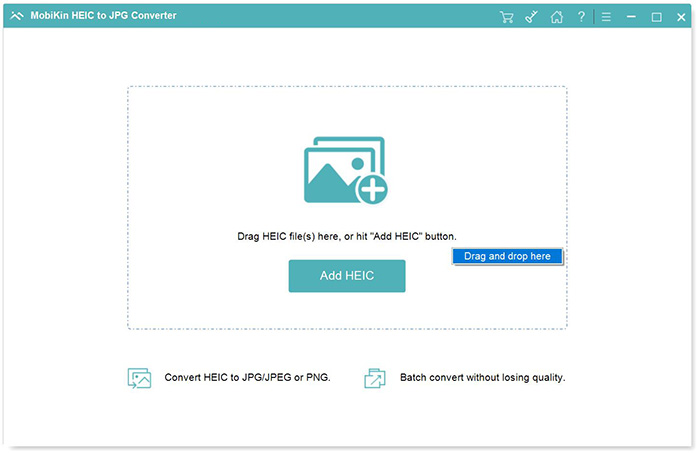
- Add images by clicking "Add HEIC" or dragging and dropping files into the program.
- Adjust the output quality to suit your needs.
- Preserve EXIF metadata, including camera details and photo date, when supported by the output format.


How to Convert HEIC to JPG/JPEG/PNG with MobiKin HEIC to JPG Converter?
Step 1. Download and install MobiKin HEIC to JPG Converter on your Windows 11 PC, then launch the program.
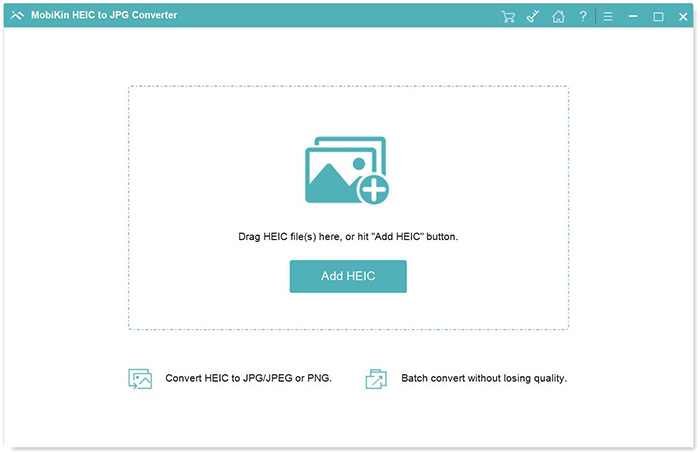
Step 2. Click "Add HEIC" to import your photos, or drag and drop the files into the program.
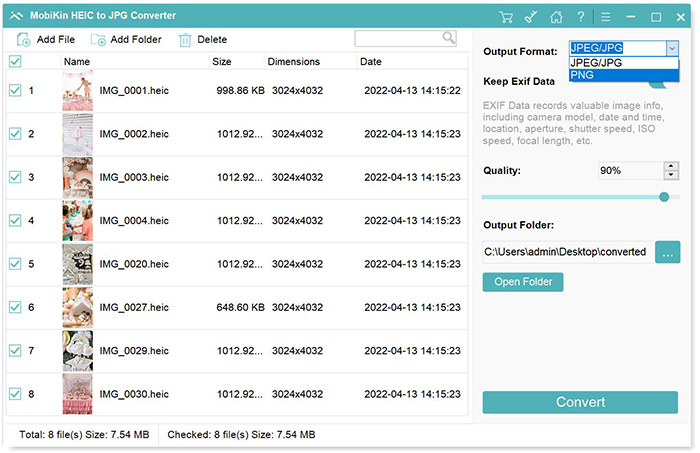
Step 3. Select the images you want to convert, then choose "JPG/JPEG" or "PNG" under "Output Format". If needed, adjust the image quality, enable "Keep Exif Data", and choose a destination folder.
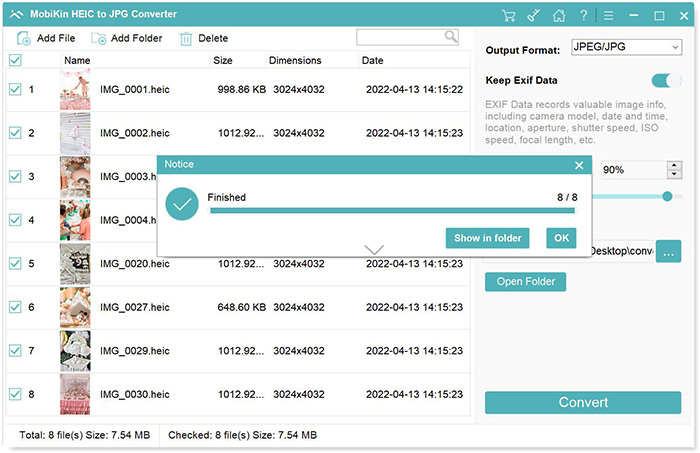
Step 4. Click "Convert" to start converting the images. Once the process finishes, click "Show in folder" to find your converted photos and open them in Windows.
Video Guide:
FAQs About HEIC Files Not Opening on Windows 11
Q1: Can I open HEIC files on Windows 11 without installing extensions?
Yes. You can use a third-party tool that supports HEIC or convert the files to JPG or PNG. If you have many photos to process, MobiKin HEIC to JPG Converter lets you convert multiple images at once without relying on Windows' built-in HEIC support.
Q2: Why do my HEIC photos appear as black thumbnails in Windows 11?
This usually happens when Windows cannot decode the HEIC format or File Explorer hasn't refreshed its thumbnail cache. Check that the required extensions are installed. If the photos still appear black, try opening them in Photos or converting them to JPG to see whether the images themselves are intact.
Q3: How do I convert HEIC to JPG on Windows 11?
You can use MobiKin HEIC to JPG Converter. Install and open the program, add your HEIC photos, select JPG as the output format, choose a destination folder, and start the conversion. You can then open the converted images using Windows Photos or other common image viewers.
Q4: Will converting HEIC to JPG reduce image quality?
It can. JPG uses lossy compression, so some image data may be lost during conversion. The difference depends on the output quality setting. To retain more detail, choose a high-quality setting when converting. Keep your original HEIC files if you want to preserve the original image data.
Closing Remarks
HEIC files refusing to open on Windows 11 doesn't mean your photos are damaged. In many cases, installing the right extensions or repairing the Photos app is enough to get them working. If Windows still can't read the images, converting them to JPG or PNG with MobiKin HEIC to JPG Converter offers another practical solution. Choose the method that fits your situation, and you'll be able to view and manage your photos with less hassle.
Related Articles:
Quick Steps: How to Print HEIC Photos on Windows & Mac
Top 4 HEIC to PNG Converters in 2026: Online & Desktop