
iBackupBot Review: Best iTunes Backup Manager Alternatives
iBackupBot is an iTunes utility designed to help users view and export text messages, notes, and contacts, as well as back up and restore data on iPhones, iPads, and iPods. By accessing iTunes backup files on your computer, it offers more control than Apple's default tools, making it very useful for users who need to extract specific information. However, iBackupBot is not suitable for everyone.
On this page, we have collected real user reviews of iBackupBot and introduced several reliable alternatives to help you compare different options and find the most suitable solution for more efficient management, backup, and restoration of your iOS data.

Part 1: What is iBackupBot for iTunes?
iBackupBot, also known as iBackupBot for iTunes, is a tool designed to help you browse, view, export, and edit files stored in iTunes backups. In simple terms, it works as an iTunes and iOS data manager, allowing you to access iTunes backups and manage iOS data directly on your computer. This iTunes helper supports a wide range of data types, including text messages, notes, call history, contact favorites, voicemail, widget settings, and more.
To sum up, here is what iBackupBot can do for you:
- Browse all backup files saved in iTunes.
- View, edit, and export data such as texts, SMS messages, notes, call history, address book, media files, voice memos, voicemail, photos, app files, and more.
- Transfer app data files from an iTunes backup directly to an iPad, iPhone, or iPod touch.
- Delete a single call history record from your device.
- Remove recently used email addresses.
- Transfer data between iOS devices using iOS backups.
Part 2: How to Use iBackupBot to View iPhone Backups?
In this part, you will learn how to use iBackupBot to view iPhone backups on your computer.
Step 1: Make sure you have already backed up your iPhone using iTunes. iBackupBot is a desktop program, so you need to install it on your computer first. The hardest part for many users is finding where the iTunes backup is stored. By default, iTunes saves backups in:
- C:/Users/YOURUSERNAME/AppData/Roaming/MobileSync/Backup on Windows
- ~/Library/Application Support/MobileSync/Backup on Mac.
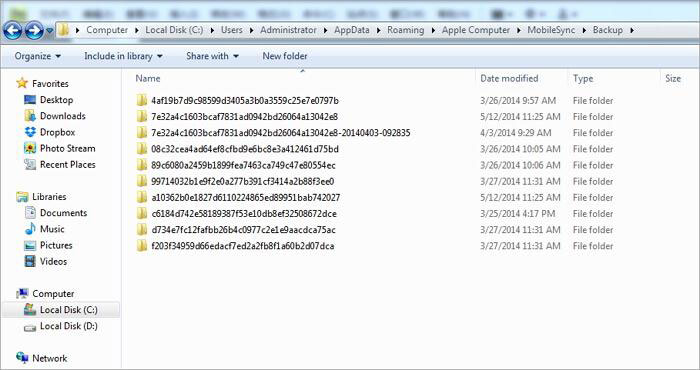
If you are not sure, open iTunes, go to "Preferences", and check the backup location there.
Step 2: Launch iBackupBot and click the "Folder" button on the toolbar. Navigate to the backup location and select the latest iOS backup. If the backup contains a large amount of data, it may take some time to load.
Step 3: Once the backup is loaded, you will see a file browser showing the entire backup database. Since all data is mixed together, it may look a bit messy at first. Thankfully, the buttons on the top ribbon let you filter specific data types. For example, click the "Note" button to view all notes from your iOS device.
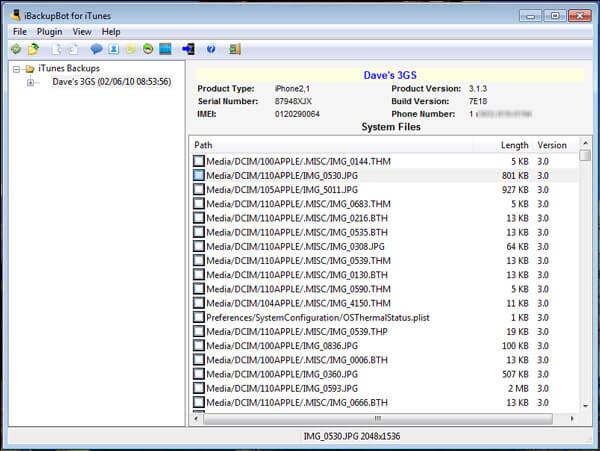
Step 4: In the "Notes Editor", you can browse notes by date or contact name. Select a note and its content will appear in the right pane. To save a note to your computer, click the "Copy" button and choose an export option, such as exporting as the original database file, a text file, or an Excel file.
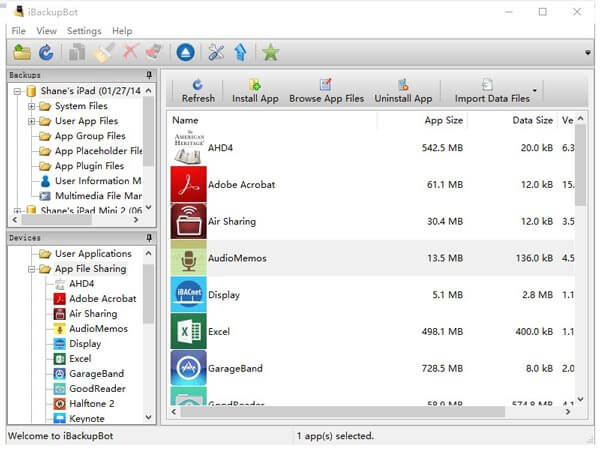
Step 5: Besides exporting data, iBackupBot also allows you to edit content directly within the backup. To edit a note, select it, click the "Edit" button, modify the content, and then save the changes back to the iPhone backup.
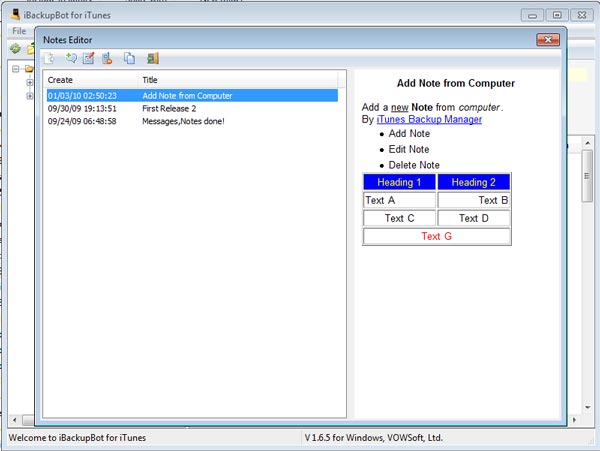
Step 6: Another useful feature is that you can not only access the backup database, but also organize data from newest to oldest, as well as save or print copies. For example, to manage SMS messages, open the SMS Message Viewer, select a conversation, and click "Date" to sort text messages.

Part 3: iBackupBot Review
iBackupBot offers more ways to manage iTunes and iOS data. Below is an objective review of iBackupBot.
Pros:
- It helps back up iPhone, iPad, and iPod data from iTunes to a computer.
- It makes editing the address book on a computer simple.
- It can work as an iOS transfer tool to move data from a backup to another iOS device.
- It allows you to view iTunes backups directly on a computer.
Cons:
- It does not support direct data transfer between iOS devices.
- It is paid software and quite expensive, although it does offer a free trial.
- Errors may occur when restoring password encrypted backups.
- The interface is not very user friendly, especially when displaying text descriptions.
Part 4: Best Alternative for iBackupBot
If you are looking for an alternative to iBackupBot, MobiKin Doctor for iOS is one of the best tools for extracting data from an iPhone or iOS backups with just one click. Below are its key features.
Key features of Doctor for iOS:
- Works in various situations. It can open backups made by iTunes, access iCloud backups, and even recover data directly from an iPhone without any backup.
- Preview for selective recovery. You can view all data in iPhone backups by category and export only the files you need in proper formats.
- Supports more data types. It can recover almost all data from iOS backups, including contacts, call history, messages, photos, videos, music, voice memos, notes, calendars, and more.
- High compatibility. This iBackupBot alternative works with all iPhone and iPad models, including iPhone 17, 16, 15, 14, 13, 12, 11, X, 8, 7, and 6.
- Lossless recovery. One major advantage of Doctor for iOS is that it restores data to your computer without affecting the existing data on your device.
- Available on both Windows and Mac.


How to use iBackupBot alternative to recover data from iPhone/iPad:
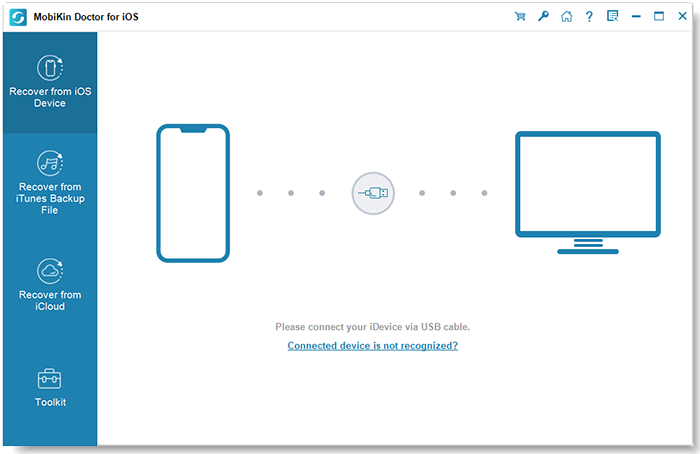
Step 1: Download and install Doctor for iOS
Download and install the latest version of MobiKin Doctor for iOS from the official website. Then launch the program and you will see three recovery modes available, each designed to help you access different types of iOS data. Here, we take extracting data from iTunes backup as an example.
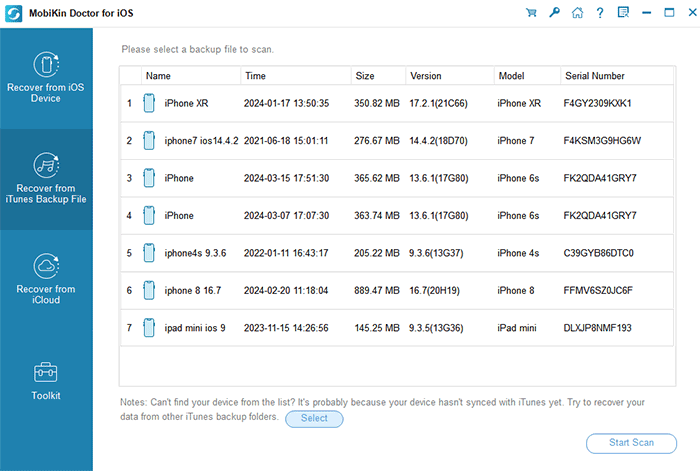
Step 2: Choose a recovery mode
Select "Recover from iTunes Backup File". A list of available backup files will appear on the screen. Choose one backup and click "Start Scan" to scan the entire backup and extract specific files.
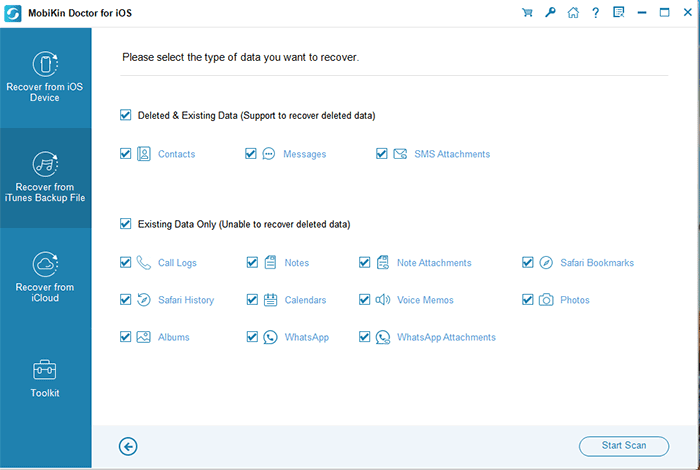
Step 3: Select data to restore from iPhone
After the scan is complete, all files stored in the iTunes backup will be displayed. Find the files you need and click the "Start Scan" button on the bottom right.
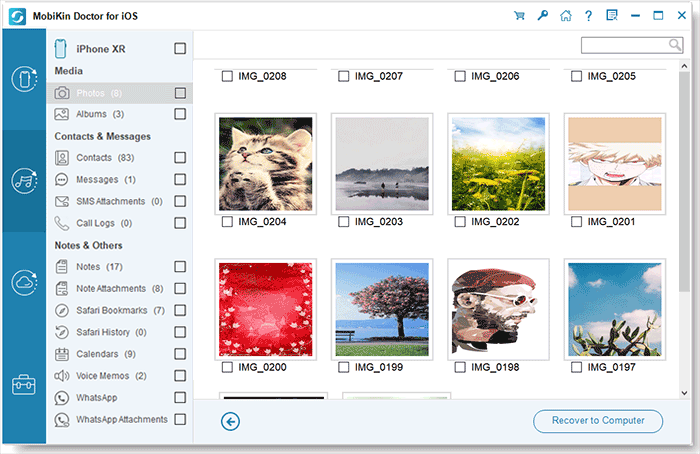
Step 4: Start to recover iPhone data to computer
Preview and select the data you want to get back, and click the "Recover to Computer" button to save them from the iTunes backup to your computer. Afterward, you can sync the recovered files back to your iPhone and keep them safely backed up on your computer.
Video Guide:
Words in the End
Based on the information above, you should now have a clear understanding of iBackupBot. As a backup manager for iOS devices, it lets you open and access iPhone backups on your computer. You can also export and edit iOS data freely. Whenever you want to extract data from an iTunes backup, you can follow the guide provided in this post. We hope that our introductions and reviews are useful to you.
Related Articles:
Top 9 Best PhoneCopy Alternatives/Similar Apps [Pros/Cons]
10 Best AirDrop Alternatives for Windows/iOS/Android/Online
