
Smart Switch Failed to Connect the Device? 8 Optimal Solutions Here
"I'm trying to use Smart Switch to transfer my data from an iPhone to my S26 Ultra, however when I plug the USB C into the S25, the app is telling me to plug in a cord to transfer." -- from Reddit
The message Smart Switch Failed to Connect the Device often appears when users try to transfer data between phones, causing frustration. Common issues include the phone not being detected, transfers stopping unexpectedly, or errors caused by USB, driver, or compatibility problems. This guide will cover 8 basic solutions to restore the connection and introduce 1 greater alternative for smoother, more reliable transfers.
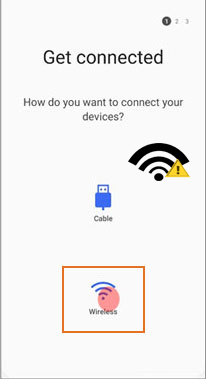
Part 1: Why Is the Samsung Smart Switch Not Connecting
When trying to transfer data using Samsung Smart Switch, connection failures can be frustrating and interrupt your workflow. Understanding the common causes - ranging from USB issues and outdated drivers to device compatibility and permission restrictions - can help you quickly identify and resolve the problem. Here are some of the causes:
- USB or Cable Issues - A loose, damaged, or charge-only USB cable can prevent your phone from being detected.
- Outdated or Missing Drivers - On Windows or Mac, outdated MTP/USB drivers may block proper communication
- Device Compatibility - Smart Switch requires supported OS versions on both devices; incompatible phones or PCs can fail to connect.
- USB Settings on Phone - If your phone is set to "Charge Only" instead of "File Transfer (MTP)," Smart Switch cannot access data.
- Security or Permission Restrictions - Firewalls, antivirus software, VPNs, or not allowing the device access/trust can block the connection
- Conflicting Software - Programs like Samsung Kies, Android emulators, or ADB tools may interfere with Smart Switch.
- Wireless or Network Problems - For Wi-Fi transfers, unstable or weak internet/Wi-Fi connections can prevent pairing.
Part 2: How to Fix Smart Switch Failed to Connect the Device in 8 Ways
Fix 1: Check the Devices' Compatibility
Ensure your phone's OS is supported (e.g., Android 5.0+/iOS 5.0+ and the Smart Switch app installed), and that the computer meets the Smart Switch requirements (Windows 10+/macOS 10.9+). Unsupported or outdated operating systems on either device can stop the connection before it begins. Updating Smart Switch on both sides usually resolves compatibility conflicts before trying again.
Fix 2: Check the USB connections and cables
Make sure the USB cable is fully and securely plugged into both your computer and your phone - a loose connection can prevent detection. Not all USB cables support data transfer, so try a different, high-quality cable and avoid USB hubs or adapters that might interrupt communication.
Also test another USB port on your computer in case the first port isn't functioning properly, as sometimes individual ports fail to establish a reliable link. If it fails, update the software when prompted.
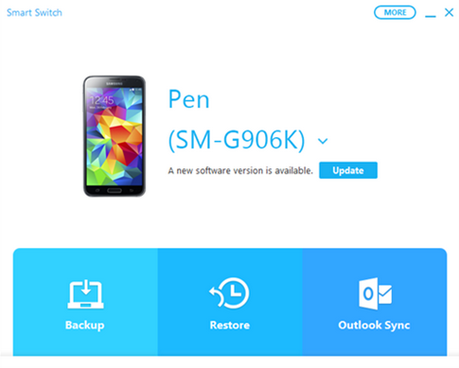
Fix 3: Check Internet Connection
Smart Switch needs a stable Internet connection when you're using Wi-Fi transfer, so check that your phone or PC is properly connected and not dropping the signal. Try loading a webpage or running an internet speed test to see if the connection is strong and consistent, and restart your router if it seems weak or unstable.
If your Wi-Fi is unreliable, switching to a different network or to mobile data before retrying can help Smart Switch connect successfully.
Note: Wireless transfers may fail due to corrupted or conflicting network settings. Resetting network settings clears old Wi-Fi and Bluetooth configurations. After the reset, reconnect to your Wi-Fi network and try Smart Switch again. This process does not delete personal data, only connection settings.
Fix 4: Make sure your USB is set for file transfer
To fix Smart Switch failed to connect, unlock your phone and swipe down to open the notification panel, then tap the USB option and select File Transfer (MTP). This ensures your device allows data access instead of charging only, which is required for Smart Switch by Samsung Electronics to detect your phone properly.
Outdated or damaged USB/MTP drivers can prevent your computer from recognizing your phone properly. Open Device Manager, find your device under Portable Devices or USB controllers, and update the driver. After completing the update, restart your computer to refresh the connection. This helps Smart Switch communicate correctly with your phone.
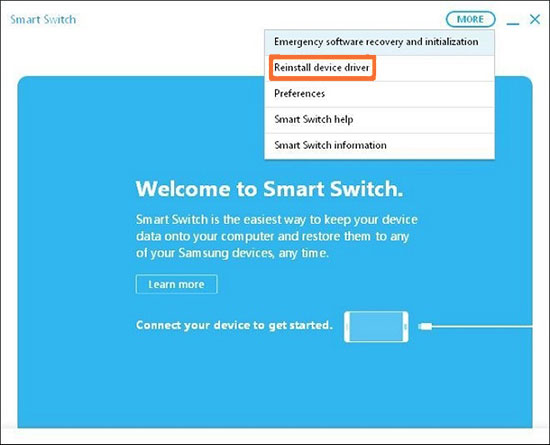
Fix 5: Allow access to your data
Unlock your phone and look for the "Allow access to data" or "Trust this device" prompt after connecting it to your computer. Tap Allow or Trust when the message appears, then reopen Smart Switch from Samsung Electronics so it can read and transfer your data properly.
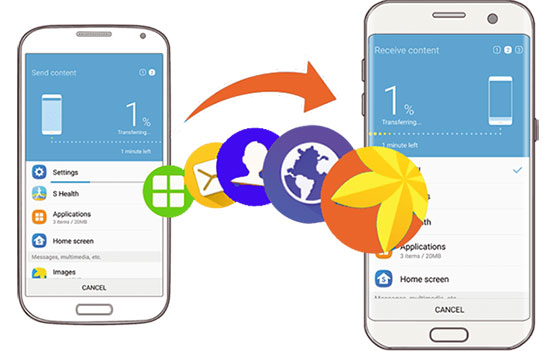
Fix 6: Reinstall Samsung Smart Switch
- First, uninstall the existing Smart Switch from your computer via Control Panel > Programs > Uninstall a program on Windows, or by dragging it to the Trash on Mac.
- Next, visit the official Samsung Electronics website and download the latest version of Smart Switch.
- Install it fresh, then reopen the program and reconnect your device - this often resolves connection problems caused by corrupted or outdated software.
Fix 7. Temporarily Disable Firewall, Antivirus, or VPN
Security software and VPNs may block Smart Switch's background services. Try pausing your antivirus, firewall, or VPN before reconnecting your device. Then reopen Smart Switch and attempt the transfer again. If this works, add Smart Switch to the trusted or whitelist section of your security software.
Fix 8. Close Conflicting Software
Other phone management tools can interfere with Smart Switch's connection. Programs like Kies, Android emulators, or ADB services may take control of the USB port. Open Task Manager and close these related processes. Restart Smart Switch afterward to ensure it connects without interference.
Part 3: Smart Switch Failed to Connect the Device? Try Its Best Replacement
When Smart Switch fails to connect, transferring data between devices can become stressful and unreliable. MobiKin Transfer for Mobile (Windows/Mac) provides a smooth way to move contacts, messages, photos, videos, and other files across Android and Apple devices without worrying about compatibility issues.
Its stable USB and wireless transfer options make switching devices quick and secure, ensuring important data is preserved throughout the process.
With just one click, data from almost any smartphone can be transferred in batches to Samsung (The latest Galaxy S26 included) or other Android/iOS devices, including contacts, music, videos, photos, SMS, call logs, documents, apps, and more. It's simple to use, ensures a high success rate while protecting your privacy, and has already been trusted by over 740,000 users.
How to use the most reliable Smart Switch alternative to transfer data from one phone to a Samsung device?
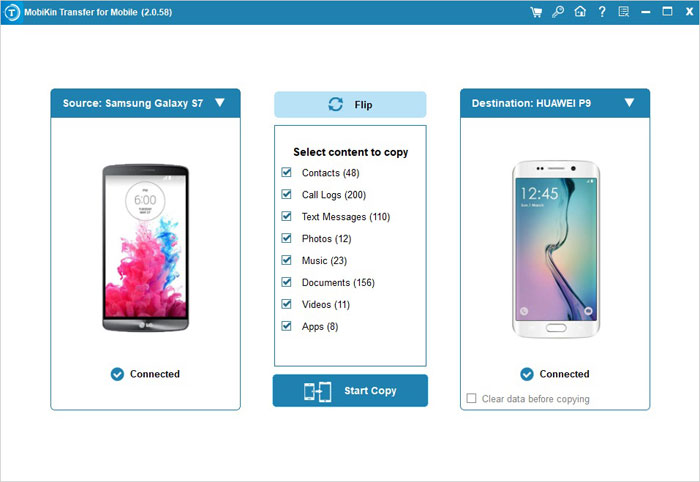
- Download and install the trial version of MobiKin Transfer for Mobile, then launch it on your computer to view the initial interface.
- Connect both of your Samsung/Android/iPhone devices to the PC using USB cables, and the tool will quickly detect them. (Wrongly displaced? Click "Flip" to exchange their positions)
- Subsequently, you will see the transferable files listed in the menu below.
- Select the file types you wish to migrate.
- Then, click Start Copy to initiate the data transfer from one the source device to Samsung.


Video Directions:
Final Thoughts
If the standard fixes do not resolve the problem, MobiKin Transfer for Mobile provides a secure and efficient way to transfer contacts, messages, photos, videos, and more between devices without compatibility worries.
As an extra tip, always check that your USB cables and ports are in good condition and your phone is unlocked during transfers, since even minor connection issues can interrupt data migration.
Related Articles:
How to Transfer WhatsApp Data from iPhone to Samsung? 6 Options
5 Optimal Ways to Transfer Calendar from Samsung to Samsung
Samsung Phone Not Connecting to PC/Computer? 7 Troubleshooting Tips
