
How to Fix InShare Not Open Quickly? Reasons & 9 Workarounds
Many users encounter the frustrating situation where InShare refuses to open, as the app sometimes fails to launch on Android devices, leaving users unable to share or receive files. Understanding why this happens is crucial, as it allows users to identify the specific reason and quickly fix the problem without unnecessary trial and error.
This passage outlines the underlying causes behind InShare not opening and provides 9 practical solutions to help restore InShare's functionality.
- Part 1: Why Can't InShare Be Opened
- Part 2: How to Fix InShare Not Opening in 9 Efficient Ways
> 1. Restart Your Device
> 2. Clear Cache and Data
> 3. Update InShare
> 4. Check App Permissions
> 5. Free Up Storage Space
> 6. Disable Battery Optimization
> 7. Reset App Preferences
> 8. Check Internet Connection
> 9. Update Your Android System - Part 3: How to Use the Best Replacement for InShare [Smooth]
Part 1: Why Can't InShare Be Opened
Sometimes InShare fails to open because of problems with the app or the device. These could include:
- Cache or data corruption - Corrupted cache or app data can cause crashes.
- Corrupted installation files - Damaged or incomplete app files can prevent it from opening.
- Insufficient storage or memory - Low storage or RAM may stop the app from launching.
- App or system update issues - Outdated apps or OS versions can cause compatibility problems.
- Conflicting apps - Other apps, especially security or optimization tools, can interfere.
- Permission restrictions - Disabled permissions can block the app from running.
- Network issues - Weak or unstable internet can affect app functionality.
- System glitches - Temporary software bugs may stop the app from opening.
- Device compatibility - Older devices or Android versions may not fully support it.
- Malware or security restrictions - Security apps or policies may block the app.
You May Also Need: An Unbiased InShare Review: Is It Worth the Effort? [Fixed]
Part 2: How to Fix InShare Not Opening in 9 Efficient Ways
1. Restart Your Device
Restarting your phone is one of the simplest yet effective ways to fix app issues. When you reboot, all background processes are stopped, temporary system glitches are cleared, and memory is refreshed. This often resolves minor conflicts between apps or system services that may prevent InShare from opening.
2. Clear Cache and Data
Over time, apps accumulate cached files to speed up operations. However, corrupted cache can prevent apps from launching.
How-to Guide:
- Go to Settings > Apps > InShare > Storage.
- Tap Clear Cache first to remove temporary files.
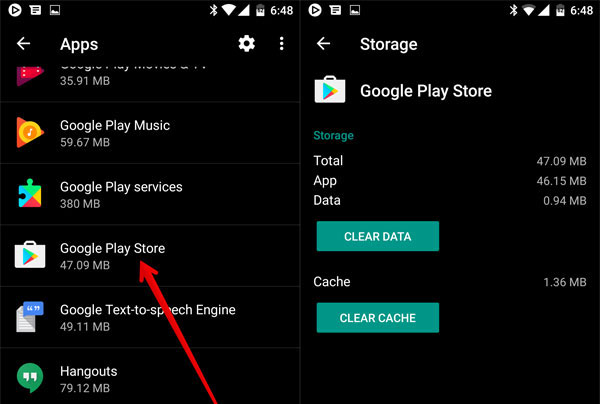
Note: If InShare still doesn't open, tap Clear Data. Clearing data will reset the app, so you may need to log in again or reconfigure settings.
3. Update InShare
Using an outdated version of InShare can cause compatibility issues with your device's Android version. Developers frequently release updates to fix bugs and improve performance.
How-to Guide:
- Open Google Play Store, search for InShare, and tap Update if available. If the Play Store doesn't offer an update, check the official InShare website or a trusted app repository for the latest version.
Corrupted installation files can stop InShare from opening, so reinstalling the app ensures you have a fresh, clean version. To do this, uninstall the app by long-pressing its icon, then restart your phone before downloading and installing it again from the Google Play Store or the official website. This also resolves issues caused by incomplete or faulty updates.
4. Check App Permissions
InShare requires permissions to access storage, media, and sometimes location to share files properly. Without these permissions, the app may crash at launch.
How-to Guide:
- Go to Settings > Apps > InShare > Permissions.
- Ensure Storage, Files, Location, and any other requested permissions are enabled.
- Sometimes toggling the permission off and back on can refresh access.
5. Free Up Storage Space
Apps may fail to open if your device storage is almost full. Android needs free space for temporary files and system processes.
How-to Guide:
- Check storage via Settings > Storage.
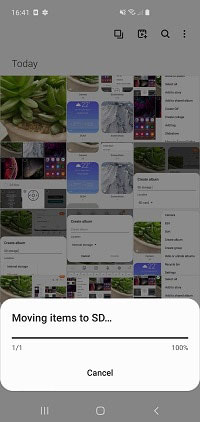
- Delete unused apps, videos, photos, or transfer media to SD card or cloud storage.
- Keep at least 500 MB to 1 GB of free space to ensure smooth app functioning.
6. Disable Battery Optimization
Battery saver features can restrict background activity and prevent apps from functioning normally.
How-to Guide:
- Go to Settings > Battery > Battery Optimization.
- Select InShare and choose Not Optimized.
- This ensures the app can run in the background without restrictions, especially during large file transfers.
You Might Also Enjoy: Why Is My Phone Hot and Losing Battery? How to Fix It Quickly? [SOLVED]
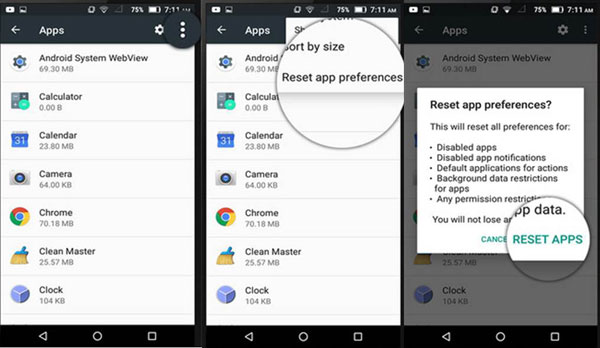
7. Reset App Preferences
Sometimes other system or app settings conflict with InShare, like disabled apps or permission restrictions. Resetting app preferences restores defaults without deleting app data.
How-to Guide:
- Go to Settings > Apps > Reset App Preferences. This will reset all app preferences, including disabled apps, notification restrictions, and default apps. After resetting, try opening InShare again.
8. Check Internet Connection
Although InShare mainly works offline for file sharing, some features like checking for updates or connecting to cloud services need an internet connection. A weak or unstable connection may cause the app to fail.
How-to Guide:
- Switch between Wi-Fi and mobile data to see if connectivity is the issue.
- Restart your Wi-Fi router.
- Avoid VPNs or proxies that might block the app from connecting to servers
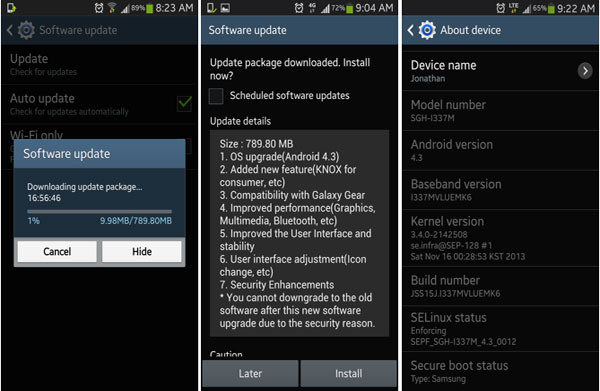
9. Update Your Android System
An outdated Android version can cause app crashes due to incompatibility. System updates fix bugs, improve security, and ensure apps run smoothly.
How-to Guide:
- Go to Settings > System > Software Update.
- Download and install any pending updates. (What if the system failed to install?)
- After updating, restart your device and try opening InShare.
Part 3: How to Use the Best Replacement for InShare [Smooth]
MobiKin Transfer for Mobile (Windows/Mac) offers a smooth and reliable way to transfer files between devices without the crashes or glitches that can affect apps like InShare. It supports large files, multiple formats, and cross-platform transfers, ensuring no data loss or compatibility issues. With its user-friendly interface and strong stability, it provides a seamless experience even on devices with low storage or outdated systems.
Why Is MobiKin Transfer for Mobile Rewarding?
- Cross-Platform File Transfer - Supports Android to Android, Android to iPhone, iPhone to Android, and iPhone to iPhone transfers.
- Fast and Stable Transfer - Moves large files quickly without crashes, unlike some unstable sharing apps.
- Supports Multiple File Types - Can transfer photos, videos, music, contacts, messages, apps, and more.
- No Internet Required - Works offline, eliminating network issues that may affect other apps.
- High Compatibility - Works with almost all Android and iOS versions and device models.
- Easy-to-Use Interface - Simple and intuitive design, making file sharing effortless for any user.
- Secure and Reliable - Ensures data integrity and privacy during transfers.
- Batch Transfer Support - Allows multiple data types to be transferred simultaneously, saving time.


How to use the best InShare alternative - MobiKin Transfer for Mobile?
Step 1: Download - Start by downloading and installing the complimentary trial version of the Transfer for Mobile application. After installation, launch the program on your computer.

Step 2: Connection - Utilize USB cables to link both Android devices to your computer. The program will automatically recognize the connected devices, and you will see the data available for transfer displayed in the central menu, as illustrated in the subsequent window.
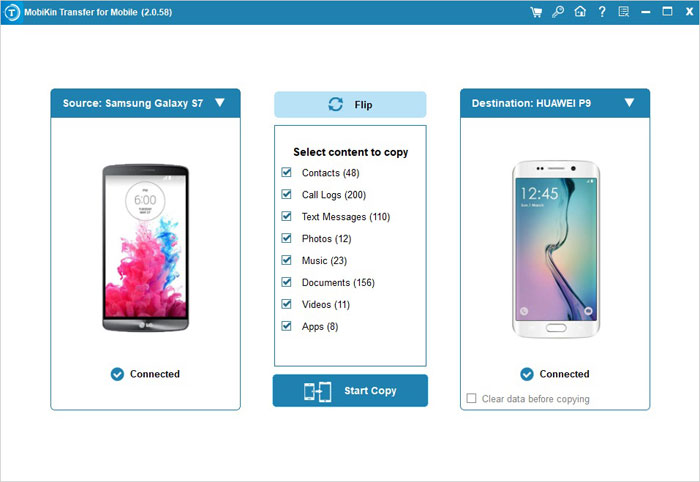
Step 3: Transmission - Select the types of data you wish to transfer and click the "Start Copy" icon located in the central panel. This action will initiate the transfer immediately.
Video Guide:
Ending Words
If InShare still doesn't open or work after trying all the solutions, MobiKin Transfer for Mobile is the best alternative for file sharing. With its fast and stable cross-platform transfers, support for multiple file types, offline operation, high compatibility, and secure data handling, it ensures that you can continue sharing files efficiently without the crashes or glitches that sometimes affect InShare. Any queries? Please let us know below.
Related Articles:
Step-by-Step Guide: How to Transfer Data from Tecno to iPhone
5 Means to Share Location on Android Devices with Friends/Family
Quick Share vs Nearby Share: Which Is Superior? [Overall Comparison]
The Latest 11 Best Android Data Recovery Software/Tools [Free & Paid]
