
9 Quick Fixes to SHAREit Not Working [With Reasons & 1 Substitute]
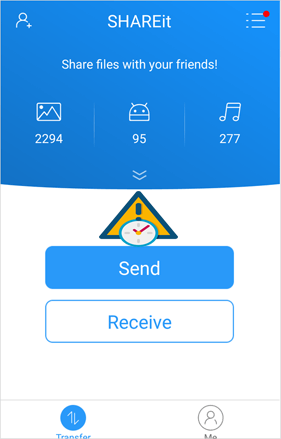
Many users rely on SHAREit for quick file sharing, but sometimes the app encounters issues that interrupt file transfers or device connections. When SHAREit not working, it can be frustrating, leaving users searching for ways to restore smooth communication between devices.
This article outlines 9 quick fixes to get SHAREit back up and running, as well as 1 greater alternative solution for a reliable transfer experience when the app fails completely.
- Part 1: Why Is SHAREit Not Working
- Part 2: SHAREit Not Working? 9 Quick Fixes Here
> Fix 1: Check the Internet connection
> Fix 2: Verify phone compatibility
> Fix 3: Move both devices closer
> Fix 4: Disable battery optimization for SHAREit
> Fix 5: Force stop all similar apps
> Fix 6: Update the SHAREit app
> Fix 7: Check location permission
> Fix 8: Free up storage space
> Fix 9: Reboot both devices - Part 3: Use an Alternative Transfer Method When SHAREit Fails [Seamless]
Part 1: Why Is SHAREit Not Working
SHAREit may stop working for many reasons, ranging from missing permissions and network interference to outdated software or corrupted app data. These common issues can interrupt device detection, break Wi-Fi Direct connections, or cause the app to crash altogether. Here is the full list of the causes:
- Corrupted app cache or data.
- Outdated SHAREit version.
- Wi-Fi Direct malfunction due to system glitches.
- Location permission disabled.
- Battery optimization stopping SHAREit in the background.
- Hotspot or Wi-Fi turned off.
- Devices using incompatible Wi-Fi bands (2.4 GHz vs 5 GHz).
- VPN or proxy interfering with the connection.
- Firewall or security apps blocking network access.
- Bluetooth disabled on one or both devices.
- Storage permission not granted to SHAREit.
- Phone overheated or in power-saving mode.
- Insufficient storage space on the receiving device
- Network isolation mode enabled on the router.
- Corrupted or incomplete SHAREit installation.
- Bugs caused by recent Android/iOS updates.
- Temporary SHAREit server errors (for online features).
- Incompatibility between devices or operating systems.
- Too many nearby devices causing interference.
- Interference from previous failed SHAREit connections.
You Might Also Like: How to Fix xShare Not Working? Don't Miss Out on the 8 Simple Fixes
Part 2: SHAREit Not Working? 9 Quick Fixes Here
Fix 1: Check the Internet connection
Although SHAREit mainly uses Wi-Fi Direct, a stable internet connection helps with device detection and online features. Make sure Wi-Fi is turned on and not restricted by airplane mode. If you're using mobile data, switch briefly to Wi-Fi to refresh the wireless environment.
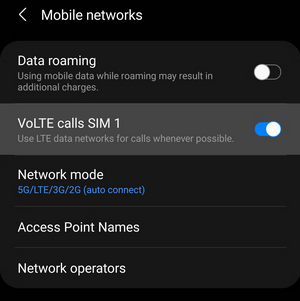
Using the same network mode helps SHAREit form a stable Wi-Fi Direct connection. Switch the hotspot band on both devices to 2.4 GHz to avoid compatibility issues. Once matched, SHAREit can detect and connect more reliably.
Fix 2: Verify phone compatibility
Some older devices or heavily customized Android skins may not fully support SHAREit's latest features. Ensure both devices meet SHAREit's minimum system requirements and support Wi-Fi Direct. If one device is too outdated, installing an older version of SHAREit may temporarily help.
You Might Also Like: Xender vs SHAREit: Which File Transfer App Is Better? [Fixed]
Fix 3: Move both devices closer
SHAREit relies on short-range Wi-Fi signals, which weaken with distance or obstacles. Bring the phones within a few feet of each other to ensure stable detection and faster transfers. Also avoid thick walls, metal surfaces, or crowded wireless environments.
Fix 4: Disable battery optimization for SHAREit
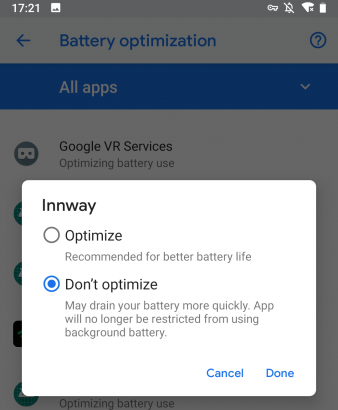
Battery optimization can force-stop SHAREit in the background, interrupting file transfers. Go to your phone's battery settings and set SHAREit to "Don't Optimize." This ensures the app stays active during long or large file transfers.
Fix 5: Force stop all similar apps
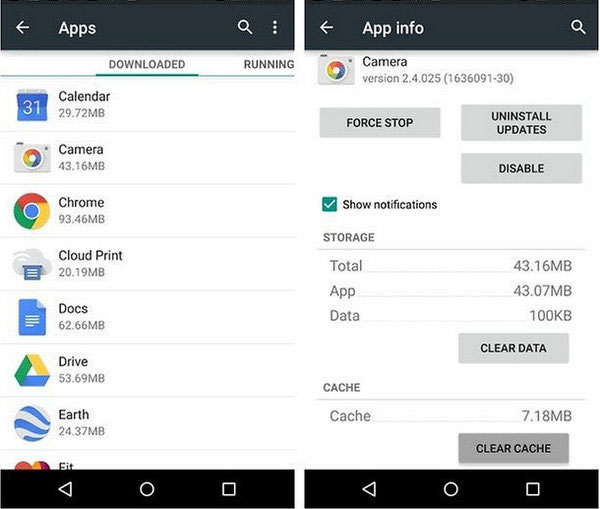
Other file-sharing or hotspot-based apps - such as Nearby Share, XShare, or Zapya-may interfere with SHAREit's Wi-Fi Direct channel. Force stop or close those apps before reattempting the connection. This helps prevent conflicts that block SHAREit from detecting other devices.
Note: VPNs, proxies, and firewall apps can block SHAREit's Wi-Fi Direct connection, causing devices to fail to detect each other. Turn off these services temporarily to restore normal local network communication. Once disabled, try connecting again and SHAREit should work more reliably.
Fix 6: Update the SHAREit app
An outdated app version may contain bugs or compatibility issues that prevent proper device pairing. Visit the Google Play Store or App Store and update SHAREit to the newest release. Updates often include stability fixes and improved connection handling.
Reinstalling SHAREit helps remove corrupted files or settings that may be causing connection issues. Uninstall the app, restart your device, and then download the latest version from the Play Store or App Store. After reinstalling, launch SHAREit again and the fresh setup should resolve most glitches.
Fix 7: Check location permission
SHAREit needs Location permission to scan nearby devices due to Android's Wi-Fi Direct policy. Go to your app permissions and make sure Location is set to "Allow." Without it, SHAREit may fail to find or connect to the other device.
Fix 8: Free up storage space
If the receiving device has insufficient storage, SHAREit may fail during the transfer or refuse to start. Check available storage in Settings and delete unnecessary files or clear cache data. Freeing up space ensures large files can be saved without interruption.
Fix 9: Reboot both devices
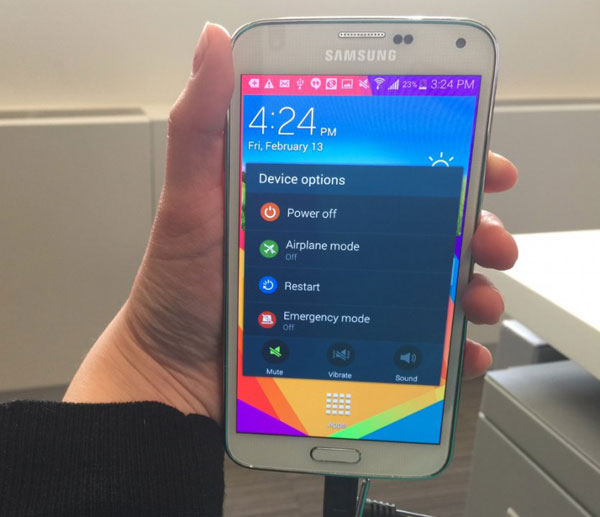
A simple reboot refreshes network services, clears stuck processes, and resolves temporary Wi-Fi Direct glitches. Restart both phones and try connecting again. This is often the quickest fix when SHAREit suddenly stops working.
Part 3: Use an Alternative Transfer Method When SHAREit Fails [Seamless]
With reliable cross-platform support, MobiKin Transfer for Mobile (Windows/Mac) ensures smooth data migration even when SHAREit struggles to connect or fails mid-transfer. It maintains stable performance during large or sensitive file moves, avoiding the glitches commonly seen in wireless apps.
Users can transfer contacts, photos, videos, messages, and more without worrying about compatibility or signal issues. Designed for consistency, it offers a dependable alternative when SHAREit simply won't work.
|
Key Feature
|
Description
|
|
High Success Rate |
Transfers data reliably without interruptions, even with large files, unlike SHAREit which may fail or drop connections. |
|
Cross-Platform Support |
Works with Android and iOS devices, ensuring smooth transfers between different operating systems. |
|
Supports Various Data Types |
Moves contacts, messages, photos, videos, apps, and more without data loss. |
|
Fast Transfer Speed |
Completes transfers quickly and efficiently, avoiding the slowdowns often experienced with SHAREit. |
|
No Network Restrictions |
Transfers data via direct connection without relying on Wi-Fi Direct, preventing network-related failures common in SHAREit. |
|
Easy to Use |
Intuitive interface allows even beginners to perform device-to-device transfers with minimal steps. |
|
Safe and Secure |
Ensures privacy by not requiring cloud uploads or risking data leaks during transfer. |
User Manual:
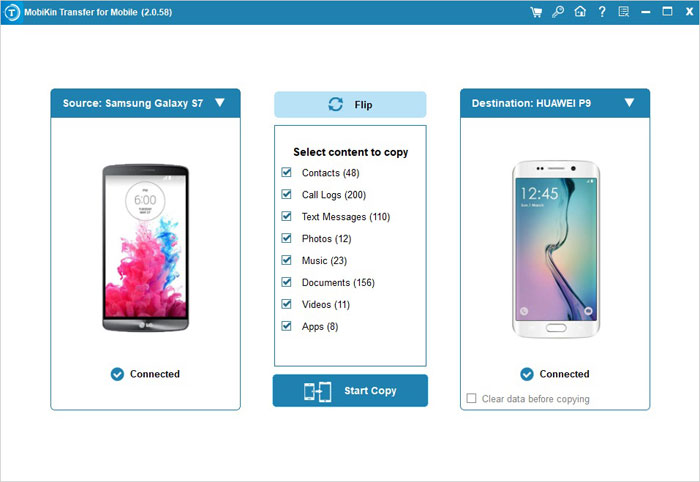
- Install and launch MobiKin Transfer for Mobile on your computer.
- Connect both phones via USB cables and enable necessary permissions (USB debugging for Android, trust the computer for iOS).
- Ensure the source and destination phones are correctly detected; use the "Flip" option if needed.
- Select the types of data you want to transfer (contacts, messages, photos, videos, apps, etc.).
- Click "Start Copy" to begin the process.
- Wait until the transfer completes and safely disconnect both devices.


Video Guide:
You May Also Like: Want an Android phone sync manager to transfer your data between your phone and your computer or manage them without worry?
Closing Words
SHAREit not working can disrupt your workflow and delay important file transfers, but applying the right troubleshooting steps often resolves most problems. From checking permissions and network settings to updating or reinstalling the app, the fixes outlined here offer practical solutions.
For users who want a consistently reliable experience, considering a professional alternative like MobiKin Transfer for Mobile ensures smooth, uninterrupted data transfer across devices.
Related Articles:
7 Best Ways to Transfer Files from PC to Android Mobile Wirelessly
AirDrop vs SHAREit: Which One is Better [Comprehensive Comparison]
Compare SHAREit vs. xShare: Which Is Preferable? [Answered]
How to Recover Deleted Android Data without Rooting? 4 Approaches
