
Smart Switch Not Transferring Messages? 8 Solutions & 1 Replacement
"I just upgraded from an S22+ to the S26. Smart Switch was able to transfer all my contacts, but keeps failing on transferring SMS." -- from Reddit
Messages often contain critical personal or professional information that cannot be easily recreated, making their successful transfer essential when upgrading or switching devices. Users switching between Samsung devices expect a seamless transfer, yet sometimes Samsung Smart Switch fails to move messages, causing confusion and concern.
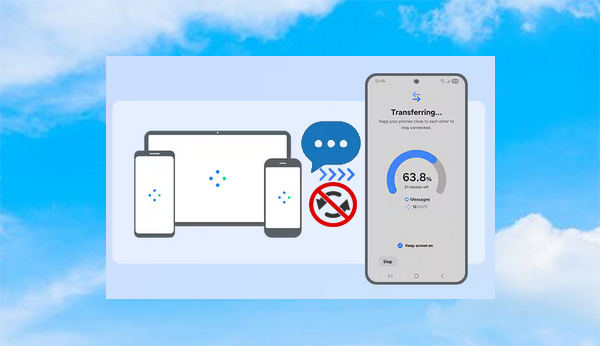
This article explores the possible reasons for Smart Switch not transferring messages, offers 8 basic fixes to address common issues, and presents 1 ultimate alternative for a reliable migration experience.
- Part 1: Why Is Smart Switch Not Transferring Messages
- Part 2: What to Do If Smart Switch Didn't Transfer Everything? 9 Basic Fixes
> Fix 1: Verify device compatibility
> Fix 2: Check Smart Switch settings
> Fix 3: Inspect necessary permissions
> Fix 4: Clear app cache
> Fix 5: Switch transfer method
> Fix 6: Reinstall Smart Switch
> Fix 7: Update both phones
> Fix 8: Contact customer support - Part 3: Use a Smoother Smart Switch Alternative
Part 1: Why Is Smart Switch Not Transferring Messages
When using Samsung Smart Switch, some users may notice that messages fail to transfer even though other data moves without issue. This problem is usually caused by a mix of compatibility limitations, storage constraints, setup oversights, or temporary app and connection issues. Here are the detailed reasons:
- Incompatible Android versions between old and new devices.
- Insufficient storage space on the target Samsung phone.
- Corrupted backup or damaged message database.
- Messages not selected during the transfer process.
- Unstable or interrupted connection (Wi-Fi or cable).
- Required permissions for SMS access not granted.
- App glitches or using an outdated Smart Switch version.
Part 2: What to Do If Smart Switch Didn't Transfer Everything? 9 Basic Fixes
Fix 1: Verify device compatibility
- Check the official page of Samsung Smart Switch for supported devices and requirements.
- Ensure both phones meet the minimum Android version requirements.
- Confirm that both devices (especially non-Samsung ones) are compatible with SMS transfer.
- Verify that both phones support the same message formats (SMS/MMS).
- Reconnect and retry the transfer after confirming compatibility.
Fix 2: Check Smart Switch settings
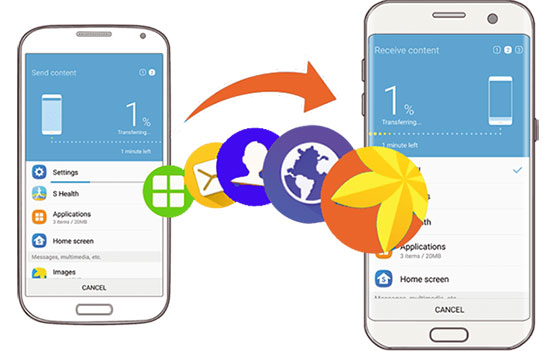
Before troubleshooting further, it's important to review the settings in Samsung Smart Switch to ensure messages are properly selected for transfer.
- Open Samsung Smart Switch on your old phone and start the transfer process.
- When choosing data, make sure "Messages" is selected (this is often missed).
- Review all selected items before confirming the transfer.
- Restart the transfer if messages were not selected the first time.
- Ensure the messaging app and SMS data are included in the transfer batch.
Fix 3: Inspect necessary permissions
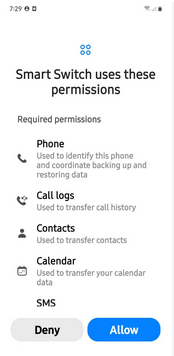
To ensure messages transfer correctly, check that Samsung Smart Switch has all required permissions enabled:
- Go to Settings > Apps > Smart Switch on both phones.
- Tap Permissions and allow access to SMS, Storage, Contacts, and Phone.
- Make sure no critical permissions are denied or restricted.
- Set permissions to "Allow" rather than "Deny."
- Restart the app and retry the transfer after updating permissions.
Fix 4: Clear app cache
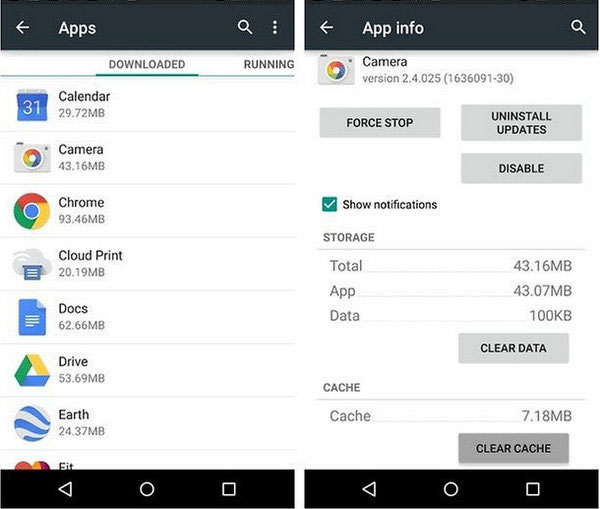
Here's how to clear the Smart Switch app cache to help fix the message-transfer issue (based on official Samsung support guidance):
- Open Settings on your Samsung device and go to Apps.
- Scroll down and tap on Smart Switch.
- Tap Storage.
- Tap Clear cache to remove temporary files that might be causing errors.
- (Optional) If the issue persists, you can also tap Clear data and confirm, then restart the transfer process.
You Might Also Like: How to Fix the Smart Switch Not Enough Space Error in 2026? 7 Tactics
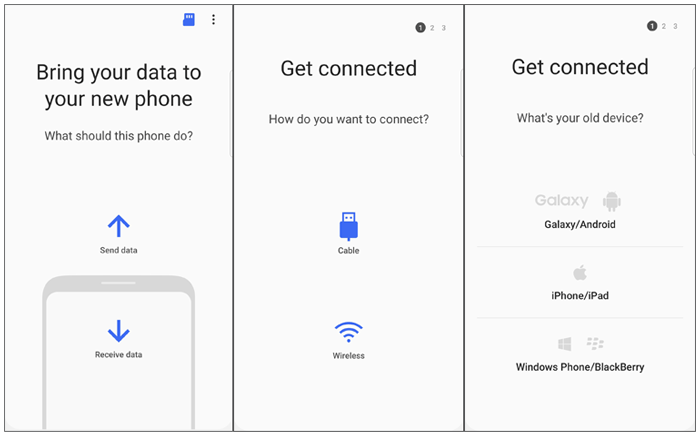
Fix 5: Switch transfer method
Sometimes the transfer mode itself causes message sync failure. If you used Wi-Fi, try a USB cable connection for a more stable transfer. If the cable didn't work, switch to wireless to avoid hardware issues. Different transfer channels can affect which data types are included.
Fix 6: Reinstall Smart Switch
Here's how to reinstall Samsung Smart Switch to fix transfer issues like missing messages, based on Samsung's official troubleshooting steps:
- On your Samsung phone, open Settings > Apps and locate Smart Switch.
- Tap it and select Uninstall (or Uninstall updates if full uninstall isn't available).
- Restart your device to clear any lingering files.
- Open the Galaxy Store or Google Play Store and search for Smart Switch.
- Tap Install to download the latest version.
- Once reinstalled, open the app, grant necessary permissions, and retry your transfer.
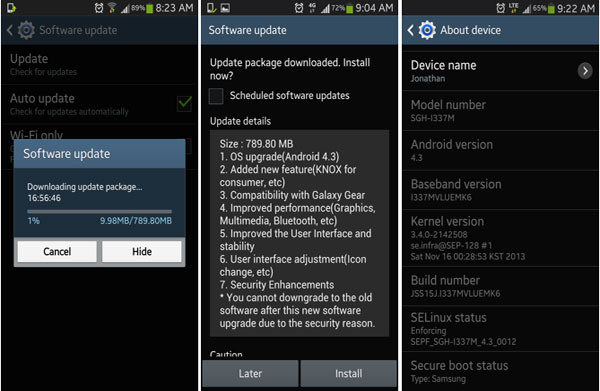
Fix 7: Update both phones
To ensure messages transfer properly, updating both phones can resolve compatibility issues with Samsung Smart Switch:
- On both devices, go to Settings > Software Update.
- Tap Download and install to check for any available updates.
- Follow the prompts to update the system to the latest version.
- After the update, restart both phones to complete the installation. (Android update failed?)
- Open Smart Switch and retry the message transfer; updates often fix bugs and compatibility problems that prevent SMS migration.
Fix 8: Contact customer support
- Visit the Smart Switch page to find phone, chat, or email support.
- Provide details about your devices (model names, OS versions) and describe the message transfer issue.
- Mention what you've already tried (updates, permissions, cache clear, etc.) so support can diagnose faster.
- A Samsung agent can check for known bugs, account/device-specific blocks, or guide you through advanced steps.
- If the problem is complex, they may escalate it or schedule a remote diagnostics session to troubleshoot deeper.
Part 3: Use a Smoother Smart Switch Alternative
When switching to a new Galaxy phone, MobiKin Transfer for Mobile (Windows/Mac) provides a smooth way to move text messages, contacts, photos, and more without interruptions. It handles large message databases efficiently, ensuring nothing is lost during the transfer. Users who face issues with Smart Switch can rely on it for a quick and reliable migration experience.
With just one click, users can transfer data in batches between Android, iPhone, and Samsung devices, including the latest Samsung S26 and iPhone 17. Supporting various data types across almost all Android and Apple devices, it combines ease of use with strong privacy protection, trusted by over 750,000 users.


How to transfer various data types from Android/Samsung/iPhone to Samsung with MobiKin Transfer for Mobile?
- Start by downloading and installing the complimentary trial version of the Transfer for Mobile software.
- After installation, launch the application on your computer.
- Utilize USB cables to connect both Samsung/Android/iOS devices to your computer.
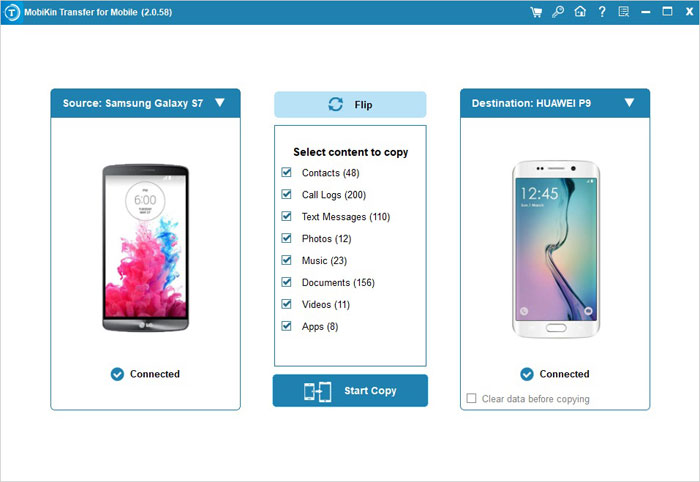
- The software will automatically recognize the connected devices, and the transferable data will be shown in the central menu, as illustrated in the subsequent window.
- Select "Text Messages" and click the "Start Copy" icon located in the central panel. This action will initiate the transfer immediately.

Video Guide:
Words in the End
While minor settings, permissions, or updates can resolve most transfer problems, having a dependable alternative like MobiKin Transfer for Mobile ensures messages reach the new device intact. With the solutions and the recommended tool in hand, users can preserve their communication history without compromise, making device transitions smoother and worry-free.
Related Articles:
How to Transfer WhatsApp Data from iPhone to Samsung? 6 Options
5 Optimal Ways to Transfer Calendar from Samsung to Samsung
Best 7 Methods for Samsung Backup and Restore [Must-read]
How to Transfer WhatsApp Data from iPhone to Samsung? 6 Options
