
How to Transfer Data from Infinix to iPhone [Step-by-Step Guide]
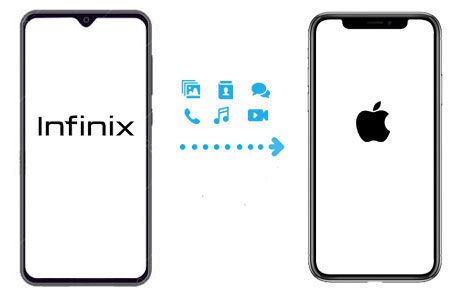
Switching from an Infinix phone to an iPhone can feel exciting, but moving your data might seem confusing at first. Since Infinix runs on Android and the iPhone uses iOS, the two systems work differently. Don't worry, though. Whether you want to transfer contacts, photos, messages, or apps, there are several simple and effective ways to get your data onto your new iPhone. In this guide, we'll walk you through the best methods step by step, so you can complete the transfer quickly and safely.
- Part 1: Transfer Data from Infinix to iPhone Using Move to iOS App
- Part 2: Copy Data from Infinix to iPhone with Google Drive
- Part 3: Best Tool to Transfer Data from Infinix to iPhone [HOT!]
- Part 4: Move Data from Infinix to iPhone via iTunes/Finder
- Part 5: Copy Data from Infinix to iPhone with SHAREit
Part 1: Transfer Data from Infinix to iPhone Using Move to iOS App
One of the easiest ways to transfer data from an Infinix phone to an iPhone is by using Apple's official Move to iOS app. This app is designed specifically to help Android users switch to iPhone smoothly during the initial device setup. With Move to iOS, you can transfer contacts, SMS, photos, videos, bookmarks, mail accounts, calendars, and more. Apps themselves won't be fully transferred, but the iPhone will suggest similar free apps from the App Store if they are available.
Before You Start:
- Make sure your iPhone is new or has been reset to factory settings.
- Connect both devices to Wi-Fi.
- Keep both phones charged or plugged in.
- Ensure there is enough storage space on your iPhone.
Step-by-Step guide on how to transfer data from Infinix phone to iPhone using Move to iOS:
- Turn on your new iPhone and begin the setup process.
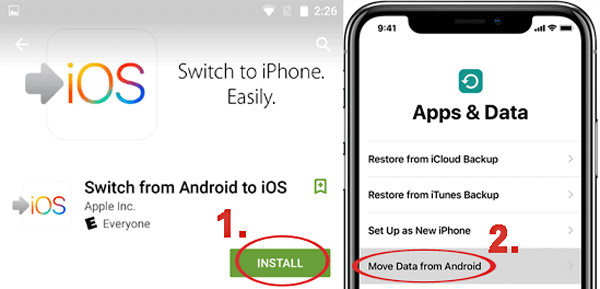
- When you reach the "Apps & Data" screen, tap "Move Data from Android."
- On your Infinix phone, download and install Move to iOS from Google Play.
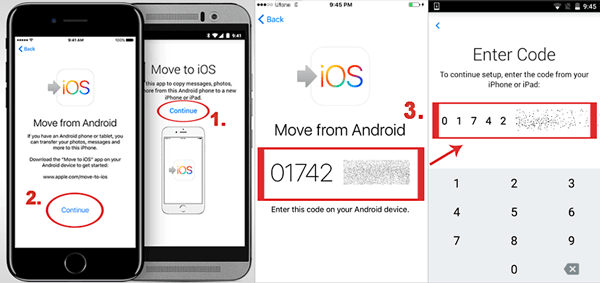
- Open the app and tap Continue.
- Enter the code displayed on your iPhone into the Infinix device.
- Select the data you want to transfer and tap Next.
- Wait for the transfer to complete, then finish setting up your iPhone.
Cons:
- It only works during the initial iPhone setup.
- It may fail if the Wi-Fi connection is unstable. (Move to iOS Taking Forever?)
- Some app data (like certain chat histories or local files) may not transfer completely.
Part 2: Copy Data from Infinix to iPhone with Google Drive
If you've already set up your iPhone or prefer a wireless method, using Google Drive is another convenient way to transfer data from your Infinix phone to your iPhone. This method works especially well for contacts, photos, videos, calendar and documents. However, SMS messages and most app data cannot be transferred this way.
Step 1: Back Up Data on Infinix
- Open Google Drive on your Infinix phone.
- Sign in with your Google account.
- Go to "Settings" > "Backup".
- Select the data you want to back up (Contacts, Photos, etc.).
- Tap "Start Backup" and wait for it to finish.
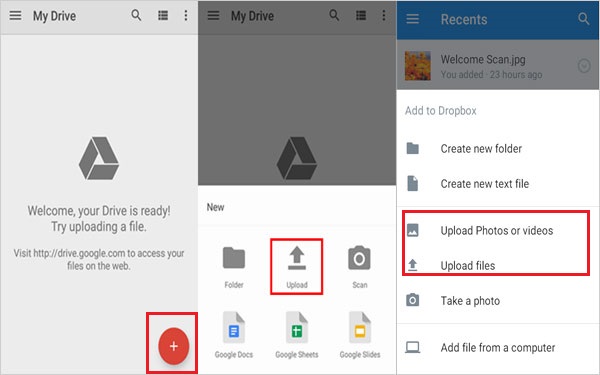
For photos and videos, you can also use Google Photos to ensure full media backup. (How to Fix Google Backup Not Working?)
Step 2: Restore Data on iPhone
- On your iPhone, go to "Settings" > "Mail" > "Accounts" > "Add Account".
- Select Google and sign in with the same account.
- Enable Contacts, Calendars, or other sync options.
For photos and files: Download Google Drive or Google Photos from the App Store. Log in and download the files you need to your iPhone.
Cons
- Requires stable internet.
- Limited support for messages and app data.
- Free storage space may be limited.
Part 3: Best Tool to Transfer Data from Infinix to iPhone
If you want a faster, more complete, and less restrictive way to move everything from your old Infinix phone to a new iPhone - including contacts, messages, photos, videos, music, documents, and even WhatsApp data, a professional phone transfer tool is often the easiest choice.
One of the most reliable options is MobiKin Transfer for Mobile, which lets you transfer data between devices of different platforms (Android to iPhone or iPhone to Android) with just a few clicks, no complicated steps and no data loss.
Key Features of MobiKin Transfer for Mobile:
- Supports transferring data from Android (like Infinix) to iPhone.
- Works with contacts, SMS messages, call logs, photos, videos, music, and documents.
- No data overwrite, keeps all your files safe.
- Compatible with the latest Android and iOS versions.
- Simple interface that doesn't require tech experience.


How to use Transfer for Mobile to move data from Infinix to iPhone:
Step 1: Install and open Transfer for Mobile on your computer. Connect both your Infinix phone and your iPhone to the computer with USB cables.

Step 2: Make sure your Infinix phone is set as the source (left) device and your iPhone is the destination (right). Choose the types of data you want to move (contacts, messages, photos, etc.)
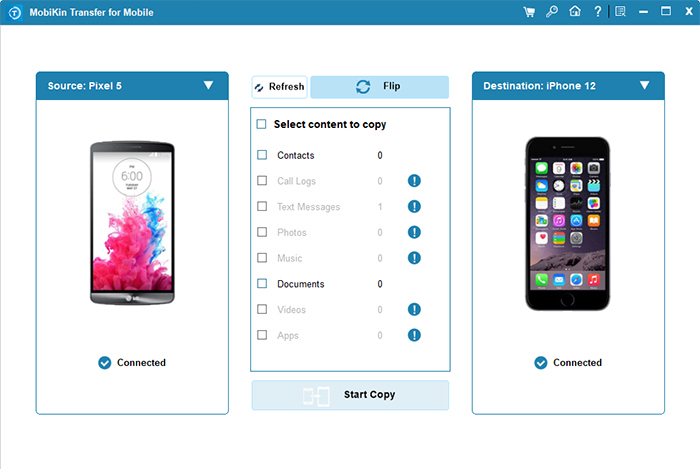
Step 3: Click "Start Copy" and wait for the process to finish. Once completed, safely disconnect both phones
Video Guide:
You May Interested in:
Part 4: Move Data from Infinix to iPhone via iTunes/Finder
Another way to transfer data from your Infinix phone to an iPhone is by using a computer as a bridge. You can first copy files from your Android device to your computer, then sync them to your iPhone using iTunes (on Windows or older macOS) or Finder (on macOS Catalina and later).
This method works best for photos, videos, music, and certain documents.
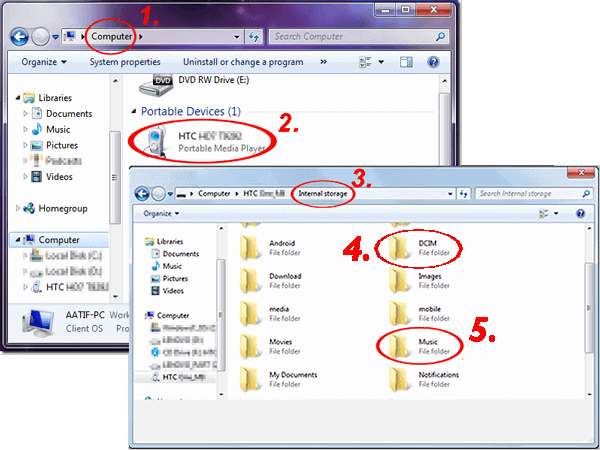
Step 1: Copy Files from Infinix to Computer
- Connect your Infinix phone to your computer using a USB cable.
- Enable "File Transfer" mode on your phone.
- Open the device storage on your computer.
- Copy photos, videos, music, or documents to a folder on your computer.
Step 2: Transfer Files to iPhone
On Windows or macOS Mojave and earlier:
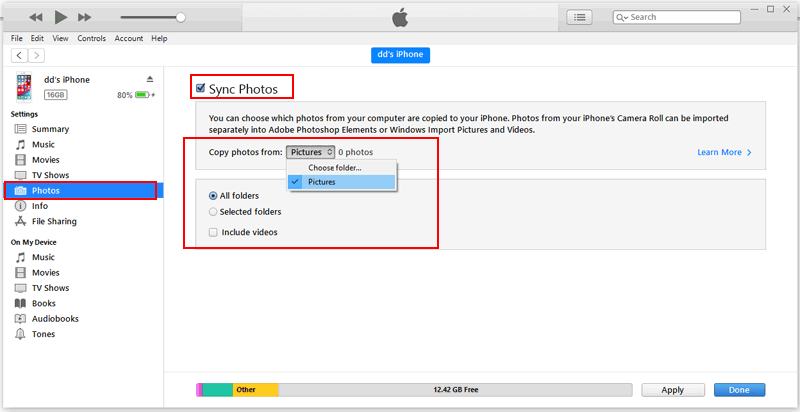
- Open iTunes and connect your iPhone.
- Click the device icon.
- Go to "File Sharing" or "Photos" (depending on what you want to transfer).
- Select the files or folders and sync them to your iPhone.
On macOS Catalina or later:
- Open Finder and select your iPhone from the sidebar.
- Choose the file type category (Photos, Files, etc.).
- Drag and drop or select files to sync.
- Click "Sync" to start the transfer.
Cons:
- Cannot transfer SMS messages or call logs.
- App data is generally not supported.
- The process requires a computer and manual file management.
Part 5: Copy Data from Infinix to iPhone with SHAREit
If you prefer a wireless and cable-free method, you can use SHAREit to transfer certain files from your Infinix phone to your iPhone. SHAREit is a cross-platform file-sharing app that allows Android and iOS devices to connect directly via Wi-Fi. This method is mainly suitable for photos, videos, music, and documents.
- Download SHAREit from Google Play on your Infinix phone.
- Download SHAREit from the App Store on your iPhone.
- Open the app on both devices and grant necessary permissions.
- On your Infinix phone, tap "Send."
- Select the files you want to transfer.
- On your iPhone, tap "Receive."
- Connect both devices through the Wi-Fi hotspot created by SHAREit.
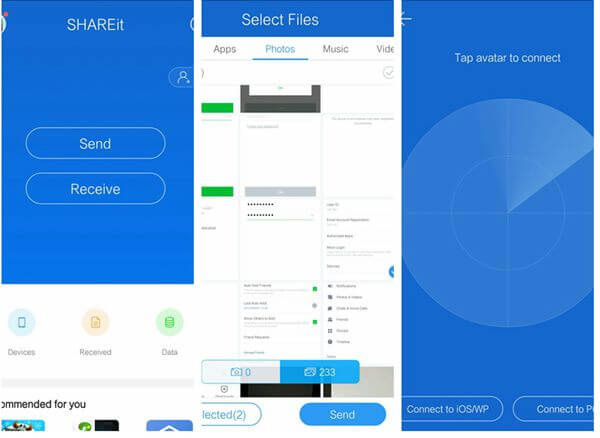
Once connected, the selected files will begin transferring. (SHAREit Not Working?)
Cons:
- SMS messages and call logs cannot be transferred.
- App data is not supported.
- Some files may need to be saved manually into the iPhone's Photos or Files app after transfer.
Ending Words
Transferring data from an Infinix phone to an iPhone doesn't have to be complicated. Whether you choose Move to iOS for an official setup transfer, Google Drive for cloud syncing, iTunes/Finder for manual file copying, SHAREit for wireless sharing, or a professional tool for a complete migration, each method serves different needs.
But for a full, fast, and hassle-free transfer, a dedicated phone transfer tool like MobiKin Transfer for Mobile can save time and prevent data loss. Choose the method that fits your situation, and you'll be ready to enjoy your new iPhone without missing any important data.
Related Articles:
How to Transfer Photos from realme to realme? 5 Clever Strategies
8 Ways: How to Transfer Contacts from iPhone to Android
5 Easy Ways: How to Print Out Text Messages from Infinix
Infinix Hard Reset: How to Reset Infinix in 4 Wonderful Ways
