
How to Transfer Photos from realme to realme? 5 Clever Strategies
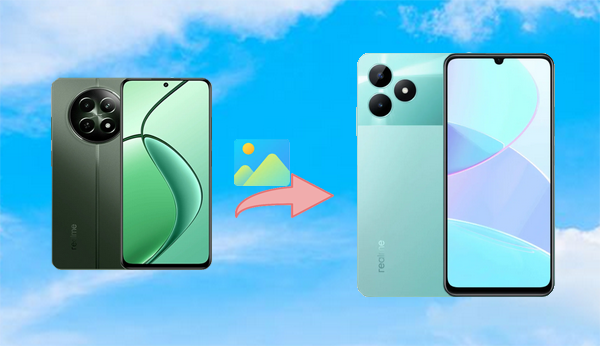
Many users face the need to transfer photos when upgrading to a new realme phone or managing multiple devices. Whether you are sharing travel or event photos with family and friends, or simply organizing your gallery, knowing how to transfer photos from realme to realme saves time compared to downloading everything again from backups. With several options available in this post, you can choose the one that suits their situation best.
- Option 1: Transfer Photos from realme to realme via MobiKin Software [Easy]
- Option 2: Send Photos from realme to realme via realme Share
- Option 3: Transfer Pictures from realme to realme with realme Cloud
- Option 4: Move Photos from realme to realme Using Clone Phone
- Option 5: Copy Photos from realme to realme via Copy My Data
Option 1: Transfer Photos from realme to realme via MobiKin Software [Easy]
Relying on stable wired and wireless connections, MobiKin Transfer for Mobile (Windows/Mac) makes it possible to move photos directly between two realme devices without using cloud storage. It supports batch transfer, which helps save time when dealing with large photo libraries.
Users can preview files before starting, ensuring only the needed pictures are copied. This approach is suitable for people who prefer full control over their data during migration.
|
MobiKin Transfer for Mobile - Main Functions
|
Main Details
|
|
Cross-Device Transfer |
Enables direct data transfer between two phones (8,000+ devices supported), including Android to Android (e.g., realme to realme), without using cloud storage or email. |
|
Photos & Media Support |
Supports moving photos, albums, and other media files - you can transfer pictures from one realme phone to another easily. |
|
Multiple File Types |
Transfers contacts, messages, videos, music, call logs, and documents in addition to photos. |
|
One-Click Transfer |
Provides a simple "Start Copy" workflow for fast and consistent data migration. |
|
Wired & Stable Connection |
Uses USB connections to ensure reliable and fast transfer speeds, especially for large photo libraries. |
|
Device Orientation Flip |
Allows you to switch source/target devices with a single click if they're displayed in the wrong order. |
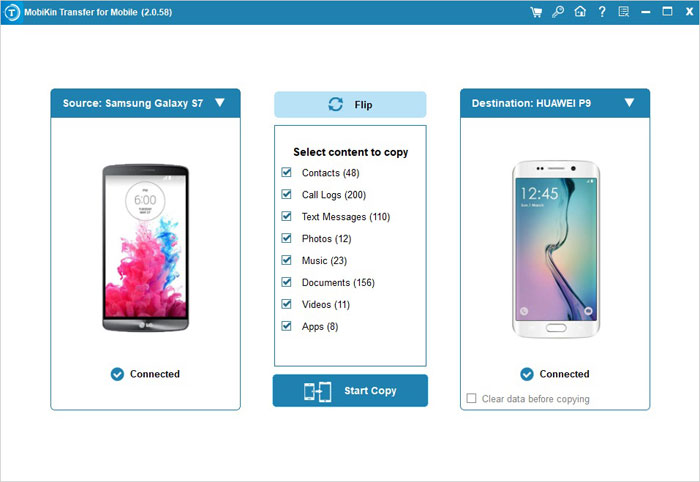
How to transfer images from one realme phone to another via MobiKin Transfer for Mobile?
Quick User Guide:
- Download and install the trial edition of MobiKin Transfer for Mobile on your computer, then open it to access the main interface.
- Use USB cables to connect both realme GT, Number, C, Neo, or Narzo Series to the PC, and wait for the program to recognize them.
- Once detected, the available data categories will appear on the screen (click "Flip" if the source and target devices are reversed).
- Select the file types you want to move, such as Photos.
- Finally, click Start Copy to transfer images from the old realme phone to the new one.



Video Directions:
Option 2: Send Photos from realme to realme via realme Share
By using short-range wireless communication, realme Share allows users to send photos quickly between nearby realme phones. The process does not require mobile data or extra applications. Once both devices are connected, selected images can be transferred within seconds. This method is practical for everyday sharing in face-to-face situations.
Quick User Guide:
- Open Control Center on both realme phones (swipe down from the top).
- Enable realme Share on both devices.
- On the sending device, go to Photos and select the photo(s) you want to send.
- Tap Send (the share/send icon).
- In the share options, choose "realme Share".
- From the list of nearby devices, tap the name/avatar of the receiving realme phone.
- On the receiving phone, tap Accept when prompted.
- Wait for the transfer to finish - photos will appear in Gallery after completion.
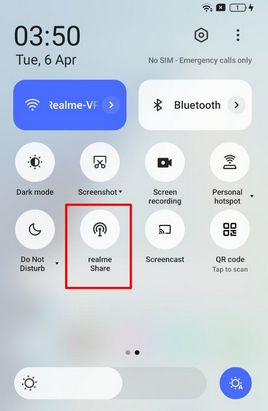
Tips: Most realme phones running realme UI 2.0 or later support realme Share. This includes the GT series (GT 6/6T/5 Pro/5, GT Neo 5 SE/5), Number series (13 Pro+/13 Pro/13, 12 Pro+/12 Pro/12, 11 Pro+/11 Pro/11, 10 Pro+/10 Pro/10), and C series (C65, C55, etc.). It allows fast, cable-free photo and file transfers between compatible devices.
Option 3: Transfer Pictures from realme to realme with realme Cloud
Through automatic online backup and synchronization, realme Cloud enables photos to be accessed on different realme devices using the same account. After images are uploaded, they can be downloaded on another phone at any time. This system reduces dependence on physical connections. It is especially helpful when the two phones are not in the same location.
Quick User Guide:
- On the sending realme phone, open Settings and go to Cloud service/HeyTap Cloud (or similar cloud sync section).
- Sign in with your realme/HeyTap account if you haven't already.
- Enable Auto backup/sync so photos (and videos if needed) upload to the cloud server.
- Wait for the backup/sync to complete - ensure Wi-Fi is connected and there's enough cloud storage space.
- On the receiving realme phone, sign in to the same realme/HeyTap account in its Settings > Cloud service (HeyTap Cloud).
- Turn on photo sync/restore on that phone too.
- Photos backed up to realme Cloud will then be downloaded/appear in the receiving phone's Gallery once sync finishes.
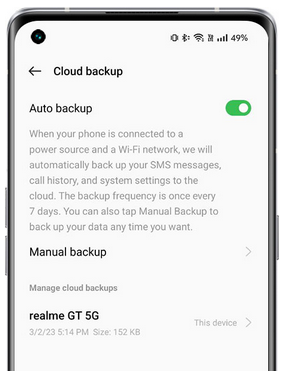
Note: If realme Cloud fails to transfer photos to your new realme phone, it's usually due to network issues, insufficient cloud storage, or sign-in problems with your realme ID. Make sure both devices are connected to a stable Wi-Fi, you're signed in with the same realme ID, and there's enough available cloud storage. Restarting the app or phone often resolves temporary syncing errors.
Option 4: Move Photos from realme to realme Using Clone Phone
Designed mainly for phone upgrades, Clone Phone creates a direct link between an old and a new realme device for data copying. During setup, users can choose photos as part of the transfer package. The wireless connection keeps the process simple and cable-free. As a result, personal albums can be restored on the new phone with this realme sync tool.
Quick User Guide:
- Open Clone Phone on both realme phones (usually found under Tools > Clone Phone).
- On the receiving (new) phone, tap "This is a new phone" and choose the type of your old phone.
- If the old phone isn't already realme, use its browser to scan the QR code shown on the new phone to download and install Clone Phone.
- On the old (sending) phone, open Clone Phone, select "This is the old phone", and scan the QR code displayed on the new phone.
- When both phones connect, select "Images" from the list of items to move.
- Tap Start/Begin Transfer to begin moving the selected photos.
- Keep both phones close with Wi-Fi enabled until the transfer is complete.
- After the process finishes, you'll find the transferred photos in the Gallery (and other selected data in their respective apps).
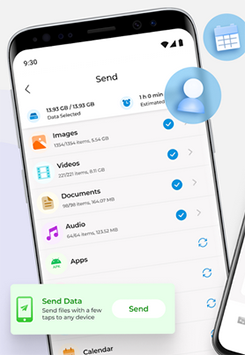
Option 5: Copy Photos from realme to realme via Copy My Data
With cross-platform compatibility, Copy My Data offers a way to copy photos over a shared Wi-Fi network. After pairing the two devices, users can select images and start the transfer. A verification step helps keep the connection secure. This solution works well when built-in tools are unavailable or limited.
Quick User Guide:
- Install the "Copy My Data" app on both phones (from Google Play Store or APK).
- Turn on Wi-Fi on both phones and make sure they are connected to the same Wi-Fi network.
- Open the Copy My Data app on both devices.
- On the sending phone, choose the option to connect or send data to another device over Wi-Fi.
- The sending phone will detect the receiving phone - select the receiving phone from the list.
- You may see a PIN or confirmation prompt - accept/enter it on the receiving phone to pair the devices.
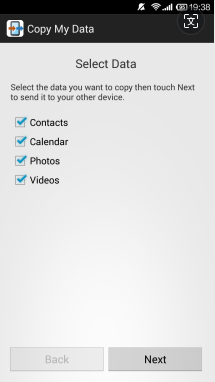
- On the sending phone, choose "Photos" (and "Videos" if you want) in the data selection screen.
- Tap Start/Next to begin copying the selected photos.
- Wait for the transfer to finish - your photos will appear on the receiving phone once done. (Learn more about Copy My Data?)
In Closing
Overall, for a fast and reliable solution, MobiKin Transfer for Mobile is an excellent choice to move photos from one realme phone to another without losing quality or data. Its ability to handle large photo libraries and multiple file types makes the process smooth and stress-free.
Finally, a tip here - Before starting a transfer, make sure both phones are fully charged and connected via a stable USB or Wi-Fi connection, and consider organizing photos into folders for easier selection.
Related Articles:
How to Transfer Photos from realme to realme? 5 Clever Strategies
How to Fix realme Phone Not Connecting to PC? 8 Solutions & 1 Alternative
